How to Enable KSML Support for an Instance
This guide shows you how to connect a Self-Service Instance to a Runtime Provisioner so its users can deploy KSML applications, and how to confirm the connection.
Type |
How-to guide |
Goal |
Switch on KSML support for an Instance so its users can deploy KSML applications. |
Audience |
Tenant Admin, a user who can edit Instances in Self-Service. |
When to use |
Use this guide after the Runtime Provisioner is running, before anyone on the Instance creates a KSML application. |
Prerequisites
Check these before you open the Instance.
Access and permissions required
You need the following access:
-
The Tenant Admin role in Self-Service.
Tools and versions required
You need the following tools:
-
A web browser with access to Self-Service.
Resources that must exist before starting
These resources must already exist:
-
A running Runtime Provisioner, reachable from Platform Manager. See How to Deploy the Runtime Provisioner.
-
The Instance you are enabling KSML support for.
Configure KSML support on the Instance
Register the Provisioner on the Instance’s edit form.
-
Log in to your Tenant in Self-Service
-
Go to the Instances page
-
Select the Instance for which you are enabling the KSML Support and open the edit form
-
Under
KSML Support, click on theConfigure KSML Provisionerlink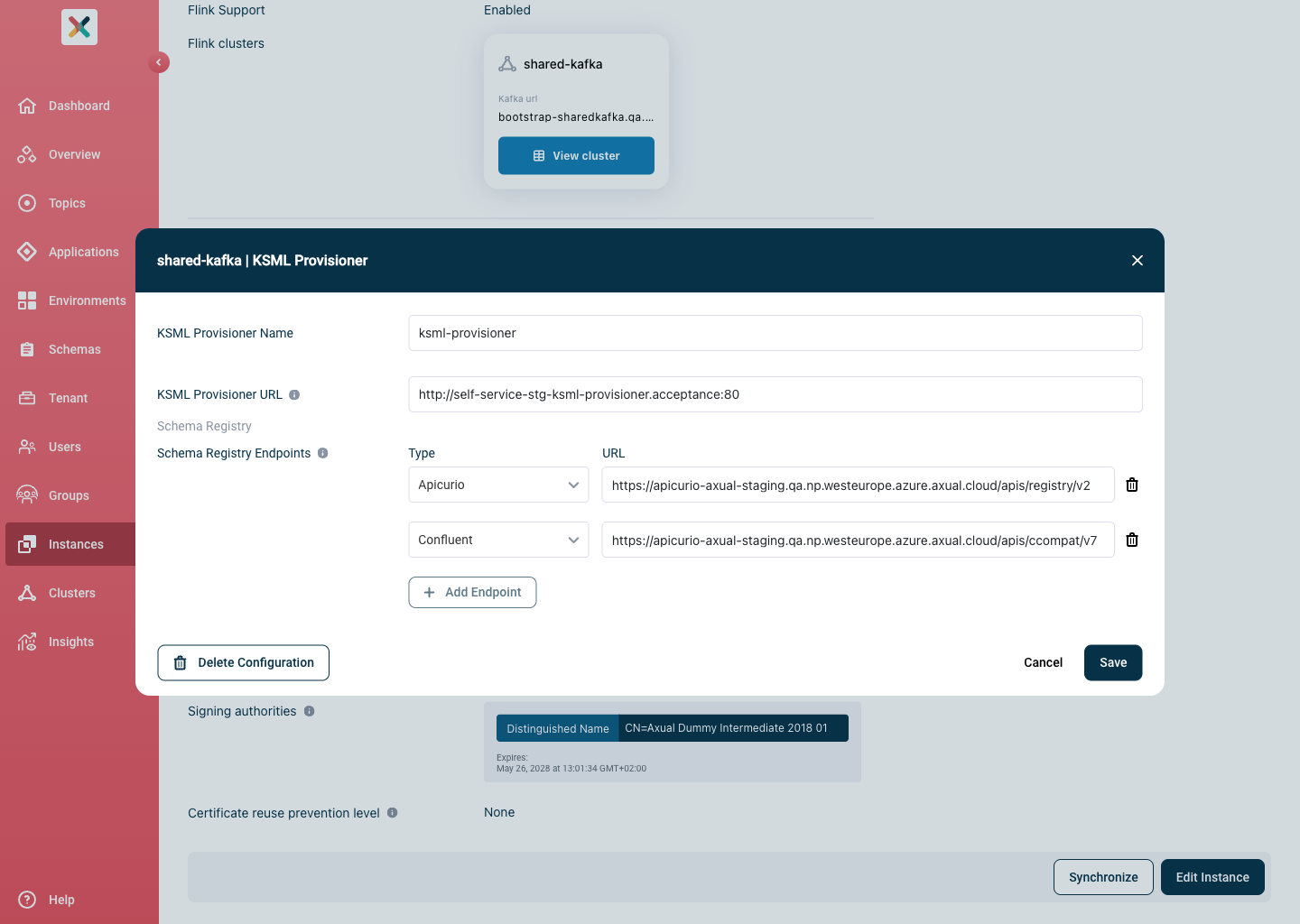
-
Fill in the following fields:
-
KSML Provisioner Name: This is the display name that appears when configuring the KSML application.
-
KSML Provisioner URL: Provide the Kubernetes service address of your Runtime Provisioner, for example
https://<RELEASE_NAME>-runtime-provisioner:8000/. Replace<RELEASE_NAME>with the Helm release name you installed the Provisioner with. -
Schema Registry Endpoints: (Optional) You may provide up to two Schema Registry types and their corresponding URLs. Those guarantee that the Runtime Provisioner receives the correct configuration when working with schema-based serializers/deserializers.
-
-
Click Save button
Verify KSML support
Check that the Instance now offers the Provisioner:
-
Open the Instance’s edit form again and confirm that
KSML Supportshows the Provisioner name and URL you saved. -
Start creating a KSML application for an environment on this Instance, as described in Managing KSML Applications, and confirm the Provisioner name appears as a choice.
If the Provisioner name doesn’t appear, check the URL and that Platform Manager can reach the Provisioner.
Optional configurations
The platform provides default settings that allow you to start using KSML immediately without any additional configuration. However, depending on your operational requirements, consider customising certain aspects of how KSML Applications are deployed and managed.
The following configurations are optional but give greater control over KSML Application Deployments: