Federated Service Accounts
This guide shows you how to check that federation is available, create a secretless federated service account bound to an external workload identity, and re-bind its subject.
Type |
How-to guide |
Goal |
Create a service account that authenticates with an external identity provider’s signed assertion instead of a secret. |
Audience |
Tenant admin, a user who can manage users and groups, working with an engineer who owns the external workload identity. |
When to use |
Use this guide when a workload must hold no secret, or for a high-privilege account where a secretless credential is safer. |
For a client-secret account, see Managing Service Accounts instead. To use the account once created, see Authenticating as a Service Account.
Prerequisites
Federated mode has more setup than client-secret mode, because it relies on trust between your identity provider (IdP) and the tenant realm.
- Access and permissions
-
-
Tenant admin role, to create or edit the service account.
-
The realm’s federation prerequisites are in place. An operator sets these up once per realm. See Service Account and Federation Reference for the list.
-
- Tools and versions
-
-
Access to the Self-Service portal.
-
Access to your identity provider, for example Microsoft Entra, to create or identify the workload identity.
-
- Resources that must exist first
-
-
An external workload identity to bind to, for example an Entra managed identity or app registration. Note its object id (subject); you enter it when creating the account. For Microsoft Entra, see Setting Up Microsoft Entra for a Federated Service Account.
-
The roles and groups the account needs. See Users and Roles and Groups.
-
Check that federation is available
Before creating the account, confirm the tenant realm supports federation and read the values your workload needs.
-
Open Users from the Self-Service menu, then select the Service Accounts tab.
-
Click Create Service Account.
-
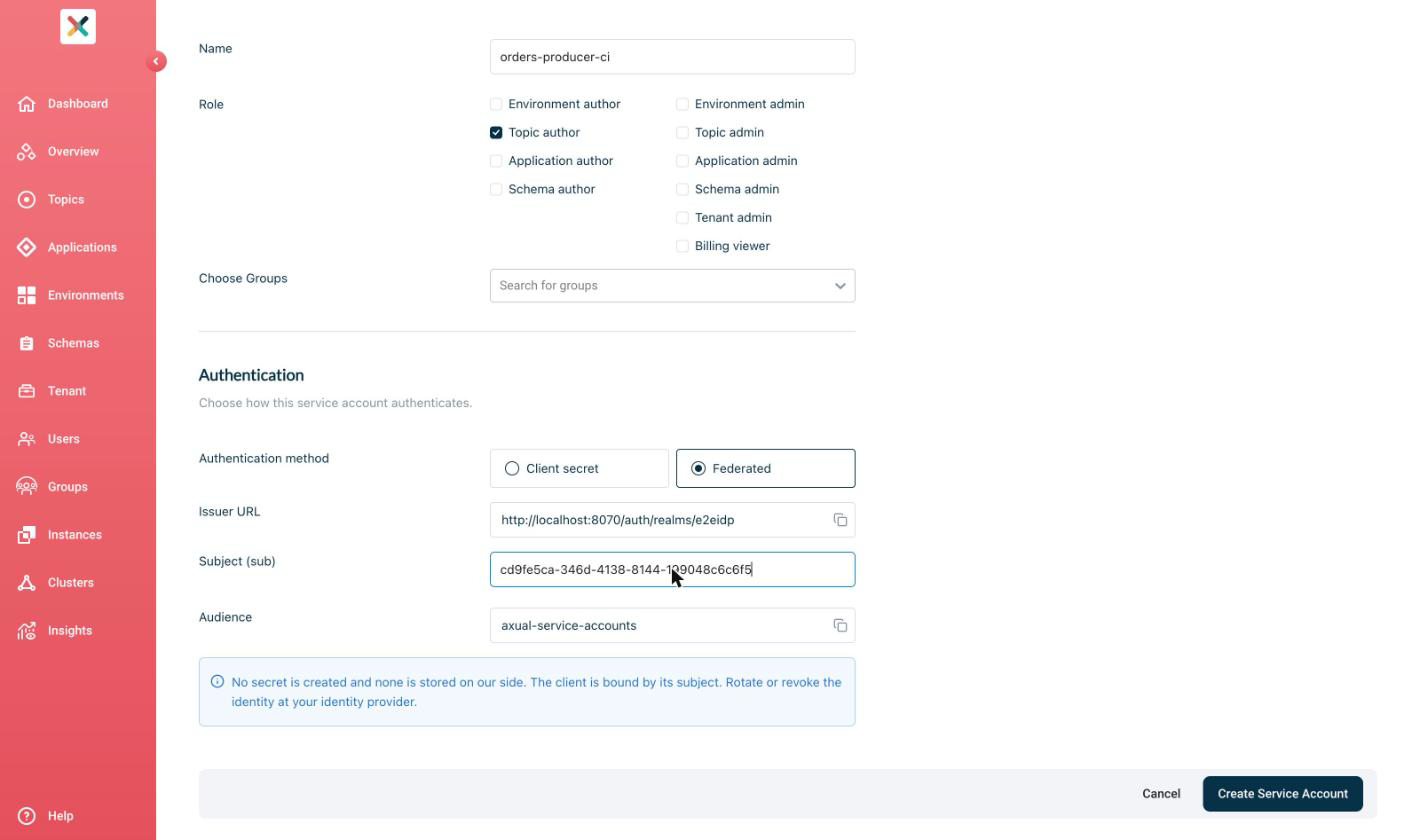
In the Authentication section, set the Authentication method to Federated.
-
Read the federation values the form shows:
-
Issuer URL and Audience, which the form fills in for the tenant realm. The assertion your workload presents must carry this audience as its
audclaim. -
For Microsoft Entra, request the resource
api://<audience>from Azure so it mints a token with the right audience.
-
If the form does not offer the Federated method, the realm does not meet the prerequisites. Ask your operator to complete the realm setup for federated service accounts before continuing.
Create the federated service account
With the workload identity ready and its subject noted, create the account.
-
On the create form with Federated selected, enter a Name.
-
Select the Role checkboxes the account needs.
A federated account can hold administrative roles. Federated mode is the safer choice for a high-privilege account, because no secret exists to leak. -
Add the account to groups with Choose Groups.
-
Enter the Subject (sub), the object id of the external workload identity from the prerequisites.
-
Click Create Service Account.
No secret is returned, because a federated account has none.
To confirm success, check that the account appears in the service accounts list with a Federated credential badge, then obtain a token as described in Authenticating as a Service Account.
Re-bind the external subject
If the external workload identity changes, re-bind the account to the new subject. This is the only credential change federated mode supports.
-
Open the account’s detail page, then click Edit Service Account.
-
Enter the new Subject (sub).
-
Click Update Service Account.
After re-binding, an assertion for the previous subject no longer authenticates the account.
| Secret rotation does not apply to a federated account. The credential is owned by your identity provider, so rotate the workload identity there instead. |