Managing Service Accounts
This guide shows you how to create, view, edit, rotate the secret of, and delete a client-secret service account in Self-Service.
Type |
How-to guide |
Goal |
Create and manage a client-secret service account so a workload can call the Platform Manager API. |
Audience |
Tenant admin, a user who can manage users and groups in the tenant. Any user of the tenant can view a service account. |
When to use |
Use this guide to give automation a machine credential, or to change or remove one that exists. |
For a secretless account bound to an external identity, see Federated Service Accounts instead. To use the account once created, see Authenticating as a Service Account.
Prerequisites
Before you start, check the following.
- Access and permissions
-
-
Tenant admin role, to create, edit, rotate, or delete a service account.
-
Any user of the tenant can view and search service accounts; viewing is not admin-gated.
-
The tenant has an identity realm. Creation fails if it does not.
-
- Tools and versions
-
-
Access to the Self-Service portal.
-
- Resources that must exist first
-
-
The roles you want to assign. See Users and Roles for the role definitions.
-
The groups you want the account to belong to. See Groups to create one.
-
Create a service account
A service account created here uses client-secret mode: Axual generates a secret that the workload presents to obtain a token.
-
Open Users from the Self-Service menu, then select the Service Accounts tab.
-
Click Create Service Account.
-
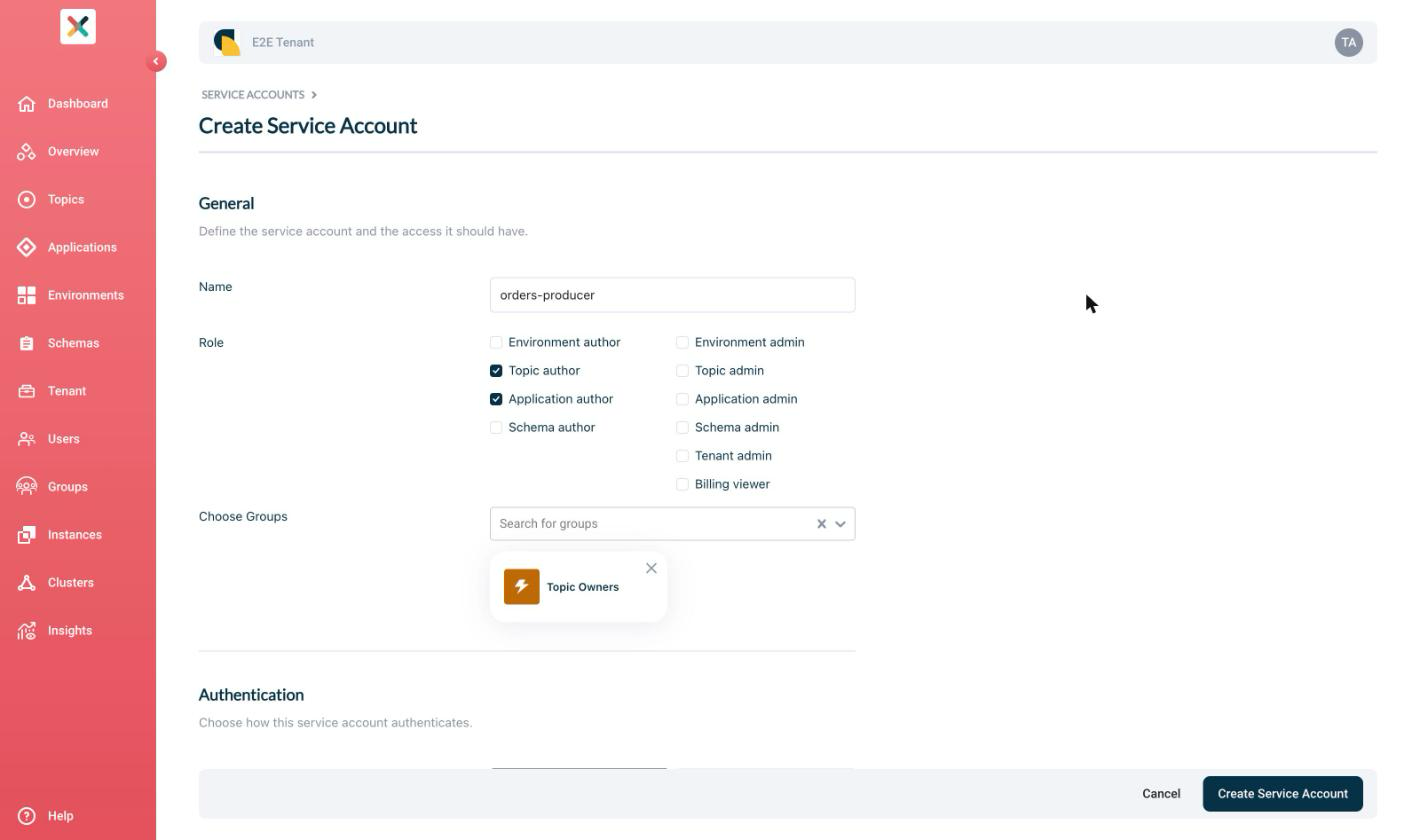
Enter a Name for the account. The name is fixed after creation, so choose one that identifies the workload.
-
Select the Role checkboxes the account needs.
A service account can hold administrative roles, including tenant admin. Grant only the roles the workload needs. See Service Account and Federation Reference for which roles are allowed. -
Add the account to groups with Choose Groups.
-
In the Authentication section, leave the Authentication method set to Client secret.
-
Click Create Service Account.
-
Copy the client secret now and store it in your secret store.
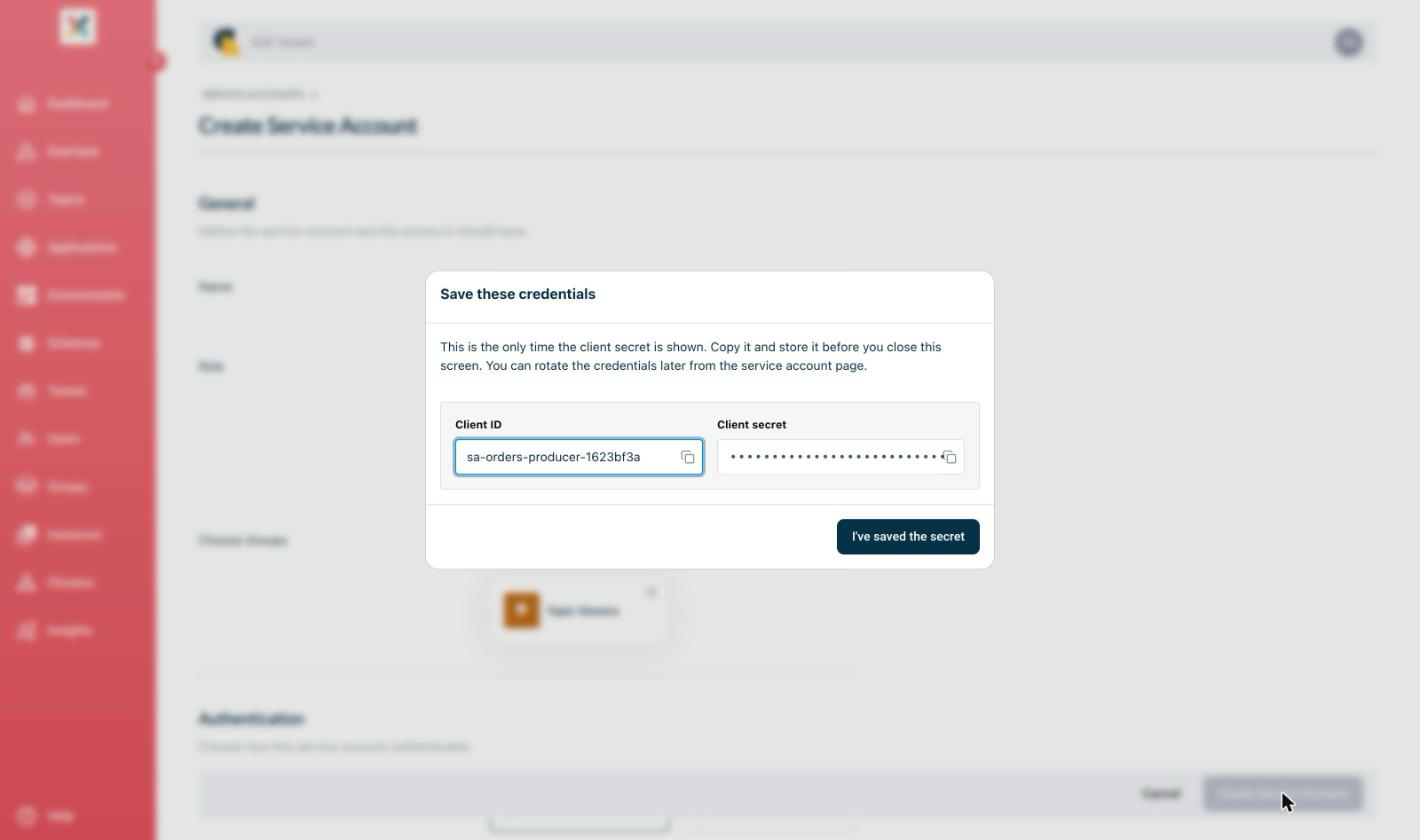
The secret is shown only once. Axual does not store it and cannot show it again. If you lose it, rotate the secret to get a new one.
To confirm success, check that the new account appears in the service accounts list with its client id, and that you have saved the secret.
View and search service accounts
Any user of the tenant can view service accounts; you do not need the tenant admin role.
-
Open Users from the Self-Service menu, then select the Service Accounts tab.
-
Use Search for service accounts to find one by name.
-
Click an account to open its detail page, which shows its client id, authentication method, roles, and group memberships.
The list never shows the client secret.
Edit a service account’s roles and groups
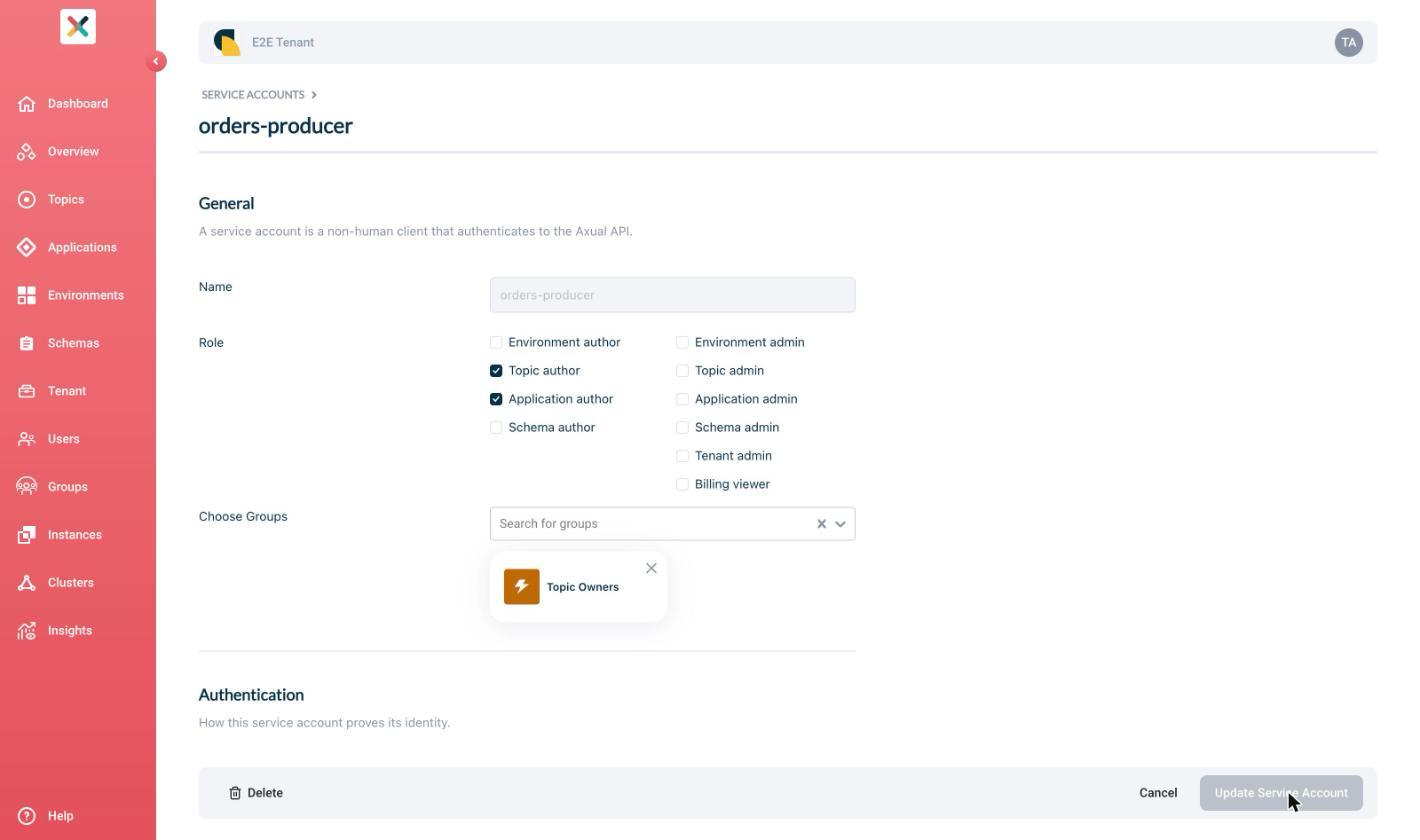
You can change an account’s roles and group memberships after creation. The name, client id, and authentication method are fixed.
-
Open the account’s detail page, then click Edit Service Account.
-
Add or remove roles with the Role checkboxes.
-
Add or remove groups with Choose Groups.
Only a tenant admin can add a service account to a group. A group manager can remove one, or promote one that is already a member. See Groups. -
Click Update Service Account.
To confirm the change, reopen the detail page and check the roles and groups now shown.
Rotate the secret
Rotation replaces the account’s secret with a new one. Rotation applies to client-secret accounts only.
-
Open the account’s detail page.
-
In the Authentication section, click Rotate Credentials.
-
Copy the new secret and store it in your secret store.
-
Update the workload to use the new secret.
| The old secret stops working immediately, with no overlap period. Update the workload before, or straight after, rotating, or its calls will fail. |
To confirm success, obtain a token with the new secret. See Authenticating as a Service Account.
Delete a service account
Deleting an account removes its credential so it can no longer authenticate.
-
Open the account’s detail page, then click Edit Service Account.
-
Click Delete at the bottom of the edit screen.
-
Confirm the deletion.
| Deletion is permanent and removes the credential. A token the account already holds keeps working until it expires, up to five minutes or as configured by your administrator. |
To confirm success, check that the account no longer appears in the service accounts list.