Managing Topics
This guide shows you how to create a topic, configure it for an environment, manage its advanced properties, and delete a topic or its configuration in Self-Service.
Goal |
Manage a topic across its lifecycle in Self-Service. |
Audience |
Topic Author, the default role every user receives. Topic Owner, a user with Edit permission on the topic (a member of its owning group). |
When to use |
Use this guide when you add a new topic, adjust its per-environment configuration, or remove a topic from the platform. |
Creating topics
Create a topic from the Topics page, then assign the group that will own it.
| Creating a topic requires the Topic Author role, which every user receives by default. |
Visit the Topics page and click on the New Topic button.
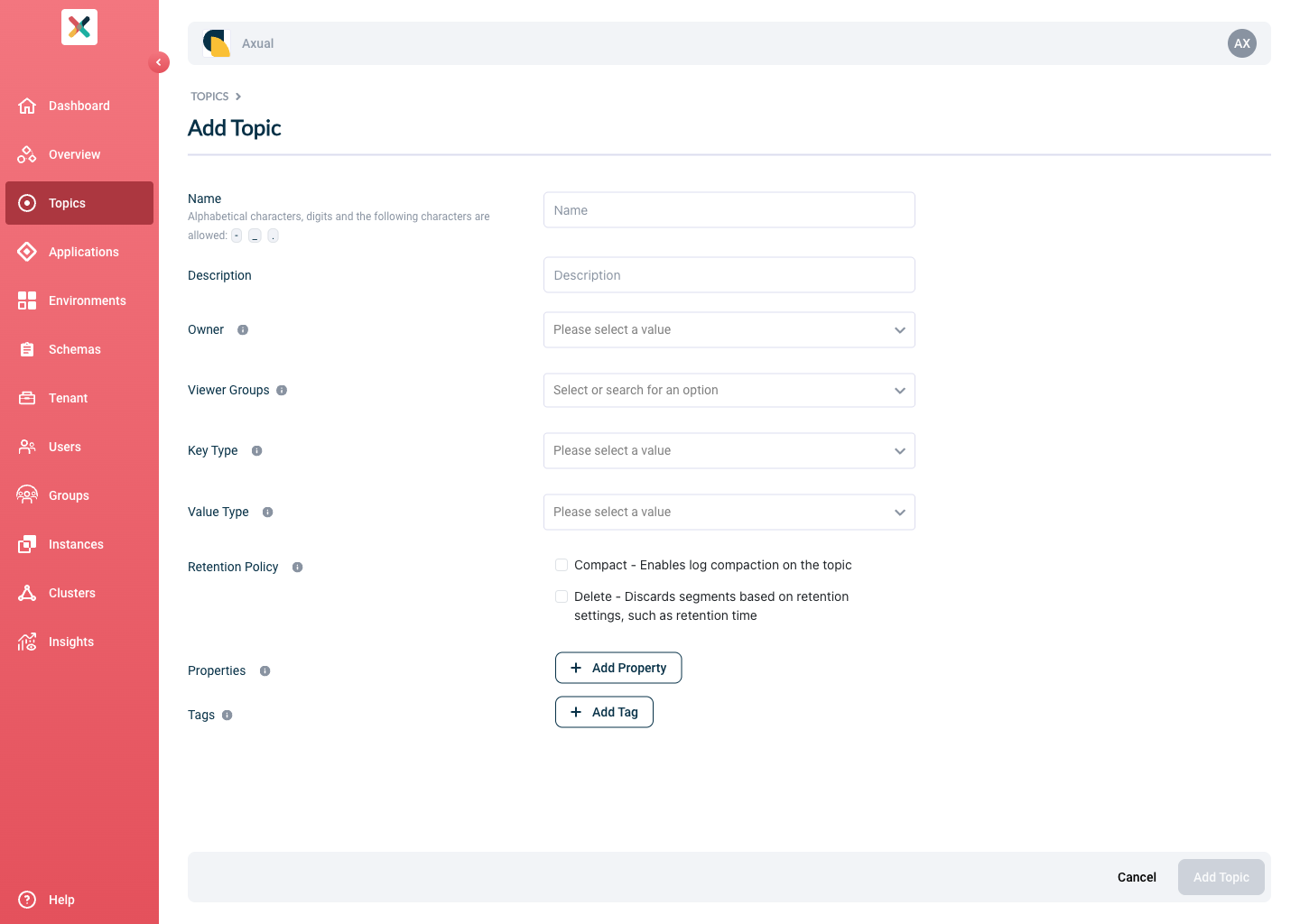
Fill the form with the required information. If you are unsure about certain values, contact the team supporting the Axual Platform within your organisation.
| Make sure to be very descriptive when creating your Topic because that helps your colleagues find your Topic and implement their data-driven use case faster. |
-
Name: The name of the Topic. The topic name is usually discussed and finalised as part of the Intake session or a follow-up.
-
Description: Text describing the purpose of the Topic.
-
Owner: The group which will own this topic. All members of that group will be able to modify the topic. This group should be created before creating the topic. See also: Creating A Group.
| The list of groups shown includes only the ones you are a member of. You cannot create a topic for a group that you are not part of. |
-
Key Schema: If Key-type is selected as AVRO, Protobuf or JSON Schema, a new input field Key Schema will appear. This will have a list of available schemas. Choose the correct schema. As part of Schema design and development, these values would be known. If the required schema is not available, please contact support.
-
Value Schema: If Value-type is selected as AVRO, Protobuf or JSON Schema, a new input field Value Schema will appear. This will have a list of available schemas. Choose the correct schema. As part of Schema design and development, these values would be known. If the required schema is not available, please contact support.
-
Retention Policy: This field determines if the topic will retain messages forever or the messages will be deleted after a certain period. This would have been discussed in the Intake session.
-
Remove all messages when the retention period has passed: Choose this option if the messages should not be stored forever. The actual retention time will be configured later per environment.
-
Keep the latest value for each key forever: Choose this option if messages should be retained forever. This is also called COMPACTION topic.
-
Combine deletion and compaction: This option allows for both deleting messages after a certain retention period and retaining the latest value for each key through log compaction.
-
-
Properties: This is a set of key:value pairs for setting various properties of a topic. For now this can be kept empty. For the properties you can set, see the Kafka Topic Properties Reference.
-
Tags: This is used to categorise topics based on functions eg.
order,payment,inventory. This is an optional field, but it is recommended to use tags to categorise topics. Tags can be used later to filter topics in the topic list.-
Click on Create Topic. Once the topic is created, you will end up on Topic detail page.
At this point, you have created a Topic in Self-Service. The topic is not ready for use yet. It needs to be configured for an Environment.
-
-
Viewer Groups: (Optional) Choose the groups which would be able to view this topic configuration. Refer to Viewer Groups section.
On the Topic detail page, to export a topic’s AsyncAPI spec, see Download a topic’s AsyncAPI specification.
Configuring A Topic For An Environment
Once the Topic has been created, configure it for each environment where it will be used.
| Configuring a topic for an environment requires Edit permission on the topic (as a member of its owning group) or Edit permission on the environment. |
-
Visit the Topic page
-
Select the Environment from the dropdown for which the topic needs to be configured
-
If the topic has not yet been configured for the environment, a blue circle will appear on the gear icon in the Topic card. Click on it
-
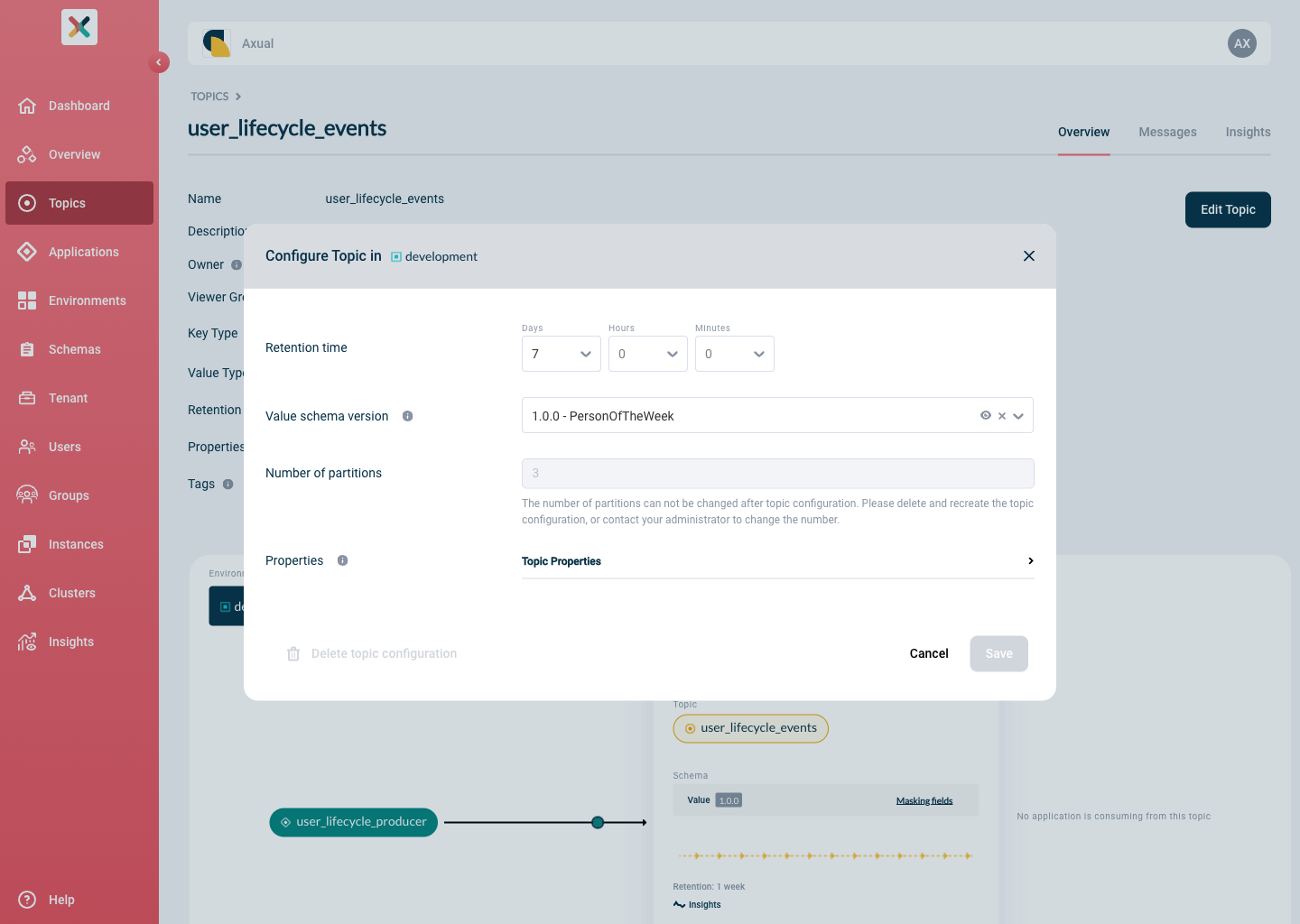
A pop-up will show up with some information to be filled:
-
Retention time: Determines how long the messages should be available on a topic. There should be an agreed value most likely discussed in Intake session with the team supporting Axual Platform. In most cases, it is 7 days.
-
Key Schema Version: If the Topic Key Type is AVRO, Protobuf or JSON Schema, then this field will show up. Choose the version of the key schema that should be used.
-
Value Schema Version: If the Topic Value Type is AVRO, Protobuf or JSON Schema, then this field will show up. Choose the version of the value schema that should be used.
-
Number of partitions: Choose the number of partitions in which the Topic will be broken down and distributed over the brokers. This value defines the maximum number of consumer instances that can read from the Topic in parallel.
The number of partitions cannot be changed using Self-Service after a topic configuration has been saved, due to technical limitations. However, there is a workaround: delete the topic configuration and re-configure the topic in a particular environment with the correct number of partitions.
-
-
Click Save. The Topic is now configured for the specific environment. Repeat this process for any other environment.
Managing topic properties
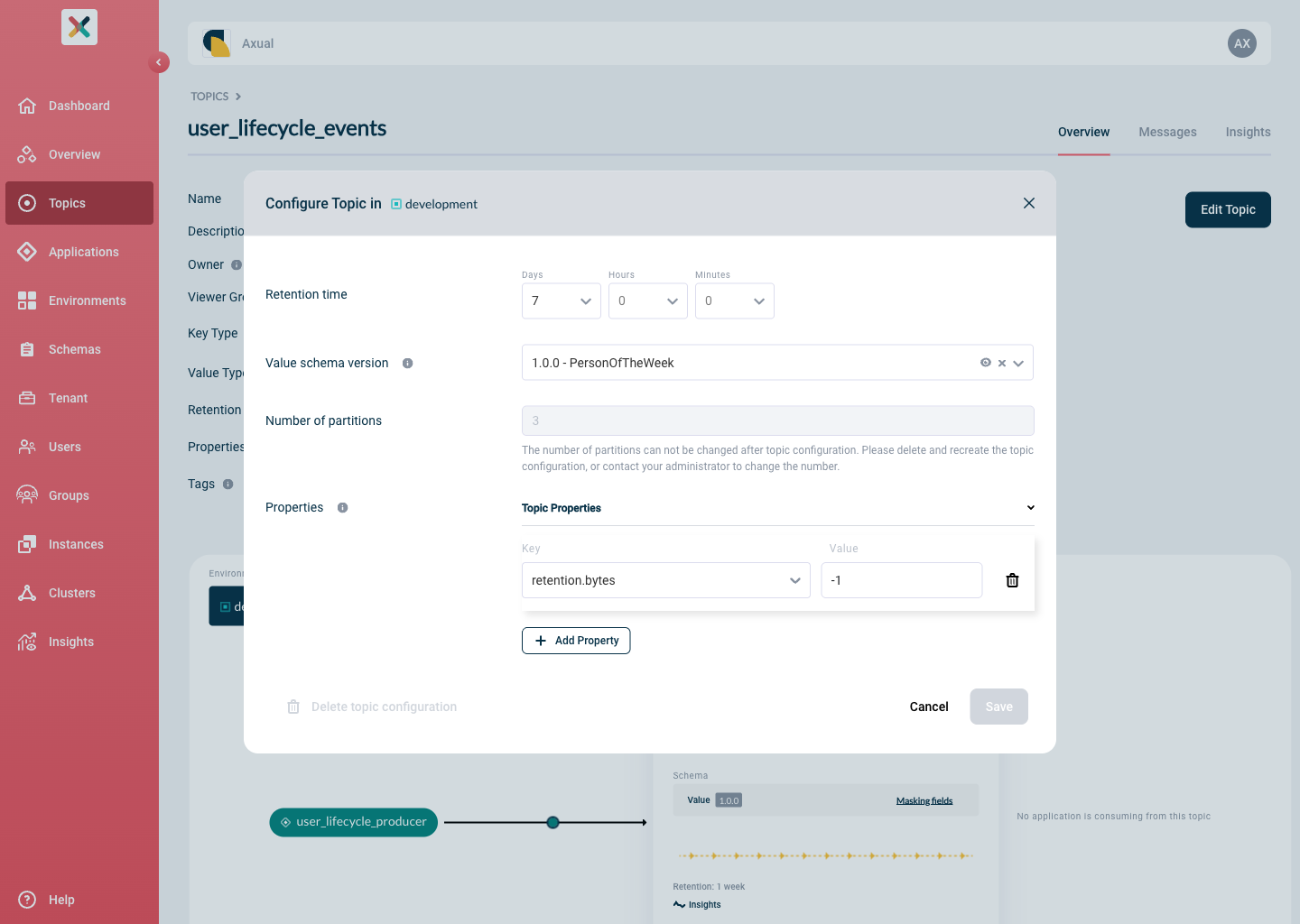
You can set advanced (Kafka) properties on a topic in a given environment. For the allowed properties, see Supported Kafka Properties.
| Setting advanced topic properties requires the Tenant Admin role. |
To add a property, follow these steps:
-
Click Add property.
-
Enter the property name, for example
foo.bar. -
Enter a value for the property.
-
Click Save.
To delete a property, follow these steps:
-
Click the Bin icon next to the property.
-
Click Save.
Deleting Topic Configuration
Topic configuration can be deleted from the Configure Topic modal.
| Deleting a topic configuration requires Edit permission on the topic (as a member of its owning group). |
This can be done if there are no active producer/consumer application connections in the chosen environment.
| Make sure you don’t have active topic connections in the environment for which you are deleting the topic configuration |
-
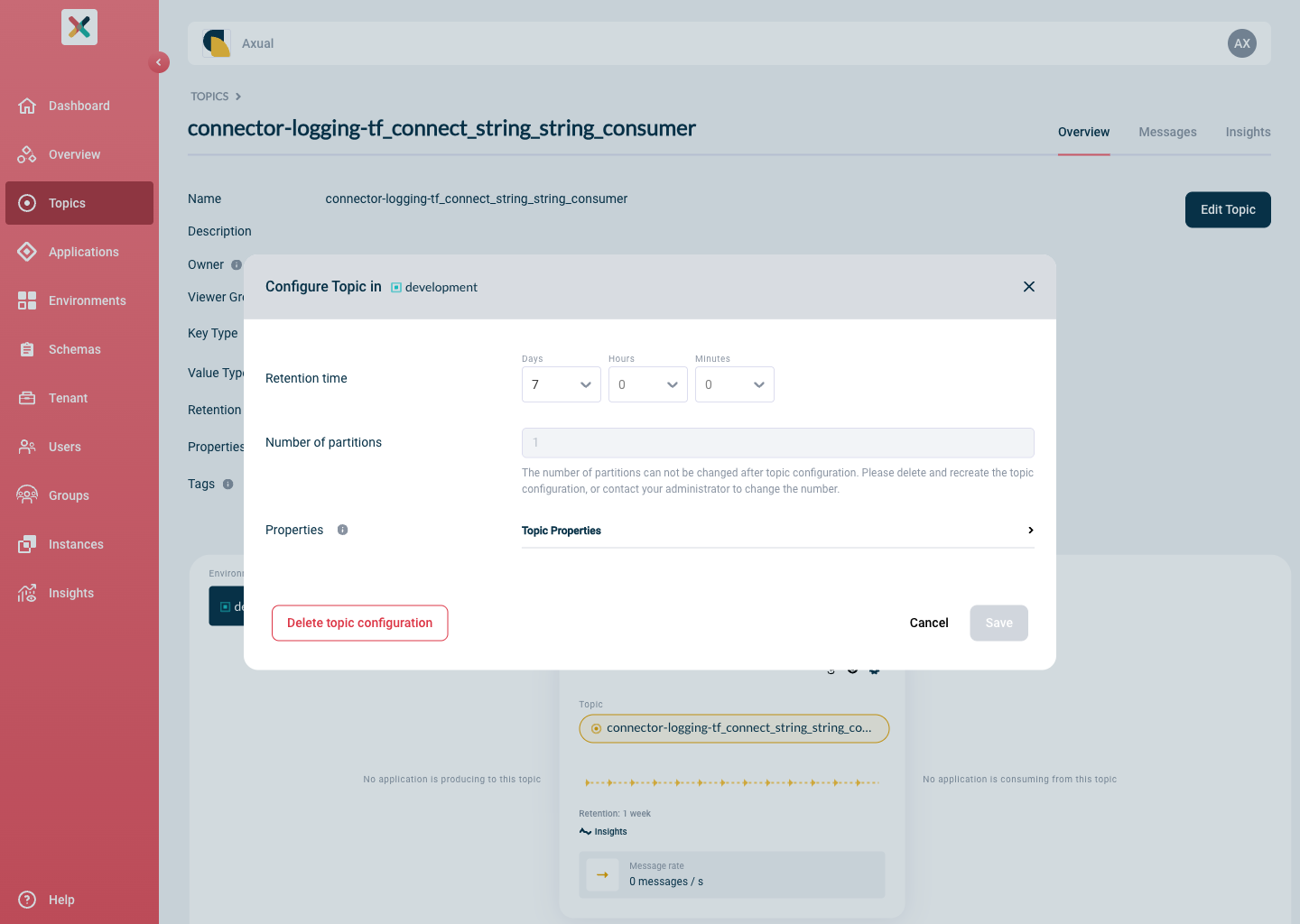
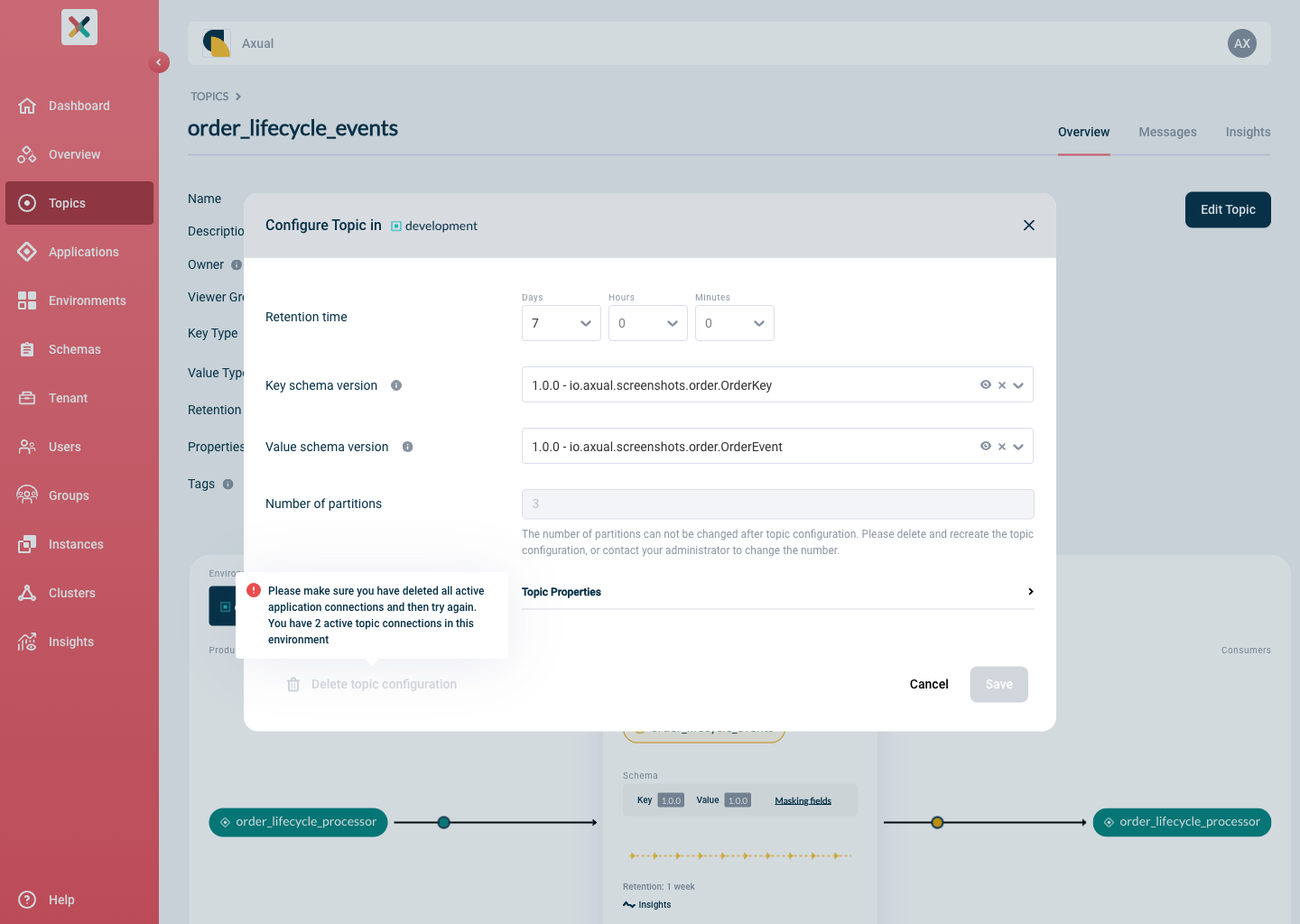
Visit the Topic Detail page and click on the Configure button inside the Topic card. The Configure Topic modal opens as below:
-
Hover the Delete Topic Configuration button on the bottom left of the modal.
-
If not all constraints are met, the Delete button is disabled, and hovering on it shows a tooltip with a reason as shown below:
-
If all constraints are met and deletion is possible, the button will be active.
-
-
Click "Confirm" to delete the topic configuration.
When you delete a topic config, recreating it may be blocked for a period configured in the Instance properties.
You can configure per instance how long you want to wait before recreating a Topic Configuration, use the property create-stream.disable-time (the value is in minutes), see Instance Properties.
|
If not set in the Instance, the default value comes from Platform Manager and is 0. This means you can recreate a Topic Configuration immediately.
Deleting A Topic
A topic can always be deleted; in case the topic has deployed topic configurations, those resources will be deleted as well.
| This operation might result in failing clients since the Kafka topic will be removed from the Kafka Cluster. |
-
Navigate to topic page, press the
Edit Topicbutton and then click theDeletebuttonThe Deletebutton will only be visible to those who have the correct access, which is typically a Topic Owner or Administrator.
-
Click the Edit Topic button
-
Click Delete button
-
If there are deployed Topic Configurations, the following modal will be displayed:
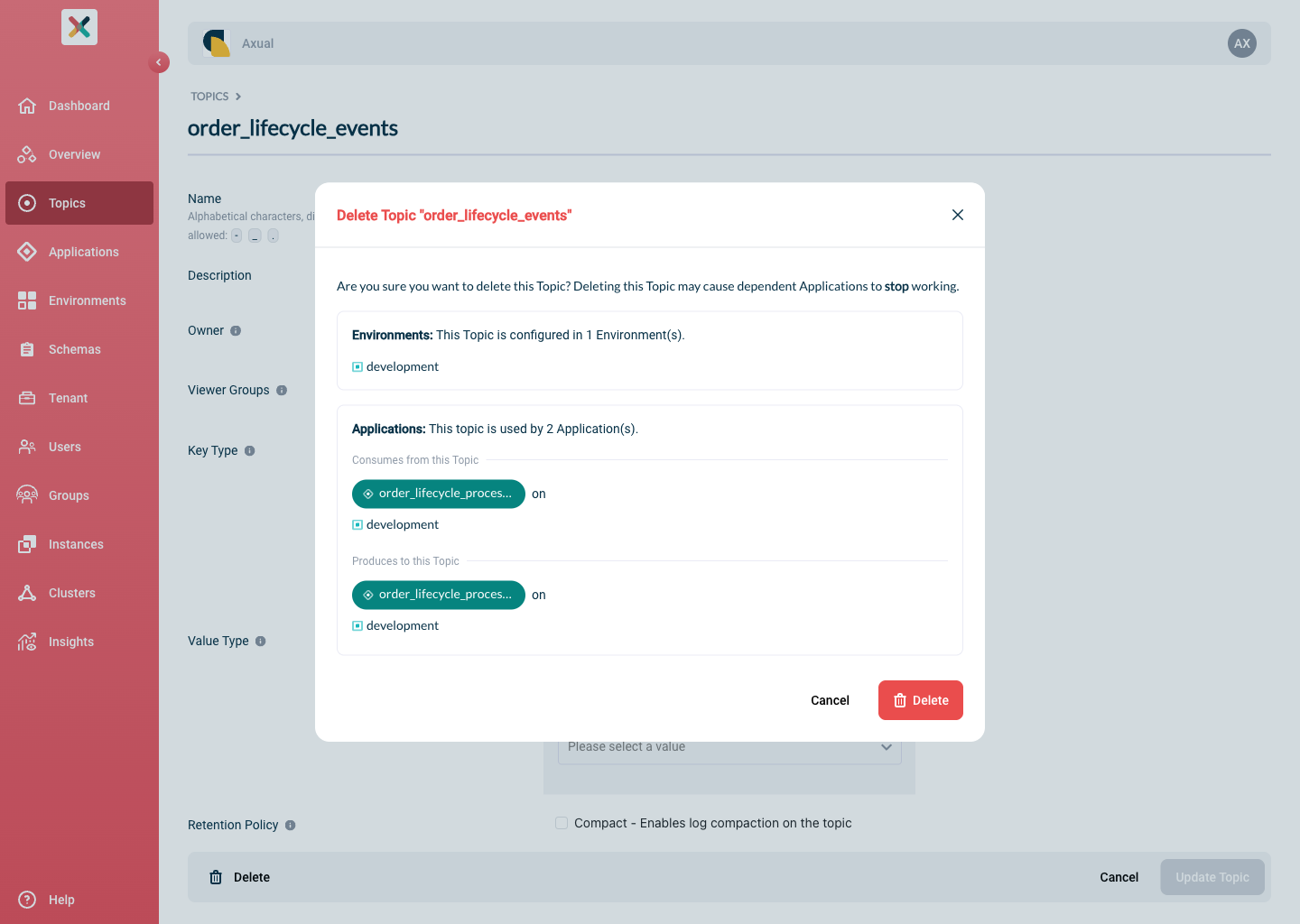
Once you have confirmed that you would like to delete the Topic, it will be removed from Kafka and no longer accessible by any Application.