Deploying Axual Kafka and Axual Governance on Kubernetes
This guide walks you through installing the Strimzi operator, deploying Axual Kafka, deploying Axual Governance, onboarding the Kafka cluster into Self-Service, and producing a message to a topic you create.
Type |
Tutorial |
Goal |
Have both Axual layers running on your own cluster, with a message produced to a topic you created. |
Audience |
Platform Operators evaluating Axual, with a Kubernetes cluster they can install into and no prior Axual experience. |
When to use |
Stage 2 of The installation order, on the trial path rather than the full installation. |
Prerequisites
To install Axual Kafka and Axual Governance in your own infrastructure, you need:
-
Credentials for the Axual Harbor Registry (https://registry.axual.io/)
If you do not have credentials yet, contact Axual Support at support@axual.com. -
A Kubernetes cluster (version 1.24 or above) with an ingress controller, described in Install an Ingress Controller, or an OpenShift cluster (version 4.12 or above)
-
Helm (version 3 or above), and enough familiarity with Kubernetes and Helm charts to read what the commands below do
-
A terminal
-
Permission to install Custom Resource Definitions (CRDs) in the cluster, which the Strimzi operator needs
Installation procedure
The steps below deploy Axual Kafka first, then Axual Governance, then integrate the two.
Step 1: Preparations
The Axual Kafka and Governance Helm charts need two preparations: a namespace holding a registry Secret, and a login to the chart registry.
Create a namespace and Docker Registry Secret
A namespace provides an isolation layer within a Kubernetes cluster. An image pull Secret is namespaced, so it has to exist in the same namespace as the charts that use it: run these steps once per namespace you install into.
-
Create the namespace.
kubectl create namespace kafka -
Obtain the credentials for the registry. The Secret uses the CLI secret associated with your user in Harbor, not your password. Log in to Harbor with your AzureAD credentials, open the
User Profilemodal from the top left menu, and either generate a new secret or copy the existing one.If that link is not reachable, contact the Axual support team for a set of credentials to use. -
Create the image pull Secret in that namespace.
kubectl -n kafka                          \
    create secret docker-registry axualdockercred     \
    --docker-server=registry.axual.io                 \
    --docker-username=<YOUR_EMAIL>                    \
    --docker-password=<YOUR_CLI_SECRET>
Replace <YOUR_EMAIL>and<YOUR_CLI_SECRET>with your own credentials for the Axual Harbor Registry.
Pull the charts
Helm pulls charts from the Axual Harbor Registry only after you log in to it.
-
Log in to the Axual Harbor Registry. Replace
<USERNAME>with your Axual Harbor Registry username; Helm then prompts for the password.helm registry login registry.axual.io --username <USERNAME>
After you log in, you can pull the Axual Helm charts.
Step 2: Install Strimzi Operator
Installing the Strimzi Operator with Helm deploys Kafka and the Custom Resource Definitions (CRDs) it needs on a Kubernetes cluster.
Axual does not supply Strimzi. Replace <STRIMZI_VERSION> with a version Axual supports, which is stated per chart release in Axual Kafka README. That page is generated from the chart, so it is the version to trust when sources disagree.
|
-
Add the Strimzi repository to
helm:helm repo add strimzi https://strimzi.io/charts/ -
Update the repo:
helm repo update -
Install the operator. A multi-tenant installation needs the custom Axual Kafka image, because it bakes in the
PrincipalBuilderclass that identifies a principal by its full certificate chain instead of its Distinguished Name (DN) alone. Without it, certificates issued by different tenants' Certificate Authorities can carry the same DN and get treated as the same principal. See Principal Chain Builder for the detail:helm install strimzi strimzi/strimzi-kafka-operator \ --version=<STRIMZI_VERSION> \ --namespace kafka \ --set kafka.image.registry=registry.axual.io \ --set kafka.image.repository=axual/streaming/strimzi \ --set image.imagePullSecrets='axualdockercred'Without multi-tenancy support, the standard images are enough:
helm install strimzi strimzi/strimzi-kafka-operator \
  --namespace kafka --version=<STRIMZI_VERSION>
Step 3: Deploying Axual Kafka
Deploy the Apache Kafka brokers with the Axual Kafka chart. Strimzi brings the brokers up one at a time, so this step takes the longest.
-
Download the example
axual-kafka.values.yamlThis example carries demonstration certificate authorities and their private keys, published with this documentation. A cluster built from it accepts client certificates that anyone reading these pages can mint, including the superuser certificate used below. That is acceptable for a trial on an isolated cluster and for nothing else. Replace both authorities before the cluster holds data anyone cares about. Click to open axual-kafka.values.yaml
fullnameOverride: "" nameOverride: "" axual: sslPrincipalBuilder: enabled: false addChainedSuperUsers: false chain: [] #- "CN=Axual Dummy Root 2018" #- "CN=Axual Dummy Intermediate 2018 01" kafkaNodePools: controller: name: "" replicas: 1 roles: - "controller" jvmOptions: {} resources: {} storage: type: jbod volumes: - id: 0 type: persistent-claim size: 1Gi deleteClaim: false broker: name: "" replicas: 1 roles: - "broker" jvmOptions: {} resources: {} storage: type: jbod volumes: - id: 0 type: persistent-claim size: 1Gi deleteClaim: false kafka: annotations: {} enabled: true rack: enabled: false topologyKey: topology.kubernetes.io/zone metrics: false logging: # Possible values are 'external', 'inline' type: inline # Below external config is only used when the type is external externalConfig: |- # Root logger configuration rootLogger.level = INFO rootLogger.appenderRefs = console rootLogger.appenderRef.console.ref = CONSOLE # Console appender with appender.console.type = Console appender.console.name = CONSOLE appender.console.target = SYSTEM_OUT # Console layout configuration # appender.console.layout.type = PatternLayout # appender.console.layout.pattern = [%d] %p %m (%c)%n appender.console.layout.type = JsonTemplateLayout appender.console.layout.eventTemplateUri = classpath:LogstashJsonEventLayoutV1.json # Logger configurations logger.kafka_controller.name = kafka.controller logger.kafka_controller.level = TRACE logger.kafka_network_processor.name = kafka.network.Processor logger.kafka_network_processor.level = FATAL logger.kafka_request_channel.name = kafka.network.RequestChannel$ logger.kafka_request_channel.level = WARN logger.kafka_common_selector.name = org.apache.kafka.common.network.Selector logger.kafka_common_selector.level = WARN logger.kafka_request_logger.name = kafka.request.logger logger.kafka_request_logger.level = WARN logger.kafka_apis.name = kafka.server.KafkaApis logger.kafka_apis.level = FATAL logger.state_change.name = state.change.logger logger.state_change.level = TRACE logger.kafka_authorizer.name = kafka.authorizer.logger logger.kafka_authorizer.level = WARN loggers: {} # kafka.root.logger.level: "INFO" # log4j.rootLogger: "INFO" # log4j.logger.kafka.controller: "TRACE" # log4j.logger.kafka.network.Processor: "FATAL" # log4j.logger.kafka.network.RequestChannel$: "WARN" # log4j.logger.kafka.request.logger: "WARN" # log4j.logger.kafka.server.KafkaApis: "FATAL" # log4j.logger.state.change.logger: "TRACE" kafkaExporter: enabled: false spec: groupRegex: .* logging: info topicRegex: .* authorization: superUsers: - "CN=Platform Manager,OU=Axual,O=Axual,C=NL" listeners: internal: type: internal authentication: type: tls tls: true port: 9093 external: type: ingress authentication: type: tls tls: true port: 9094 configuration: bootstrap: annotations: {} host: "bootstrap-kafka.<domain>" brokers: - broker: 0 host: "kafka-0.<domain>" annotations: {} config: auto.create.topics.enable: false offsets.topic.replication.factor: 1 transaction.state.log.replication.factor: 1 transaction.state.log.min.isr: 1 default.replication.factor: 1 min.insync.replicas: 1 allow.everyone.if.no.acl.found: false clientsCa: generateCertificateAuthority: true clusterCa: generateCertificateAuthority: true entityOperator: {} cruiseControl: enabled: false # Convenience config to easily enable jmx Prometheus metrics including a default metrics configmap. This could also be # customized and configured through the spec. jmxPrometheusMetricsEnabled: true # The kafka.cruiseControl.spec is what will used 1-on-1 in the Kafka custom resource as `spec.cruiseControl`. spec: {} # This refers to the spec.kafka.template section in the Kafka resource templ: {} extendSpec: {} # replicas: 3 # storage: # type: jbod # volumes: # - id: 0 # type: persistent-claim # size: 1Gi # deleteClaim: false podMonitor: kafka: enabled: false labels: {} scrapeTimeout: "20s" interval: "30s" entityOperator: enabled: false labels: {} scrapeTimeout: "20s" interval: "30s" prometheusRule: enabled: kafka: false rules: kafka: [] clientsCa: create: true cert: generation: "0" caCrt: | -----BEGIN CERTIFICATE----- MIIFLTCCAxWgAwIBAgICEAAwDQYJKoZIhvcNAQELBQAwIDEeMBwGA1UEAwwVQXh1 YWwgRHVtbXkgUm9vdCAyMDE4MB4XDTE4MDUyOTExMDEzNFoXDTI4MDUyNjExMDEz NFowKzEpMCcGA1UEAwwgQXh1YWwgRHVtbXkgSW50ZXJtZWRpYXRlIDIwMTggMDEw ggIiMA0GCSqGSIb3DQEBAQUAA4ICDwAwggIKAoICAQC9uOuzJekmeo3hl8fjQlKS HApS3llcliq1YrXpkMbHAA9StHaMHPW+Dzr2/+cdfBAmN3sujCY8Paq15QI+TDOq KA5SByCBQKXx2qulBPcZs3mDMt+KxAaeWfwR4Nj0NNKbmw2HjDddo77joeVOuOX2 4o1wXzmAAolVMIcRYA11EMWNUtYrHCzBa7RfYht2G5dE69ckrgfw1Nxs01Sbg+xP sK9aK/LHPUalYZNY+76x7vabEpzaPfpyKzDTWA20SPk0WfTf9/+K3o+urzDG8O/q w9xbBOzWohGmRyA/z841p1SD7inpZcyO/KeW1yTP2WyFxADwUrv2mEYXnma/Gdna G62IQYk/UMex9W8pT6tfwrg/36sSwr88yPR5dJxzjHUE+w/rYG3k+K+EqvZ5qOC5 32AJ9BS2nbNuGpmRU1qoMCwpL7B2E/CKJLIdFcf/qmcnWJEXo+u34+fQZg8XaDCI XhUqAHz6YkjCiFGd/JwL1IqsfxFsV9wHTUbW2AumglU65ZrjhXrrzE7Hk9ng1spJ dOwfBihBNjnr0mKHY9leJ3chJ9HQ55/fEgcRNrj8EC69QCeAtpY5yOAjKpA03UvF grDt8CIyIehNUwTXIhQSHZU4eZ0rzWf0vvMbhL2FvKtphbpnNKoXeNLv2IMZpT4B VwsqLqaIkl/I4FPpYBoSYwIDAQABo2YwZDAdBgNVHQ4EFgQUa9IpV4tSNiwFCsZX uRp0eKwTH2YwHwYDVR0jBBgwFoAUdKOPDqSFQ6Bfk0I/asBkByt5gsUwEgYDVR0T AQH/BAgwBgEB/wIBADAOBgNVHQ8BAf8EBAMCAYYwDQYJKoZIhvcNAQELBQADggIB AKoNIqiOdjlUBNg7cvR9Su4KgGrsZf78pG1H2MlNxJjFM/80EiWEfze/EG2MLxFq 8vToIHDjb0kVetYpdmfHNXTTlaaroBlXwyUYToPzQ985qr3LD8RhYZFAsiZCTtpJ 4FT6sh/mccTyx8G8+ZS6mn/le2WPj/t6beNLgbdl5n8fghdQcmT/TqGXE50UftWt HSx3fsq2aKuNdVzhKzTin50IbiE9DV1dKo6B+ipOy/Dz5GMv3Z/3ntLTvxabCMOl 7s7WsUE7VPABRSifUS80Z9Ai38faLSu+Ouzx40ceXwvlFQtJ2LYQ8Ru5Q63k2wB3 EOE6cgAhiYExrz3fDDtUkui9vIfWfTPMnXR7xQ8YqK4Qqld2ESxvMQU2jzbZKSf+ 3sWnPvN4HTg0cfysmOdLGZwf3u8A9tMtxhUEtxUx7r76M4ekSKdNv1Nf5u5N/h7b AbEqSp1XADTxkE448i7hNJzn2Ce6JtFya231Ni0xyYKQIajP18jNypAw1eABYFkN 53vQTUfqcbtcrCios1xRdDqfgkYaKZv7p63aoObFTf/mmG7sFjGAEPQscagOukwN wnkjCVifVbk5qJUaUWSLeYziI+HYkEA9P/h4o83nbf0YgBtOFoc0XWKmKagHifZN SEJ9kRCWzYaL2ChiL6jHGh26WT/hbNKeAlcxPnT4u/l1 -----END CERTIFICATE----- -----BEGIN CERTIFICATE----- MIIFJjCCAw6gAwIBAgIJAINuAirfnRU6MA0GCSqGSIb3DQEBCwUAMCAxHjAcBgNV BAMMFUF4dWFsIER1bW15IFJvb3QgMjAxODAeFw0xODA1MjkxMDM0MTRaFw0zODA1 MjQxMDM0MTRaMCAxHjAcBgNVBAMMFUF4dWFsIER1bW15IFJvb3QgMjAxODCCAiIw DQYJKoZIhvcNAQEBBQADggIPADCCAgoCggIBAMVDjbhq3TGuQ6INTZ+dhSIgsdbq w2nxF3myrS7v89bcNxMyLypWYTmR4OAYRXRBnW4KX6sTubPyL3ogPz6hXmfmPfAz +X//HTIiybL3e3qwxqWphp09+JT6veEp/e/wEEjSMj5nsxkDEjj9JEQWu/1B+N+V XOJkTYFy05ZgeWplkyLwT71myF047aISK27a+VebBMaPpvvetScbMSwxAbk51cGV UC4gpwvnvsbp/CRuMV0dYzkeTmxgn860l3s8+7qUJoOrtiO0cDpv97SK9Ck9ef1k R6KFttzxb/u+eMFi3RUErEGwE8P3thTseXRkp5hMwcyaSQv0wfLawlwcNFGOzsBx fJS7QUIUpEyzRqj5Ppgaj530APxbgitLOfVLZ2DvcBcmnQns6OE+uwymuvAj8Ftj 6AFJXH2lmswHLl5uD9kIOwmpZg4NZLP2Qv+WOT6HLgI7Kv1z0OV2H7UlWA7hwQXl oQ6fJ2YLEhT+GM9xHKJ+DQCxvjWvtGUSb/Dk0j/R9mpSFfHvVJgE/xV+7F7Vlyw5 /cDpF3GZOTGQ/MFy4RqRrTtjnZw2/bZZyJ+Xb743OeQhABFUdadh8cmyehDregtr alHxtjKxCxrT55OHCYhbCoz6nEnQURD7EPQhU5puUKalRq2ApDkveIk8uj0HQmQm KyRuNX7M6vCoWnpxAgMBAAGjYzBhMB0GA1UdDgQWBBR0o48OpIVDoF+TQj9qwGQH K3mCxTAfBgNVHSMEGDAWgBR0o48OpIVDoF+TQj9qwGQHK3mCxTAPBgNVHRMBAf8E BTADAQH/MA4GA1UdDwEB/wQEAwIBhjANBgkqhkiG9w0BAQsFAAOCAgEAbJanqR4P mr05AyAu8vlrLsleXA8VAPDiaaYStYH5cIdBBWkaIxanLFDmbyQwKkKdkHQWV9X8 1P52q49T9RsoBsEOmwdiaCY2PEUz7Y3bFW0UeM+k65VlHlXWywRM6+O02t4TrJXH F6h7vPon01OwhgW9Yil/Kr+yyZK50Ic+pm4UhHmtxY932cNaRCdae5tKsjabsP7Z rdAksLia8mTp+HADkZJ1uODxyDh0S1WMKB5JoHYBrmtUr1NYLgRC6SinhK4r7rbi EWuurE605Nm//jv3Czdy8gEsMDtXLZYY0iqGnD11MAJFXyQ6PG2eq1cXcsJNRojm 8D4ipfQ+z4bp9dDVR2DzVyTYe4yuhZuIe2phOhPc8KkBaXQRMHfVKyeEmzqEFLaM kfaDZkRsrMZSqh+KJoxDG3h8UqssChX+cuZdsjRhNWRqfbB20I9Upwa+XooyCU4E EkYyFTMchtvbYZEN/XvlPfhK5JB9eJ5rrcE8hKsP3gftchWWqCDedKugvZW/t5Vk lc+z4IjiJFnRDfcr4Z5V2Hpseyno3AEK7aUdJlmuPnxoImFXfQ4jUguM/wznJHl7 Xv9T0oaBVHM7Bd6PlES04Oho0KZXS6NryTsZn9GFV4qGZj5lEeOVl15AOfeIjP/I okA2uUH/ZuJlR/BEmqbLt5HWPRNT/GgLfPY= -----END CERTIFICATE----- extraCerts: {} key: generation: "0" caKey: | -----BEGIN RSA PRIVATE KEY----- MIIJKQIBAAKCAgEAvbjrsyXpJnqN4ZfH40JSkhwKUt5ZXJYqtWK16ZDGxwAPUrR2 jBz1vg869v/nHXwQJjd7LowmPD2qteUCPkwzqigOUgcggUCl8dqrpQT3GbN5gzLf isQGnln8EeDY9DTSm5sNh4w3XaO+46HlTrjl9uKNcF85gAKJVTCHEWANdRDFjVLW KxwswWu0X2IbdhuXROvXJK4H8NTcbNNUm4PsT7CvWivyxz1GpWGTWPu+se72mxKc 2j36cisw01gNtEj5NFn03/f/it6Prq8wxvDv6sPcWwTs1qIRpkcgP8/ONadUg+4p 6WXMjvynltckz9lshcQA8FK79phGF55mvxnZ2hutiEGJP1DHsfVvKU+rX8K4P9+r EsK/PMj0eXScc4x1BPsP62Bt5PivhKr2eajgud9gCfQUtp2zbhqZkVNaqDAsKS+w dhPwiiSyHRXH/6pnJ1iRF6Prt+Pn0GYPF2gwiF4VKgB8+mJIwohRnfycC9SKrH8R bFfcB01G1tgLpoJVOuWa44V668xOx5PZ4NbKSXTsHwYoQTY569Jih2PZXid3ISfR 0Oef3xIHETa4/BAuvUAngLaWOcjgIyqQNN1LxYKw7fAiMiHoTVME1yIUEh2VOHmd K81n9L7zG4S9hbyraYW6ZzSqF3jS79iDGaU+AVcLKi6miJJfyOBT6WAaEmMCAwEA AQKCAgEAnW7I78UivtJtz+iybywG9sWb734g60qVMCU0TRfdSx8KmBe2U7hoV4mt 5W8e6oGbqQrbBho4VD7b3MqnXOjA6o8IqxrM51StH4/UZUBEiCg9Shi6FR1rXJXR LUjG34bByWwWAwfgnayWZ7BdZ0DZW1BODBSI02fHbFCzlEB/ikgblpVJsUZVAUAN 0iTIIu7sTL3jrsVXQ4pvS0Lmb5I+UzaLnCjh8mEvsWbR7cIhUOe57Z65WAScQYcD oizsWlE/sih/oibZ//OFiXBI6pzeiZJz1Xe1zLl6Kd/Vq/4V4MH0yPGmB854u6J+ sxXerzd97VZjbQlKfmuHpmvEWQnrkrpAdYmLHg6F03Zrkpj9tqpafmADxdlvYsqY Ij9arFNSyeFEtJEwX3+DlqCm5vn3RtelEgfxtzC/l72Wf3cbxyimbeaFZvqsyJcR O0gnZoK1vSt8UKuEG37Efrgr4e+t/p1ak74/ISYX/VogwZRh94F0K5pM3RV4gfVg HhjOPpVnTf4o0gNfNwBjXewipF8SmKvI47xBx/r5U3zoplj99ap3BHCKLnwGFyMw iaAzhvsyEkMd0bpMentQHx1T/GwfwNCiKR4T6PsPfxkDtE64fnjqlICWIQ757BnS KhPMKTBTE9u7jbe12NBEOZtQkcxJVWn3JnQ8HVbikxR/GWmvu4ECggEBAOx7E+Dd fUwtZjQJjtB2WlHh/CzQlZ+jg0k4yJmcTTuBLaA2EENBv7a1zgPzp/JNAGn6I1wL x9kHuLUVPWHh2vKs42eIWytxJr1BNgMkweKv5RUsQu2+dwA00TeUArpabDfmLuZ+ 2gmuIML+NLbJfbuxiftzPxNvdAYyLUotQvHObpEb3Hm78gpiIT5wNIg0Wya6E1rs axPbxpcUtktWD7EZf/M+SqYk8ZMReiM8DzvhSb06K6g9tWoAgxU2/xVyuXz7OvAD 4OxDTjYQEqfcHjCFIy0MQYuZfZBGR32SVGKGJiP3SqWwoQmyGnpuVAdg/BYTJqiK QZenJC8ohEF2SkECggEBAM1h0ivvopV+4CrwtxKVXkcSlL9ZzfYfrEpLr1BZvwly gEONMotL6ryGue6p8jQ3Eg0lC1u2Gy4Qj7L/sq47HE/05bgZNDgiDeoeNPfguvjA TV8eLqV7GB6hb6MZEYb1asxIFbCCyrV5iYD75LtaZUvkPAfNiSOdpIpCTXbu0NVT No8IdAP355MrU6HrMr7hNksP/Xm7xZRjSKAJNeoyITo3d7eDWZAuAkEJHy+Opb6v pi9p3bNWaMIccnBTt8AKzwXJAoyFEuJjVToeffDAKyo2CpRkge/YzD7TJYWaNz0e Z1s7KnBx0o50nF9/ShZDQZiPgjABbbO65ff2agaYC6MCggEAeyrngZka55BFyRip T541EKzZQSYqqAjsGjj/EjK8bx+q+eTut3kJN0qd0KUZdjPw4UGtJQXlwv4oj/hO DisqdHbjwkrc4VV/zdanISAF8+GVOV/iRB2NsYfQ6FeozBLIhpzXFKpBOgV9ftIT 9pgfaqDfsx2lXqQQFCISQK4uTe8s21tdi/H98LaHhhO+6KoMR7Fm31Z/tsojNxFM mRRr+9vCLpjlHH/laqoRqURg0tlWJL6lem0ZjepSW7xXQ36LabMYUWZTwfqUQ8g/ TzpwZukRFydpBCKfqYNRPO/4D5C7UMQ+FupWFcyzycyo62byJTU4T1QjMa+WQxGh QM8xgQKCAQA/pe8SOqNyHO2voQW7NpsO/40ld9lCSzKDm8zq48U2Uku5o4pkbNSE NGRuuDAdSmvHsxFADMGDlxJRcLiZEiyGAukmEnmCY9tYEKBtqTGIYWAY+CuQkQM6 iuEj9GLgJjJAuJ4wI3haoR2h4W5TOYJm8IZCDMpRRUt2pXGISB5j3fPsg7wgdrVH gIfciB0j1nuS65OsJCro/5PENNaGi56MgiARuR0Kd5evO/p0LIrk+15PF0njiAXT EinM8cTiOPdLXa3yilL94bbJ2iVBdOxrmm/Q6QzznYY+egUI0HAJ+uAg/8b5Le0I xM6pMbNuDs3HT8ISyn6K0oLuQ2k8PeZtAoIBAQCHwymDKMpX4nMeViwjI7stz0uk rtc7kqbORhJF8/KhdUwWH0l1GHLlTxXGltpafGLEt3LqykWEsq2ceA1yeLBrYKIk wNwiZggtjYdwNrvyaRFAJ3LXUtYkXJ5eVkxBI7q5AV8qXFUAqWn41NDKb+7loePB NeADJG6U3dMeLiEIm4yWm/JOKBGe9ZM1uko1ftrkMncBgfz9hUTCssRl/QNELZ89 9PY3JO90ee2ton0m0kOkvyNEOBIhOQTAqheg4moSMNdDVU9FD0TngIyMdH/+ufoO 0PfqEBe6v3OyZ/Hbv1pYF3F2QFZUGPSwiPit3lF8wD6ThZ3GICrTpNhkcdv8 -----END RSA PRIVATE KEY----- clusterCa: create: true cert: generation: "0" caCrt: | -----BEGIN CERTIFICATE----- MIIFLTCCAxWgAwIBAgICEAAwDQYJKoZIhvcNAQELBQAwIDEeMBwGA1UEAwwVQXh1 YWwgRHVtbXkgUm9vdCAyMDE4MB4XDTE4MDUyOTExMDEzNFoXDTI4MDUyNjExMDEz NFowKzEpMCcGA1UEAwwgQXh1YWwgRHVtbXkgSW50ZXJtZWRpYXRlIDIwMTggMDEw ggIiMA0GCSqGSIb3DQEBAQUAA4ICDwAwggIKAoICAQC9uOuzJekmeo3hl8fjQlKS HApS3llcliq1YrXpkMbHAA9StHaMHPW+Dzr2/+cdfBAmN3sujCY8Paq15QI+TDOq KA5SByCBQKXx2qulBPcZs3mDMt+KxAaeWfwR4Nj0NNKbmw2HjDddo77joeVOuOX2 4o1wXzmAAolVMIcRYA11EMWNUtYrHCzBa7RfYht2G5dE69ckrgfw1Nxs01Sbg+xP sK9aK/LHPUalYZNY+76x7vabEpzaPfpyKzDTWA20SPk0WfTf9/+K3o+urzDG8O/q w9xbBOzWohGmRyA/z841p1SD7inpZcyO/KeW1yTP2WyFxADwUrv2mEYXnma/Gdna G62IQYk/UMex9W8pT6tfwrg/36sSwr88yPR5dJxzjHUE+w/rYG3k+K+EqvZ5qOC5 32AJ9BS2nbNuGpmRU1qoMCwpL7B2E/CKJLIdFcf/qmcnWJEXo+u34+fQZg8XaDCI XhUqAHz6YkjCiFGd/JwL1IqsfxFsV9wHTUbW2AumglU65ZrjhXrrzE7Hk9ng1spJ dOwfBihBNjnr0mKHY9leJ3chJ9HQ55/fEgcRNrj8EC69QCeAtpY5yOAjKpA03UvF grDt8CIyIehNUwTXIhQSHZU4eZ0rzWf0vvMbhL2FvKtphbpnNKoXeNLv2IMZpT4B VwsqLqaIkl/I4FPpYBoSYwIDAQABo2YwZDAdBgNVHQ4EFgQUa9IpV4tSNiwFCsZX uRp0eKwTH2YwHwYDVR0jBBgwFoAUdKOPDqSFQ6Bfk0I/asBkByt5gsUwEgYDVR0T AQH/BAgwBgEB/wIBADAOBgNVHQ8BAf8EBAMCAYYwDQYJKoZIhvcNAQELBQADggIB AKoNIqiOdjlUBNg7cvR9Su4KgGrsZf78pG1H2MlNxJjFM/80EiWEfze/EG2MLxFq 8vToIHDjb0kVetYpdmfHNXTTlaaroBlXwyUYToPzQ985qr3LD8RhYZFAsiZCTtpJ 4FT6sh/mccTyx8G8+ZS6mn/le2WPj/t6beNLgbdl5n8fghdQcmT/TqGXE50UftWt HSx3fsq2aKuNdVzhKzTin50IbiE9DV1dKo6B+ipOy/Dz5GMv3Z/3ntLTvxabCMOl 7s7WsUE7VPABRSifUS80Z9Ai38faLSu+Ouzx40ceXwvlFQtJ2LYQ8Ru5Q63k2wB3 EOE6cgAhiYExrz3fDDtUkui9vIfWfTPMnXR7xQ8YqK4Qqld2ESxvMQU2jzbZKSf+ 3sWnPvN4HTg0cfysmOdLGZwf3u8A9tMtxhUEtxUx7r76M4ekSKdNv1Nf5u5N/h7b AbEqSp1XADTxkE448i7hNJzn2Ce6JtFya231Ni0xyYKQIajP18jNypAw1eABYFkN 53vQTUfqcbtcrCios1xRdDqfgkYaKZv7p63aoObFTf/mmG7sFjGAEPQscagOukwN wnkjCVifVbk5qJUaUWSLeYziI+HYkEA9P/h4o83nbf0YgBtOFoc0XWKmKagHifZN SEJ9kRCWzYaL2ChiL6jHGh26WT/hbNKeAlcxPnT4u/l1 -----END CERTIFICATE----- -----BEGIN CERTIFICATE----- MIIFJjCCAw6gAwIBAgIJAINuAirfnRU6MA0GCSqGSIb3DQEBCwUAMCAxHjAcBgNV BAMMFUF4dWFsIER1bW15IFJvb3QgMjAxODAeFw0xODA1MjkxMDM0MTRaFw0zODA1 MjQxMDM0MTRaMCAxHjAcBgNVBAMMFUF4dWFsIER1bW15IFJvb3QgMjAxODCCAiIw DQYJKoZIhvcNAQEBBQADggIPADCCAgoCggIBAMVDjbhq3TGuQ6INTZ+dhSIgsdbq w2nxF3myrS7v89bcNxMyLypWYTmR4OAYRXRBnW4KX6sTubPyL3ogPz6hXmfmPfAz +X//HTIiybL3e3qwxqWphp09+JT6veEp/e/wEEjSMj5nsxkDEjj9JEQWu/1B+N+V XOJkTYFy05ZgeWplkyLwT71myF047aISK27a+VebBMaPpvvetScbMSwxAbk51cGV UC4gpwvnvsbp/CRuMV0dYzkeTmxgn860l3s8+7qUJoOrtiO0cDpv97SK9Ck9ef1k R6KFttzxb/u+eMFi3RUErEGwE8P3thTseXRkp5hMwcyaSQv0wfLawlwcNFGOzsBx fJS7QUIUpEyzRqj5Ppgaj530APxbgitLOfVLZ2DvcBcmnQns6OE+uwymuvAj8Ftj 6AFJXH2lmswHLl5uD9kIOwmpZg4NZLP2Qv+WOT6HLgI7Kv1z0OV2H7UlWA7hwQXl oQ6fJ2YLEhT+GM9xHKJ+DQCxvjWvtGUSb/Dk0j/R9mpSFfHvVJgE/xV+7F7Vlyw5 /cDpF3GZOTGQ/MFy4RqRrTtjnZw2/bZZyJ+Xb743OeQhABFUdadh8cmyehDregtr alHxtjKxCxrT55OHCYhbCoz6nEnQURD7EPQhU5puUKalRq2ApDkveIk8uj0HQmQm KyRuNX7M6vCoWnpxAgMBAAGjYzBhMB0GA1UdDgQWBBR0o48OpIVDoF+TQj9qwGQH K3mCxTAfBgNVHSMEGDAWgBR0o48OpIVDoF+TQj9qwGQHK3mCxTAPBgNVHRMBAf8E BTADAQH/MA4GA1UdDwEB/wQEAwIBhjANBgkqhkiG9w0BAQsFAAOCAgEAbJanqR4P mr05AyAu8vlrLsleXA8VAPDiaaYStYH5cIdBBWkaIxanLFDmbyQwKkKdkHQWV9X8 1P52q49T9RsoBsEOmwdiaCY2PEUz7Y3bFW0UeM+k65VlHlXWywRM6+O02t4TrJXH F6h7vPon01OwhgW9Yil/Kr+yyZK50Ic+pm4UhHmtxY932cNaRCdae5tKsjabsP7Z rdAksLia8mTp+HADkZJ1uODxyDh0S1WMKB5JoHYBrmtUr1NYLgRC6SinhK4r7rbi EWuurE605Nm//jv3Czdy8gEsMDtXLZYY0iqGnD11MAJFXyQ6PG2eq1cXcsJNRojm 8D4ipfQ+z4bp9dDVR2DzVyTYe4yuhZuIe2phOhPc8KkBaXQRMHfVKyeEmzqEFLaM kfaDZkRsrMZSqh+KJoxDG3h8UqssChX+cuZdsjRhNWRqfbB20I9Upwa+XooyCU4E EkYyFTMchtvbYZEN/XvlPfhK5JB9eJ5rrcE8hKsP3gftchWWqCDedKugvZW/t5Vk lc+z4IjiJFnRDfcr4Z5V2Hpseyno3AEK7aUdJlmuPnxoImFXfQ4jUguM/wznJHl7 Xv9T0oaBVHM7Bd6PlES04Oho0KZXS6NryTsZn9GFV4qGZj5lEeOVl15AOfeIjP/I okA2uUH/ZuJlR/BEmqbLt5HWPRNT/GgLfPY= -----END CERTIFICATE----- key: generation: "0" caKey: | -----BEGIN RSA PRIVATE KEY----- MIIJKQIBAAKCAgEAvbjrsyXpJnqN4ZfH40JSkhwKUt5ZXJYqtWK16ZDGxwAPUrR2 jBz1vg869v/nHXwQJjd7LowmPD2qteUCPkwzqigOUgcggUCl8dqrpQT3GbN5gzLf isQGnln8EeDY9DTSm5sNh4w3XaO+46HlTrjl9uKNcF85gAKJVTCHEWANdRDFjVLW KxwswWu0X2IbdhuXROvXJK4H8NTcbNNUm4PsT7CvWivyxz1GpWGTWPu+se72mxKc 2j36cisw01gNtEj5NFn03/f/it6Prq8wxvDv6sPcWwTs1qIRpkcgP8/ONadUg+4p 6WXMjvynltckz9lshcQA8FK79phGF55mvxnZ2hutiEGJP1DHsfVvKU+rX8K4P9+r EsK/PMj0eXScc4x1BPsP62Bt5PivhKr2eajgud9gCfQUtp2zbhqZkVNaqDAsKS+w dhPwiiSyHRXH/6pnJ1iRF6Prt+Pn0GYPF2gwiF4VKgB8+mJIwohRnfycC9SKrH8R bFfcB01G1tgLpoJVOuWa44V668xOx5PZ4NbKSXTsHwYoQTY569Jih2PZXid3ISfR 0Oef3xIHETa4/BAuvUAngLaWOcjgIyqQNN1LxYKw7fAiMiHoTVME1yIUEh2VOHmd K81n9L7zG4S9hbyraYW6ZzSqF3jS79iDGaU+AVcLKi6miJJfyOBT6WAaEmMCAwEA AQKCAgEAnW7I78UivtJtz+iybywG9sWb734g60qVMCU0TRfdSx8KmBe2U7hoV4mt 5W8e6oGbqQrbBho4VD7b3MqnXOjA6o8IqxrM51StH4/UZUBEiCg9Shi6FR1rXJXR LUjG34bByWwWAwfgnayWZ7BdZ0DZW1BODBSI02fHbFCzlEB/ikgblpVJsUZVAUAN 0iTIIu7sTL3jrsVXQ4pvS0Lmb5I+UzaLnCjh8mEvsWbR7cIhUOe57Z65WAScQYcD oizsWlE/sih/oibZ//OFiXBI6pzeiZJz1Xe1zLl6Kd/Vq/4V4MH0yPGmB854u6J+ sxXerzd97VZjbQlKfmuHpmvEWQnrkrpAdYmLHg6F03Zrkpj9tqpafmADxdlvYsqY Ij9arFNSyeFEtJEwX3+DlqCm5vn3RtelEgfxtzC/l72Wf3cbxyimbeaFZvqsyJcR O0gnZoK1vSt8UKuEG37Efrgr4e+t/p1ak74/ISYX/VogwZRh94F0K5pM3RV4gfVg HhjOPpVnTf4o0gNfNwBjXewipF8SmKvI47xBx/r5U3zoplj99ap3BHCKLnwGFyMw iaAzhvsyEkMd0bpMentQHx1T/GwfwNCiKR4T6PsPfxkDtE64fnjqlICWIQ757BnS KhPMKTBTE9u7jbe12NBEOZtQkcxJVWn3JnQ8HVbikxR/GWmvu4ECggEBAOx7E+Dd fUwtZjQJjtB2WlHh/CzQlZ+jg0k4yJmcTTuBLaA2EENBv7a1zgPzp/JNAGn6I1wL x9kHuLUVPWHh2vKs42eIWytxJr1BNgMkweKv5RUsQu2+dwA00TeUArpabDfmLuZ+ 2gmuIML+NLbJfbuxiftzPxNvdAYyLUotQvHObpEb3Hm78gpiIT5wNIg0Wya6E1rs axPbxpcUtktWD7EZf/M+SqYk8ZMReiM8DzvhSb06K6g9tWoAgxU2/xVyuXz7OvAD 4OxDTjYQEqfcHjCFIy0MQYuZfZBGR32SVGKGJiP3SqWwoQmyGnpuVAdg/BYTJqiK QZenJC8ohEF2SkECggEBAM1h0ivvopV+4CrwtxKVXkcSlL9ZzfYfrEpLr1BZvwly gEONMotL6ryGue6p8jQ3Eg0lC1u2Gy4Qj7L/sq47HE/05bgZNDgiDeoeNPfguvjA TV8eLqV7GB6hb6MZEYb1asxIFbCCyrV5iYD75LtaZUvkPAfNiSOdpIpCTXbu0NVT No8IdAP355MrU6HrMr7hNksP/Xm7xZRjSKAJNeoyITo3d7eDWZAuAkEJHy+Opb6v pi9p3bNWaMIccnBTt8AKzwXJAoyFEuJjVToeffDAKyo2CpRkge/YzD7TJYWaNz0e Z1s7KnBx0o50nF9/ShZDQZiPgjABbbO65ff2agaYC6MCggEAeyrngZka55BFyRip T541EKzZQSYqqAjsGjj/EjK8bx+q+eTut3kJN0qd0KUZdjPw4UGtJQXlwv4oj/hO DisqdHbjwkrc4VV/zdanISAF8+GVOV/iRB2NsYfQ6FeozBLIhpzXFKpBOgV9ftIT 9pgfaqDfsx2lXqQQFCISQK4uTe8s21tdi/H98LaHhhO+6KoMR7Fm31Z/tsojNxFM mRRr+9vCLpjlHH/laqoRqURg0tlWJL6lem0ZjepSW7xXQ36LabMYUWZTwfqUQ8g/ TzpwZukRFydpBCKfqYNRPO/4D5C7UMQ+FupWFcyzycyo62byJTU4T1QjMa+WQxGh QM8xgQKCAQA/pe8SOqNyHO2voQW7NpsO/40ld9lCSzKDm8zq48U2Uku5o4pkbNSE NGRuuDAdSmvHsxFADMGDlxJRcLiZEiyGAukmEnmCY9tYEKBtqTGIYWAY+CuQkQM6 iuEj9GLgJjJAuJ4wI3haoR2h4W5TOYJm8IZCDMpRRUt2pXGISB5j3fPsg7wgdrVH gIfciB0j1nuS65OsJCro/5PENNaGi56MgiARuR0Kd5evO/p0LIrk+15PF0njiAXT EinM8cTiOPdLXa3yilL94bbJ2iVBdOxrmm/Q6QzznYY+egUI0HAJ+uAg/8b5Le0I xM6pMbNuDs3HT8ISyn6K0oLuQ2k8PeZtAoIBAQCHwymDKMpX4nMeViwjI7stz0uk rtc7kqbORhJF8/KhdUwWH0l1GHLlTxXGltpafGLEt3LqykWEsq2ceA1yeLBrYKIk wNwiZggtjYdwNrvyaRFAJ3LXUtYkXJ5eVkxBI7q5AV8qXFUAqWn41NDKb+7loePB NeADJG6U3dMeLiEIm4yWm/JOKBGe9ZM1uko1ftrkMncBgfz9hUTCssRl/QNELZ89 9PY3JO90ee2ton0m0kOkvyNEOBIhOQTAqheg4moSMNdDVU9FD0TngIyMdH/+ufoO 0PfqEBe6v3OyZ/Hbv1pYF3F2QFZUGPSwiPit3lF8wD6ThZ3GICrTpNhkcdv8 -----END RSA PRIVATE KEY----- -
Determine the domain you use throughout the deployment. The domain forms the URLs of the interfaces you deploy. Set it in your shell, so the next command can template the
values.yaml. Replace<YOUR_DOMAIN>with your own domain.export DOMAIN=<YOUR_DOMAIN> -
Apply your domain to the
axual-kafka.values.yamlyou downloadedsed -i '' -e "s/<domain>/$DOMAIN/g" axual-kafka.values.yamlThe example sedcommand above works withbashon macOS. Use thesedsyntax that matches your shell and operating system. -
Install Axual Kafka
helm install streaming oci://registry.axual.io/axual-charts/axual-kafka --version 0.2.0 -f ./axual-kafka.values.yaml -n kafka
Once the brokers report ready, continue with the next step.
Axual Kafka certificates
Onboarding in Axual Governance uses the three certificates a default Axual Kafka deployment produces.
| Download each of the following files into the same folder. Later steps in the platform configuration need them. |
-
cluster-ca.crt: the Certificate Authority (CA) certificate (root and intermediate) that signed the broker certificate. Axual Governance and other connecting clients need it to trust the connection from the brokers.
View cluster-ca.crt
-----BEGIN CERTIFICATE----- MIIFLTCCAxWgAwIBAgICEAAwDQYJKoZIhvcNAQELBQAwIDEeMBwGA1UEAwwVQXh1 YWwgRHVtbXkgUm9vdCAyMDE4MB4XDTE4MDUyOTExMDEzNFoXDTI4MDUyNjExMDEz NFowKzEpMCcGA1UEAwwgQXh1YWwgRHVtbXkgSW50ZXJtZWRpYXRlIDIwMTggMDEw ggIiMA0GCSqGSIb3DQEBAQUAA4ICDwAwggIKAoICAQC9uOuzJekmeo3hl8fjQlKS HApS3llcliq1YrXpkMbHAA9StHaMHPW+Dzr2/+cdfBAmN3sujCY8Paq15QI+TDOq KA5SByCBQKXx2qulBPcZs3mDMt+KxAaeWfwR4Nj0NNKbmw2HjDddo77joeVOuOX2 4o1wXzmAAolVMIcRYA11EMWNUtYrHCzBa7RfYht2G5dE69ckrgfw1Nxs01Sbg+xP sK9aK/LHPUalYZNY+76x7vabEpzaPfpyKzDTWA20SPk0WfTf9/+K3o+urzDG8O/q w9xbBOzWohGmRyA/z841p1SD7inpZcyO/KeW1yTP2WyFxADwUrv2mEYXnma/Gdna G62IQYk/UMex9W8pT6tfwrg/36sSwr88yPR5dJxzjHUE+w/rYG3k+K+EqvZ5qOC5 32AJ9BS2nbNuGpmRU1qoMCwpL7B2E/CKJLIdFcf/qmcnWJEXo+u34+fQZg8XaDCI XhUqAHz6YkjCiFGd/JwL1IqsfxFsV9wHTUbW2AumglU65ZrjhXrrzE7Hk9ng1spJ dOwfBihBNjnr0mKHY9leJ3chJ9HQ55/fEgcRNrj8EC69QCeAtpY5yOAjKpA03UvF grDt8CIyIehNUwTXIhQSHZU4eZ0rzWf0vvMbhL2FvKtphbpnNKoXeNLv2IMZpT4B VwsqLqaIkl/I4FPpYBoSYwIDAQABo2YwZDAdBgNVHQ4EFgQUa9IpV4tSNiwFCsZX uRp0eKwTH2YwHwYDVR0jBBgwFoAUdKOPDqSFQ6Bfk0I/asBkByt5gsUwEgYDVR0T AQH/BAgwBgEB/wIBADAOBgNVHQ8BAf8EBAMCAYYwDQYJKoZIhvcNAQELBQADggIB AKoNIqiOdjlUBNg7cvR9Su4KgGrsZf78pG1H2MlNxJjFM/80EiWEfze/EG2MLxFq 8vToIHDjb0kVetYpdmfHNXTTlaaroBlXwyUYToPzQ985qr3LD8RhYZFAsiZCTtpJ 4FT6sh/mccTyx8G8+ZS6mn/le2WPj/t6beNLgbdl5n8fghdQcmT/TqGXE50UftWt HSx3fsq2aKuNdVzhKzTin50IbiE9DV1dKo6B+ipOy/Dz5GMv3Z/3ntLTvxabCMOl 7s7WsUE7VPABRSifUS80Z9Ai38faLSu+Ouzx40ceXwvlFQtJ2LYQ8Ru5Q63k2wB3 EOE6cgAhiYExrz3fDDtUkui9vIfWfTPMnXR7xQ8YqK4Qqld2ESxvMQU2jzbZKSf+ 3sWnPvN4HTg0cfysmOdLGZwf3u8A9tMtxhUEtxUx7r76M4ekSKdNv1Nf5u5N/h7b AbEqSp1XADTxkE448i7hNJzn2Ce6JtFya231Ni0xyYKQIajP18jNypAw1eABYFkN 53vQTUfqcbtcrCios1xRdDqfgkYaKZv7p63aoObFTf/mmG7sFjGAEPQscagOukwN wnkjCVifVbk5qJUaUWSLeYziI+HYkEA9P/h4o83nbf0YgBtOFoc0XWKmKagHifZN SEJ9kRCWzYaL2ChiL6jHGh26WT/hbNKeAlcxPnT4u/l1 -----END CERTIFICATE----- -----BEGIN CERTIFICATE----- MIIFJjCCAw6gAwIBAgIJAINuAirfnRU6MA0GCSqGSIb3DQEBCwUAMCAxHjAcBgNV BAMMFUF4dWFsIER1bW15IFJvb3QgMjAxODAeFw0xODA1MjkxMDM0MTRaFw0zODA1 MjQxMDM0MTRaMCAxHjAcBgNVBAMMFUF4dWFsIER1bW15IFJvb3QgMjAxODCCAiIw DQYJKoZIhvcNAQEBBQADggIPADCCAgoCggIBAMVDjbhq3TGuQ6INTZ+dhSIgsdbq w2nxF3myrS7v89bcNxMyLypWYTmR4OAYRXRBnW4KX6sTubPyL3ogPz6hXmfmPfAz +X//HTIiybL3e3qwxqWphp09+JT6veEp/e/wEEjSMj5nsxkDEjj9JEQWu/1B+N+V XOJkTYFy05ZgeWplkyLwT71myF047aISK27a+VebBMaPpvvetScbMSwxAbk51cGV UC4gpwvnvsbp/CRuMV0dYzkeTmxgn860l3s8+7qUJoOrtiO0cDpv97SK9Ck9ef1k R6KFttzxb/u+eMFi3RUErEGwE8P3thTseXRkp5hMwcyaSQv0wfLawlwcNFGOzsBx fJS7QUIUpEyzRqj5Ppgaj530APxbgitLOfVLZ2DvcBcmnQns6OE+uwymuvAj8Ftj 6AFJXH2lmswHLl5uD9kIOwmpZg4NZLP2Qv+WOT6HLgI7Kv1z0OV2H7UlWA7hwQXl oQ6fJ2YLEhT+GM9xHKJ+DQCxvjWvtGUSb/Dk0j/R9mpSFfHvVJgE/xV+7F7Vlyw5 /cDpF3GZOTGQ/MFy4RqRrTtjnZw2/bZZyJ+Xb743OeQhABFUdadh8cmyehDregtr alHxtjKxCxrT55OHCYhbCoz6nEnQURD7EPQhU5puUKalRq2ApDkveIk8uj0HQmQm KyRuNX7M6vCoWnpxAgMBAAGjYzBhMB0GA1UdDgQWBBR0o48OpIVDoF+TQj9qwGQH K3mCxTAfBgNVHSMEGDAWgBR0o48OpIVDoF+TQj9qwGQHK3mCxTAPBgNVHRMBAf8E BTADAQH/MA4GA1UdDwEB/wQEAwIBhjANBgkqhkiG9w0BAQsFAAOCAgEAbJanqR4P mr05AyAu8vlrLsleXA8VAPDiaaYStYH5cIdBBWkaIxanLFDmbyQwKkKdkHQWV9X8 1P52q49T9RsoBsEOmwdiaCY2PEUz7Y3bFW0UeM+k65VlHlXWywRM6+O02t4TrJXH F6h7vPon01OwhgW9Yil/Kr+yyZK50Ic+pm4UhHmtxY932cNaRCdae5tKsjabsP7Z rdAksLia8mTp+HADkZJ1uODxyDh0S1WMKB5JoHYBrmtUr1NYLgRC6SinhK4r7rbi EWuurE605Nm//jv3Czdy8gEsMDtXLZYY0iqGnD11MAJFXyQ6PG2eq1cXcsJNRojm 8D4ipfQ+z4bp9dDVR2DzVyTYe4yuhZuIe2phOhPc8KkBaXQRMHfVKyeEmzqEFLaM kfaDZkRsrMZSqh+KJoxDG3h8UqssChX+cuZdsjRhNWRqfbB20I9Upwa+XooyCU4E EkYyFTMchtvbYZEN/XvlPfhK5JB9eJ5rrcE8hKsP3gftchWWqCDedKugvZW/t5Vk lc+z4IjiJFnRDfcr4Z5V2Hpseyno3AEK7aUdJlmuPnxoImFXfQ4jUguM/wznJHl7 Xv9T0oaBVHM7Bd6PlES04Oho0KZXS6NryTsZn9GFV4qGZj5lEeOVl15AOfeIjP/I okA2uUH/ZuJlR/BEmqbLt5HWPRNT/GgLfPY= -----END CERTIFICATE----- -
platform-manager.key: the private key Platform Manager uses in this example to connect to the Kafka cluster
View platform-manager.key
-----BEGIN PRIVATE KEY----- MIIEvAIBADANBgkqhkiG9w0BAQEFAASCBKYwggSiAgEAAoIBAQDa1WkLb9cnmOav zGdH9h+M5R3mcuQQ43CJGoatLsXmK696VTtIQGpCt4LWB2FcMJ+eUZaHNIjBM1zp Iq9+SS7ZYy3YAKP8IXXBkK0E6/4u9juacRpZ2Jg7LBCYBNVPA/CQ6IJJ+iZ5tISB ykHmSkn/t6rE6OagpHdqGNINSEDWXGK3x5kYSekZqdcZsI5d8CosghrKvURzdY6M HrX7ib1ED8bLAP3KPe5EYtpHGvNUOBvhfRBFM4LLK0GG3OEPN0k6Qf+O8h7Y9Mtv qXqie52RD50Gn6ArPIuEYnz6KtIoKMjxy08GXRM38rfjC8bxxnr7k4npfC25aQFL +AwAuLOHAgMBAAECggEALBUljgo/m1hv0CYrABISlP1qoouuacCHYPcY/jYX46AV P12ADbP8M+hn0Nm3wSyCWxAwdJgenFzOcKBuHdB8QYp7J7IpVpce85lDYWRw1eEA bMIv/r1lHTZpOVZv6fTvNyG/bUuZCJdWwhaOY+e/NGY5XmVUYDQBYjwRxF8zwHqI gQCqIz4L9lwMooblODVH23LaR3wY5G0abnY6ZxlUtTgrGJ3uzLKMjr97T2vqCLTz pToIiqH3HSd6ncN8zfRj1OK+CQv6Wm7msSlXGv4pWiENHni+n3+jI7R0Kf+rAaxH taPK1HNDDmJ5XdhHr5fYVGuoglkt1q2wrDUO+Hs84QKBgQDo5WcDDca1gZmeHI++ HZsmPcdnAfL+ayD5x73P9o8y6KR3pW2iH5rOwZZxF+wjyyxUU0vzGCNUjikcEYUO OB/UYgXCWR/PfpY6RKPZjaC52XiQ2c55MoyWB0gQ5WdK2f0bXh4Q1Gs5IKZ83Ghq BtraGPsobdSyospUFAH7mdLXyQKBgQDwiuEgVujTaCDrGnTb5z15MfaqHv7G7wtr 8CaNudMGfNUPwwK2Z3q6CDUy3zq6MXUG6/kUFo9QHLEE0ZCM90HtRt6GH97jENB8 nMTbrLNnGt04AgsIVDUzl2fBjEEfuz1MCqtpPQjb9Zr2ffA87MqCl1u/GkdWK7AG V3UXUGZ4zwKBgBgqNVYLx+JtYBMXw5JmYALHxjjZ6uybEQDZyMgbPSB7IxWHBKkd vmJVk9aINOhB3IejXO4MQx4y4fEXoEapbCQNR6uys6pD6DKDjLy2BUdDWU8uSk4p AI1QlBmss9sAY1LDoTr9z2JOEPhDplHaBDs8/FJlkvw2B+hRayNAArCBAoGAaDRR 2Letvz/B2veoHkeryuAJMqOgzb9q3ES5/vW8ZHgZuO1LNIfZk9PQcAxinZylTO1X BwvK4/K6ARNkIp1O0yK7bbFK1mVHXGRxp5TGV2k84nGIJACO153ElgVThRKROGr6 3OlS+C8LBbODKnGOPUqitUQGGV9tryGeGQ58heMCgYAicgNAF0BQFqBR/V8A5WZW 3sfzq4rWcHXT7a10yWhVP4BDaKUyPOplLTaVzuU5hIzNeaNu/VCQt7I1VzS1dRrb 9Ct6ppN/esgYNL+8V/JY3Sr3b33Z8GmNhxz5MKCjSbyIplwztaMA3p/2b9p6iGzg hPeCOXiO6U8BmSkWbFg/vQ== -----END PRIVATE KEY----- -
platform-manager.crt: the certificate Platform Manager uses in this example to connect to the Kafka cluster. The example values file already authorises it as a superuser on that cluster.
View platform-manager.crt
-----BEGIN CERTIFICATE-----
MIIEPjCCAiagAwIBAgIQKN8xYMLPhiCZbAaapZM2rzANBgkqhkiG9w0BAQsFADAr
MSkwJwYDVQQDDCBBeHVhbCBEdW1teSBJbnRlcm1lZGlhdGUgMjAxOCAwMTAeFw0y
NDAyMjcwNzMxNTlaFw0yNzAyMjYwNzMxNTlaMEgxCzAJBgNVBAYTAk5MMQ4wDAYD
VQQKEwVBeHVhbDEOMAwGA1UECxMFQXh1YWwxGTAXBgNVBAMTEFBsYXRmb3JtIE1h
bmFnZXIwggEiMA0GCSqGSIb3DQEBAQUAA4IBDwAwggEKAoIBAQDa1WkLb9cnmOav
zGdH9h+M5R3mcuQQ43CJGoatLsXmK696VTtIQGpCt4LWB2FcMJ+eUZaHNIjBM1zp
Iq9+SS7ZYy3YAKP8IXXBkK0E6/4u9juacRpZ2Jg7LBCYBNVPA/CQ6IJJ+iZ5tISB
ykHmSkn/t6rE6OagpHdqGNINSEDWXGK3x5kYSekZqdcZsI5d8CosghrKvURzdY6M
HrX7ib1ED8bLAP3KPe5EYtpHGvNUOBvhfRBFM4LLK0GG3OEPN0k6Qf+O8h7Y9Mtv
qXqie52RD50Gn6ArPIuEYnz6KtIoKMjxy08GXRM38rfjC8bxxnr7k4npfC25aQFL
+AwAuLOHAgMBAAGjQTA/MA4GA1UdDwEB/wQEAwIFoDAMBgNVHRMBAf8EAjAAMB8G
A1UdIwQYMBaAFGvSKVeLUjYsBQrGV7kadHisEx9mMA0GCSqGSIb3DQEBCwUAA4IC
AQBJSNDNGHDqLKat1Ommkw00hrUT4cCjo2lbVCS22yf4Y5GDv8EnbxLZfJD582Uo
SPtaKJjzwW+53FSa/fuBCfAzcSSh5DrG5qJ9uDCDXx6IMeElrMMEbicU21vJ3mbj
OsMnlgEBaQ9IYeaSlIFWuO1DeZUFxUrEsd012MNuosXCDfITUdX2Wu7P4/0IyMF2
PQ9S/ktV6GJn3pI7868m39DdSX9hjIOKamdyR+ywdXW+PUKH5N4WD9SuYHBXGlBj
EsWxaN91FhKvh9L4K9J+VWep9dsaohZlJWxyGOBcyZr22+Qd8biPVpY4FkVp/u8k
FXLH1ZYPSSZM8zVVFKGgdj3zX5jQl5D9QeW41N2Zan9RU7J7kfz2A31h0CoOGiEY
QwNyF3ep+tyzBzk2PTrYU3AuNFiTjibuE0/jOUXk9UIBOHtwaZ/upTnCcdoyj8oK
/Ohb2XTRN/Qzf84odLB9KUkNC++LzzyXeXe0poUAtaFUSBKHttesCtCns+URk77U
1H/s3ah4mkNyUl2bEZXa2qTdEyBFcSiaXZ/3VkcU827YyfI+cmPiSrBxQ43qSuJ0
6NymkOa/cjiFZfqXQ8CZZqfzC4Tv5BXzfEtbZ+Ue1rBYxZqOO18nskd+C6ne5pUR
o1eKZY6E3Mu4C65tFZfL6IuqOx1cCmL1syJ6H96PawePeg==
-----END CERTIFICATE-----
-----BEGIN CERTIFICATE-----
MIIFLTCCAxWgAwIBAgICEAAwDQYJKoZIhvcNAQELBQAwIDEeMBwGA1UEAwwVQXh1
YWwgRHVtbXkgUm9vdCAyMDE4MB4XDTE4MDUyOTExMDEzNFoXDTI4MDUyNjExMDEz
NFowKzEpMCcGA1UEAwwgQXh1YWwgRHVtbXkgSW50ZXJtZWRpYXRlIDIwMTggMDEw
ggIiMA0GCSqGSIb3DQEBAQUAA4ICDwAwggIKAoICAQC9uOuzJekmeo3hl8fjQlKS
HApS3llcliq1YrXpkMbHAA9StHaMHPW+Dzr2/+cdfBAmN3sujCY8Paq15QI+TDOq
KA5SByCBQKXx2qulBPcZs3mDMt+KxAaeWfwR4Nj0NNKbmw2HjDddo77joeVOuOX2
4o1wXzmAAolVMIcRYA11EMWNUtYrHCzBa7RfYht2G5dE69ckrgfw1Nxs01Sbg+xP
sK9aK/LHPUalYZNY+76x7vabEpzaPfpyKzDTWA20SPk0WfTf9/+K3o+urzDG8O/q
w9xbBOzWohGmRyA/z841p1SD7inpZcyO/KeW1yTP2WyFxADwUrv2mEYXnma/Gdna
G62IQYk/UMex9W8pT6tfwrg/36sSwr88yPR5dJxzjHUE+w/rYG3k+K+EqvZ5qOC5
32AJ9BS2nbNuGpmRU1qoMCwpL7B2E/CKJLIdFcf/qmcnWJEXo+u34+fQZg8XaDCI
XhUqAHz6YkjCiFGd/JwL1IqsfxFsV9wHTUbW2AumglU65ZrjhXrrzE7Hk9ng1spJ
dOwfBihBNjnr0mKHY9leJ3chJ9HQ55/fEgcRNrj8EC69QCeAtpY5yOAjKpA03UvF
grDt8CIyIehNUwTXIhQSHZU4eZ0rzWf0vvMbhL2FvKtphbpnNKoXeNLv2IMZpT4B
VwsqLqaIkl/I4FPpYBoSYwIDAQABo2YwZDAdBgNVHQ4EFgQUa9IpV4tSNiwFCsZX
uRp0eKwTH2YwHwYDVR0jBBgwFoAUdKOPDqSFQ6Bfk0I/asBkByt5gsUwEgYDVR0T
AQH/BAgwBgEB/wIBADAOBgNVHQ8BAf8EBAMCAYYwDQYJKoZIhvcNAQELBQADggIB
AKoNIqiOdjlUBNg7cvR9Su4KgGrsZf78pG1H2MlNxJjFM/80EiWEfze/EG2MLxFq
8vToIHDjb0kVetYpdmfHNXTTlaaroBlXwyUYToPzQ985qr3LD8RhYZFAsiZCTtpJ
4FT6sh/mccTyx8G8+ZS6mn/le2WPj/t6beNLgbdl5n8fghdQcmT/TqGXE50UftWt
HSx3fsq2aKuNdVzhKzTin50IbiE9DV1dKo6B+ipOy/Dz5GMv3Z/3ntLTvxabCMOl
7s7WsUE7VPABRSifUS80Z9Ai38faLSu+Ouzx40ceXwvlFQtJ2LYQ8Ru5Q63k2wB3
EOE6cgAhiYExrz3fDDtUkui9vIfWfTPMnXR7xQ8YqK4Qqld2ESxvMQU2jzbZKSf+
3sWnPvN4HTg0cfysmOdLGZwf3u8A9tMtxhUEtxUx7r76M4ekSKdNv1Nf5u5N/h7b
AbEqSp1XADTxkE448i7hNJzn2Ce6JtFya231Ni0xyYKQIajP18jNypAw1eABYFkN
53vQTUfqcbtcrCios1xRdDqfgkYaKZv7p63aoObFTf/mmG7sFjGAEPQscagOukwN
wnkjCVifVbk5qJUaUWSLeYziI+HYkEA9P/h4o83nbf0YgBtOFoc0XWKmKagHifZN
SEJ9kRCWzYaL2ChiL6jHGh26WT/hbNKeAlcxPnT4u/l1
-----END CERTIFICATE-----
-----BEGIN CERTIFICATE-----
MIIFJjCCAw6gAwIBAgIJAINuAirfnRU6MA0GCSqGSIb3DQEBCwUAMCAxHjAcBgNV
BAMMFUF4dWFsIER1bW15IFJvb3QgMjAxODAeFw0xODA1MjkxMDM0MTRaFw0zODA1
MjQxMDM0MTRaMCAxHjAcBgNVBAMMFUF4dWFsIER1bW15IFJvb3QgMjAxODCCAiIw
DQYJKoZIhvcNAQEBBQADggIPADCCAgoCggIBAMVDjbhq3TGuQ6INTZ+dhSIgsdbq
w2nxF3myrS7v89bcNxMyLypWYTmR4OAYRXRBnW4KX6sTubPyL3ogPz6hXmfmPfAz
+X//HTIiybL3e3qwxqWphp09+JT6veEp/e/wEEjSMj5nsxkDEjj9JEQWu/1B+N+V
XOJkTYFy05ZgeWplkyLwT71myF047aISK27a+VebBMaPpvvetScbMSwxAbk51cGV
UC4gpwvnvsbp/CRuMV0dYzkeTmxgn860l3s8+7qUJoOrtiO0cDpv97SK9Ck9ef1k
R6KFttzxb/u+eMFi3RUErEGwE8P3thTseXRkp5hMwcyaSQv0wfLawlwcNFGOzsBx
fJS7QUIUpEyzRqj5Ppgaj530APxbgitLOfVLZ2DvcBcmnQns6OE+uwymuvAj8Ftj
6AFJXH2lmswHLl5uD9kIOwmpZg4NZLP2Qv+WOT6HLgI7Kv1z0OV2H7UlWA7hwQXl
oQ6fJ2YLEhT+GM9xHKJ+DQCxvjWvtGUSb/Dk0j/R9mpSFfHvVJgE/xV+7F7Vlyw5
/cDpF3GZOTGQ/MFy4RqRrTtjnZw2/bZZyJ+Xb743OeQhABFUdadh8cmyehDregtr
alHxtjKxCxrT55OHCYhbCoz6nEnQURD7EPQhU5puUKalRq2ApDkveIk8uj0HQmQm
KyRuNX7M6vCoWnpxAgMBAAGjYzBhMB0GA1UdDgQWBBR0o48OpIVDoF+TQj9qwGQH
K3mCxTAfBgNVHSMEGDAWgBR0o48OpIVDoF+TQj9qwGQHK3mCxTAPBgNVHRMBAf8E
BTADAQH/MA4GA1UdDwEB/wQEAwIBhjANBgkqhkiG9w0BAQsFAAOCAgEAbJanqR4P
mr05AyAu8vlrLsleXA8VAPDiaaYStYH5cIdBBWkaIxanLFDmbyQwKkKdkHQWV9X8
1P52q49T9RsoBsEOmwdiaCY2PEUz7Y3bFW0UeM+k65VlHlXWywRM6+O02t4TrJXH
F6h7vPon01OwhgW9Yil/Kr+yyZK50Ic+pm4UhHmtxY932cNaRCdae5tKsjabsP7Z
rdAksLia8mTp+HADkZJ1uODxyDh0S1WMKB5JoHYBrmtUr1NYLgRC6SinhK4r7rbi
EWuurE605Nm//jv3Czdy8gEsMDtXLZYY0iqGnD11MAJFXyQ6PG2eq1cXcsJNRojm
8D4ipfQ+z4bp9dDVR2DzVyTYe4yuhZuIe2phOhPc8KkBaXQRMHfVKyeEmzqEFLaM
kfaDZkRsrMZSqh+KJoxDG3h8UqssChX+cuZdsjRhNWRqfbB20I9Upwa+XooyCU4E
EkYyFTMchtvbYZEN/XvlPfhK5JB9eJ5rrcE8hKsP3gftchWWqCDedKugvZW/t5Vk
lc+z4IjiJFnRDfcr4Z5V2Hpseyno3AEK7aUdJlmuPnxoImFXfQ4jUguM/wznJHl7
Xv9T0oaBVHM7Bd6PlES04Oho0KZXS6NryTsZn9GFV4qGZj5lEeOVl15AOfeIjP/I
okA2uUH/ZuJlR/BEmqbLt5HWPRNT/GgLfPY=
-----END CERTIFICATE-----
Step 4: Deploying Axual Governance
With the brokers running, deploy the governance layer that manages and exposes them.
-
Download the example
axual-governance.values.yamlClick to open axual-governance.values.yaml
global: # -- Globally override the list of ImagePullSecrets provided. imagePullSecrets: - name: axualdockercred platform-manager-mysql: enabled: true platform-manager-vault: enabled: true keycloak-mysql: enabled: true keycloak: enabled: true # -- Axual Components toggles platform-manager: enabled: true platform-ui: enabled: true api-gateway: enabled: true topic-browse: enabled: true ## Keycloak DB keycloak-mysql: fullnameOverride: "axual-keycloak-mysql" auth: rootPassword: "rootpassword" database: "keycloak-db" username: "keycloak" password: "Passw0rd1!" ## Keycloak keycloak: autoscaling: enabled: false database: vendor: "mysql" hostname: "axual-keycloak-mysql" database: "keycloak-db" port: "3306" username: "keycloak" password: "Passw0rd1!" extraEnv: | - name: KEYCLOAK_ADMIN value: "admin" - name: KEYCLOAK_ADMIN_PASSWORD value: "admin123" - name: JAVA_OPTS_APPEND value: -Djgroups.dns.query={{ template "keycloak.serviceDnsName" . }} - name: KC_HTTP_ENABLED value: "true" - name: KC_HOSTNAME_STRICT value: "false" # This control access to the Keycloak Admin Console ingress: enabled: false # NOTE: "nginx" refers to the community ingress-nginx controller, deprecated March 2026. # Axual has migrated to a supported enterprise-grade ingress controller. # Update this value to match the ingress class configured in your cluster. ingressClassName: "nginx" rules: - # -- The fully qualified domain name of a network host. host: "axual.<domain>" paths: - # -- Matched against the path of an incoming request. path: "/auth" # -- Determines the interpretation of the Path matching. # Can be one of the following values: `Exact`, `Prefix`, `ImplementationSpecific`. pathType: "ImplementationSpecific" tls: [ ] ## Platform Manager DB platform-manager-mysql: fullnameOverride: "axual-platform-manager-mysql" auth: rootPassword: "rootpassword" database: "selfservice-db" username: "fluxmaster" password: "Passw0rd" ## Platform Manager platform-manager: serviceMonitor: enabled: false prometheusRule: enabled: false # Enable Remote Debug with Platform Manager debug: enabled: false config: spring: # Spring Datasource datasource: name: "fluxdb" url: "jdbc:mysql://axual-platform-manager-mysql:3306/selfservice-db?useSSL=false&useLegacyDatetimeCode=false&serverTimezone=UTC" username: "fluxmaster" password: "Passw0rd" driver-class-name: "com.mysql.cj.jdbc.Driver" # Spring JPA jpa.database-platform: "org.hibernate.dialect.MySQLDialect" # Flyway Configuration flyway: locations: "classpath:db/migration/mysql" # Axual Platform Manager axual: api.available.auth.methods: "SSL, SCRAM_SHA_512" # Instance Manager Configuration instance-api: available: false # Application Operation Manager Configuration operation-manager: available: false # Connect Configuration connect: available: false # Keycloak Configuration organization-manager: auth-provider: "keycloak" keycloak: url: "http://governance-keycloak-http/auth" username: "admin" password: "admin123" # Security Configuration security: header-based-auth: true # Disable Keycloak and rely on headers passed from API Gateway # Governance Vault Configuration governance: vault: enabled: false uri: "http://axual-governance-platform-manager-vault:8200" path: "governance" roleId: "885d808c-6c58-33fe-fe4f-592b32eaa763" secretId: "efb8dc0a-f16a-913c-6f7c-99dbf77ccce1" # Vault Configuration for Connectors vault: enabled: false # Subscription Management Configuration subscription-management: enabled: false # Server Security server: ssl: enabled: false forward-headers-strategy: framework ## Self-Service UI platform-ui: serviceMonitor: enabled: false prometheusRule: enabled: false # Auth0 Function Qualified Domain auth0: fqdn: "axual.<domain>" # PlatformManager Function Qualified Domain platformManager: fqdn: "axual-governance-platform-manager" # Window.ENV Configuration config: mgmtApiUrl: "https://axual.<domain>/api" # this URL needs no ending `/` mgmtUiUrl: "https://axual.<domain>" topicBrowseUrl: 'https://axual.<domain>/api/stream_configs' # Feature Flags billingEnabled: false insightsEnabled: false streamBrowseEnabled: false # This is for deciding on SB/CB(false) or TB(true) topicBrowseEnabled: true dataClassificationEnabled: false connectEnabled: true subscriptionEnabled: false # Keycloak Configuration oidcEndpoint: "https://axual.<domain>" oidcScopes: "openid profile email" configurationType: "remote" responseTypes: "code" clientId: "self-service" clientSecret: "notSecret" # OM Configuration organizationManagerUrl: 'https://axual.<domain>/api/organizations' organizationShortNameEditEnabled: true # Wizard Providers Configuration enabledKafkaProviders: - apache_kafka ## Topic Browse topic-browse: serviceMonitor: enabled: false prometheusRule: enabled: false ## Api GateWay api-gateway: serviceMonitor: enabled: false prometheusRule: enabled: false debug: enabled: false # -- Configuration passed to the container. # Contents get injected to a ConfigMap, which gets mounted as an `application.yml` file. config: spring: cloud: gateway: httpclient: ssl: use-insecure-trust-manager: true permissions-api: url: "http://axual-governance-platform-manager/api/auth" topic-browse-config-api: url: "http://axual-governance-platform-manager/api/stream_configs/{id}/browse-config" gateway: endpoints: platformManager: enabled: true url: "http://axual-governance-platform-manager" organizationManager: enabled: false topicBrowse: enabled: true url: "http://axual-governance-topic-browse" billing: enabled: false metricsExposer: enabled: false platformUi: enabled: true url: "http://axual-governance-platform-ui" keycloak: enabled: true url: "http://axual-governance-keycloak-http" # This defines the Local Realm for user registration # when UI doesn't provide a Realm header -> LOCAL local: auth: # Outside URL for Authentication Server issuerUrlForValidation: https://axual.<domain>/auth/realms/local # Kubernetes Service Name if running Keycloak jwkSetUri: http://axual-governance-keycloak-http/auth/realms/local/protocol/openid-connect/certs # when UI provides a Realm header -> SSO # Keycloak Authentication Server sso: keycloak: advertisedBaseUrl: https://axual.<domain> internalBaseUrl: http://axual-governance-keycloak-http useInsecureTrustManager: true logging: filter: enabled: false # Only Api Gateway has an active ingress ingress: enabled: true # NOTE: "nginx" refers to the community ingress-nginx controller, deprecated March 2026. # Axual has migrated to a supported enterprise-grade ingress controller. # Update this value to match the ingress class configured in your cluster. className: "nginx" hosts: - # -- The fully qualified domain name of a network host. host: "axual.<domain>" paths: - # -- Matched against the path of an incoming request. path: "/" # -- Determines the interpretation of the Path matching. # Can be one of the following values: `Exact`, `Prefix`, `ImplementationSpecific`. pathType: "ImplementationSpecific" tls: [ ] -
Determine the domain you use throughout the deployment. The domain forms the URLs of the interfaces you deploy. Set it in your shell, so the next command can template the
values.yaml. Replace<YOUR_DOMAIN>with your own domain.export DOMAIN=<YOUR_DOMAIN> -
Modify the
values.yamlfile. Add the three parts below, which the current version needs:# Replace tls: [] with the following: tls: - hosts: - "axual.<domain>"# Bitnami has moved the path of its repositories, so add the following to fetch the image mysql: image: repository: bitnamilegacy/mysql# Platform Manager needs more resources than the default value, so set the resources to at least the following: platform-manager: resources: requests: cpu: "1" memory: 512Mi limits: memory: 2Gi -
Replace
http://governance-keycloak-http/authwithhttp://axual-governance-keycloak-http/authinplatform-manager.config.axual.organisation-manager.keycloak.url. -
Create the
axualnamespace and its own copy of the pull Secret. The governance charts install intoaxual. An image pull Secret only works in its own namespace, so the Secret created forkafkain step 1 does not cover them.A namespace provides an isolation layer within a Kubernetes cluster. An image pull Secret is namespaced, so it has to exist in the same namespace as the charts that use it: run these steps once per namespace you install into.
-
Create the namespace.
kubectl create namespace axual -
Obtain the credentials for the registry. The Secret uses the CLI secret associated with your user in Harbor, not your password. Log in to Harbor with your AzureAD credentials, open the
User Profilemodal from the top left menu, and either generate a new secret or copy the existing one.If that link is not reachable, contact the Axual support team for a set of credentials to use. -
Create the image pull Secret in that namespace.
kubectl -n axual                          \
    create secret docker-registry axualdockercred     \
    --docker-server=registry.axual.io                 \
    --docker-username=<YOUR_EMAIL>                    \
    --docker-password=<YOUR_CLI_SECRET>
Replace <YOUR_EMAIL>and<YOUR_CLI_SECRET>with your own credentials for the Axual Harbor Registry. -
Apply your domain to the
axual-governance.values.yamlyou downloadedsed -i '' -e "s/<domain>/$DOMAIN/g" axual-governance.values.yamlThe example sedcommand above works withbashon macOS. Use thesedsyntax that matches your shell and operating system. -
Install Axual Governance
helm install axual-governance oci://registry.axual.io/axual-charts/axual-governance --version 1.3.0 -f ./axual-governance.values.yaml -n axual -
Axual Governance stores the credentials of the Kafka cluster you are onboarding in HashiCorp Vault. The steps below initialise it.
-
Create an alias for the Vault command-line interface (CLI), then initialise Vault. The later steps reuse the alias.
alias v='kubectl -n axual exec --stdin=true axual-governance-platform-manager-vault-0 -- '
v vault operator init -key-shares=1 -key-threshold=1
Keep the values for Unseal Key and Root Token in a safe place. The next steps need them. -
Log in to Vault with the unseal key and root token. Replace
<UNSEAL_KEY>and<ROOT_TOKEN>with the values from the previous step.v vault operator unseal <UNSEAL_KEY> v vault login <ROOT_TOKEN> -
Prepare Vault for the platform. Run the commands below:
v vault secrets enable -path=governance kv-v2
v vault auth enable approle
echo 'path "governance/*" {capabilities = ["read","create","update","delete"]}' | v vault policy write platform-manager -
v vault write auth/approle/role/platform-manager token_policies="platform-manager"
v vault read auth/approle/role/platform-manager/role-id
v vault write -force auth/approle/role/platform-manager/secret-id
Find the
role_idandsecret_idin the output of the command above and store them in a safe place. -
Update the
platform-managerconfiguration inaxual-governance.values.yamlto use therole_idandsecret_idfrom the previous step. Setvault.enabledtotrueat the same time.platform-manager: config: governance: vault: enabled: true uri: "http://axual-governance-platform-manager-vault:8200" path: "governance" roleId: "<ROLE_ID>" # the `role_id` from the command above secretId: "<SECRET_ID>" # the `secret_id` from the command aboveenabledmust betrue, or Platform Manager does not read the credentials from Vault. -
Apply the changes to the
axual-governance.values.yamlfile.helm upgrade --install axual-governance oci://registry.axual.io/axual-charts/axual-governance --version 1.3.0 -f ./axual-governance.values.yaml -n axual
-
-
Before you can reach the UI, add the platform host names to your
/etc/hostsfile.# Add the following line to /etc/hosts 192.168.99.120 <domain> prometheus.<domain> grafana.<domain> axual-local-axual-connect connect.<domain> restproxy.<domain> apicurio.<domain> apicurio-keycloak.<domain> axual.<domain> cluster01-kafka-0 cluster01-kafka-bootstrap axual-governance-platform-manager-vault argocd.<domain> grafana.<domain> prometheus.<domain> bootstrap-kafka.<domain> kafka-0.<domain> c1-bootstrap-tls.<domain> c1-b0-tls.<domain> c1-bootstrap-sasl.<domain> c1-b0-sasl.<domain>Replace <domain>with your domain. This line contains all the DNS which will be required in this or later steps. Make sure that there are not duplicate DNS in this line. -
On a local installation whose
LoadBalancerServices are not automatically reachable from the host, run the commands below. Skip this step on a cluster that already exposes them, for example a cloud cluster or Docker Desktop.# Execute the following command to add the k8s IP as an alias to the loopback interface. sudo ifconfig lo0 alias 192.168.99.120/32 up # Execute the following command to check the result of the previous command. ifconfig lo0Some local cluster tools also need a tunnel or proxy process to route traffic from the host into the cluster before a LoadBalancerService gets an external address at all. If yours does, start it now, bound to the same address, before continuing. Consult that tool’s own documentation for the exact command. -
Log in to the Self-Service interface at
https://axual.<domain>;. The following screen appears: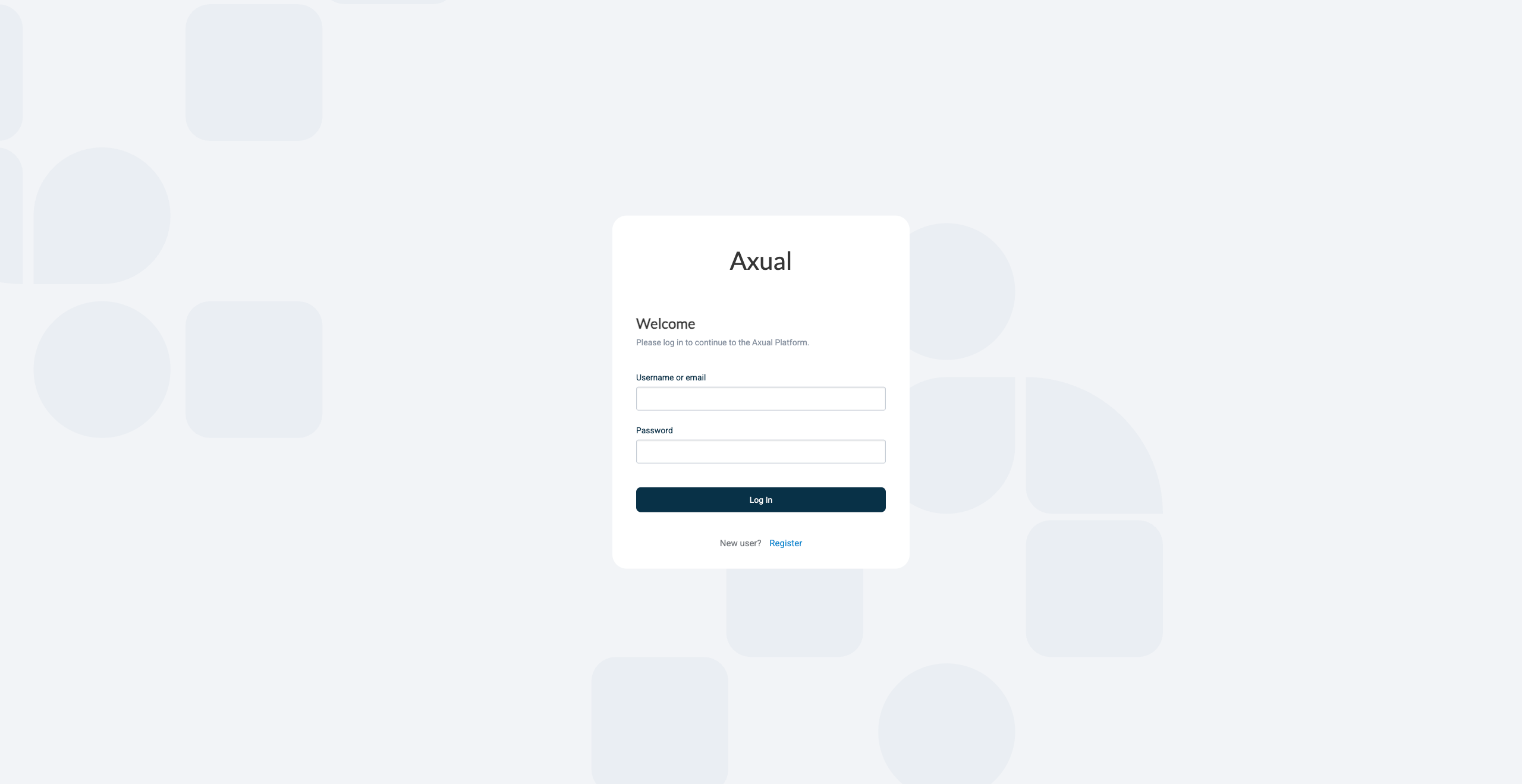
-
Click Register user to register a tenant admin user. This user has administrative privileges on the platform. The following screen appears:
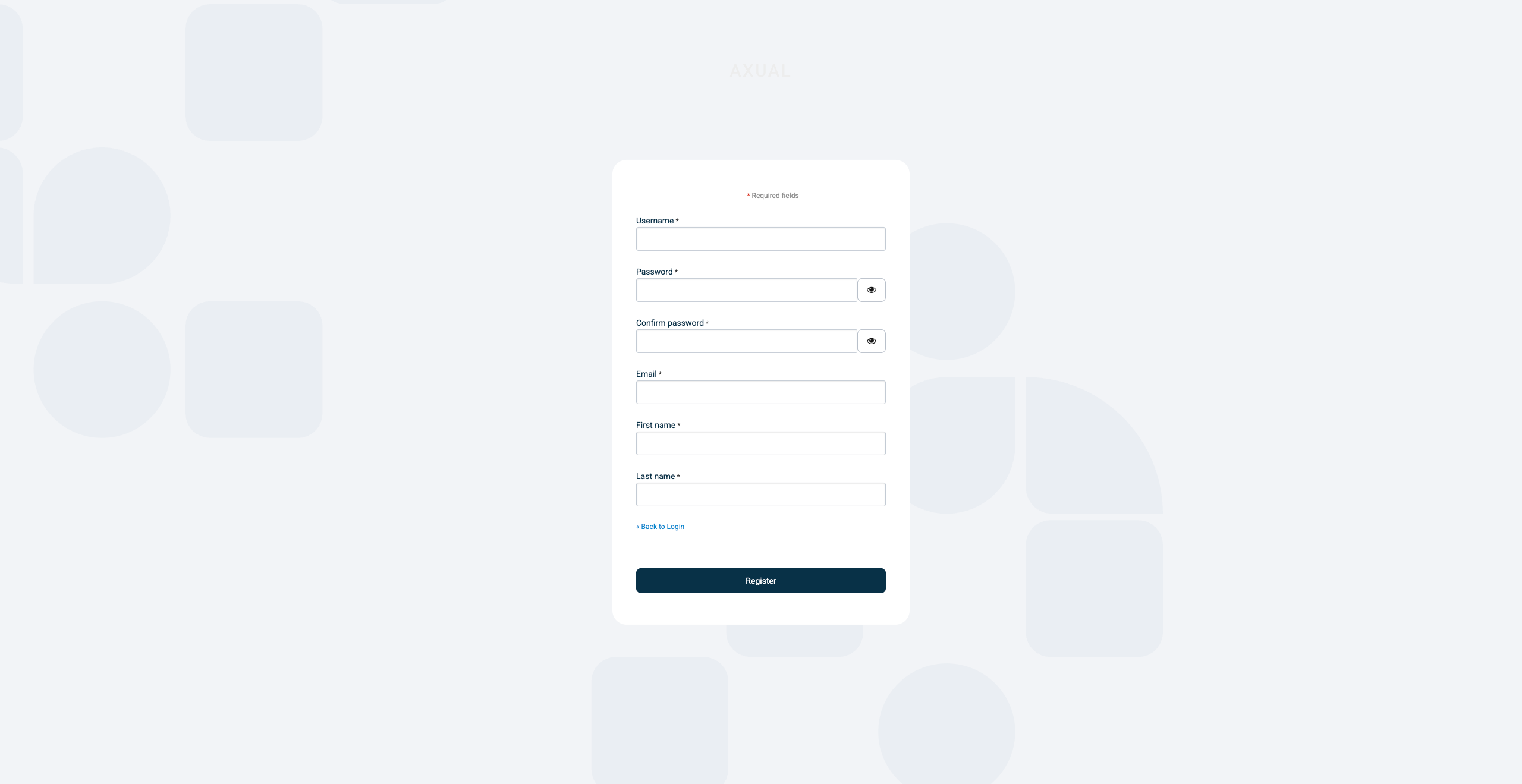
-
Register the tenant admin on your platform. Enter details for the following fields
-
First name
-
Last name
-
Email
-
Username: you will use this to log in next time
-
Password
-
Confirm password
-
-
Click Register to add the tenant admin. The following screen appears:
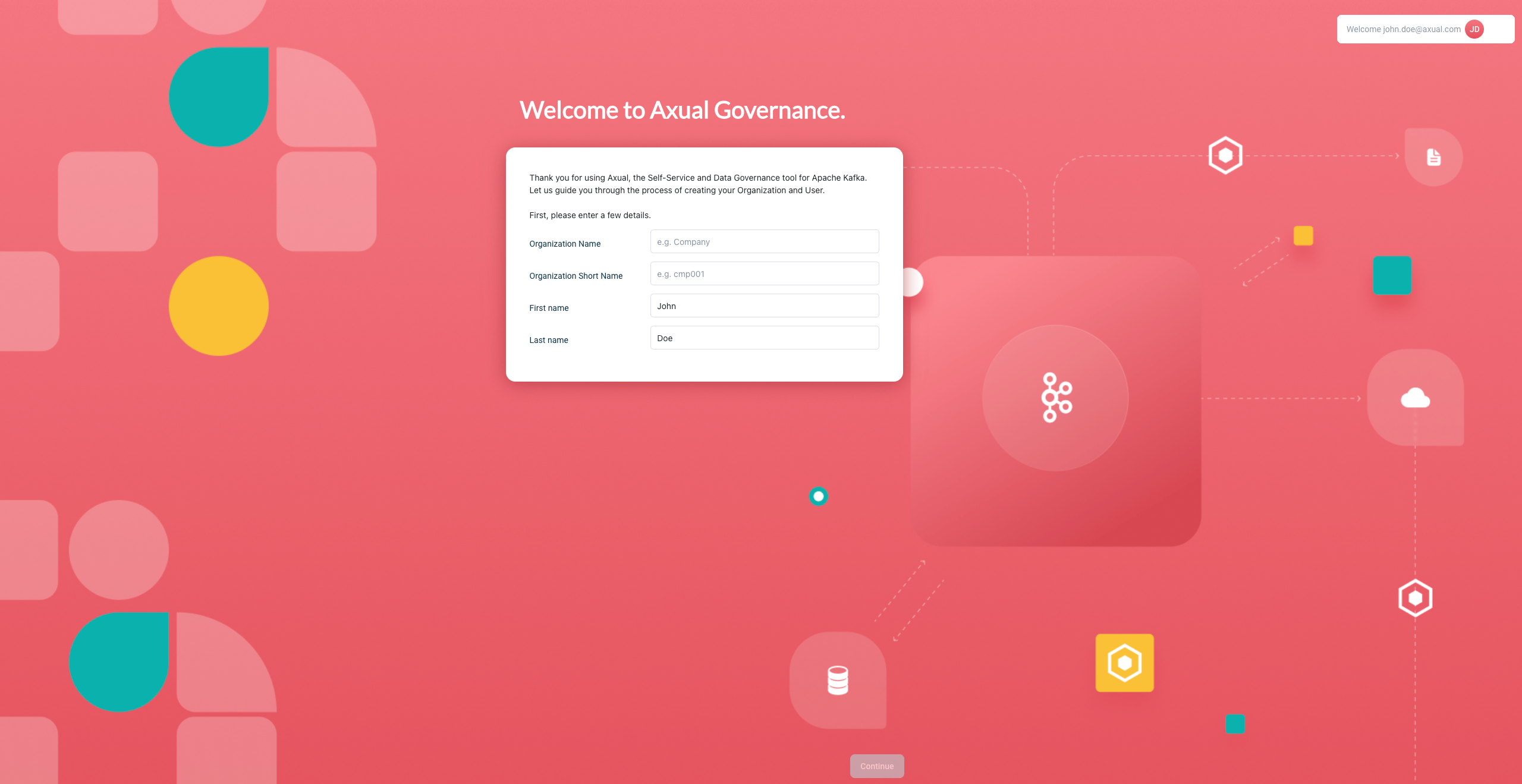
-
Add the details of your organisation and click Continue. Self-Service redirects you to the dashboard.
By completing the steps above, you have deployed Axual Governance and prepared Self-Service to log in as a tenant admin.
You can now continue with Step 5: Onboarding Axual Kafka.
Step 5: Onboarding Axual Kafka
Onboard the Kafka cluster you deployed as Axual Kafka. Self-Service can then create and configure topics on that cluster, and authorise applications against it.
Onboarding the cluster
Self-Service does not know about the cluster you deployed until you register it. These steps create that record.
-
Log in to Self-Service using the tenant admin credentials.
-
Expand the menu to see all items. The following screen appears:
-
Click Clusters, followed by Add cluster. The following screen appears:
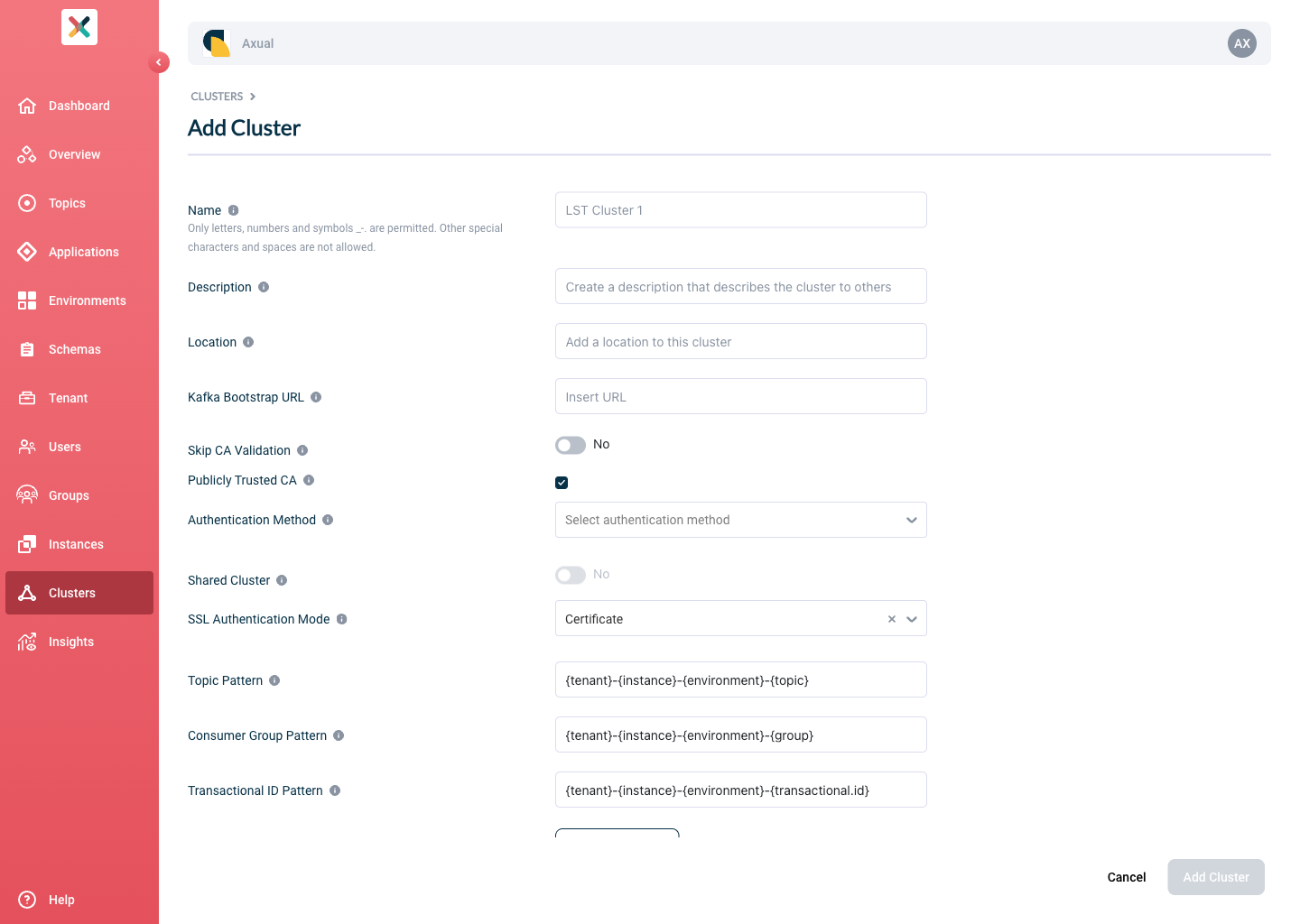
-
Fill in the following information for your cluster:
-
Name: the name you refer to the cluster by
-
Description: a description of this cluster, for example
dev -
Location: extra metadata that helps you recognise it
-
-
Select
Apache Kafkaas the provider. -
Enter details for the following:
-
Kafka bootstrap URL:
cluster01-kafka-bootstrap.kafka.svc.cluster.local:9093, or the address under your own<domain>if you set one -
Publicly Trusted CA: unchecked
-
CA (PEM): the file
cluster-ca.crtfrom Axual Kafka certificates -
Choose your authentication method.
-
For TLS, upload the following files:
-
Certificate (PEM): the file
platform-manager.crtfrom Axual Kafka certificates -
Private Key: the file
platform-manager.keyfrom Axual Kafka certificates
-
-
-
-
Click Verify to check the details you entered. Continue when the verify action returns "Broker connection verified".
-
Leave Shared cluster as it is.
-
Set the SSL Authentication Mode to
certificate. -
Use the following patterns for multi-environment support, described in Topic, Consumer Group and Transactional ID Patterns:
-
Topic pattern:
{tenant}-{instance}-{environment}-{topic} -
Consumer Group pattern:
{tenant}-{instance}-{environment}-{group} -
Transactional ID pattern:
{tenant}-{instance}-{environment}-\{transactional.id\}
-
-
Click Add cluster to save the information.
Preparing Self-Service
Topics and Applications exist in Environments, so an environment has to exist before anyone can use Self-Service. Follow the steps in Create the Instance, then Schema Registry Configuration, then Create the Environment. Use the cluster you onboarded in the previous step.
You have now concluded the first time setup of Self-Service for topic management. Before you invite anyone in the organisation to start using it, complete Step 6: Functional verification.
Step 6: Functional verification
In this step you:
-
create a topic using the Self-Service interface
-
authorise an application to produce data to it
-
produce messages to the topic you created
-
verify the messages have arrived on the topic
Creating and configuring a topic
Follow Create the Topic to create a test topic named mytopic in the environment you set up.
Creating and authorising the application
Follow Create the Application to create and authorise a producer application.
When selecting the Application type, use Self Managed, followed by Java. The kafka-client-examples repository sets up a Java application. Use the application ID (for example io.testing.consumer) as client.id, and take the full topic name from the Async API spec on the topic card.
|
The application is ready and authorised to produce. Complete the verification by producing data to the topic.
Producing some data
The kcat command-line tool produces data to the topic.
-
Install
kcaton your machine. See the kcat installation instructions. -
Create a file named
kcat.confwith the following contents:# Bootstrap server URL and port bootstrap.servers=kafka-0.kafka.local:443 security.protocol=SSL # For ssl.key.location and ssl.certificate.location, use the private key and certificate of the app (PEM) # It is the same certificate you uploaded when you created and authorised the application above ssl.key.location=platform-manager.key ssl.certificate.location=platform-manager.crt # For ssl.ca.location, use the certificate of the CA which signed the broker's certificate ssl.ca.location=cluster-ca.crt -
Produce some messages to the topic with the following command:
echo "Test message contents" | kcat -F kcat.conf -m 60 -P -t loc-test-mytopic -k "Test key"

# If you are unsure what the topic name is, list the topics
kcat -F kcat.conf -L -m 60 | grep topic
-m 60raises the metadata timeout to 60 seconds, which a local cluster usually needs.Use the topic name that matches the pattern. The example above produces a message to topic mytopicin environmenttest, instanceloc. -
A successful run prints no errors. The final verification happens in Self-Service, in the next section.
Self-Service verification
The last verification step happens in Self-Service, using Topic Browse and search.
-
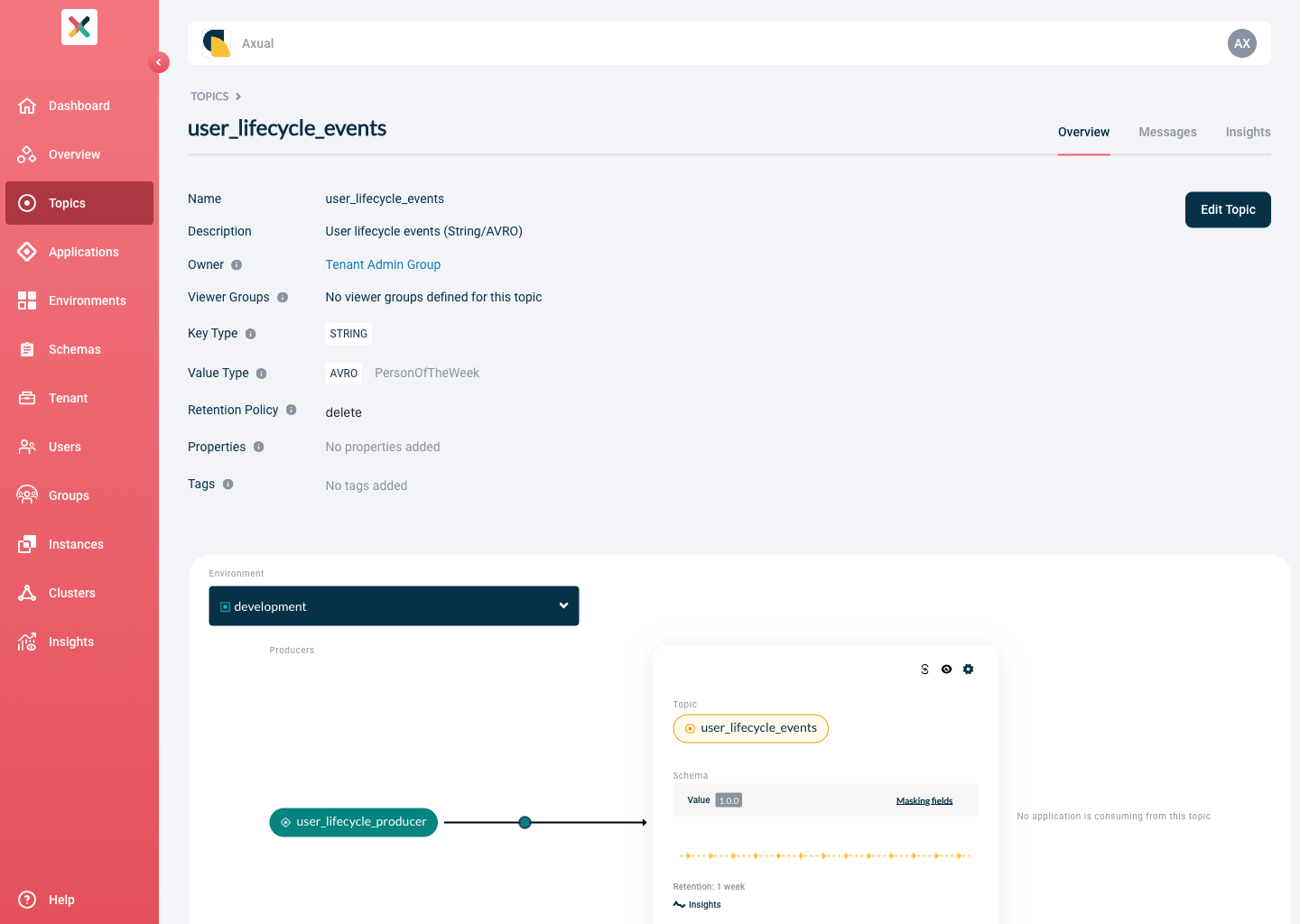
Find the topic in Self-Service and open its detail page.
-
Click the Messages tab.
-
Click Search to accept the default search options and browse the messages on the topic. When the configuration is correct, the messages appear below the search controls.
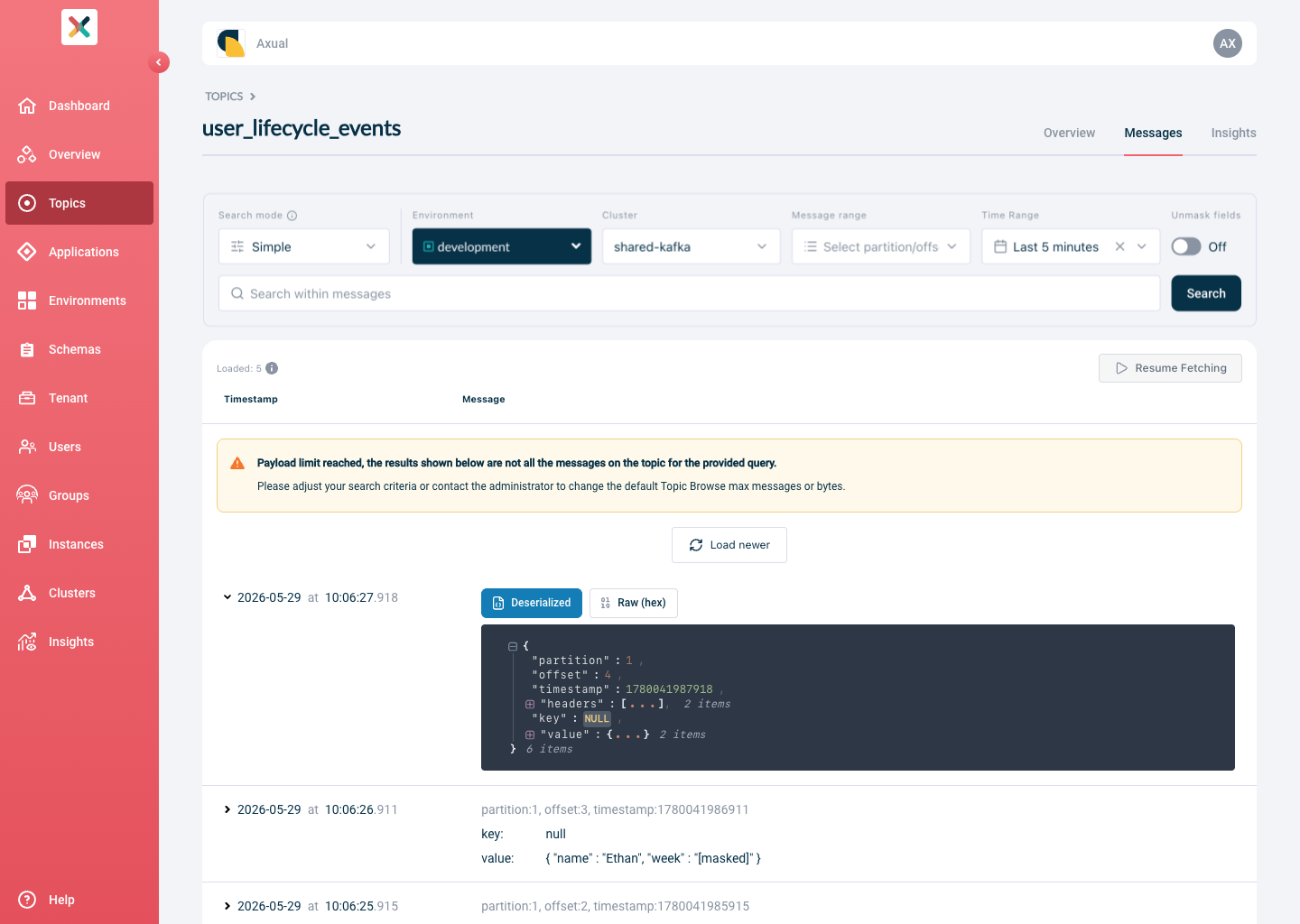
Click a row to expand it and show the details of that message.
Conclusion and next steps
You have now concluded the first time setup of Self-Service for topic management, and you have verified the integration between Axual Governance and Axual Kafka.
Install other components of Axual Platform
This trial installed the smallest platform that works. Install the rest stage by stage. Each stage names the components it covers:
-
External Dependencies covers cert-manager, which issues and renews the component certificates. Point it at the same Certificate Authority the certificates above came from.
-
Streaming Installation covers Apicurio Registry, which stores the schemas, and the Rest Proxy, which fronts Kafka for clients without a Kafka library. Enabling Apicurio Registry also means adding it to the instance you created.
-
Runtime Installation covers the optional runtime components, including Kafka Connect for moving data between Kafka and an external system.
-
Installing the Monitoring Stack covers Prometheus and Grafana. The streaming and governance values have to expose their metrics before the stack can scrape them.
Preparing for a production-like setup
A production-like setup needs more advanced configuration of the platform. That falls beyond the scope of this guide. The following pages cover it:
Connecting a consumer application
In the same way as the producer, you can create a consumer application to process the messages on the topic. Consume the messages with the following command:
kcat -F kcat.conf -m 60 -C -t loc-test-mytopic -o -1 -eFor more information about kcat parameters, see the official kcat documentation.
Need support?
To raise a support request for your trial, go to the Axual Support portal and select Additional, then Product trial questions.