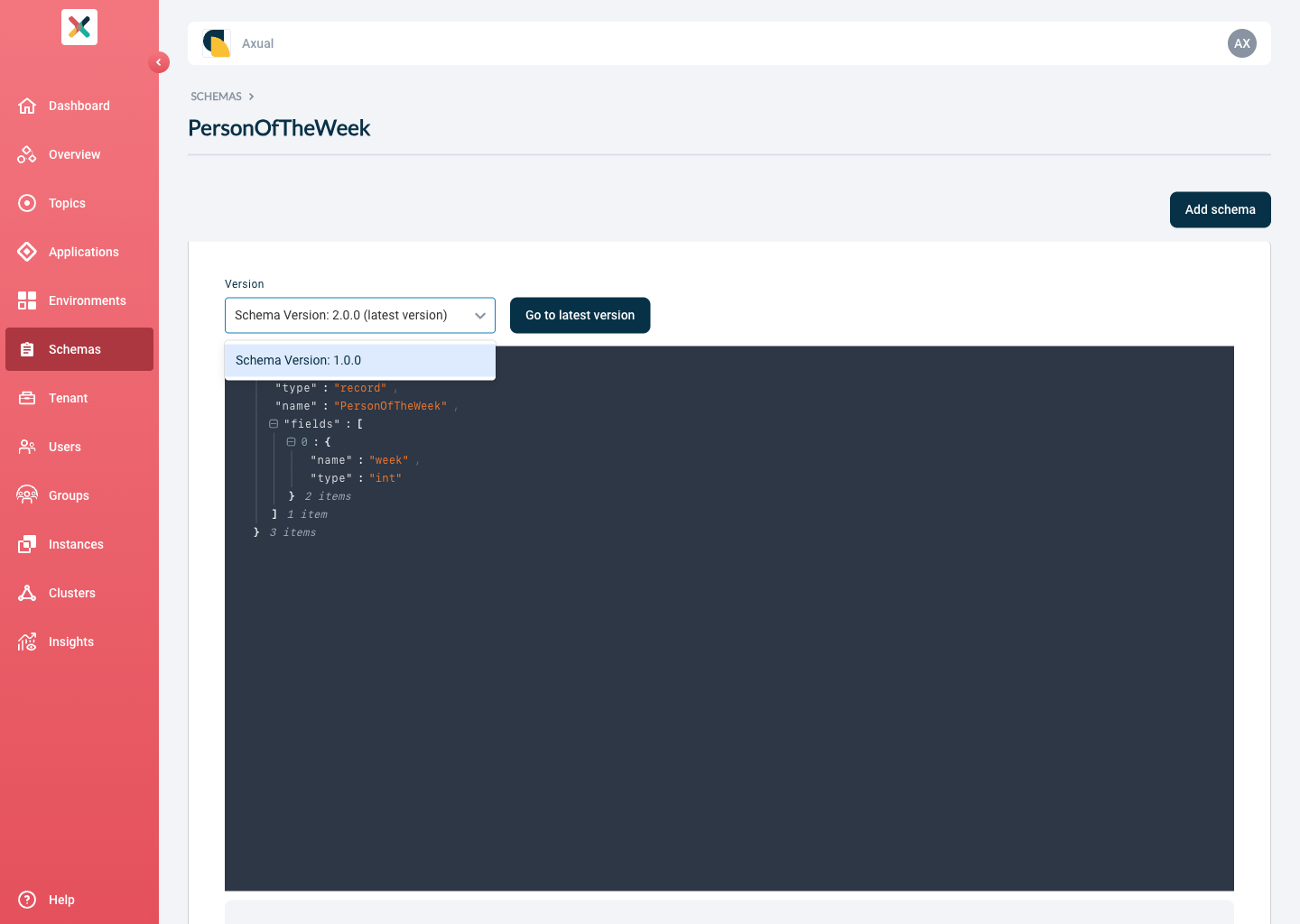
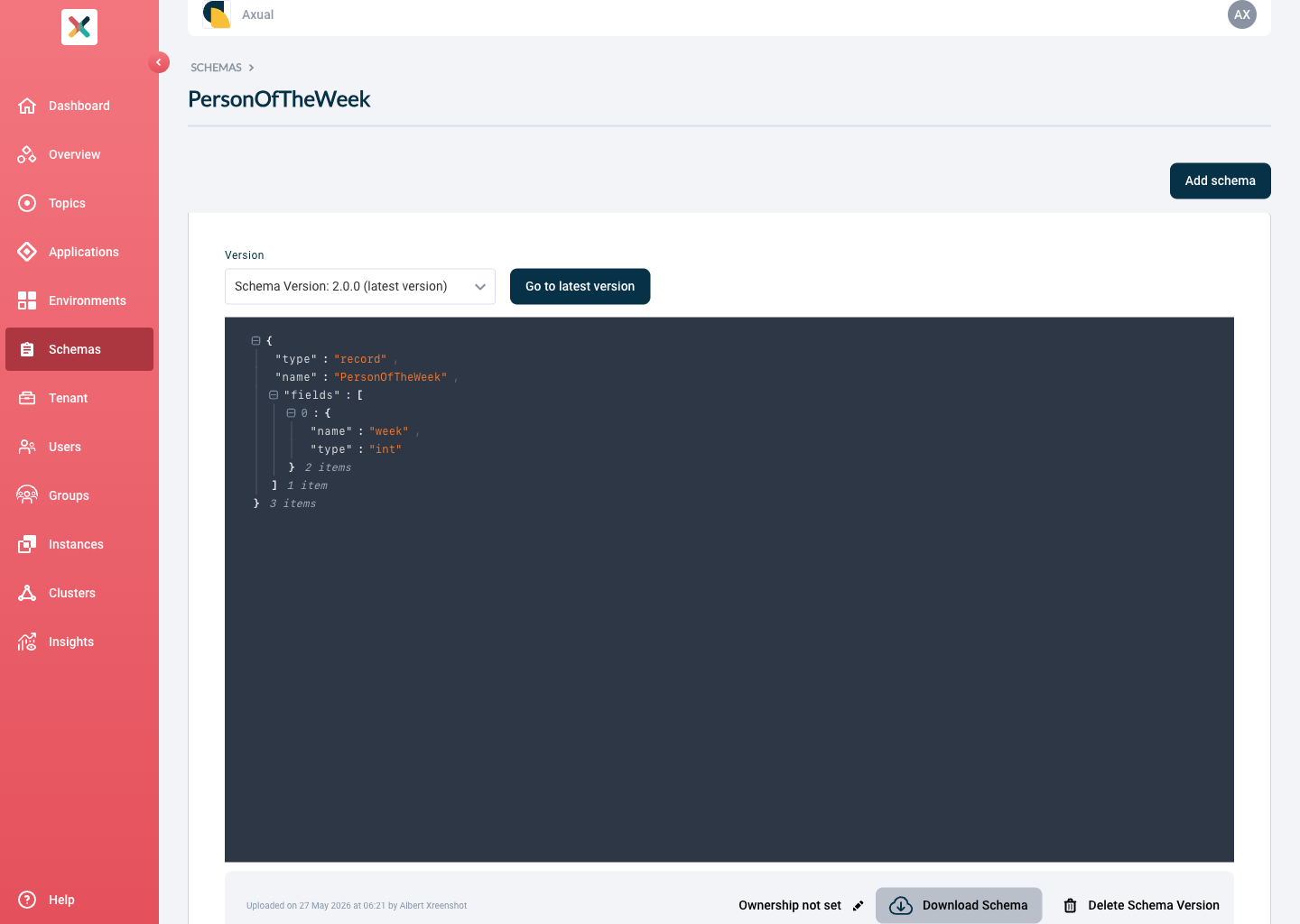
Schema Management
Uploading a Schema
Axual supports three types of schemas: AVRO, Protobuf and JSON Schema. To use Protobuf or JSON Schema the Instance Cluster needs to be configured with an Apicurio Schema Registry type.
|
Make sure the uploaded schema is used in the Producer / Consumer application in the exact same form. If you are uploading a schema that has no references to other schemas,
you can upload the If you use a plugin such as the |
-
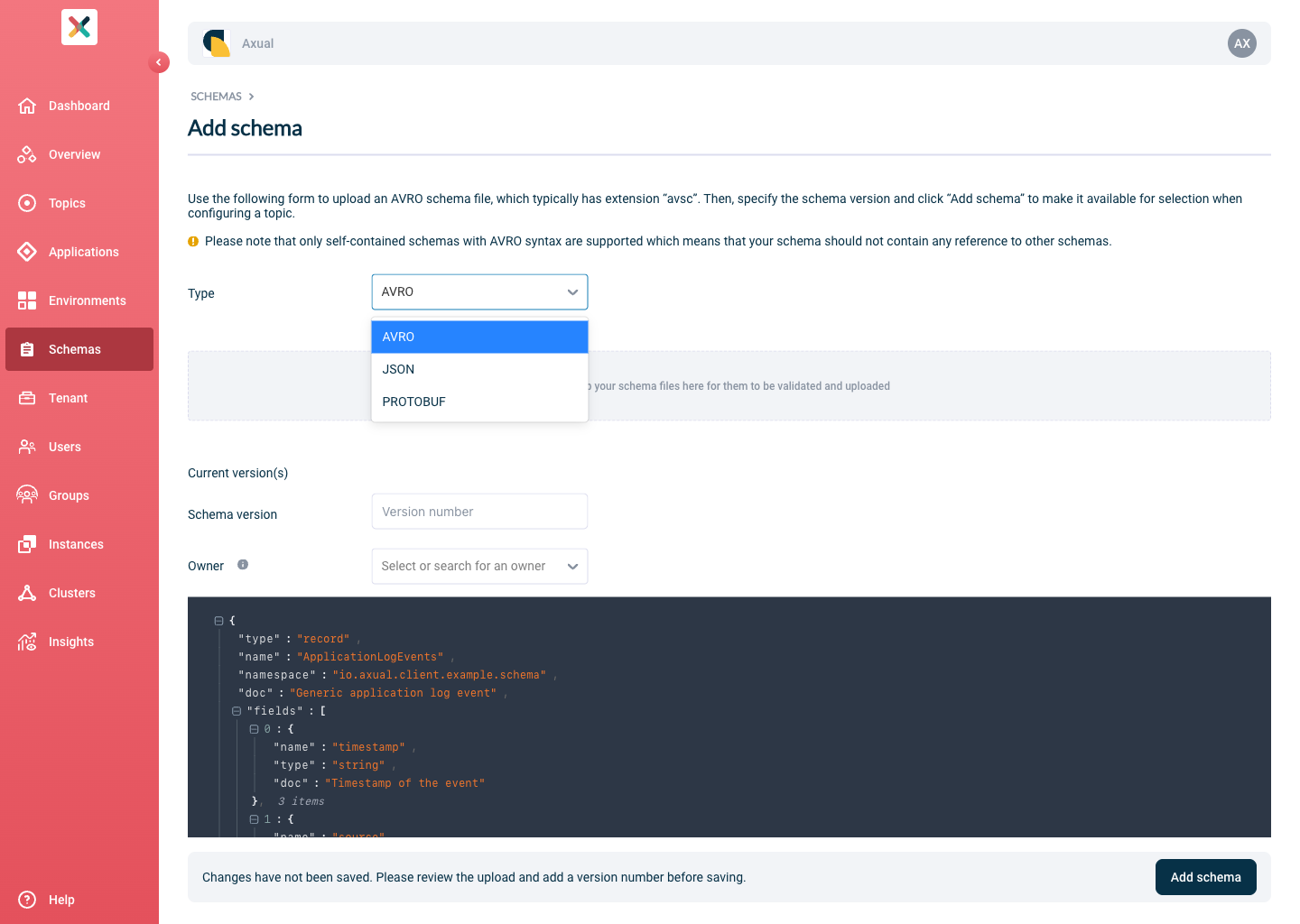
Visit the Schema Overview and click on Add Schema
-
Adjust the Type according to the Schema you are uploading
-
Upload the schema as a text file (
.avsc,.protoor.jsonformat). The syntax will be validated as soon as the file has been uploaded. -
Add the version for the Schema
-
Select the Schema Owner
-
Click Add Schema
Schema Ownership, Roles and Permissions
Self-Service supports defining Schema ownership. The following Roles and permissions described below are taken into consideration only when the Tenant Admin has configured the Schema Roles enforcement in Tenant Settings:
Schema Author Role
Schema Authors can:
-
upload a new Schema and assign the ownership to themselves
-
upload new Schema Versions for an existing Schema they own
They cannot upload new Schema Versions for an existing Schema they do not own.
Schema Admin Role
Schema Admins can
-
upload a new Schema Version of any existing Schema
-
delete Schema Versions of any existing Schema
-
transfer the Schema’s ownership of any existing Schema
Schema Owner Role
Schema Owners can:
-
upload new Schema Versions of their Schemas
-
delete Schema Versions of their Schemas
-
transfer the ownership of their Schemas
|
A Schema Owner can transfer the ownership of an owning Schema to another Group they are a member of. A Schema Admin or a Tenant Admin can transfer the ownership of any existing Schema. |
Error scenarios
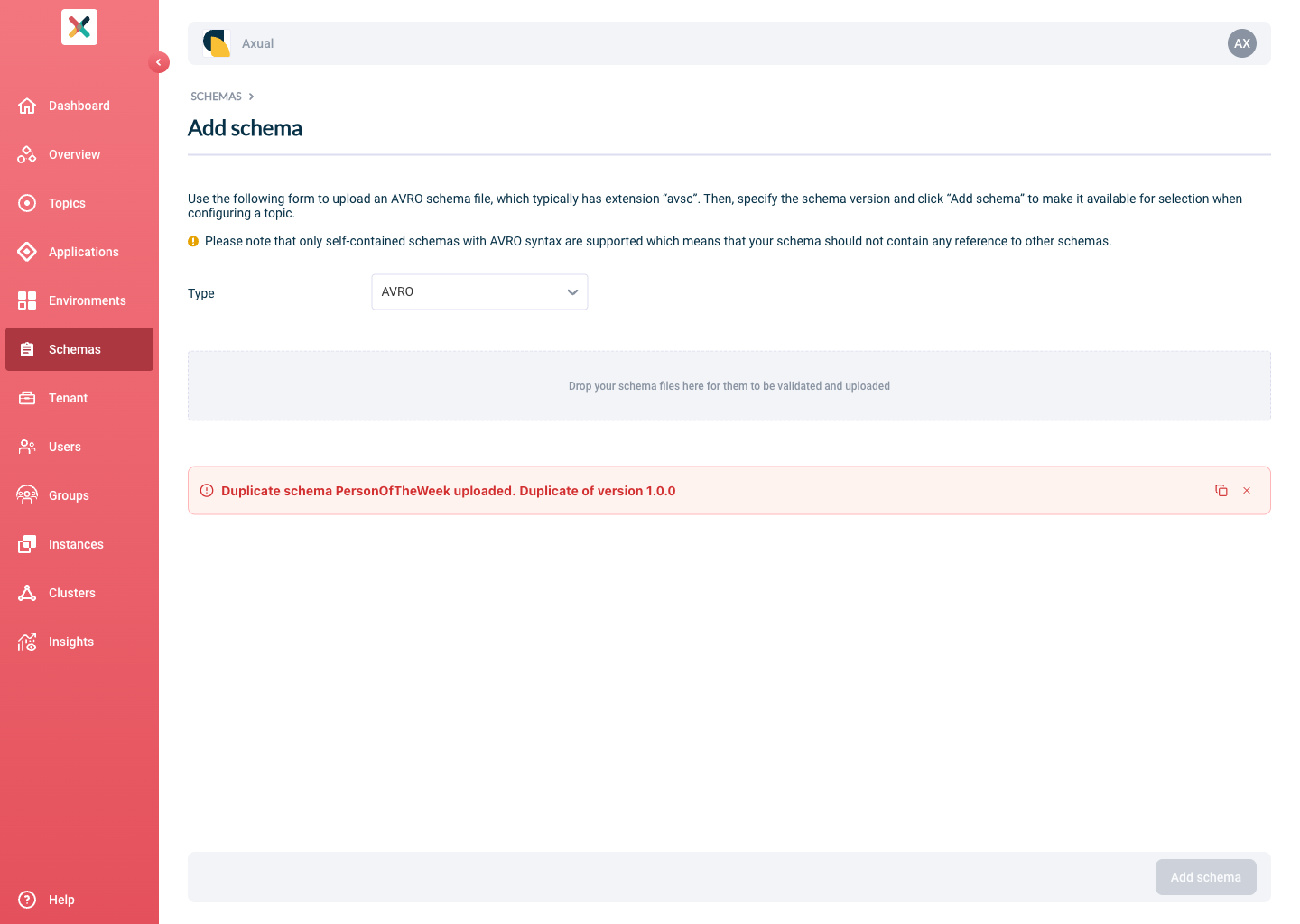
Duplicate schema
An attempt at uploading a duplicate Schema for a tenant is rejected with an error message containing the duplicated version as shown below:
Incompatible schema
In some situations, you want to force the use of an incompatible schema.
When applying a Topic using an incompatible schema, the following modal is shown.
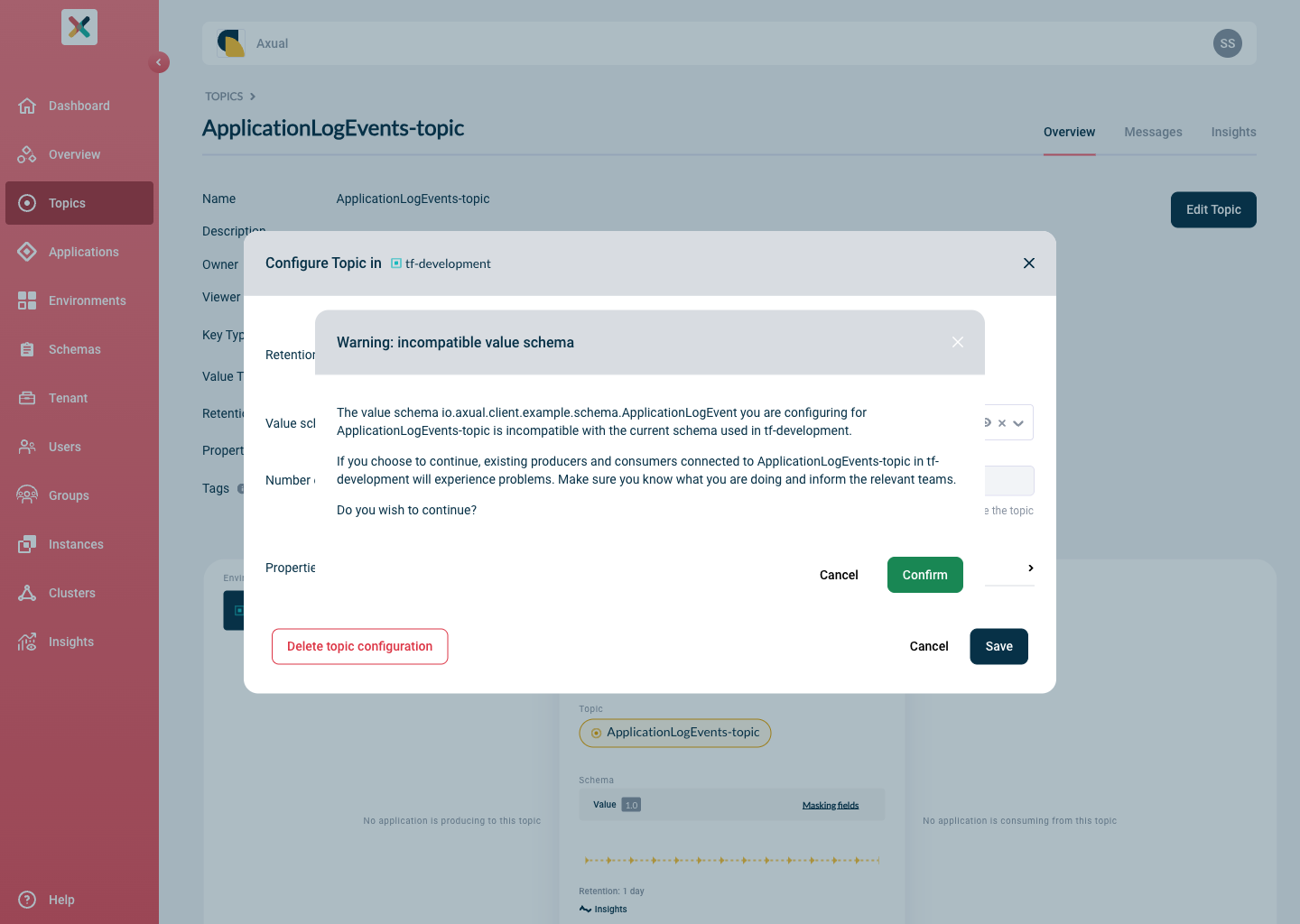
Click "Confirm" if you want to force updating the schema to the incompatible one.
| Make sure to inform anyone who is using your Topic, especially in an acceptance or production Environment. |
If Notifications are enabled for your Tenant, after the Schema modification, an email will be sent to Topic owners with access the modified Topic.
Unsupported JSON Schema draft
A JSON Schema declaring draft 2019-09 or 2020-12 is rejected when you upload it:
JSON Schema draft 2020-12 is not supported by Apicurio schema registry. Please use draft-07 instead
("$schema": "http://json-schema.org/draft-07/schema#"). Schemas using newer drafts can be registered
but cannot be updated afterwards, so they are rejected up front.
Drafts 4, 6 and 7 are accepted, and so is a schema with no $schema declaration.
See JSON Schema Draft Support for why the newer drafts cannot be used.
If you already uploaded a schema using one of them, see Recovering an Unsupported JSON Schema Draft.
Recovering an Unsupported JSON Schema Draft
Schemas uploaded before this check existed are not migrated automatically, and the check does not repair them. Convert the schema to draft-07 first, then replace it on the Topics that use it.
Converting the Schema to draft-07
Set $schema to http://json-schema.org/draft-07/schema# and replace the keywords that exist only in the newer drafts:
| 2019-09 / 2020-12 | draft-07 | Notes |
|---|---|---|
|
|
Update every |
|
|
|
|
|
The 2020-12 |
|
|
For example |
|
|
Only if the reference is not genuinely dynamic |
|
— |
No equivalent. Express the constraint with |
Validation-only keywords such as minContains, maxContains, contentSchema and deprecated have no draft-07 equivalent and can be removed.
Replacing the Uploaded Schema
How you replace the schema depends on whether it was ever applied to a Topic.
The Schema was never applied to a Topic. It exists only in Self-Service, so nothing is stored in the Schema Registry yet. Upload the draft-07 schema as a new Schema Version and use that version from now on. Optionally delete the old version — see Schema Ownership, Roles and Permissions for who is allowed to.
The Schema is applied to a Topic. The unsupported schema is stored in the Schema Registry, and every attempt to apply a newer version to that Topic fails with #: could not determine version — including a corrected draft-07 version.
The stored artifact has to be removed from the Schema Registry first, which is not a Self-Service action:
-
Convert the schema to draft-07 and upload it as a new Schema Version. This succeeds — nothing reaches the Schema Registry at this point.
-
Ask Axual support, to delete the Topic’s subjects from Apicurio.
-
Apply the new Schema Version to the Topic. The subject is recreated from the draft-07 schema, and later versions upload normally.
|
Deleting a subject removes the schema IDs that messages already on the Topic refer to. Consumers reading back over that history can no longer resolve those messages until they are re-produced. Plan the deletion together with the Topic and Application owners, especially in an acceptance or production Environment. |
Deleting the Topic from the Environment also removes its subjects, but it deletes the Topic data along with them. Only consider that where the data is expendable.
Viewing and Downloading Schemas used on a Topic
Viewing a Schema
-
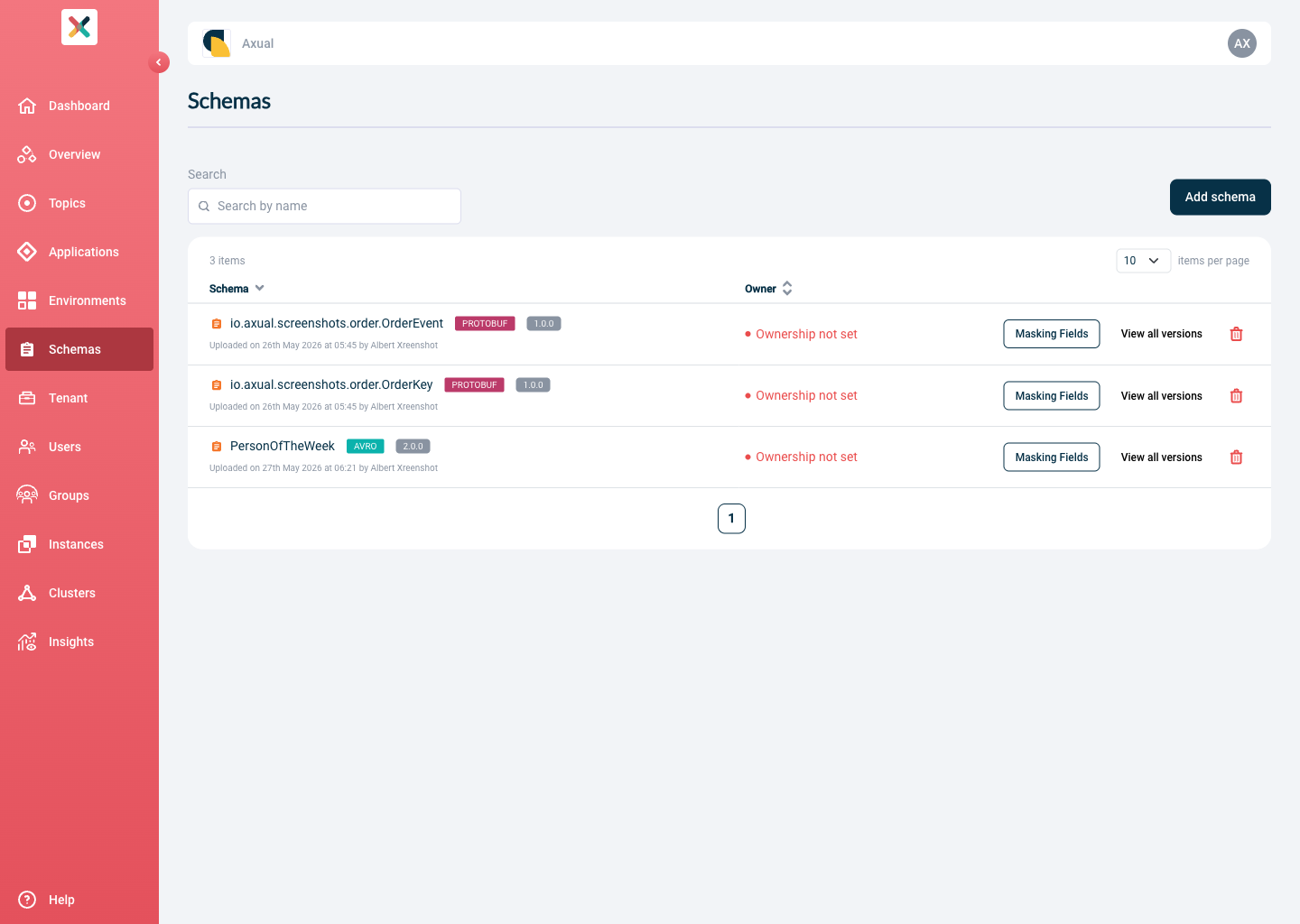
Visit the Schema page
-
The paginated Schemas table contains all Schemas sorted by Name
-
Input the name (or namespace) of the Schema you are looking for
-
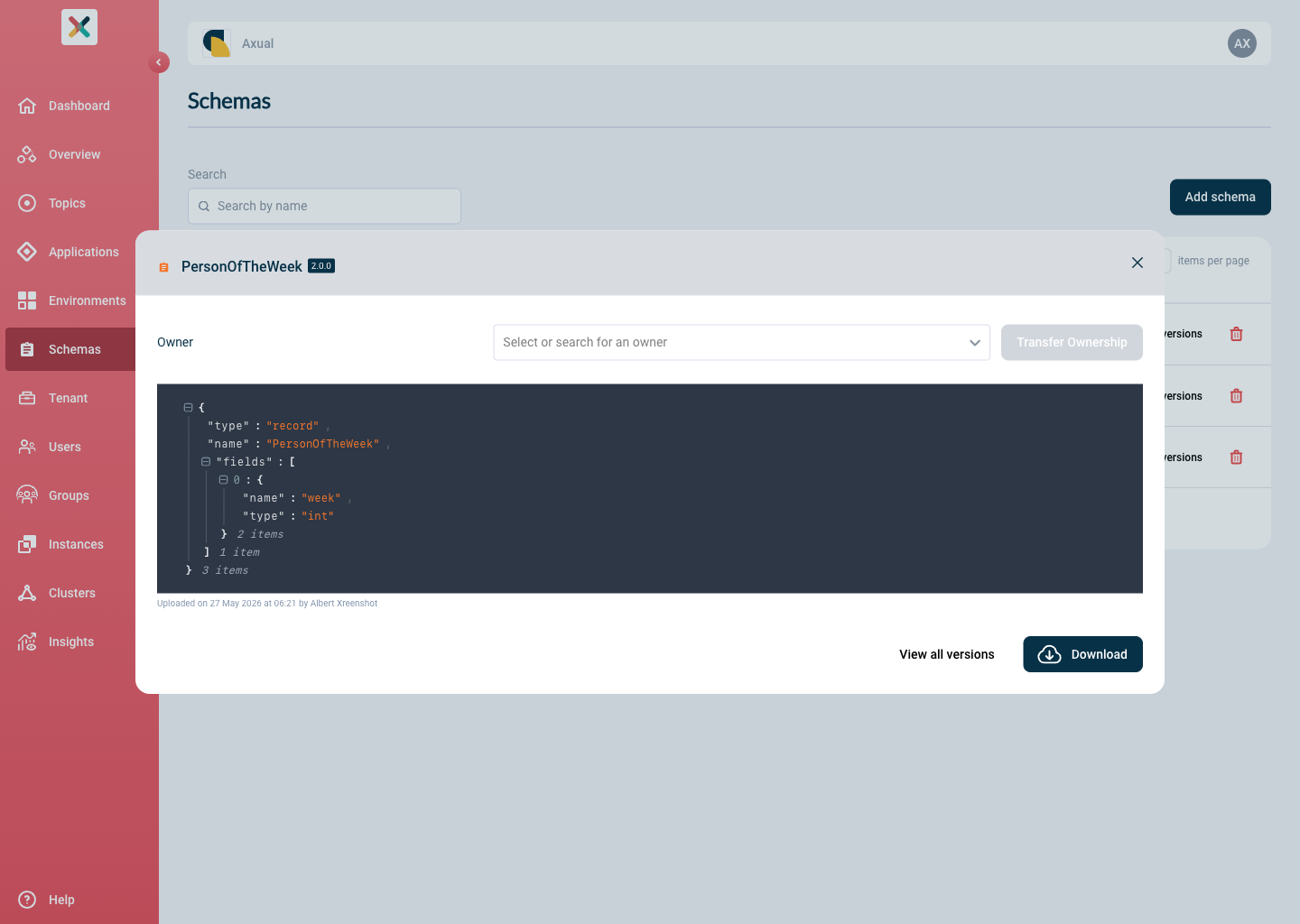
Click on the file to view the Schema
-
A modal will open displaying the content of the Schema
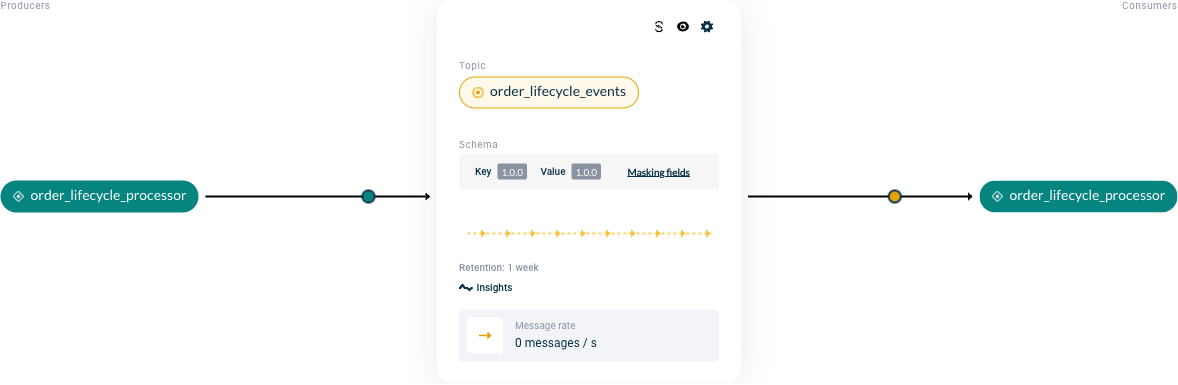
You can also view a Schema from the Topic Details page.
-
On the topic card, there is a Schema section.
-
Click on the version number of the Schema.
-
You will be presented with the Schema