Topic Authorizations
This guide shows you how to authorize, deny, revoke, or cancel an application’s access to a topic in a given environment.
Goal |
Control which applications can access your topic. |
Audience |
Topic Owner, a user with Edit permission on the topic (a member of its owning group). |
When to use |
Use this guide when an application requests access to your topic, or when you need to remove access it already has. |
Authorizing Topic Access
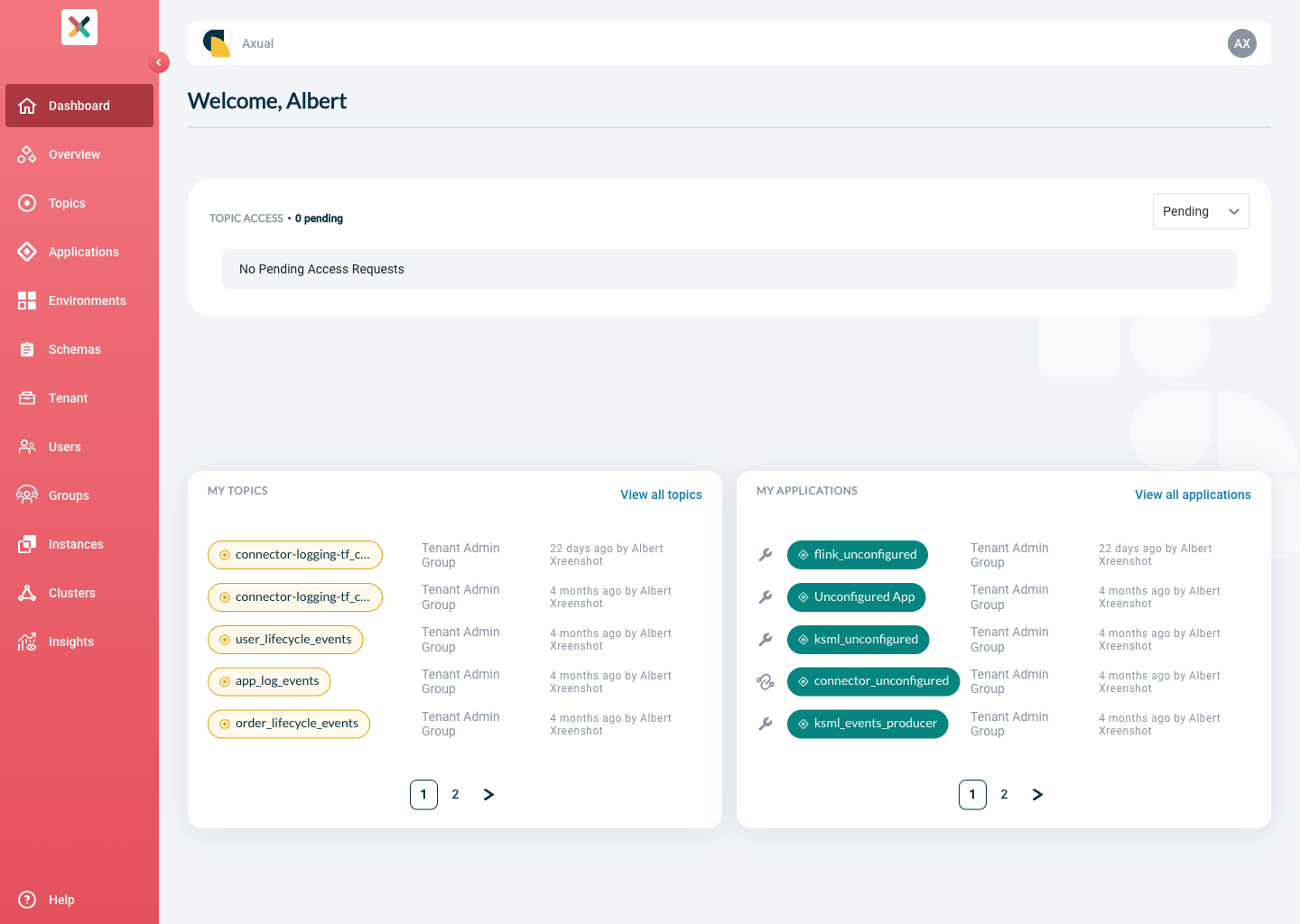
You can authorise a topic access request from the dashboard or from the topic detail page.
From the dashboard, follow these steps:
-
Visit the dashboard page.
-
Find the application that has requested access to the topic, and verify the environment where the request needs to be approved.
-
Click the Approve request button. A confirmation popup verifies that the request was approved.
-
The application’s Access Control List (ACL) is authorised to allow access to your topic.
From the topic’s detail page, follow these steps:
-
Search for your topic and open the topic detail page.
-
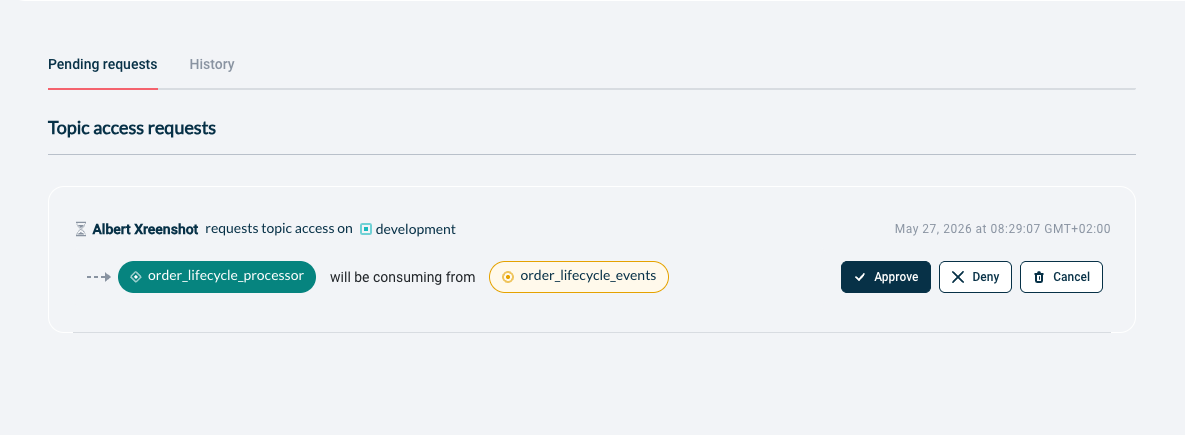
Scroll to the tab titled Pending requests.
-
Find the application that has requested access, and verify the environment where the request needs to be approved.
-
Click the Approve request button. A confirmation popup verifies that the request was approved.
-
The application ACL is authorised in the Axual Cloud cluster to allow access to your topic.
-
The application request moves to the History tab, and its colour in the visualisation changes to green.
Denying Topic Access
Denying access follows the same flow as Authorizing Topic Access. Follow those steps up to the approve step, then click the Deny button instead of Approve request, and provide a reason for the requester.
Revoking Topic Access
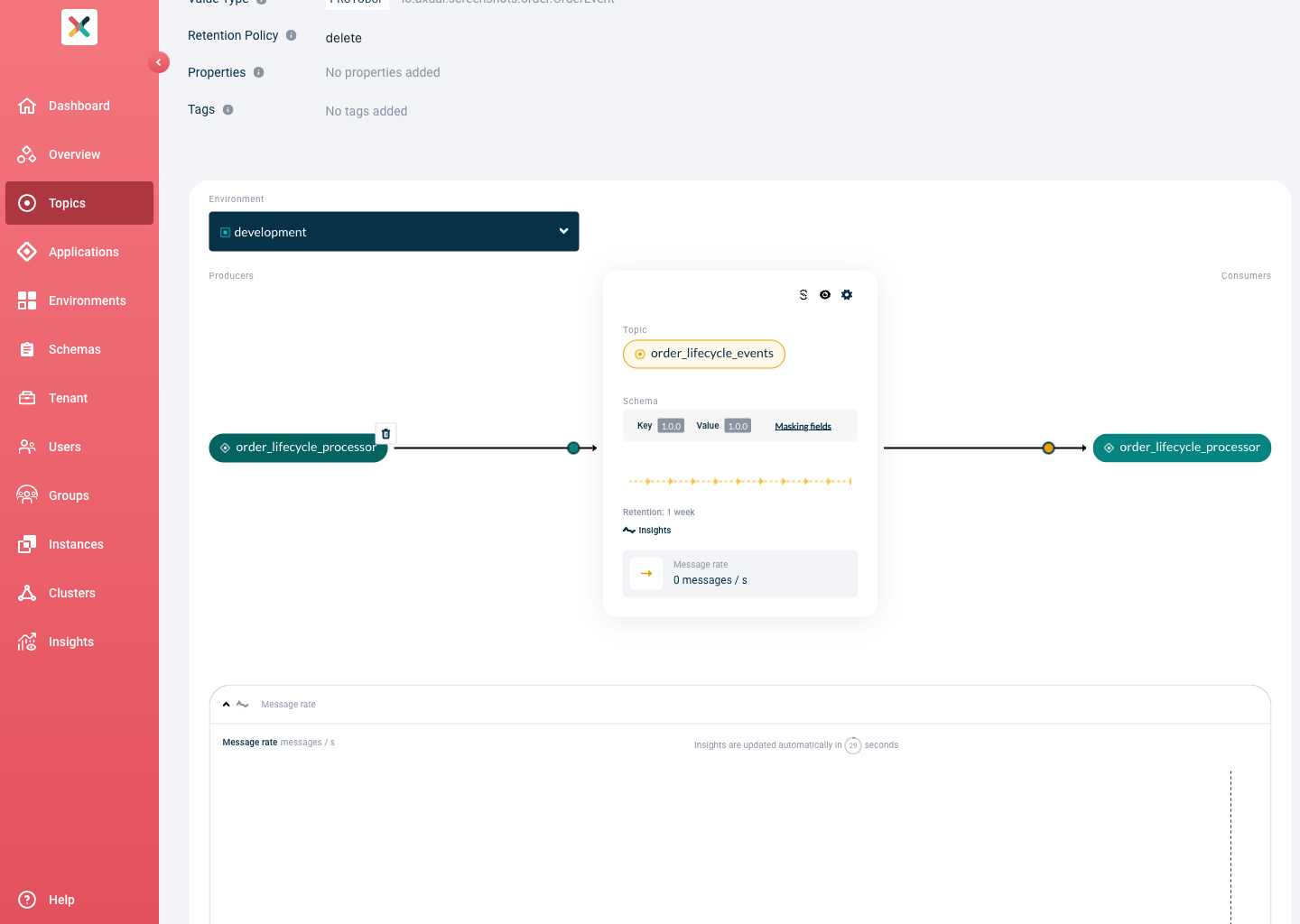
To revoke a connected application’s access in an environment, use the bin icon next to the application on the topic.
-
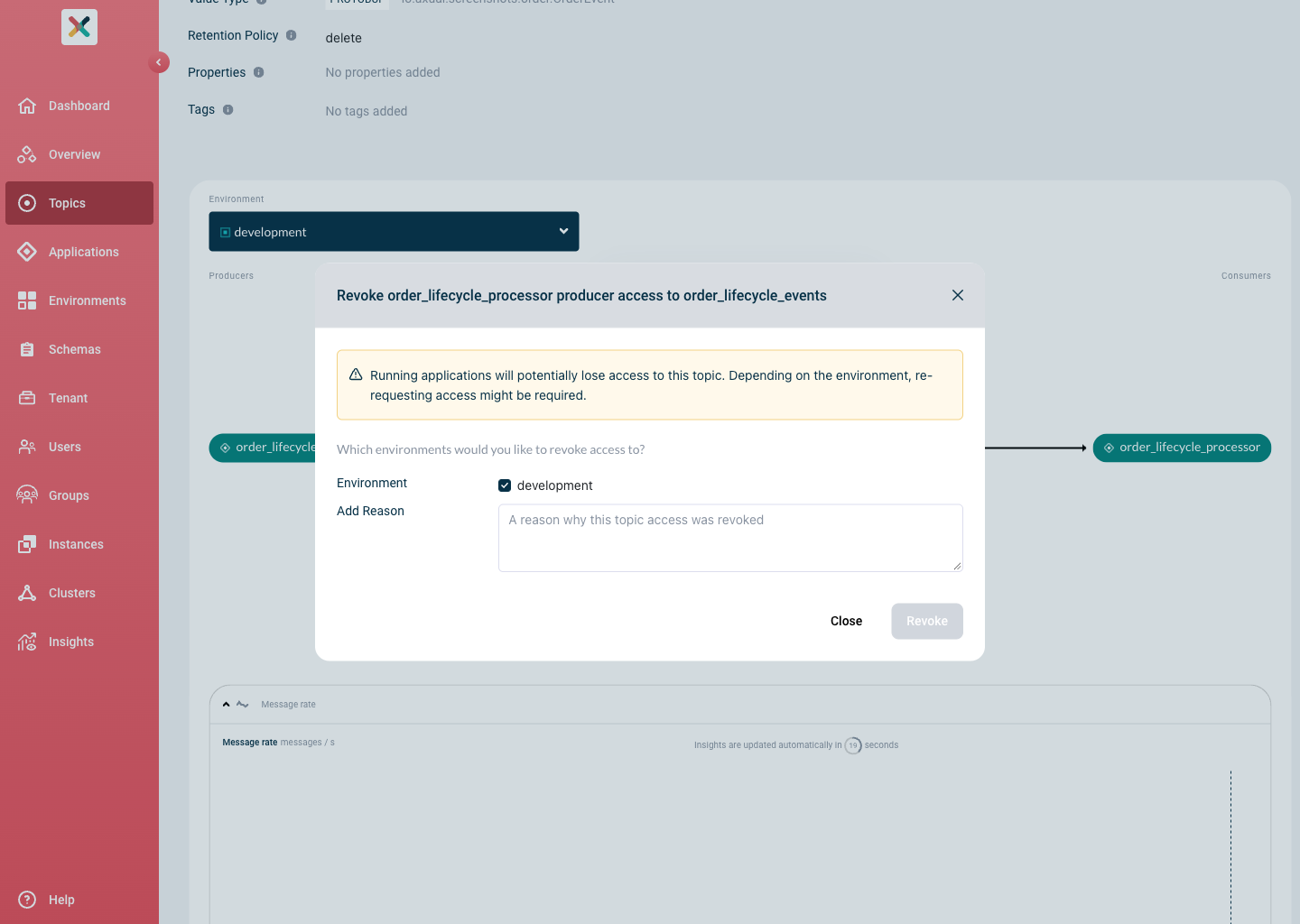
Click the bin icon to open the "Revoke topic access" modal.
-
Select the environments for which you want to revoke access, provide a reason, and click Save.
-
Once the action completes, close the modal.
Cancelling An Application Access From Your topic
Cancelling a request follows the same flow as Authorizing Topic Access. Follow those steps up to the approve step, then click the Cancel button instead of Approve request.
Related pages
-
Requesting topic access, the application owner’s side: submitting the request you approve here.