Managing KSML Applications
This guide shows you how to register a KSML application, configure its definition and deployment, start it, and manage its lifecycle in Self-Service.
Type |
How-to guide |
Goal |
Register a KSML application, configure its definition and deployment, start it, and manage its lifecycle. |
Audience |
A user who can edit applications in Self-Service (a member of the owning group). |
When to use |
Use this guide when you want to run a KSML streaming application on the Axual Platform. |
Creating KSML Applications
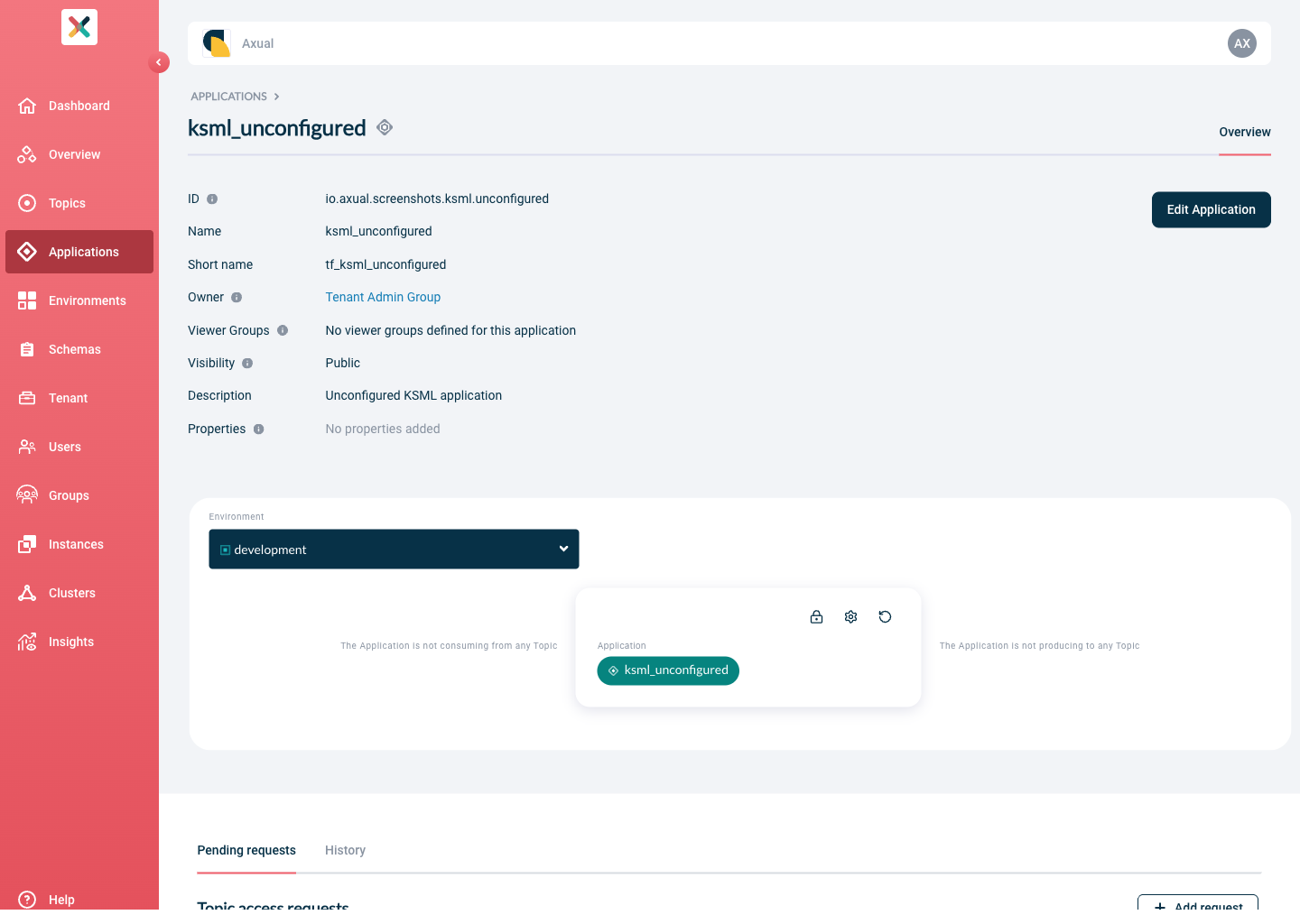
To create a KSML application, register it in Self-Service as you would any other application, then choose the Managed KSML application type.
-
Visit the Applications page (Applications) and click New Application.
-
Fill out the form:
-
ID: a string that uniquely identifies your application. The maximum length is 255 and the value should be alphanumeric with no spaces; the
_character is allowed.The Application ID is used by consuming applications to keep track of where they left off consuming messages from a topic. Consumers sharing the same ID share the events on a topic, so one event can be read by only one consumer with the same Application ID (see the Kafka documentation on consumer groups). KSML is Kafka Streams based, so the application.idmust not collide with an existing Kafka Streams application or topic. This is checked during authentication configuration, see prefixed ACLs. -
Name: the name of the application. It should not be more than 50 characters.
-
Short Name: a unique human-readable short name, used as a label in Self-Service. The maximum length should not exceed 60 characters.
-
Owner: choose the group that will own this application. Is it not available yet? See Creating a group.
-
Application Type: choose
Managed KSML. -
Visibility: see Application visibility.
-
Description: a short summary describing the purpose of this application. It must not exceed 200 characters.
-
Properties: allows you to add additional metadata as key-value pairs to describe the application.
-
-
Press Add Application.
Configuring and starting KSML Applications
A KSML Application needs two sets of configuration for every environment in which it’s deployed:
-
Configuration: Includes the KSML YAML definition and deployment configurations.
-
Authentication: Same as any other Application, see Authentication configuration.
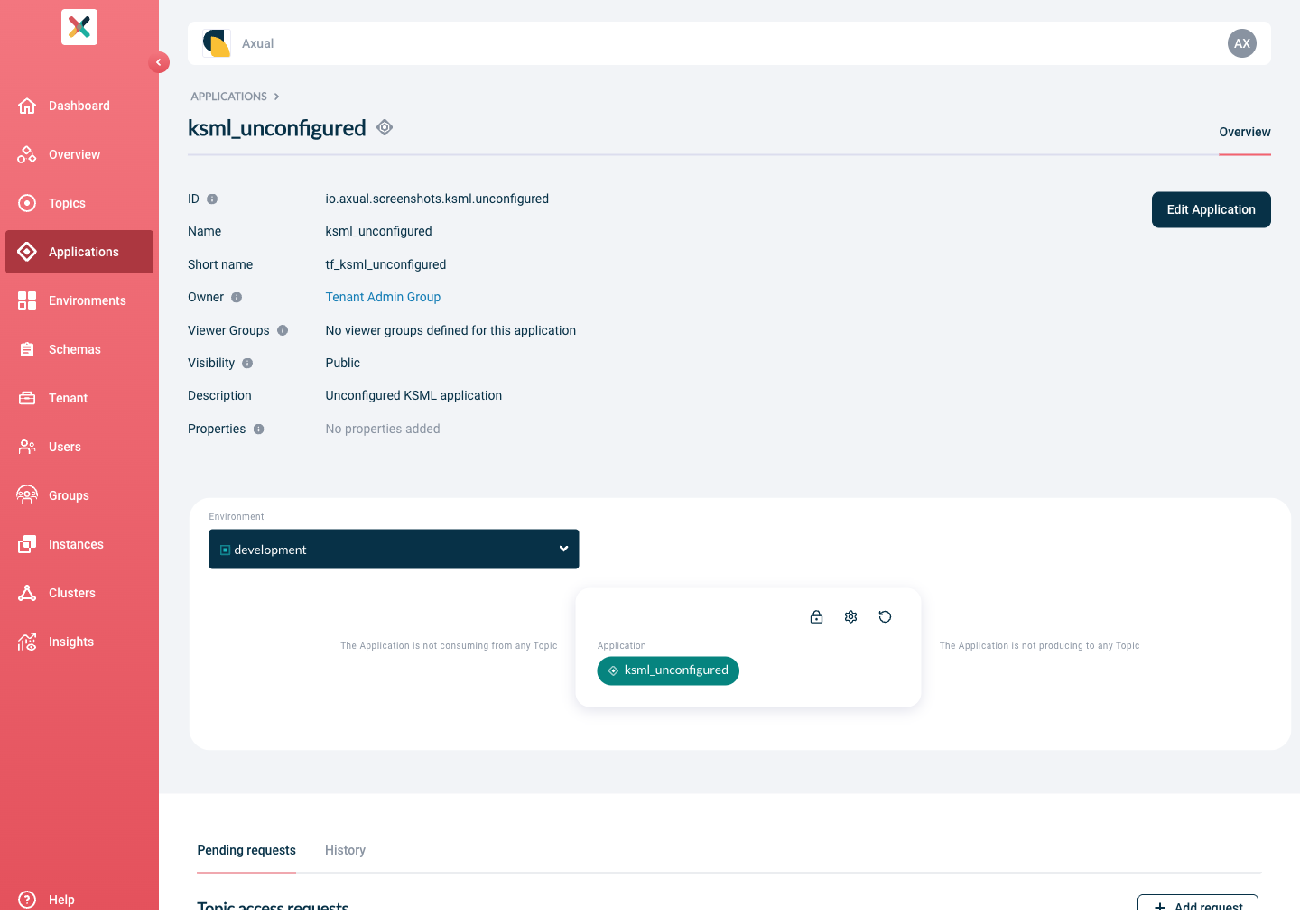
A blue indicator is shown if any Configuration is still missing. |
Configuration
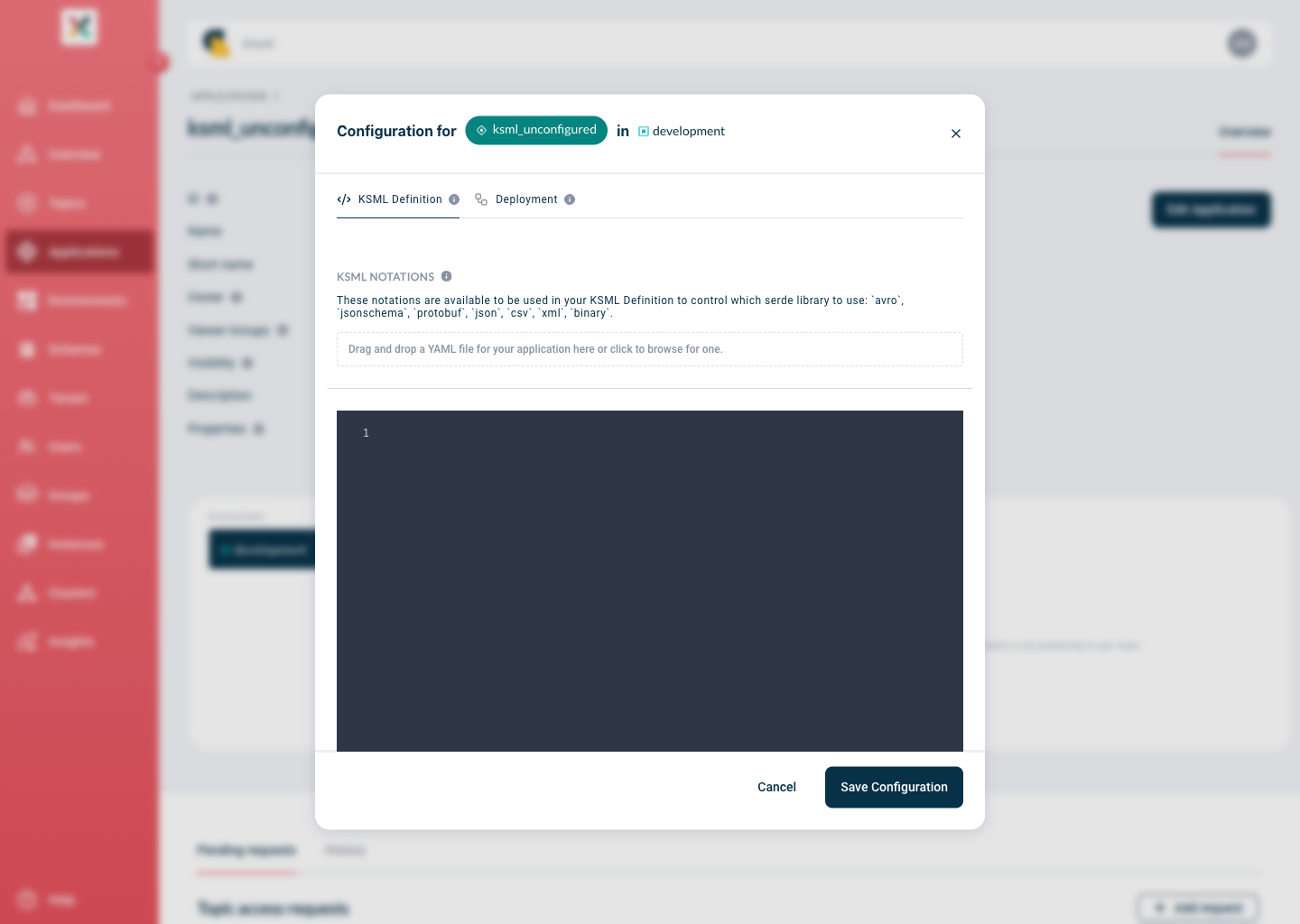
To configure the application, click the Gear icon in the application box; hovering over it shows 'Configuration'. This opens the Configuration modal, which contains two tabs, KSML Definition and Deployment:
KSML Definition
In this tab, you can provide the KSML Application Definition in one of two ways:
-
Type directly into the editor inside the modal.
-
Drag and drop an existing YAML file into the modal.
Deployment
In this tab, you can configure the runtime settings for your application, including:
-
Deployment Size
-
Automatic Restart
Deployment Size
This setting allows you to select the CPU and memory profile for your application. Configure it from the Deployment tab in the Configuration modal.
Select your preferred deployment size from the dropdown, or leave it unchanged to use the default setting. For guidance on which size to choose based on your pipeline and expected load, see Choosing a Deployment Size.
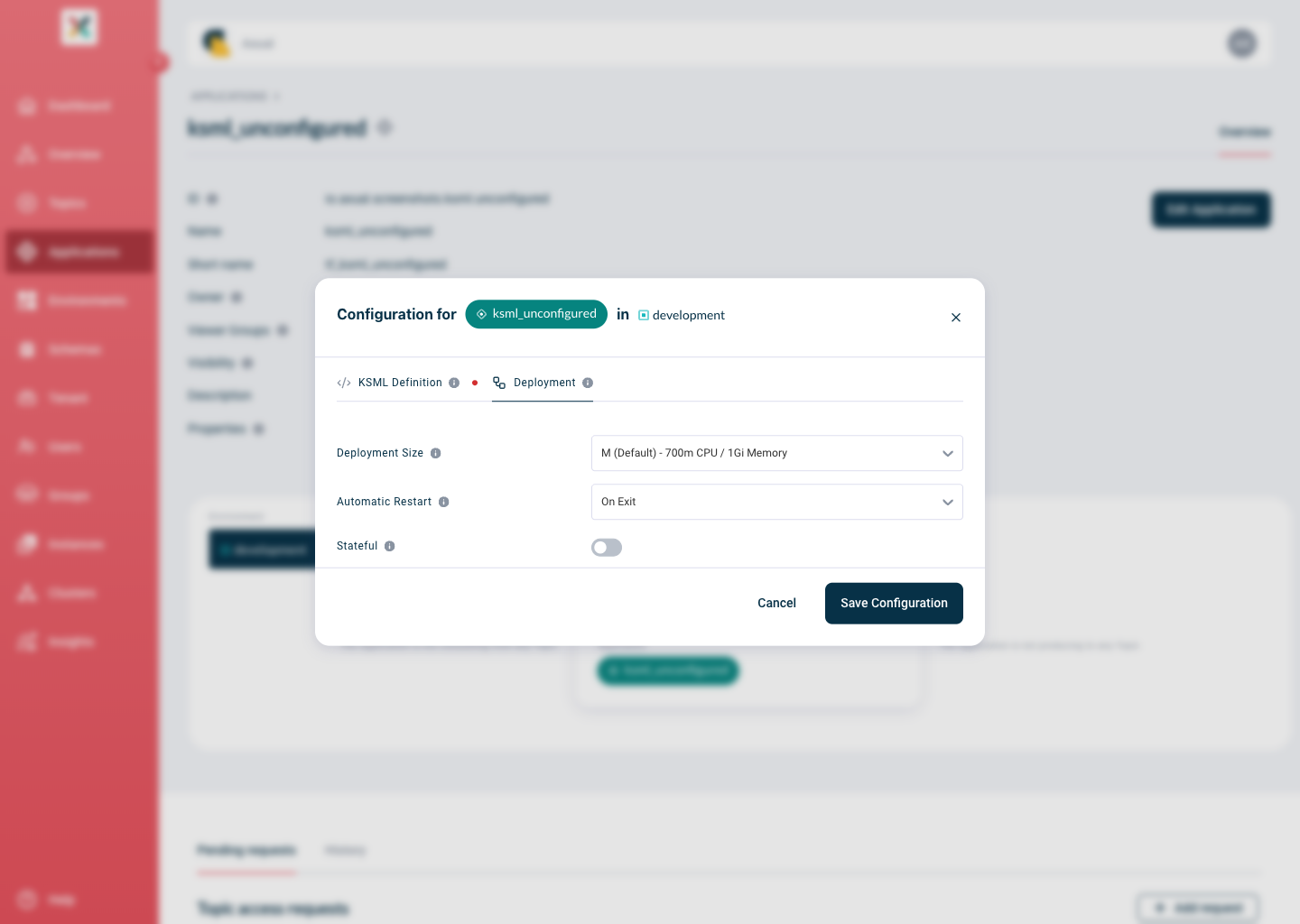
Click Save when done.
|
If you start the application without selecting a deployment size, it will run using the default profile, shown as (Default) in the dropdown list. |
Automatic Restart
This setting determines the approach taken by the provisioner in case the application exits.
The two options are On Exit (default) and Never.
-
On Exitresults in a KubernetesStatefulSetresource deployed; this is typical for any streaming application that by definition needs to always be running. -
Neverresults in a KubernetesJobresource deployed; this has a completion state and should be picked if it is unnecessary for this application to be restarted (e.g., a Generator application that produces a given number of messages).
Stateful (Persistent Volumes)
KSML applications that use Kafka Streams state stores can configure persistent storage to preserve application state across restarts.
Configuration Options:
-
Stateful: Enable or disable persistent volume storage for state stores
-
Disk Size: Specify the size of the persistent volume (in MB or GB)
For additional configuration required to ensure that the Persistent Volume feature works as expected, refer to the Runtime Provisioner readme.
|
Removing State Store Data
To delete the persistent volume and all stored state, follow these steps:
-
Ensure your application is in the
Undeployedstate (click STOP if needed) -
Open the Configuration modal and navigate to the Deployment tab
-
Disable the
Statefuloption -
Click Save
The persistent volume and all state data will be permanently deleted.
Security configuration
Authentication is done in the same way as for any Application type, see Authentication configuration.
Apicurio Registry credentials
If the environment’s Instance uses Apicurio Registry, the KSML application needs Apicurio Registry credentials to resolve and register schemas. Platform Manager provisions these automatically: on every start, it checks whether a valid BasicAuth credential pair already exists for that environment, and generates one if it doesn’t.
| This is fully automatic. You do not generate or manage these credentials yourself, and the Apicurio Registry section of the Authentication modal (described in Generating Apicurio Registry Credentials) does not apply to Managed KSML applications. |
This behaviour only applies when the environment’s Instance uses Apicurio Registry; it doesn’t apply to instances using the Confluent-compatible registry.
Requesting Topic Access
Your KSML application needs authorisation to produce to or consume from a Kafka topic before it can start.
Follow the steps to grant it access.
Application Lifecycle
Applications are helm installed on the Kubernetes cluster where the Instance’s configured Provisioner runs. The Platform Manager automatically polls application status, and the current state is displayed on the Application card.
For the actions, states, and status mapping, see KSML application states.
Start
When the Application is properly configured, START becomes enabled.
Clicking it results in helm deploying the KSML definition you have provided on Kubernetes.
The application will transition through different states: first STARTING while Kubernetes provisions resources,
then RUNNING within seconds, if all goes well and the application is running successfully.
If the status changed to FAILED, you can observe the Application through the logging (see below).
Viewing KSML Logging
As soon as you have started your KSML application, you can consult the KSML Application logs to get a deeper insight into the status of the application beyond the status indicator.
On the KSML Application card, click on the "Logs" button. The following screen shows.
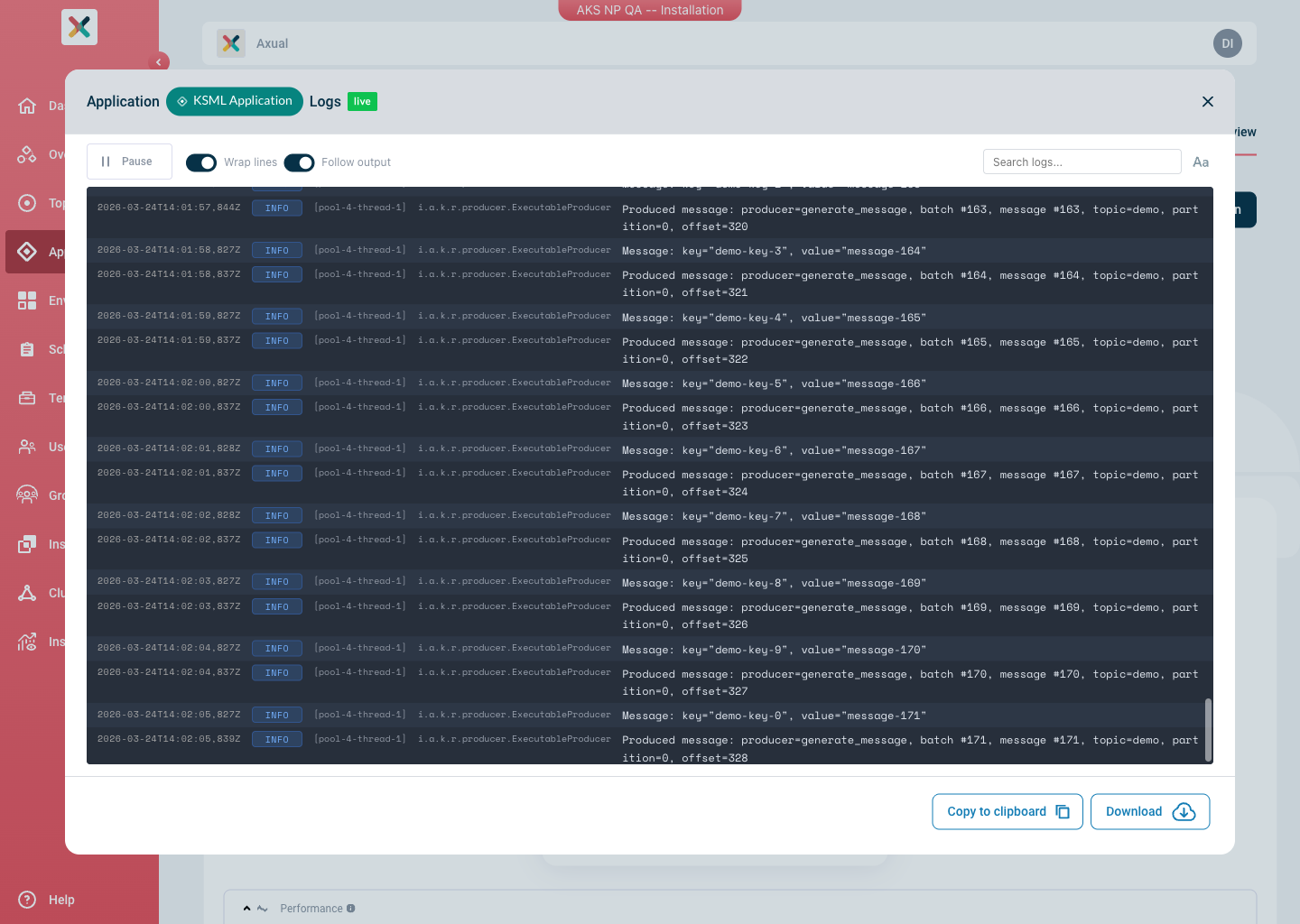
The console streams the log while the application runs, and lets you pause it, follow the newest line, wrap long lines, search the output, and copy or download what it holds. For each of those controls, see Viewing Application Logs.
Viewing KSML Metrics
You can see usage metrics for a KSML application on the "Insights" section of the KSML Application card, and the "Performance" section beneath.
The Insights section shows gauges for CPU and Memory usage based on the maximums defined for the app.
The Performance section displays live updating graphs for CPU and Memory that start empty on first load of the page and build the usage history.
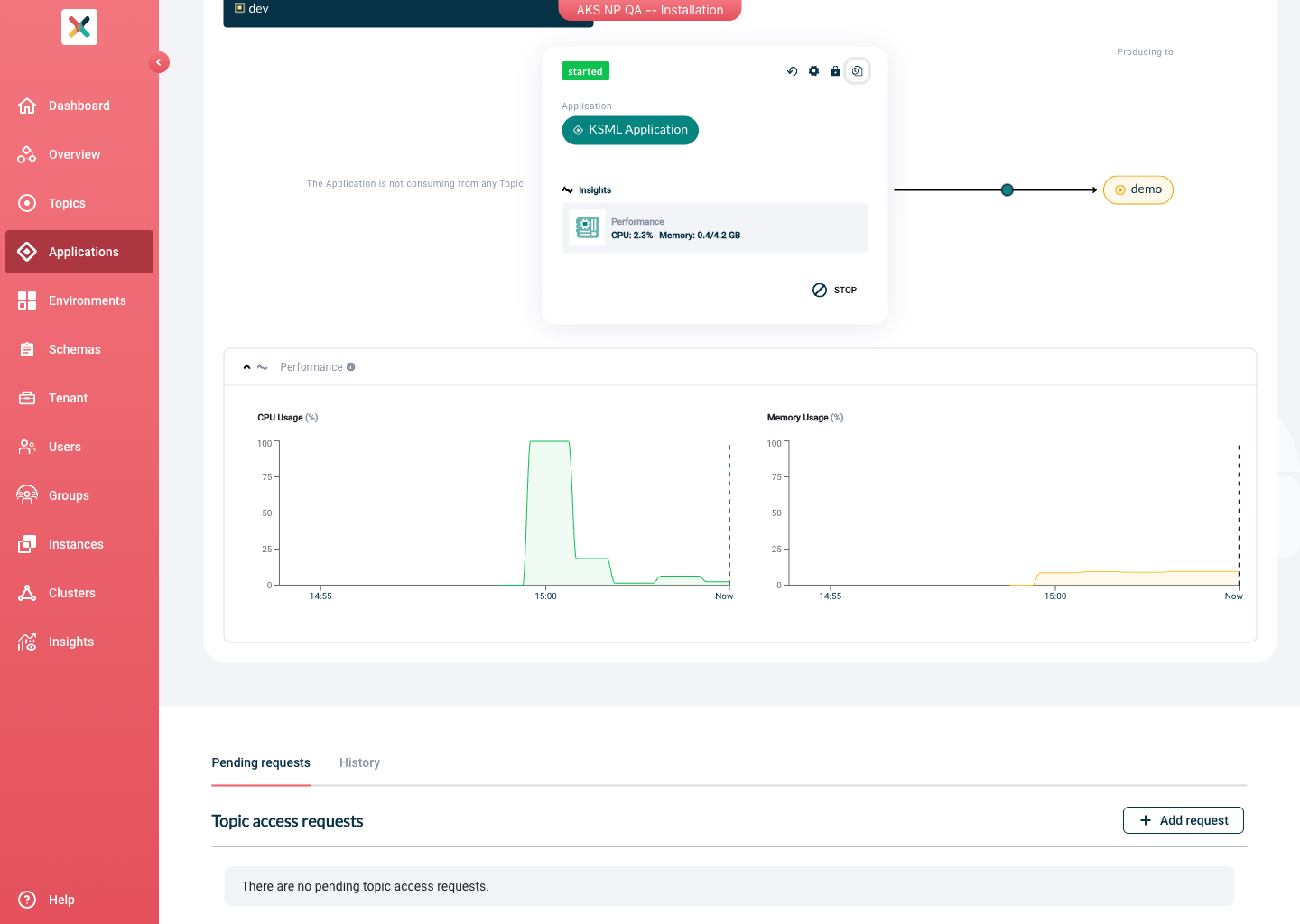
Performance metrics are collected in real-time while the page is open and are not persisted. Keep the page open to collect more data, which is discarded when you close the tab.
Stop
Stop the application by clicking the STOP button on the Application card, which undeploys it from Kubernetes.
The application is removed from the cluster. If the Stateful option is enabled, the PVC is left intact.
Resetting a KSML application
Resetting clears the application’s committed consumer offsets so it reprocesses from the configured point. For a Managed KSML application it also clears the attached persistent volume claim (PVC), so the application restarts without any persisted state store.
See Resetting a Kafka Streams Application for the procedure.
Deleting a KSML application
Follow the docs to remove the application.
| Deleting the KSML Application results in all KSML deployments being stopped on all environments. |