Migrating from Legacy Schema Registry to Apicurio Registry
This guide shows you how to move the schemas held in the Axual Legacy Schema Registry into Apicurio Registry: enabling and configuring Apicurio, freezing new registrations, exporting the subjects and versions, importing them, validating the result, and pointing Instance Manager and the Discovery Service at the new registry.
Type |
How-to guide |
Goal |
Serve every existing schema from Apicurio Registry, under the schema IDs client applications already use. |
Audience |
Platform Operator with Helm access to the installation and credentials for both registries. |
When to use |
Use this guide when an installation still runs the Legacy Schema Registry and is moving to Apicurio Registry. |
Apicurio Registry serves the Confluent-compatible SerDes through its CCompat APIs, and the migration preserves the schema IDs, so client applications carry on working across the cut-over without a change.
High-level Migration Steps
The migration runs as ten steps, in this order:
-
Enable and configure Apicurio Registry, covering Keycloak security, Kafka and TLS.
-
Stop new schema registrations on the source. No stream modification may run during the migration, or the two registries drift apart. Remove the Schema Registry URL in Self-Service so nothing new can be registered between the export and the cut-over. Where that cannot be guaranteed, plan an unavailability window instead. Contact Axual for advice on which route fits your installation.
-
Prepare the keystore and truststore the export and validation tools use.
-
Export the subjects and versions of the Legacy Schema Registry with the export tool described below. It writes a zip file.
-
Import that zip file into the target Apicurio Registry through its
/admin/importendpoint, described below. -
Run the validation tool described below to confirm every schema arrived.
-
Point Instance Manager at Apicurio Registry and confirm it can write through Self-Service.
-
Point the Discovery Service at Apicurio Registry, so applications resolve it on their next lookup.
-
Verify the migration by applying a stream that uses Avro key and value schemas.
-
Decommission the Legacy Schema Registry once every application reads from Apicurio Registry, as covered in the note below.
|
Some applications sit outside the Discovery Service. Tell their operators up front, because those applications need their own switch to Apicurio Registry soon after the migration. Running them against the Legacy Schema Registry for a short period does no harm, as long as no new stream modifications happen on the streams they use. |
Detailed Migration Steps
The sections below add the technical detail to the steps that need it. They keep the numbering of the list above, so a step with no section here needs no further explanation.
Step 1 - Enable and Configure Apicurio (Helm)
Enable Apicurio Registry in your Axual Streaming values first:
global:
  apicurio-registry-v3:
    enabled: true
Apicurio Registry authenticates against Keycloak and reads and writes schemas from Kafka over TLS, so it needs more chart values than the toggle. Start from the example in Apply the base configuration, and fill the kafka and tls blocks with the certificates and bootstrap configuration of the Legacy Schema Registry. For the full list of options, see Apicurio Chart Values Reference.
| A Keycloak realm with the right clients, roles and users must exist before you enable authentication. See Apicurio Keycloak Realm for how to create it. |
kafkaInitContainer.apicurioPrincipal must match the common name of the client certificate configured under tls.
|
Step 3 - Preparing the Keystore and Truststore
The export tool (step 4) and the validation tool (step 6) authenticate to the registries over mutual TLS (mTLS), so both need a keystore and a truststore in JKS format.
The schema-migration-integrity-checker repository ships a helper script, bin/keystore.sh, that generates both. Put the four files below in one directory and run the script, which writes keystore.jks and truststore.jks:
| File | Store it goes into |
|---|---|
Client certificate the Legacy Schema Registry uses |
Keystore |
Client key the Legacy Schema Registry uses |
Keystore |
Certificate Authority (CA) of the Legacy Schema Registry |
Truststore |
Let’s Encrypt root CA ( |
Truststore |
The truststore holds both CAs so the tools can validate the certificate chains of the Legacy Schema Registry and of Apicurio Registry.
|
Stop new schema registrations on the source before you run the export, by removing the Schema Registry URL in Self-Service or by planning an unavailability window. No new schema may be registered between the export and the cut-over, or the schema IDs diverge between the two registries. Have every certificate and configuration value ready in advance, so the interruption stays short. |
Step 4 - Exporting Schemas from an mTLS-enabled Legacy Schema Registry
Where the registry clients authenticate over mTLS, pass these extra client properties to the export runner. Use certificates that match the registry instance you export from:
java -jar <jar file name>.jar <legacy schema registry base URL> --client-props \
schema.registry.ssl.key.password=<key password> \
schema.registry.ssl.keystore.location=<keystore location> \
schema.registry.ssl.keystore.password=<keystore password> \
schema.registry.ssl.truststore.location=<trust store location> \
schema.registry.ssl.truststore.password=<trust store password>| Run the command above on Java 11 or higher. |
Where the instance has no mTLS configured, drop the extra properties from the command.
Step 5 - Importing into Apicurio Registry
Import the exported data with the following curl command.
|
Import into a fresh Apicurio installation that holds no schemas yet. The whole schema ID range has to be free on the Apicurio side, so it can take the schema IDs from the Legacy Schema Registry export zip unchanged. |
curl -X POST "https://<hostname of Apicurio Registry>:<port of Apicurio Registry>/apis/registry/v3/admin/import" \
  -H "Accept: application/json" -H "Content-Type: application/zip" \
  -H "Authorization: Basic <base64 value of Keycloak Apicurio clientId:clientSecret>" \
  --data-binary @<exported zip file>.zip
Step 6 - Validating the Schema Integrity
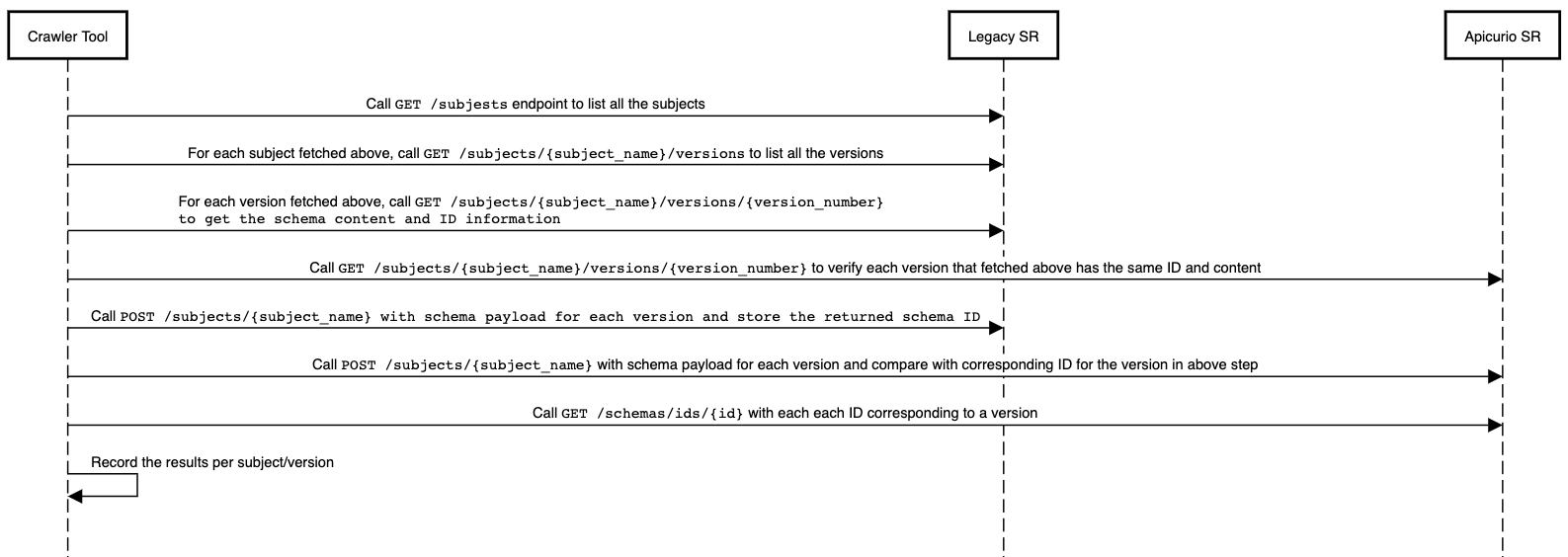
Cross-validate the contents of both registries once the migration has run. The python tool does this, comparing the schemas of the two registries as shown below.
The tool takes the following mTLS options:
  -h, --help            show this help message and exit
  -o ORIGIN_URL, --origin-url ORIGIN_URL
                        origin schema registry url (default: None)
  -oc ORIGIN_CERT, --origin-cert ORIGIN_CERT
                        origin schema registry certificate PEM (default: None)
  -ok ORIGIN_KEY, --origin-key ORIGIN_KEY
                        origin schema registry key PEM (default: None)
  -otr ORIGIN_TRUST, --origin-trust ORIGIN_TRUST
                        origin schema registry trust PEM (default: None)
  -t TARGET_URL, --target-url TARGET_URL
                        target schema registry url (default: None)
  -tc TARGET_CERT, --target-cert TARGET_CERT
                        target schema registry certificate PEM (default: None)
  -tk TARGET_KEY, --target-key TARGET_KEY
                        target schema registry key PEM (default: None)
  -ttr TARGET_TRUST, --target-trust TARGET_TRUST
                        target schema registry trust PEM (default: None)
The example below runs it against a setup where both the Legacy Schema Registry and Apicurio Registry have mTLS enabled:
python checker.py -o https://legacy.<domain>:25000/subjects/ \
  -t https://apicurio.<domain>:21500/apis/ccompat/v7/subjects/ \
  -otr tls/legacy_trust_cert.pem \
  -oc tls/example_cert.cer \
  -ok tls/example_key.pkcs8 \
  -ttr tls/apicurio_trust_cert.pem \
  -tc tls/example_cert.cer \
  -tk tls/example_key.pkcs8
Step 7 - Pointing Instance Manager to Apicurio Registry (Helm)
Once the previous step checks out, set the Apicurio Registry URL in the Instance Manager configuration as below. Schema writes from the Self-Service UI then go to Apicurio Registry instead of the Legacy Schema Registry master.
platform:
  instance:
    instanceapi:
      schemaRegistryMasterHostOverride: <hostname of Apicurio Registry>
      schemaRegistryMasterPortOverride: <port of Apicurio Registry>
      schemaRegistryMasterContextPathOverride: "/apis/ccompat/v7"
      schemaRegistryMasterUsernameOverride: <Client ID of Apicurio Keycloak API Client>
      schemaRegistryMasterPasswordOverride: <Client ID secret of Apicurio Keycloak API Client>
      schemaRegistryMasterAuthEnabled: true
Step 8 - Pointing Discovery Service to Apicurio Registry (Helm)
Schema writes now go to Apicurio Registry, so point the reads there as well by configuring the Discovery Service:
platform:
  instance:
    discoveryapi:
      generateDiscoveryConfig:
        schemaRegistryOverride: "https://<hostname of Apicurio Registry>:<port of Apicurio Registry>/apis/ccompat/v7"
Step 9 - Verifying the Migration
Once Instance Manager and the Discovery Service point at Apicurio Registry, verify that schema writes work end to end. Create a new stream and apply it with both the key and the value using the Avro schema type. An apply that succeeds proves the registry serves reads and writes correctly. Remove the stream and its configuration afterwards, so no test artefacts are left behind.
Step 10 - Decommissioning the Legacy Schema Registry (Helm)
Scale the Legacy Schema Registry down once the migration is verified and every application resolves schemas from Apicurio Registry. Disable it in your Helm values and sync or upgrade with pruning enabled, so the old components are removed:
axual-schema-registry:
enabled: false|
Plan a follow-up to remove the leftover Legacy Schema Registry configuration from your Helm values once the migration has proven stable, for example a week later. The components are already scaled down by then, so this cleanup needs no further sync. |
Rollback Procedures
The rollback differs by the stage the migration has reached, so start from High-level Migration Steps and identify where you are. The two stages below go wrong most often.
Instance Manager cannot write to Apicurio Registry
Point Instance Manager back at the Legacy Schema Registry. Then restart the migration against a fresh Apicurio Registry installation, including a fresh data topic in Kafka. The existing data would otherwise clash on schema IDs.
Client applications cannot reach Apicurio Registry
The route depends on whether the subject version the application used still exists. Where the Legacy Schema Registry holds it, point the applications back at the Legacy Schema Registry, through the Discovery Service or by hand. Where it does not, re-apply those streams from Self-Service, which needs Instance Manager switched back to the Legacy Schema Registry first.
Disallow every topic apply during that window and allow only the critical ones. Once the problem is fixed, start again with a fresh Apicurio Registry installation and fresh data topics in Kafka, because the existing data would clash on schema IDs.
Important Notes
One failure mode surfaces only during the import, and it comes from the schema itself rather than from the migration.
Non-Conforming Avro Schemas in Legacy Schema Registry During Migration
A schema that does not conform to the Avro specification can sit in the Legacy Schema Registry unnoticed. The Legacy Schema Registry parses Avro 1.8, while Apicurio Registry parses Avro 1.11 and higher, and the newer parsers added validations. A schema that passed the older parser without conforming to the specification therefore fails on Apicurio Registry. The Schema Integrity Checker reports that failure as an error.

You can confirm the same problem from the Apicurio Registry side, through a manual API call and through the logs.

Fix such a schema in the Legacy Schema Registry so it conforms to the Avro specification, then run the import again. In many cases a later version of the schema is already correct, because the producer and consumer applications will have hit the same problem and reported it.