Managing KSML Applications
Creating KSML Applications
Follow the steps outlined in Application Management doc.
Configuring and starting KSML Applications
A KSML Application needs two sets of configuration for every environment in which it’s deployed:
-
Configuration: Includes the KSML YAML definition and deployment configurations.
-
Authentication: Same as any other Application, see Authentication configuration.
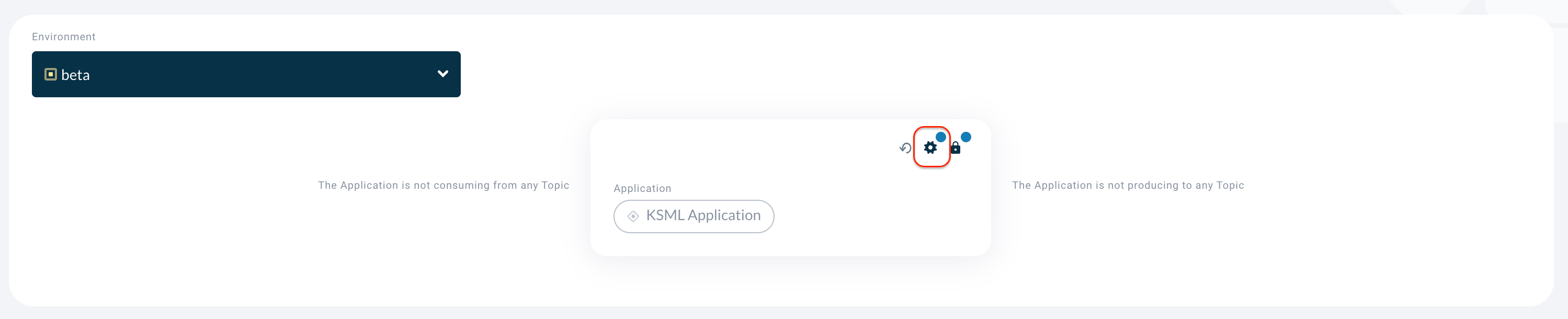
A blue indicator is shown if any Configuration is still missing. |
Configuration
To configure the application, Click on the Gear icon in the application box (hovering on the button will show the text 'Configuration'). This opens the Configuration modal, which contains two tabs: KSML Definition and Deployment:
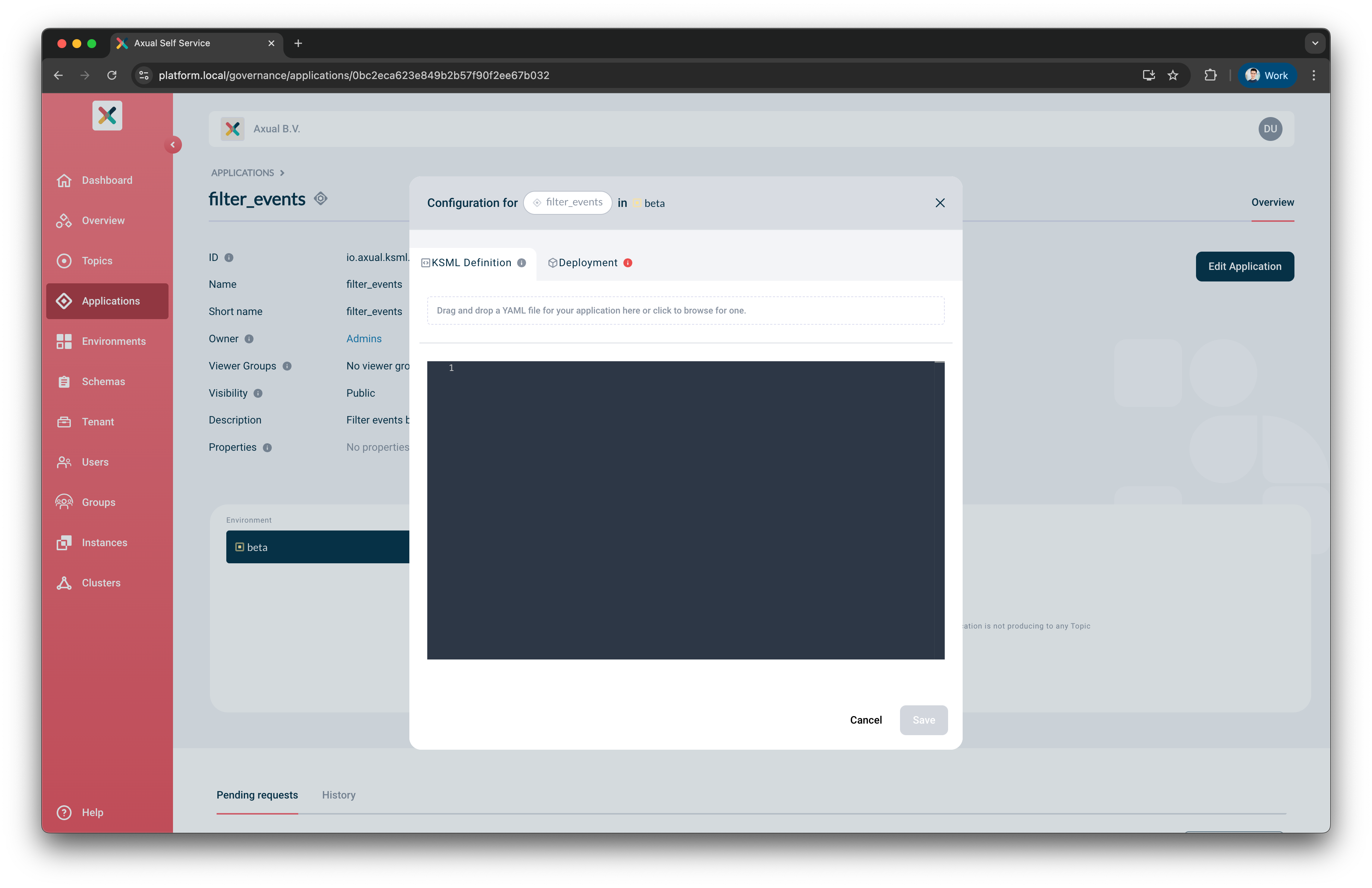
KSML Definition
In this tab, you can provide the KSML Application Definition in one of two ways:
-
Type directly into the editor inside the modal.
-
Drag and drop an existing YAML file into the modal.
Deployment
In this tab, you can configure the runtime settings for your application, including:
-
Deployment Size
-
Automatic Restart
Deployment Size
This setting allows you to select the CPU and memory profile for your application. Configure it from the Deployment tab in the Configuration modal.
Select your preferred deployment size from the dropdown, or leave it unchanged to use the default setting.
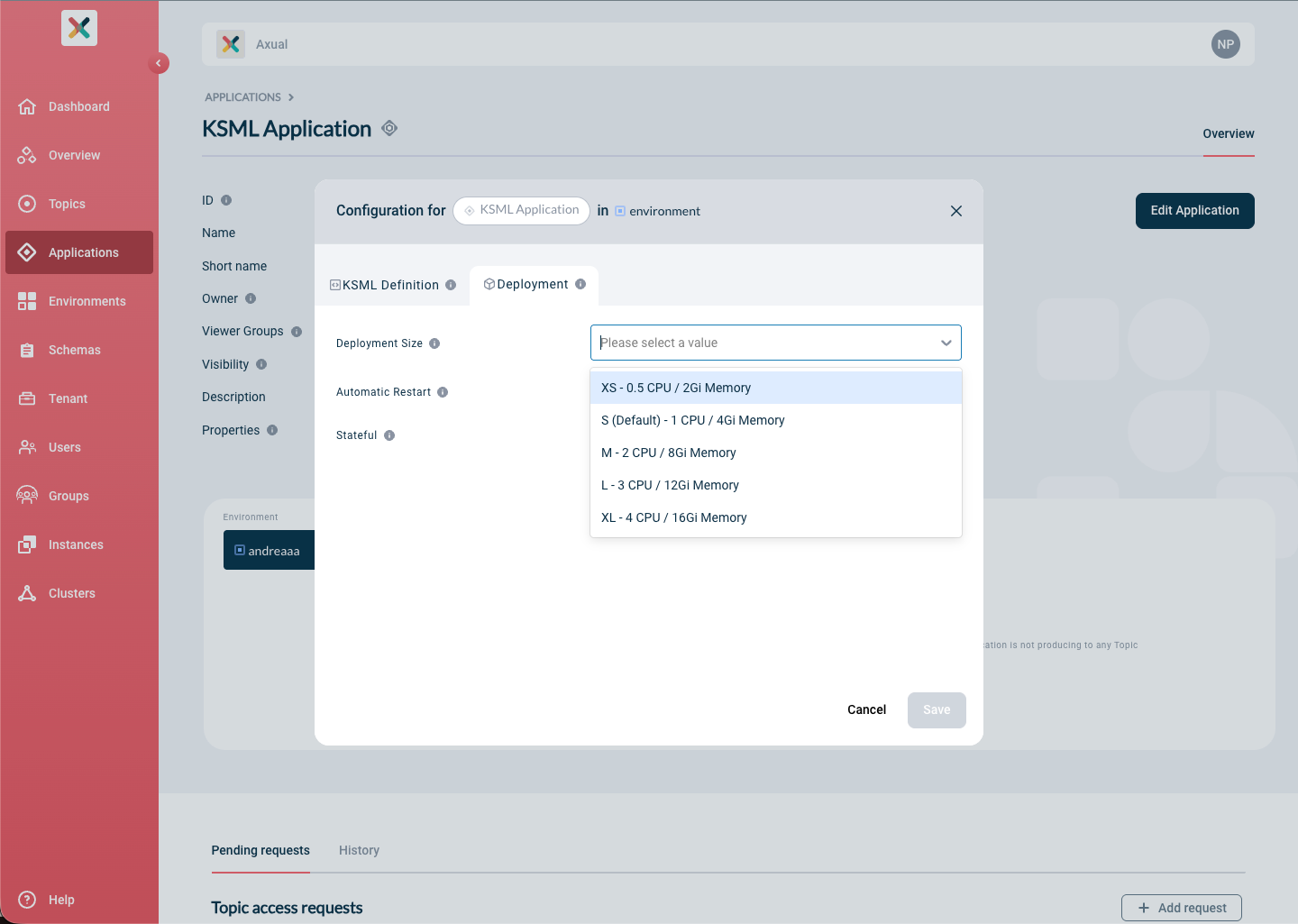
Click Save when done.
|
If you start the application without selecting a deployment size, it will run using the default profile, shown as (Default) in the dropdown list. |
Automatic Restart
This setting determines the approach taken by the provisioner in case the application exits.
The two options are On Exit (default) and Never.
-
On Exitresults in a KubernetesStatefulSetresource deployed; this is typical for any streaming application that by definition needs to always be running. -
Neverresults in a KubernetesJobresource deployed; this has a completion state and should be picked if it is unnecessary for this application to be restarted (e.g., a Generator application that produces a given number of messages).
Stateful (Persistent Volumes)
KSML applications that use Kafka Streams state stores can configure persistent storage to preserve application state across restarts.
Configuration Options:
-
Stateful: Enable or disable persistent volume storage for state stores
-
Disk Size: Specify the size of the persistent volume (in MB or GB)
For additional configuration required to ensure that the Persistent Volume feature works as expected, refer to the README.
|
Removing State Store Data
To delete the persistent volume and all stored state:
-
Ensure your application is in the
Undeployedstate (click STOP if needed) -
Open the Configuration modal and navigate to the Deployment tab
-
Disable the
Statefuloption -
Click Save
The persistent volume and all state data will be permanently deleted.
Security configuration
Authentication configuration is done in the same way as for any Application type.
Requesting Topic Access
Your KSML Application needs to be authorized to produce/consume a kafka topic before it can be started.
Follow the docs to grant it access.
Application Lifecycle
Applications are helm installed on the Kubernetes cluster where the Instance’s configured Provisioner runs. The Platform Manager automatically polls application status, and the current state is displayed on the Application card.
Available KSML Application Actions
The following actions are available to the Application owner for Applications:
| Application action | Effect | Affected Kubernetes Resources |
|---|---|---|
|
Deploy the KSML application on k8s |
|
|
Undeploy the KSML application on k8s |
|
Start
When the Application is properly configured, START becomes enabled.
Clicking it results in helm deploying the KSML definition you have provided on Kubernetes.
The application will transition through different states: first STARTING while Kubernetes provisions resources,
then STARTED once the application is running successfully.
Within seconds, if all goes well, you should see the application reach the STARTED state.
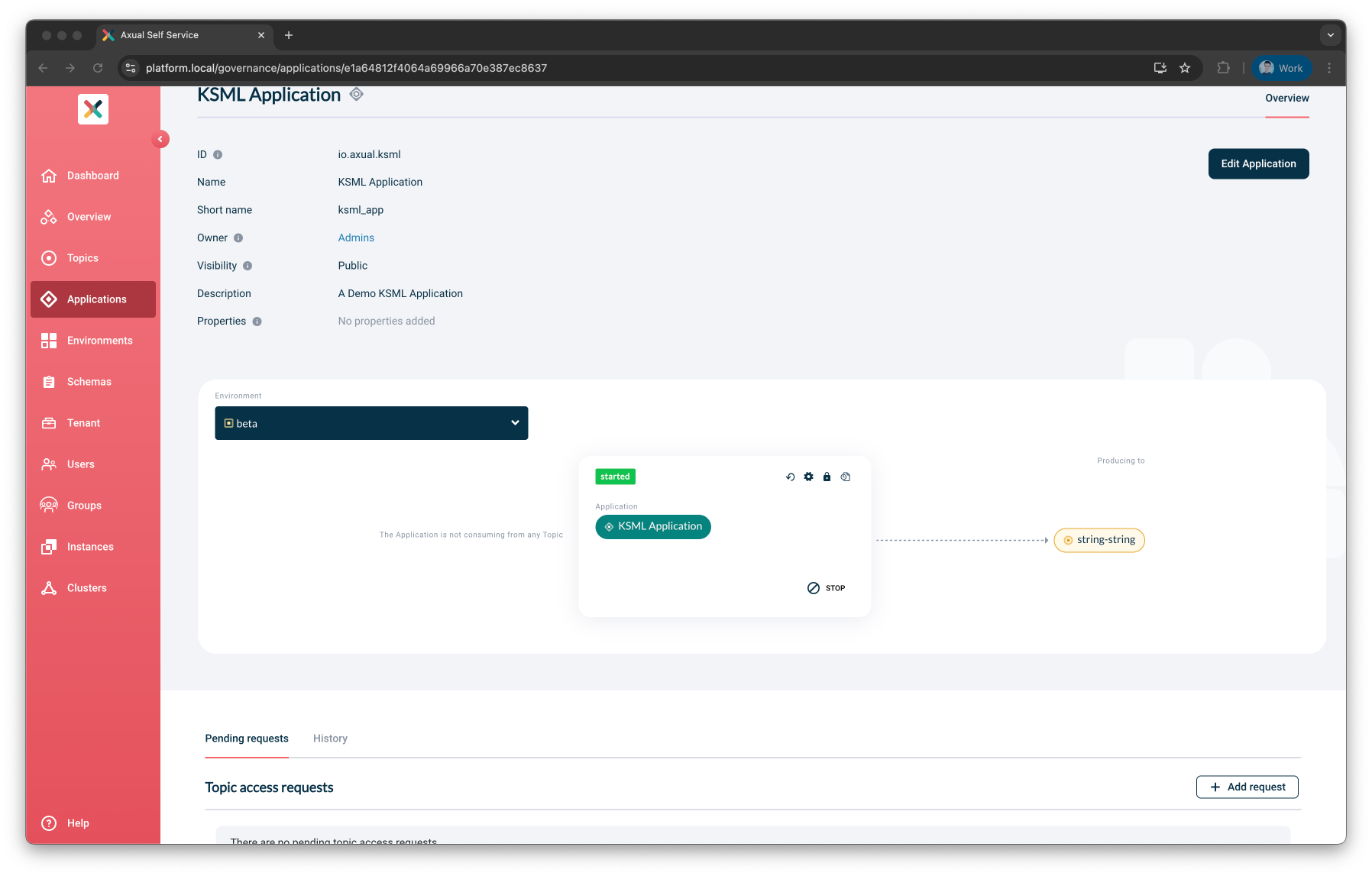
If the status changed to FAILED, you can observe the Application through the logging (see below).
Viewing KSML Logging
As soon as you have started your KSML application, you can consult the KSML Application logs to get a deeper insight into the status of the application beyond the status indicator.
On the KSML Application card, click on the "Logs" button. The following screen shows.
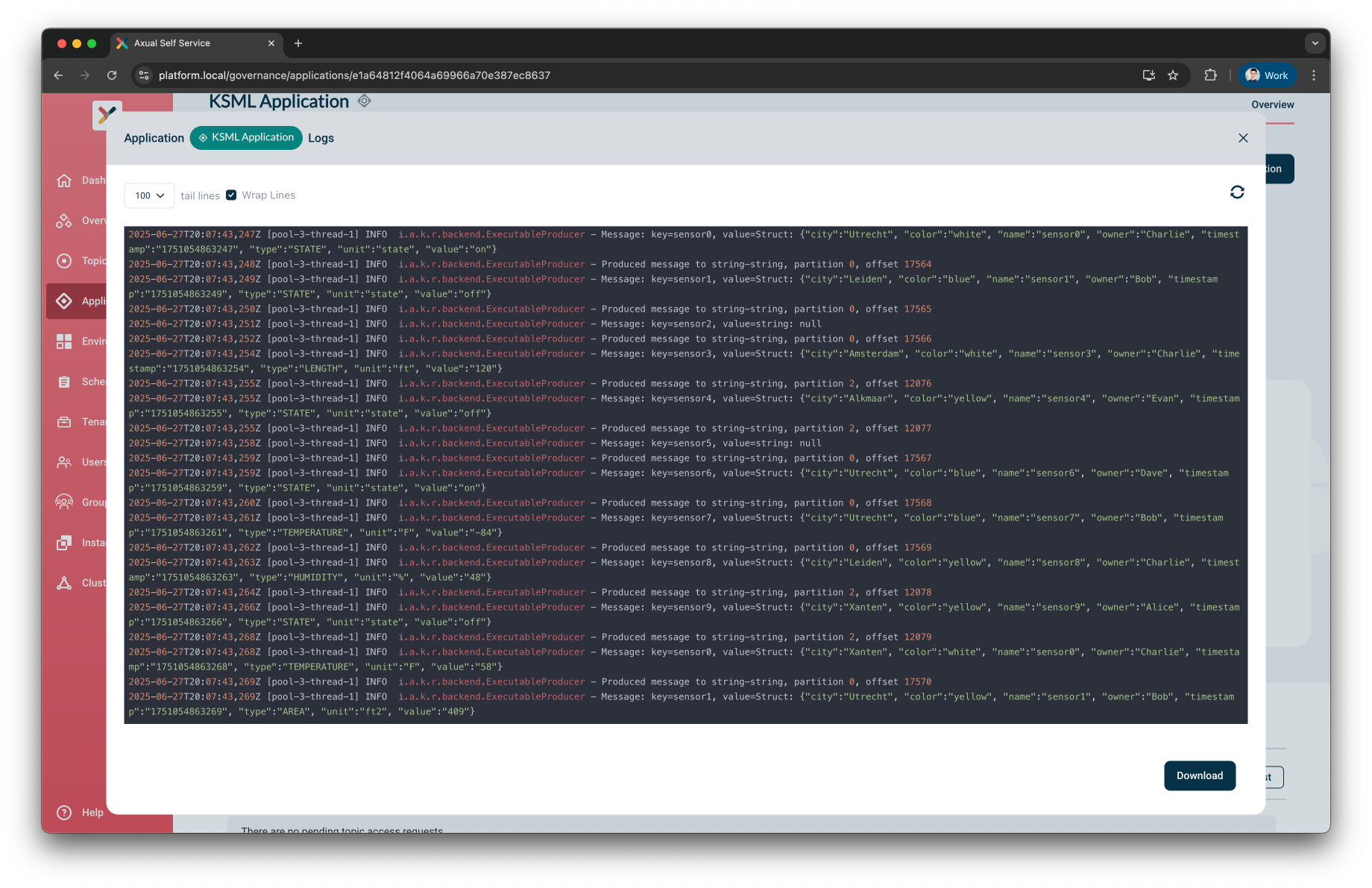
Log contents can be refreshed or downloaded
by hitting the top right Refresh Logs icon or the bottom right Download button respectively.
Viewing KSML Metrics
You can see usage metrics for a KSML application on the "Insights" section of the KSML Application card, and the "Performance" section beneath.
The Insights section shows gauges for CPU and Memory usage based on the maximums defined for the app.
The Performance section displays live updating graphs for CPU and Memory that start empty on first load of the page and build the usage history.
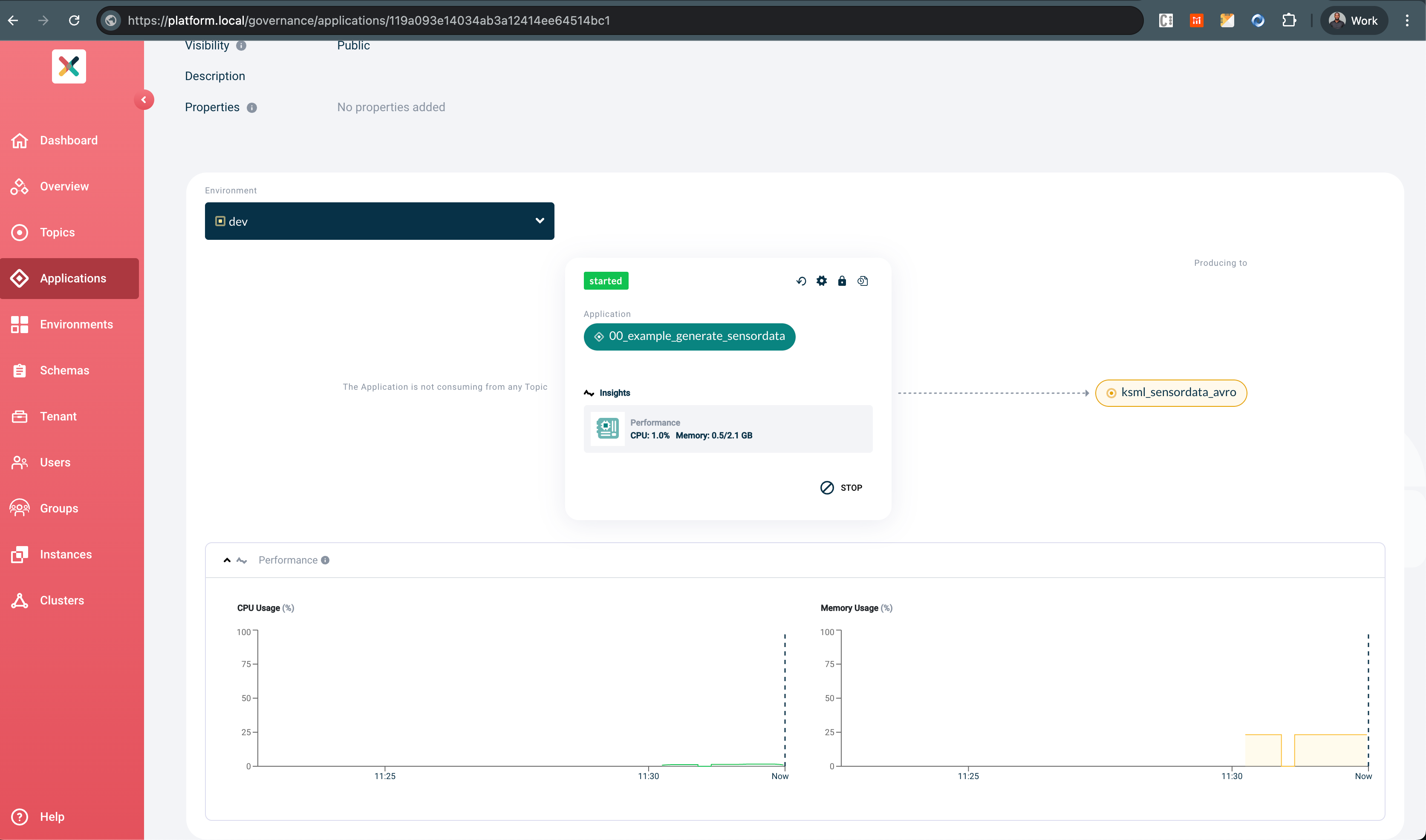
Performance metrics are collected in real-time while the page is open and are not persisted. The user should keep the page open to collect more data which are discarded on closing of the tab.
Stop
Stopping the application can be done by clicking the STOP button on the Application card, which undeploys the application from Kubernetes.
The application will be removed from the cluster. If the Stateful option is enabled, the PVC will be left intact.
Deleting A KSML Application
Follow the docs to remove the application.
| Deleting the KSML Application results in all KSML deployments being stopped on all environments. |
KSML Application States
KSML applications transition through different states based on infrastructure status and user actions. The Platform Manager automatically polls the status from Kubernetes and displays it on the Application card.
State Lifecycle
When you start a KSML application, it follows this lifecycle:
-
User clicks START
-
Application shows
Startingwhile Kubernetes provisions resources -
Application shows
Runningonce successfully started -
Failing(if errors occur) → Application encounters issues -
Complete(for Job-type applications) → Application finishes successfully -
User clicks STOP → Application is removed
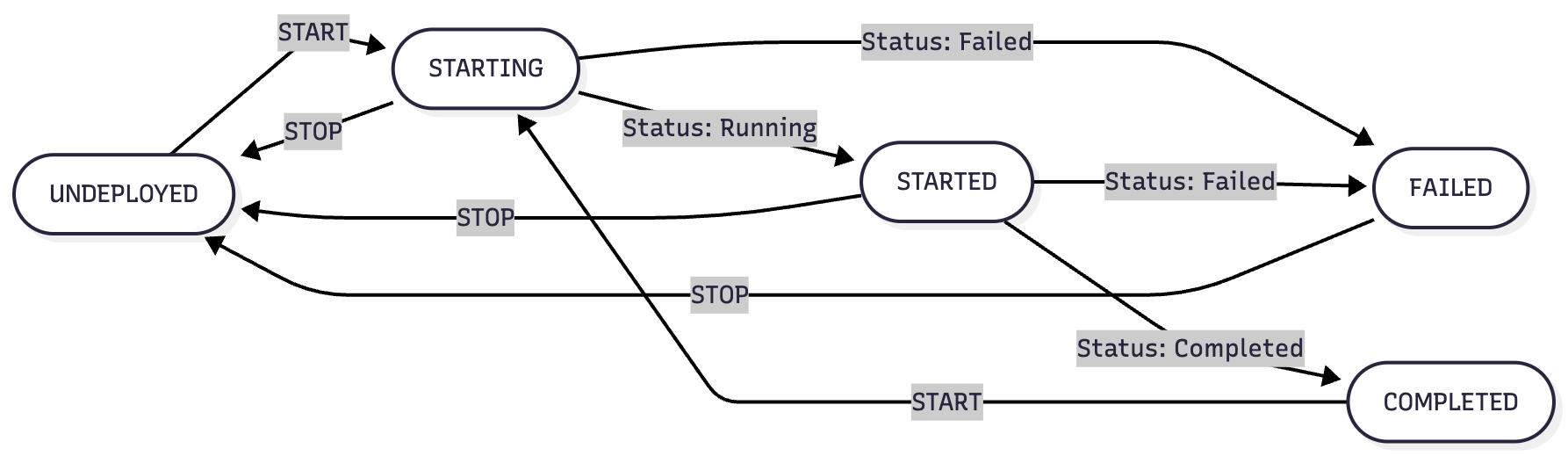
Status Mapping
Self-Service keeps polling the provisioner for the status of the Deployment as long as the Application Overview page is open.
The status on the Application card can be one of Running, Starting, Failing or Complete.
Based on the Automatic Restart setting provided the conditions for those statuses are different.
| Setting | Status | Condition |
|---|---|---|
On Exit |
|
StatefulSet is running with ReadyReplicas matching Replicas |
|
Replicas or ReadyReplicas do not yet match expectations |
|
|
StatefulSet is failing and pod is restarting |
|
|
StatefulSet is not deployed |
|
Never |
|
Job Running with multiple replicas (1 succeeded) |
|
Replicas or ReadyReplicas do not yet match expectations |
|
|
Pod in CrashLoopBackoff state |
|
|
All Jobs successfully completed |
|
|
Job is not deployed |