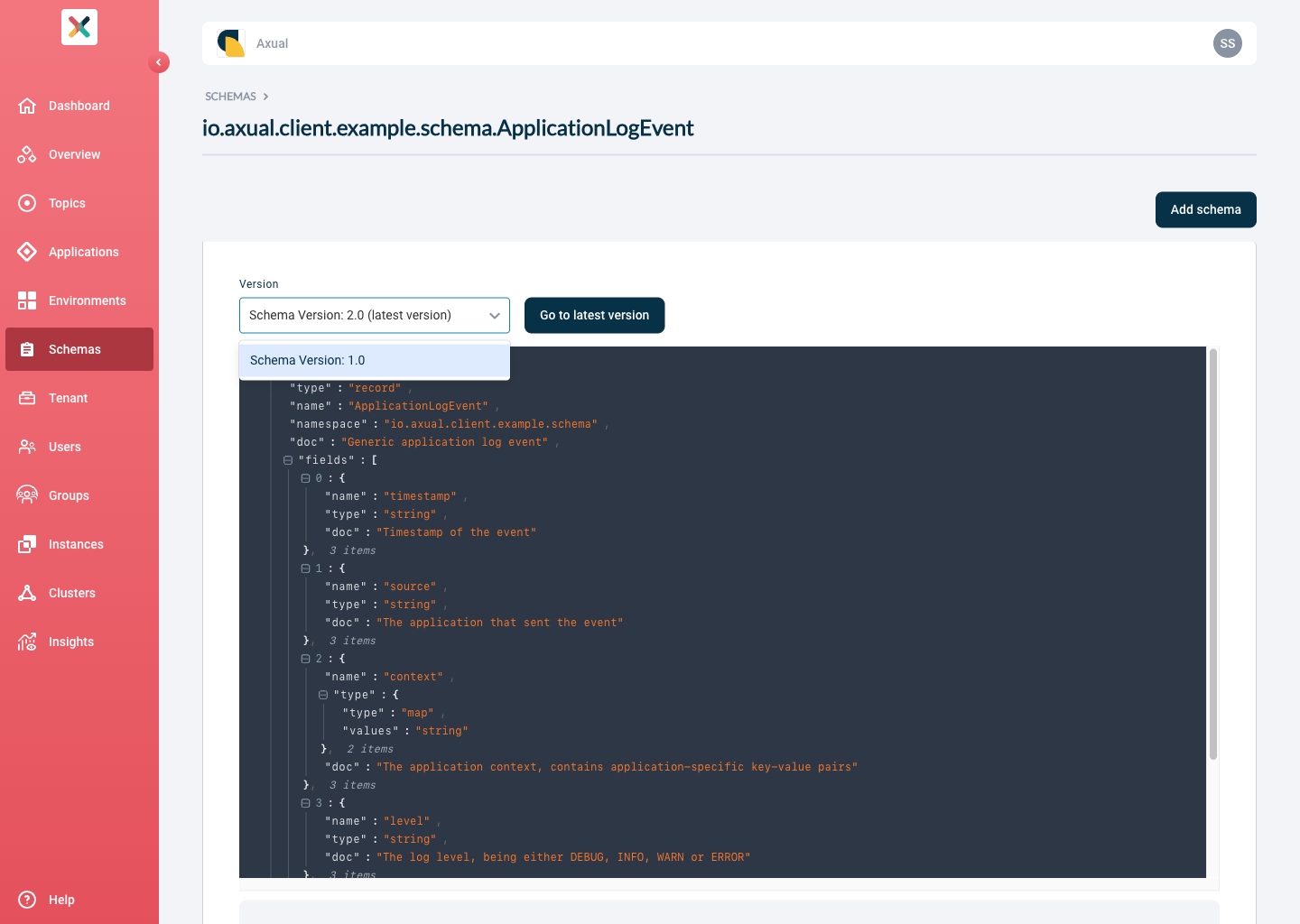
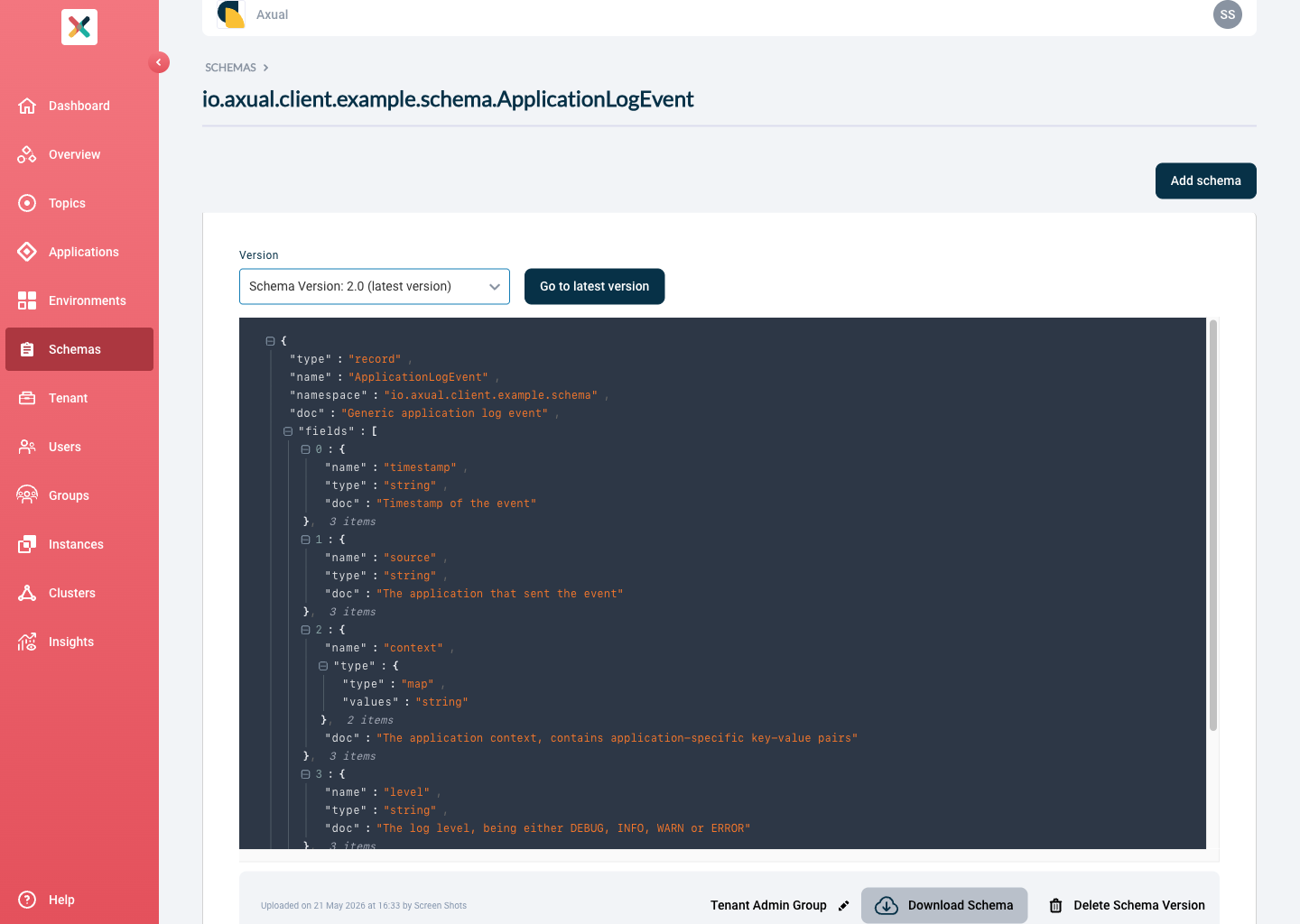
Schema Management
Uploading a Schema
Axual supports three types of schemas: AVRO, Protobuf and JSON Schema. To use Protobuf or JSON Schema the Instance Cluster needs to be configured with an Apicurio Schema Registry type.
|
Make sure the uploaded schema is used in the Producer / Consumer application in the exact same form. If you are uploading a schema that has no references to other schemas,
you can upload the If you use a plugin such as the |
-
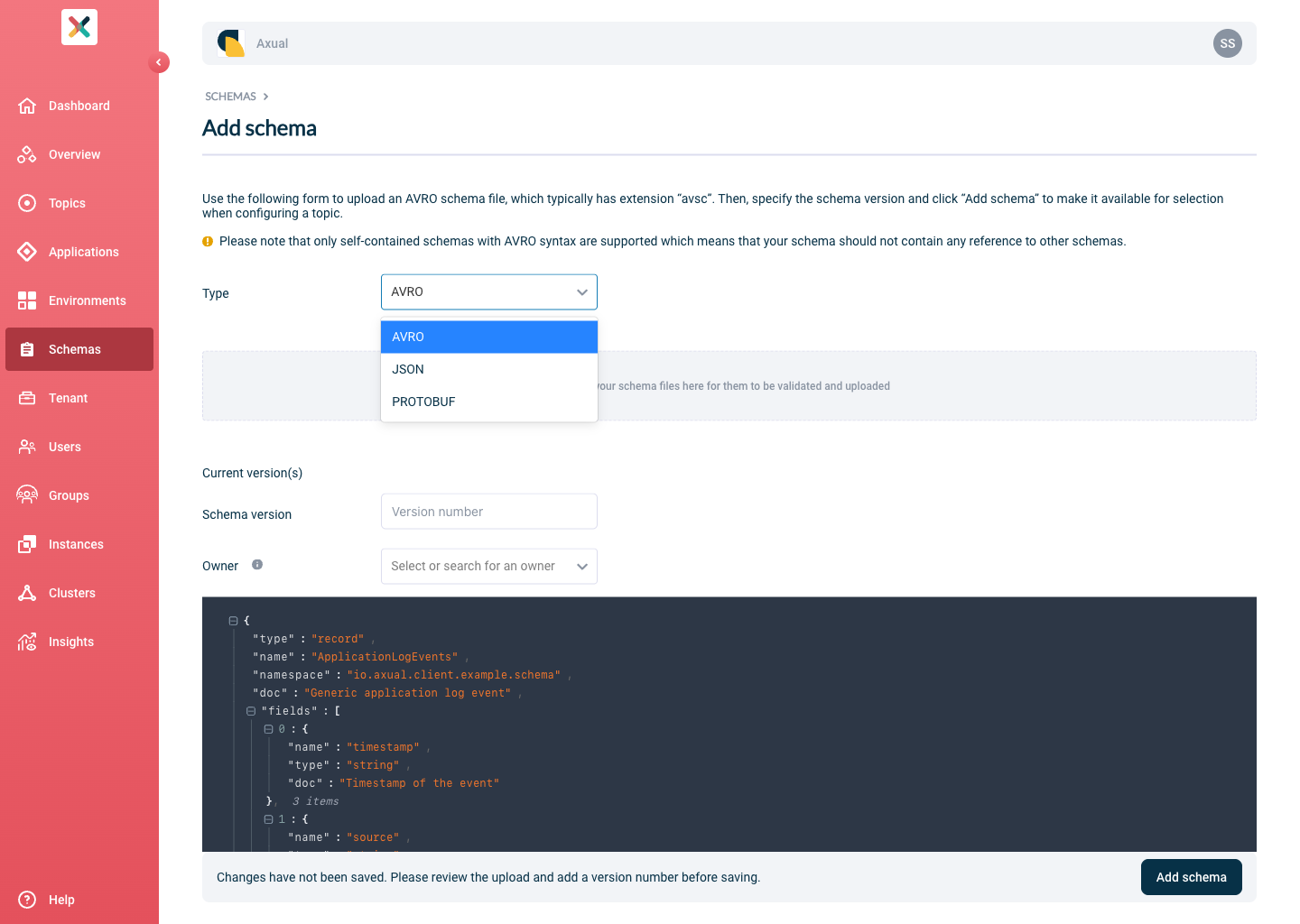
Visit the Schema Overview and click on Add Schema
-
Adjust the Type according to the Schema you are uploading
-
Upload the schema as a text file (
.avsc,.protoor.jsonformat). The syntax will be validated as soon as the file has been uploaded. -
Add the version for the Schema
-
Select the Schema Owner
-
Click Add Schema
Schema Ownership, Roles and Permissions
Self-Service supports defining Schema ownership. The following Roles and permissions described below are taken into consideration only when the Tenant Admin has configured the Schema Roles enforcement in Tenant Settings:
Schema Author Role
Schema Authors can:
-
upload a new Schema and assign the ownership to themselves
-
upload new Schema Versions for an existing Schema they own
They cannot upload new Schema Versions for an existing Schema they do not own.
Schema Admin Role
Schema Admins can
-
upload a new Schema Version of any existing Schema
-
delete Schema Versions of any existing Schema
-
transfer the Schema’s ownership of any existing Schema
Schema Owner Role
Schema Owners can:
-
upload new Schema Versions of their Schemas
-
delete Schema Versions of their Schemas
-
transfer the ownership of their Schemas
|
A Schema Owner can transfer the ownership of an owning Schema to another Group they are a member of. A Schema Admin or a Tenant Admin can transfer the ownership of any existing Schema. |
Error scenarios
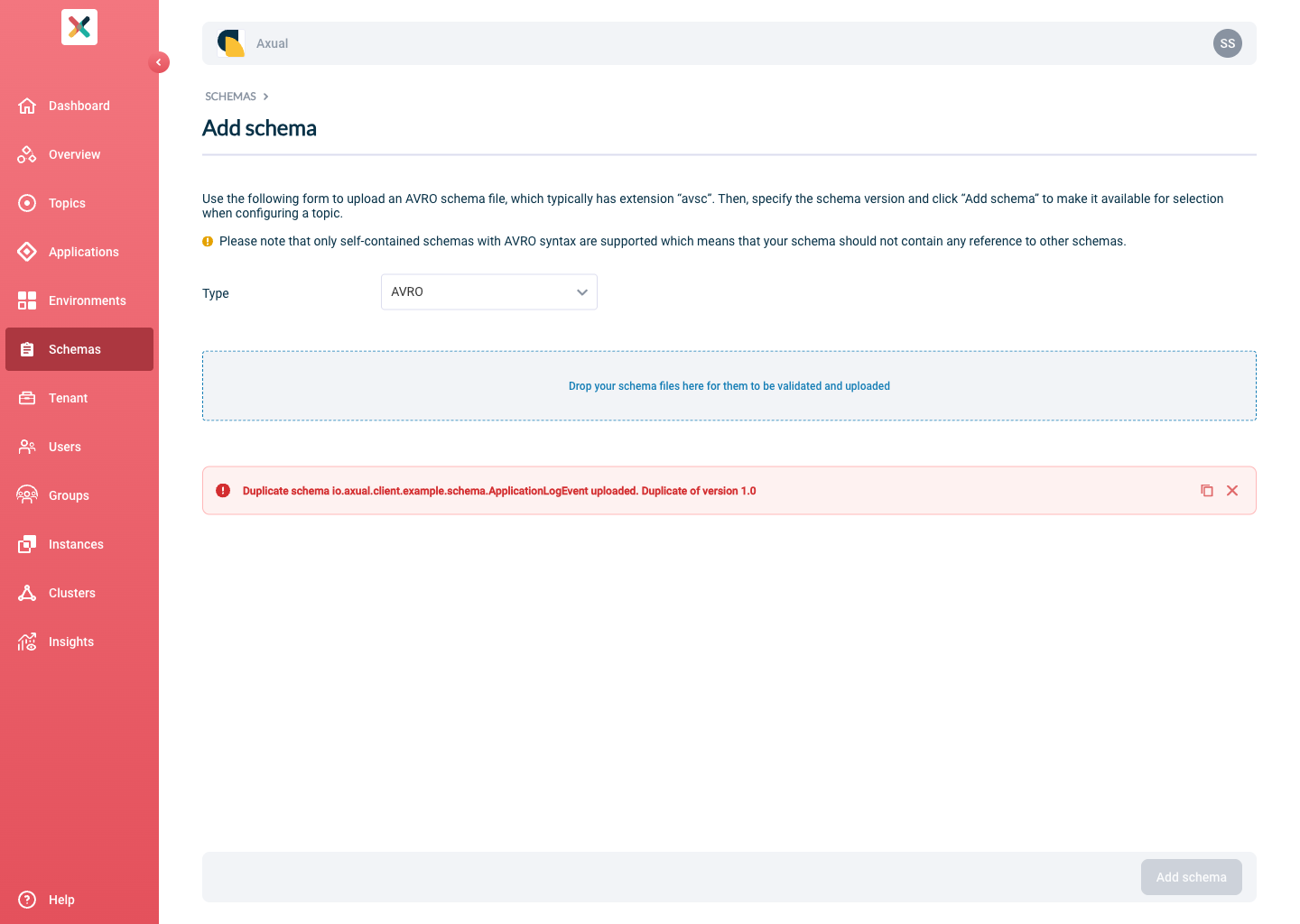
Duplicate schema
An attempt at uploading a duplicate Schema for a tenant is rejected with an error message containing the duplicated version as shown below:
Incompatible schema
In some situations, you want to force the use of an incompatible schema.
When applying a Topic using an incompatible schema, the following modal is shown.
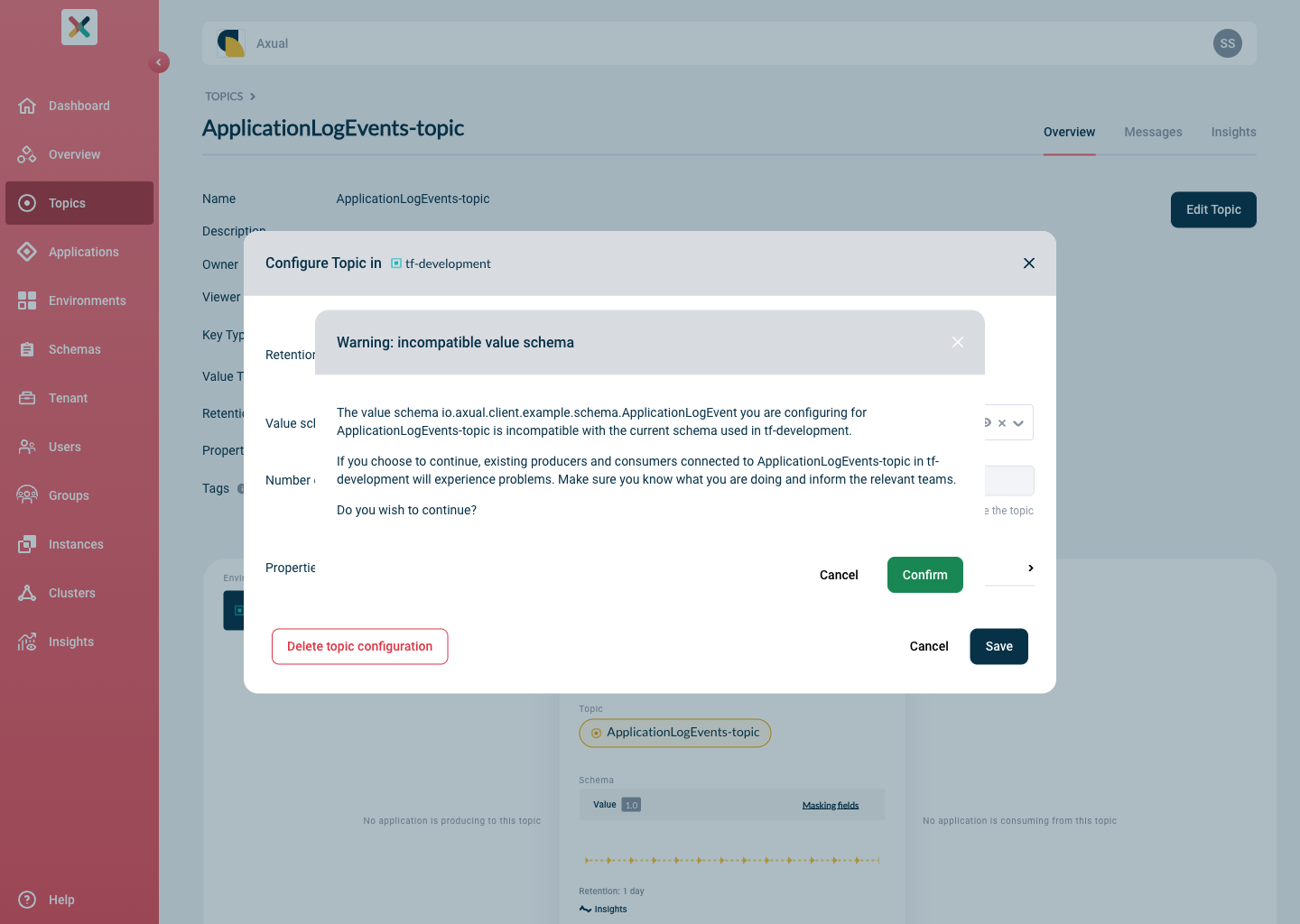
Click "Confirm" if you want to force updating the schema to the incompatible one.
| Make sure to inform anyone who is using your Topic, especially in an acceptance or production Environment. |
If Notifications are enabled for your Tenant, after the Schema modification, an email will be sent to Topic owners with access the modified Topic.
Viewing and Downloading Schemas used on a Topic
Viewing a Schema
-
Visit the Schema page
-
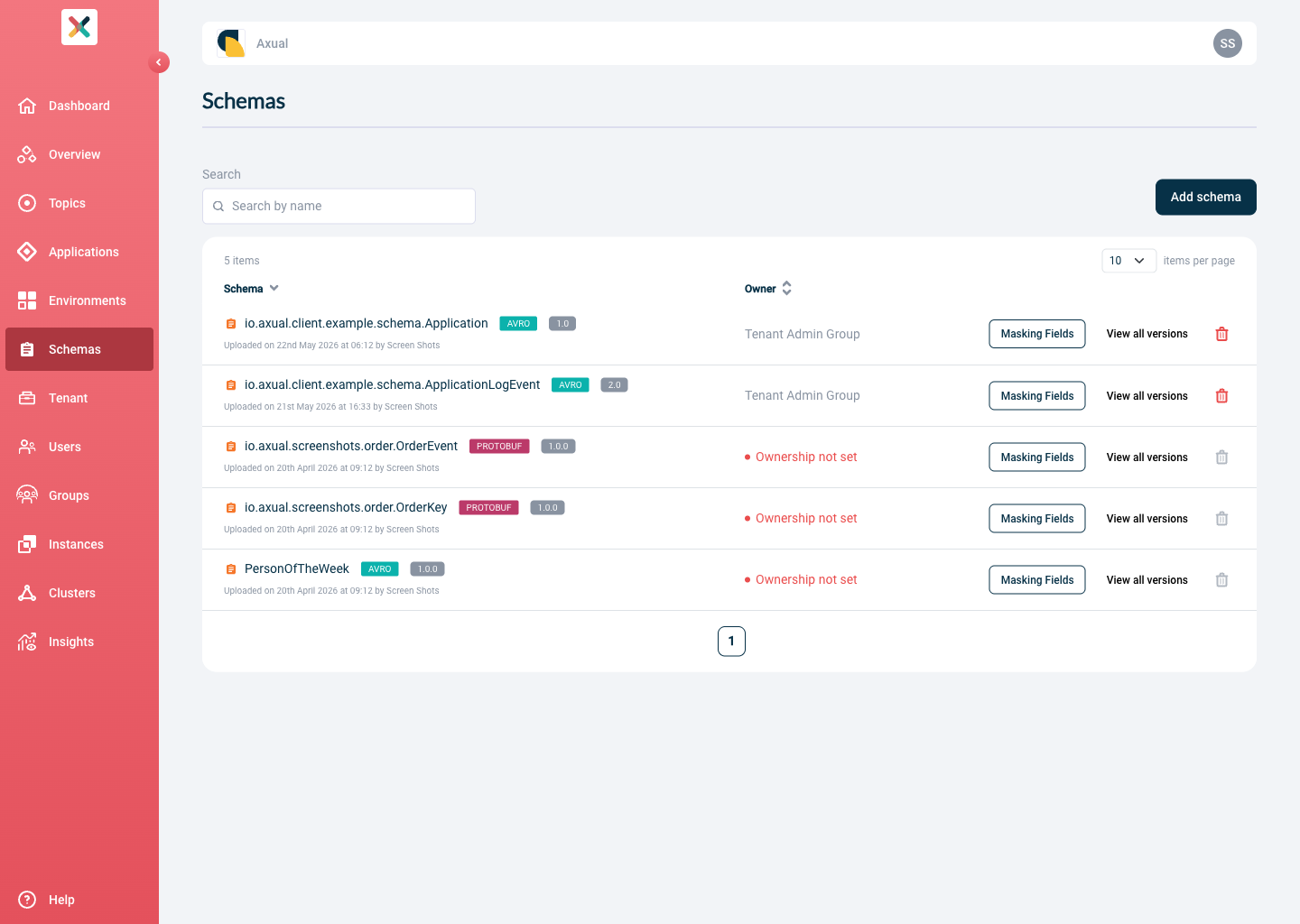
The paginated Schemas table contains all Schemas sorted by Name
-
Input the name (or namespace) of the Schema you are looking for
-
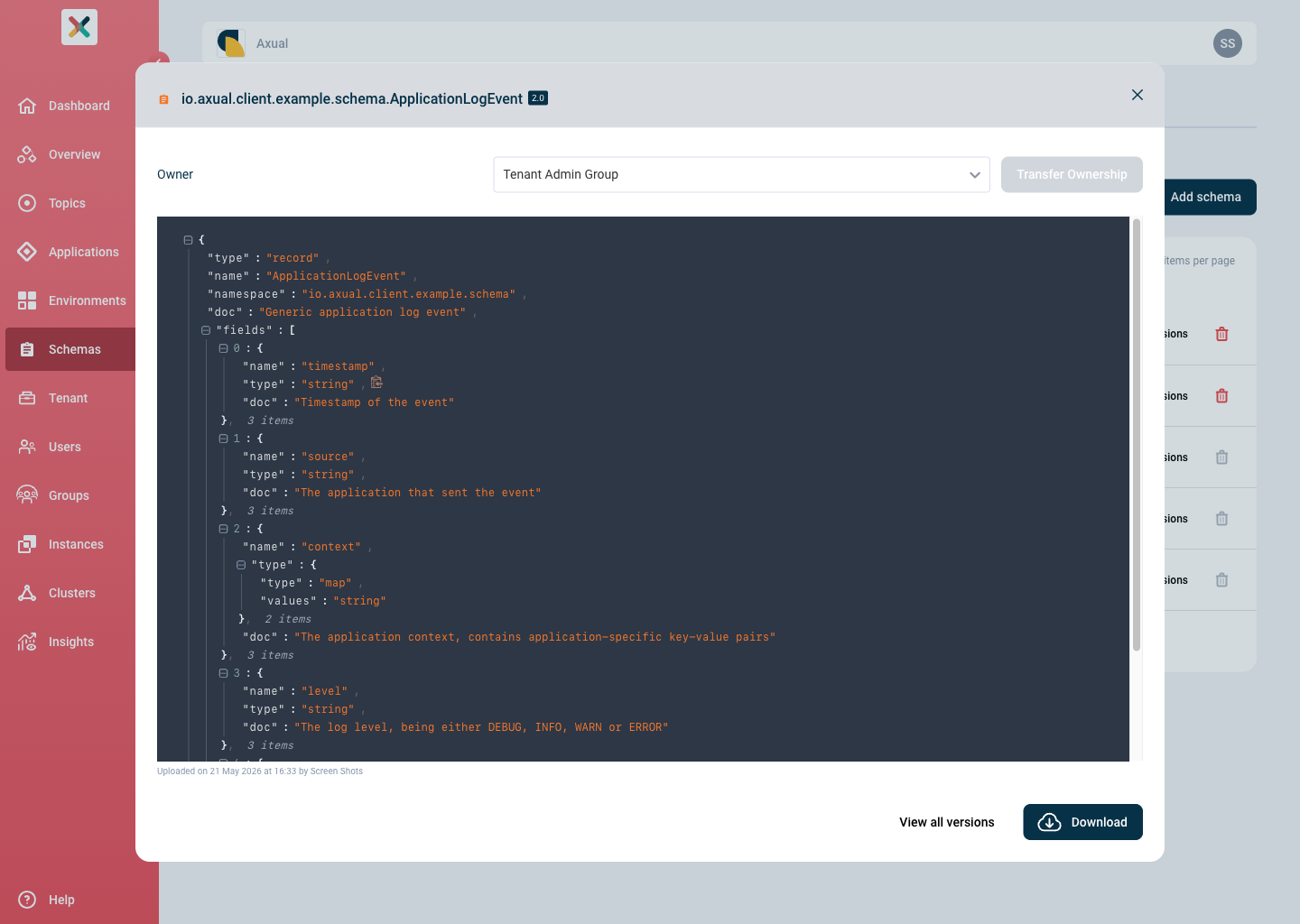
Click on the file to view the Schema
-
A modal will open displaying the content of the Schema
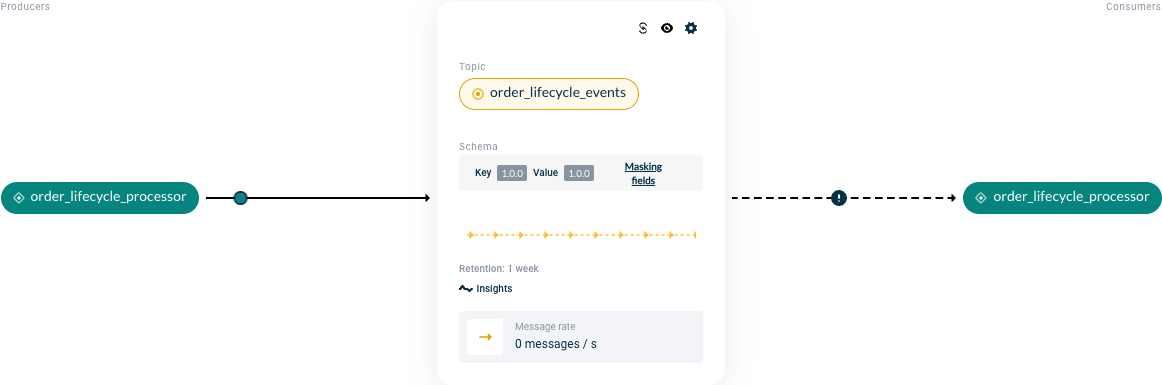
You can also view a Schema from the Topic Details page.
-
On the topic card, there is a Schema section.
-
Click on the version number of the Schema.
-
You will be presented with the Schema