Create Self-Service Resources
Once you have started all the governance components and successfully configured them, it’s time to access the Self-Service to create the Axual Resources.
Sign up and register Organization
These steps are used to create the Tenant and User in the Axual Self-Service.
This user will get TENANT_ADMIN role,
so they will be able to create all the mandatory resources of the organization.
-
Access the Local login page and press the
RegisterbuttonThe URL is <self-service.host>/login/local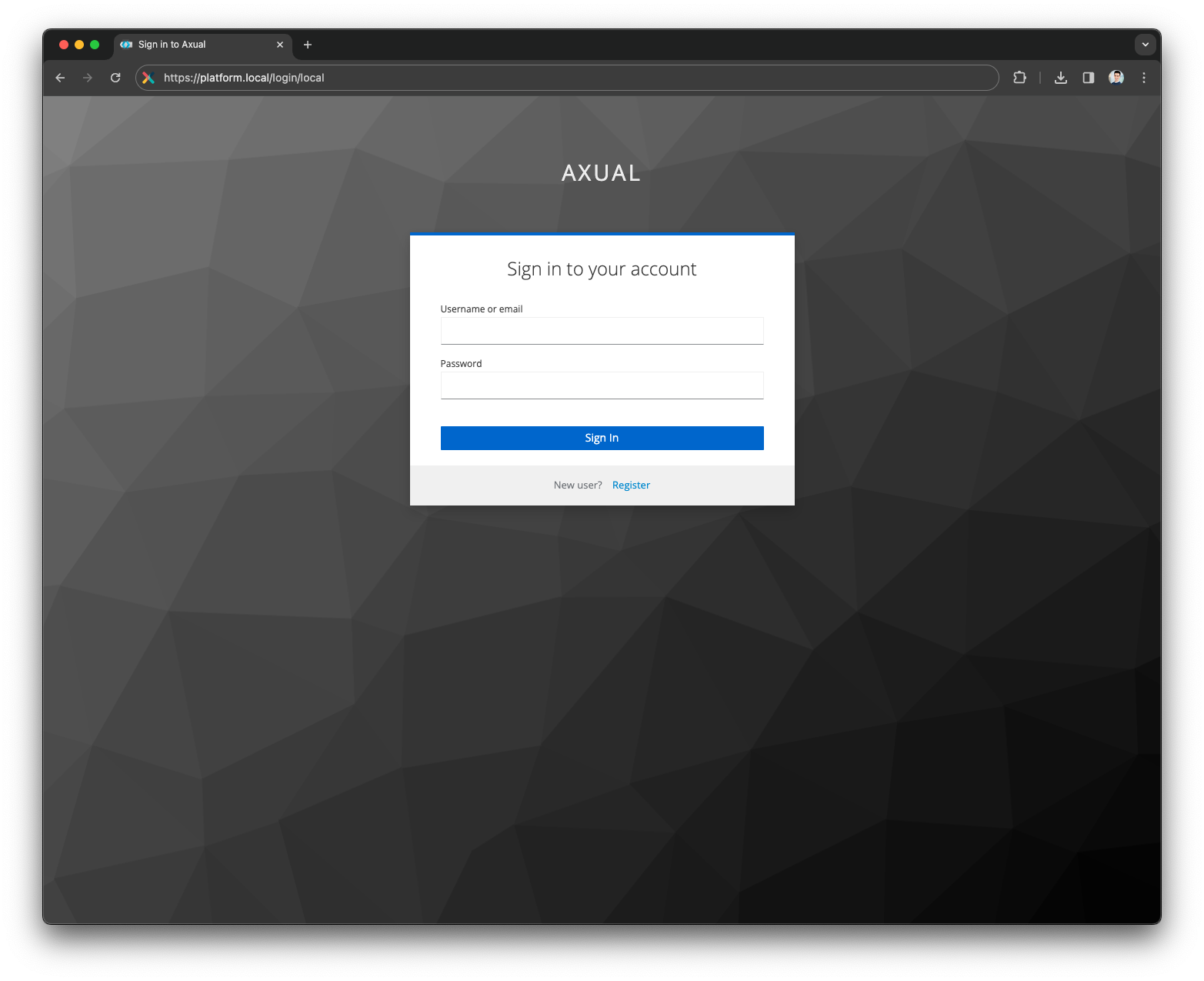
-
Fill the user details and press the
Registerbutton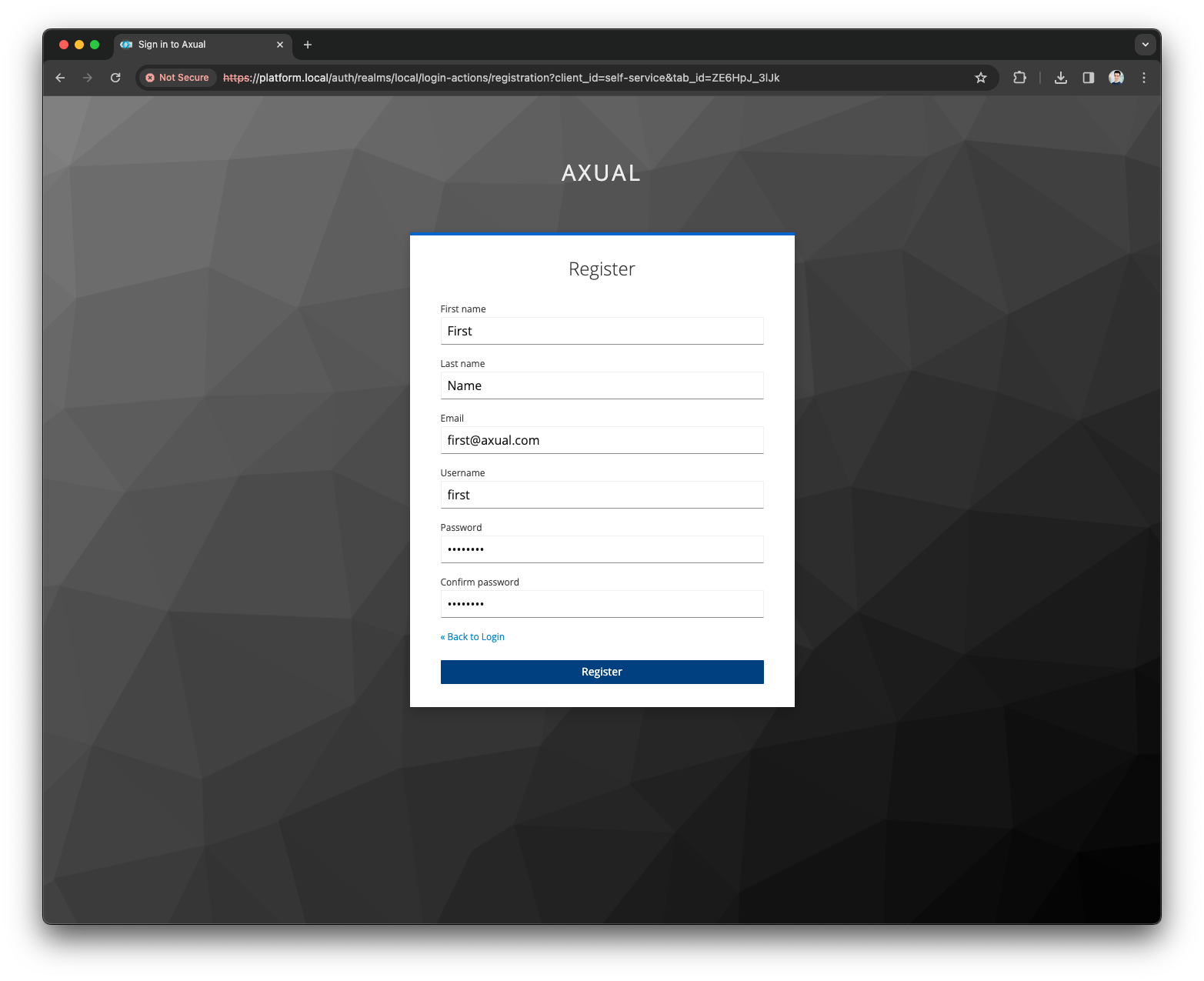
-
Provide the Organization details and press the
ContinuebuttonCheck this page to configure the wizard to expect the Organization Short Name 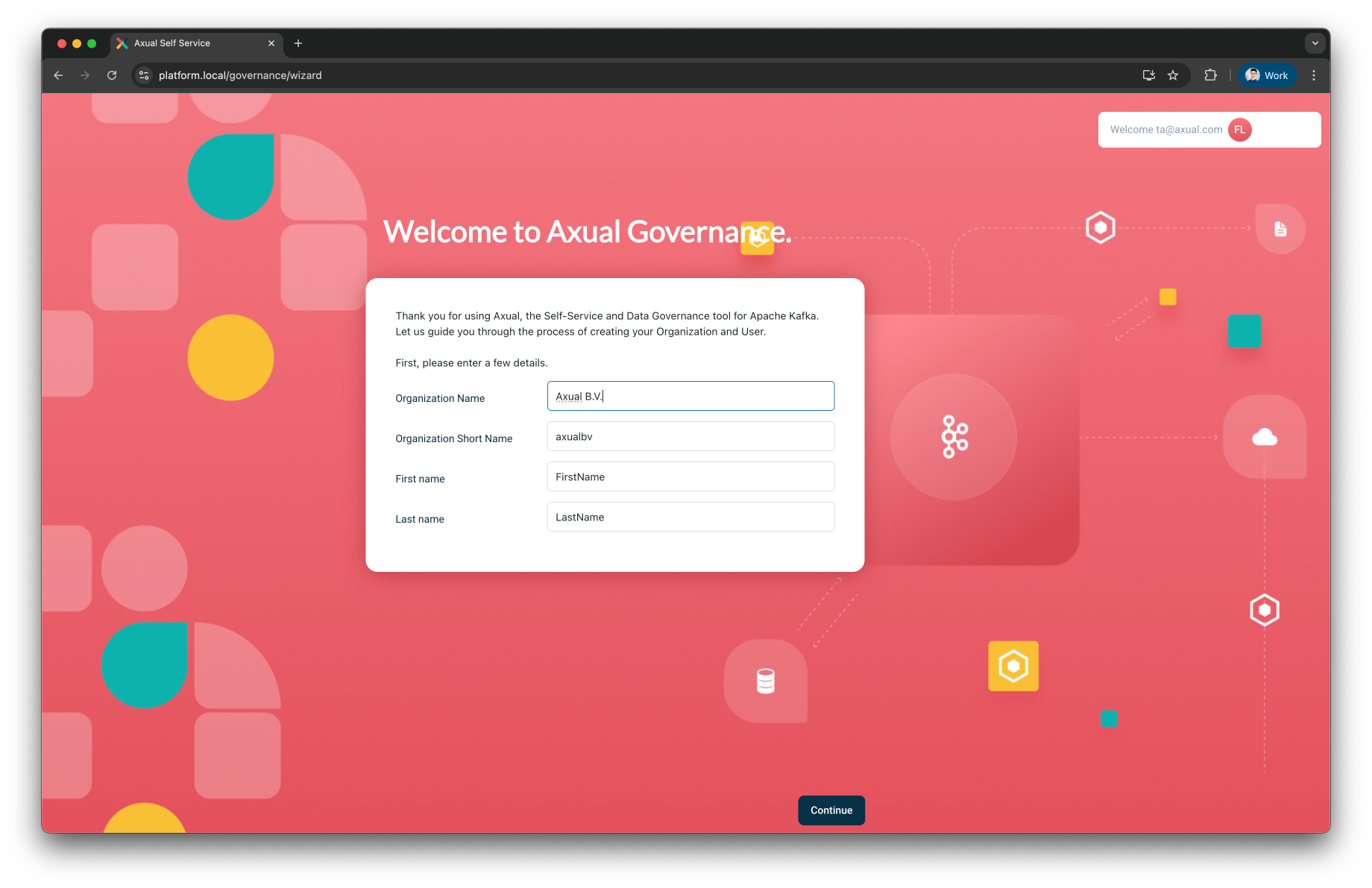
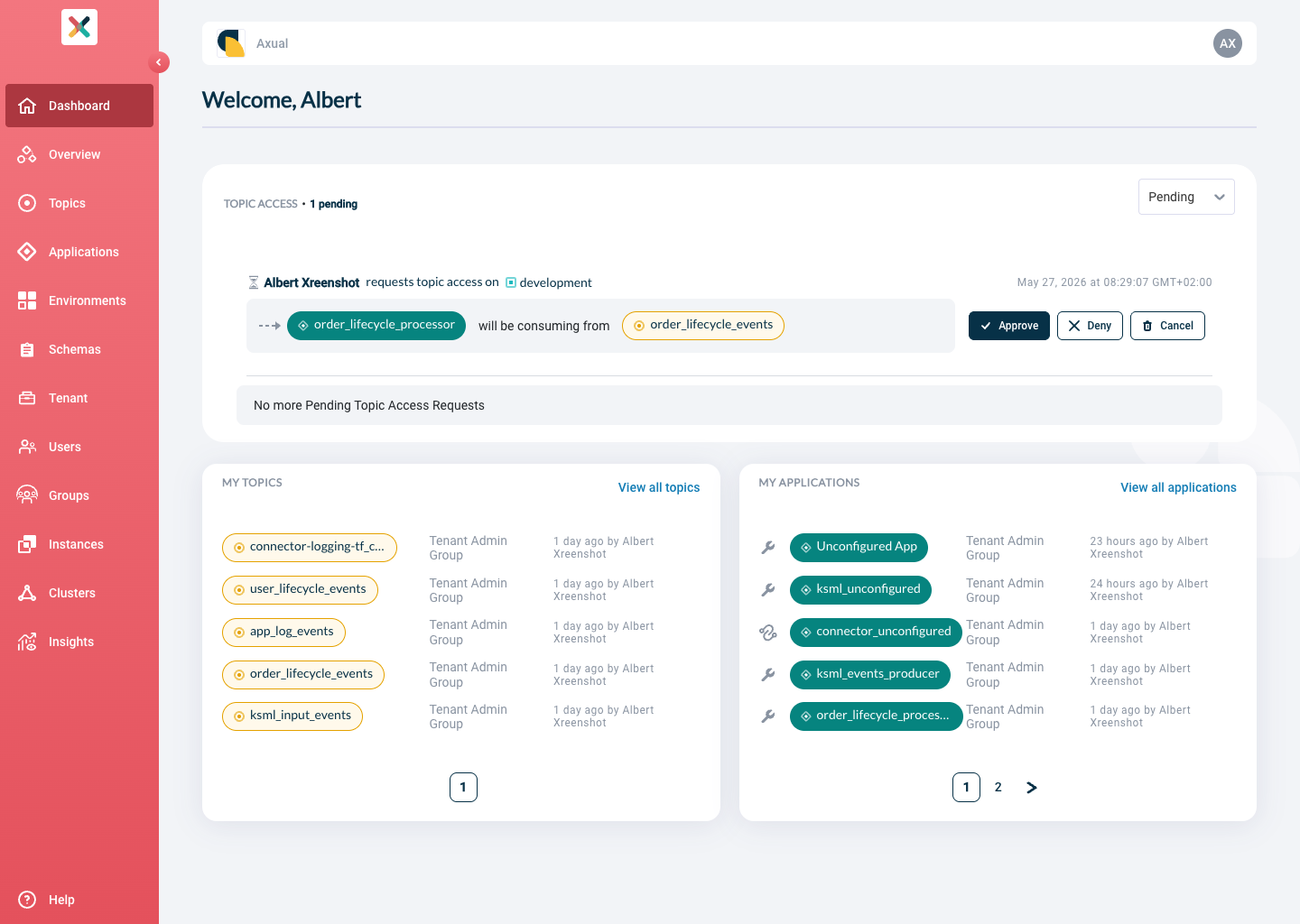
You have now reached the Self-Service dashboard.
Create the Cluster
These steps add the local cluster started with the Axual Streaming Charts.
They can be used as reference for any cluster.
|
Follow the cluster creation guide using the following values:
-
Name:
local -
Description:
Local cluster -
Location:
local -
Provider Type:
Apache Kafka -
Kafka bootstrap URL:
platform.<domain>:31767 -
Authentication Method:
TLS— upload asuper-usercertificate and private key, then pressVerify -
Shared cluster:
noShared clusters are visible to all tenants defined in the Axual Platform. Only SUPER_ADMIN can manage these clusters.
Private clusters are visible to only the tenant that has defined it. TENANT_ADMIN can manage these clusters.
-
SSL Authentication Mode:
Full Chain CertificateThe
Full Chain Certificateoption is recommended for multi-tenant environments. -
Topic pattern:
{tenant}-{instance}-{environment}-{topic} -
Consumer Group pattern:
{tenant}-{instance}-{environment}-{group} -
Transactional ID pattern:
{tenant}-{instance}-{environment}-\{transactional.id\}
Create the Instance
Follow the instance creation guide using the following values:
-
Name:
Dev Test Acceptance -
ShortName:
dta -
Description:
DTA InstanceDo not fill the Instance Manager URL field, this field is for older installations. It will be removed in future releases.
Select the local cluster created in the previous step, then enable the Authentication Method:
-
Toggle
SSL (MUTUAL TLS) -
Upload the Signing CA used to sign your application certificate
Schema Registry Configuration
Follow the schema registry configuration guide for the Dev Test Acceptance instance using the following values:
-
Schema Registry URL:
https://apicurio.axual.dta.local/apis/registry/v2 -
Schema Registry Type:
Apicurio -
Authentication Method:
Basic Authentication— provide theusernameandpasswordused by Platform Manager to authenticate against Apicurio Registry
Create the Environment
Follow the environment creation guide using the following values:
-
Name:
Development -
ShortName:
dev -
Description:
Dev Environment -
Instance:
Dev Test Acceptance -
Visibility:
Public -
Authorization Issuer:
Auto -
Owner:
Admins
Create the Topic
Follow the topic creation guide to create a string-string topic using the following values:
-
Name:
string-string -
Description:
String/String topic -
Owner:
Admins -
Key Type:
String -
Value Type:
String -
Retention Policy:
Delete
Then configure the Topic for the dev environment with:
-
Retention time:
3days -
Number of partitions:
4
Create the Application
Follow the application creation guide using the following values:
-
ID:
io.axual.producer -
Name:
Java Producer -
Short Name:
java_prd -
Owner:
Admins -
Application Type:
Custom -
Type:
Java -
Visibility:
Public -
Description:
Java producer application
Once the application is created, ensure the dev environment is selected in the Environment Dropdown, then:
-
Configure application authentication — upload your application certificate and press
Applyonce Platform Manager validates it. -
Request topic access — press
+ Add request, chooseProduceras the Application Type, selectstring-stringas the Topic, and pressRequest Approval.Based on the Environment Authorization Issuer it’s possible that the Topic Owner will need to approve the pending access request.
Since the dev environment was created with Auto Authorization Issuer, the access request is approved automatically.
The Topic ACL has been updated and the Application is able to produce to the string-string topic.