Topic Browse (Messages)
Contents
Viewing Topic Messages
When you would like to see whether messages have ended up on the platform correctly, you can use Browse & Search. This functionality is found on the Topic Detail in the top right navigation.
-
Open the Topic Detail page
-
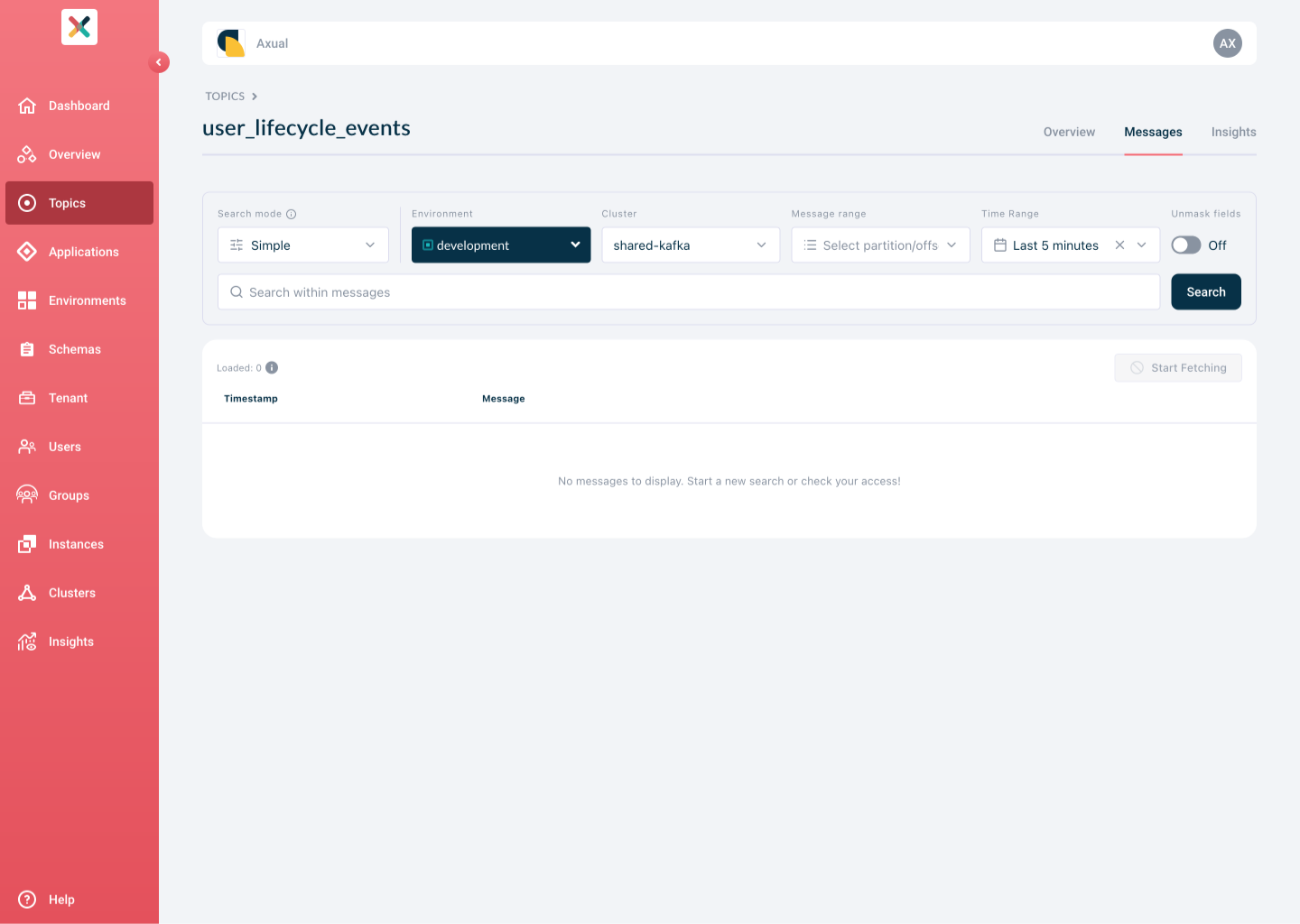
Click Messages tab in the top right. The following menu will be shown
-
Use the
Environment,Cluster,Message Range, andTime Rangefilters, or keep the default values. -
Optionally narrow down the search using a simple query or a complex CEL expression, for example
value.name == "Alice". -
Click the Search button to execute the search
| Partition offset search is incompatible with time range search. |
Providing there are messages available, you will then be shown your results in a scrollable list.
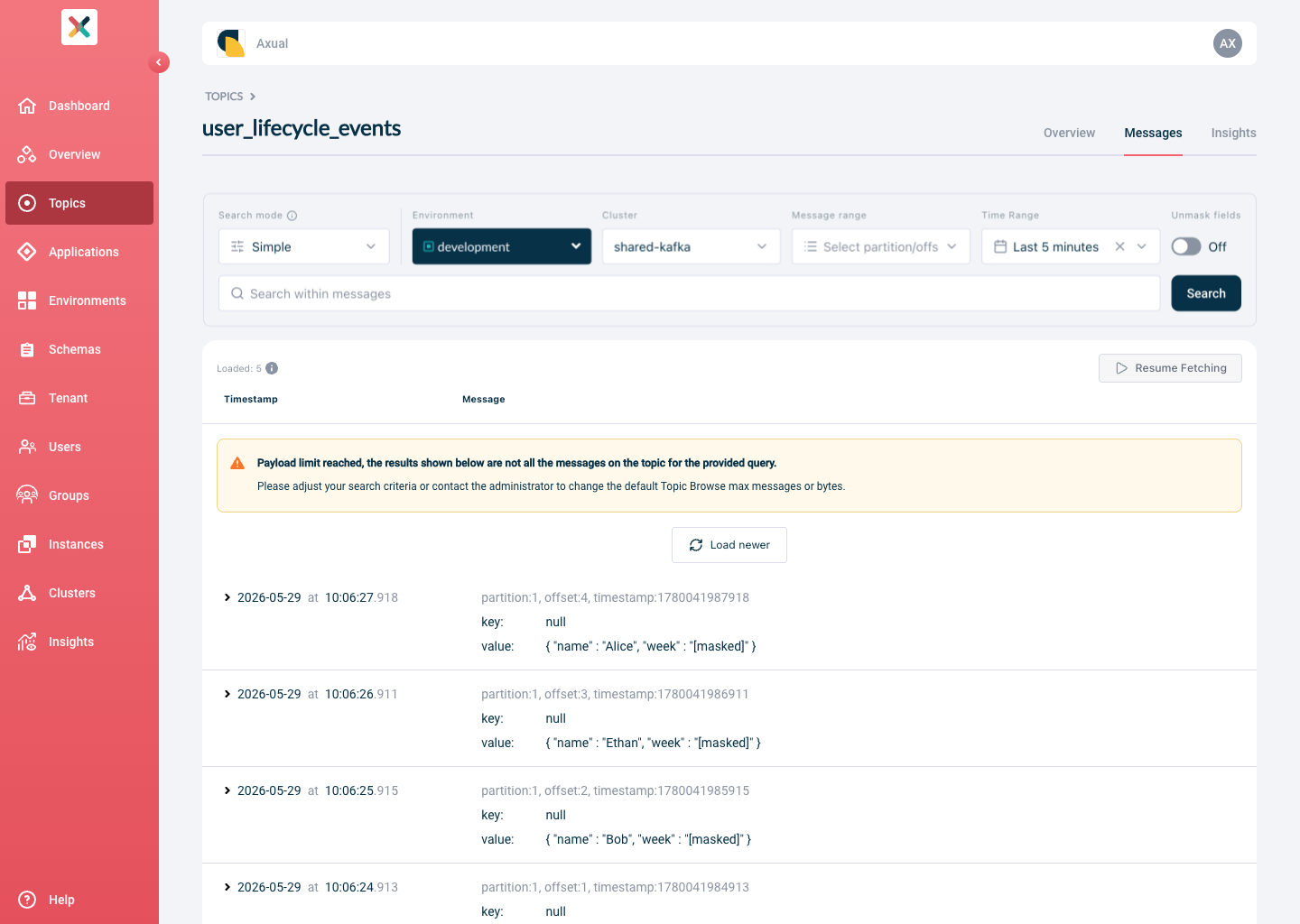
Every row shows:
-
Technical message details: technical details about the message, see also Technical message details
-
Key: the contents of the message Key
-
Value: the contents of the message Value
Click a row to expand the view and open a viewer that shows the full message details, for which you can expand or collapse individual fields.
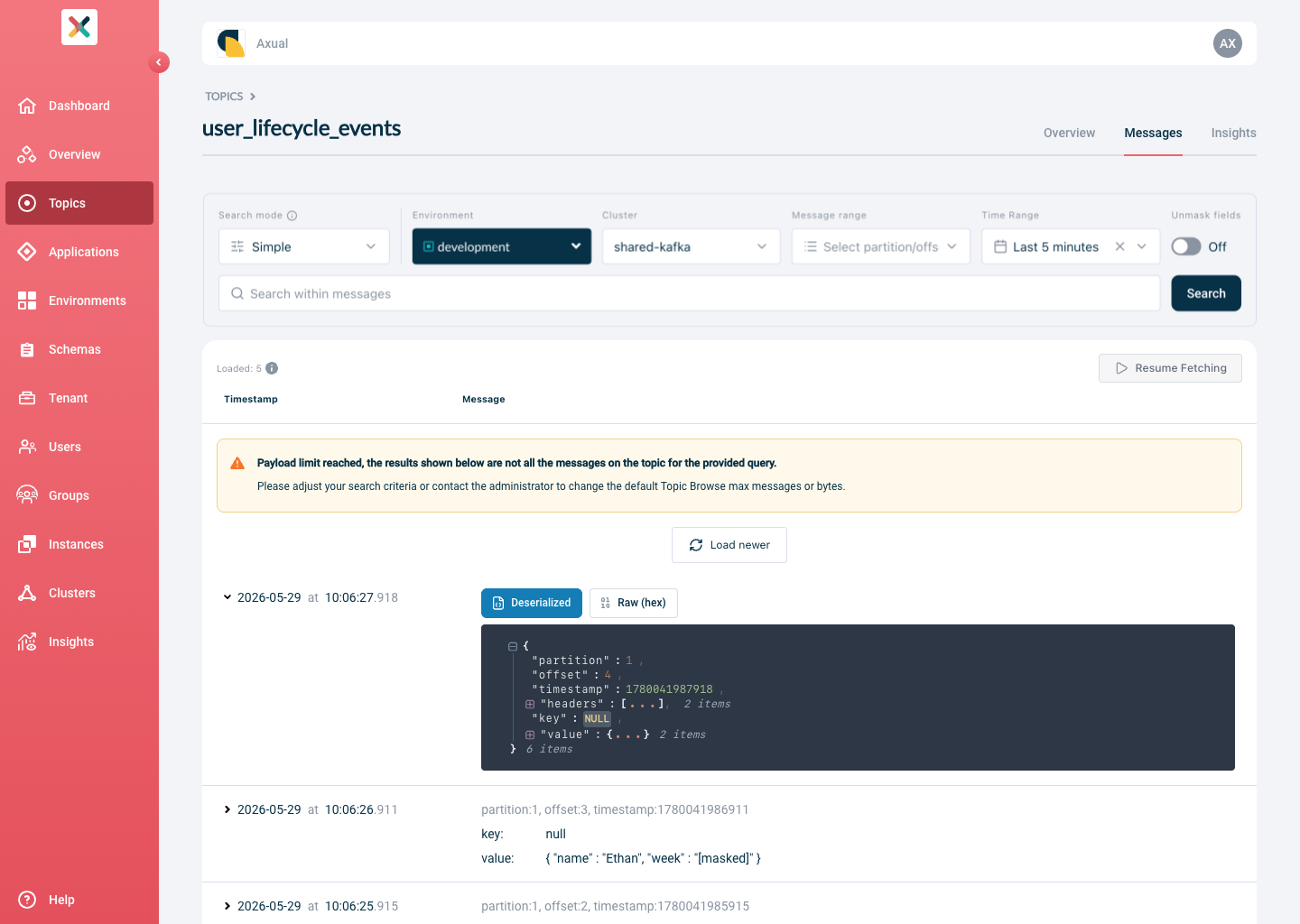
To load more results, click Load More. To continuously fetch the latest messages, click Start fetching.
Payload limit
When browsing, messages are returned up to a preconfigured limit for maximum number of messages or bytes. If that limit is reached the messages viewed and sorted will be a subset of all the messages present on the Topic for the given query. Additionally, preconfiguration includes a maximum response time for the returned messages.
For information on configuring payload limits and maximum response time, please refer to Browse Configuration.
When the number of messages loaded on the page reaches 5000, the older messages will be unloaded from the page. To view the previous messages, click Load oldest at the bottom of the list.
Controlling permissions to browse a topic
Tenant Admin can configure who can browse topic messages in an environment. This functionality is available when granular topic browse permissions are enabled for an instance.
Granular Topic Browse Permissions are disabled in environments with the Authorization Issuer set to auto.
|
-
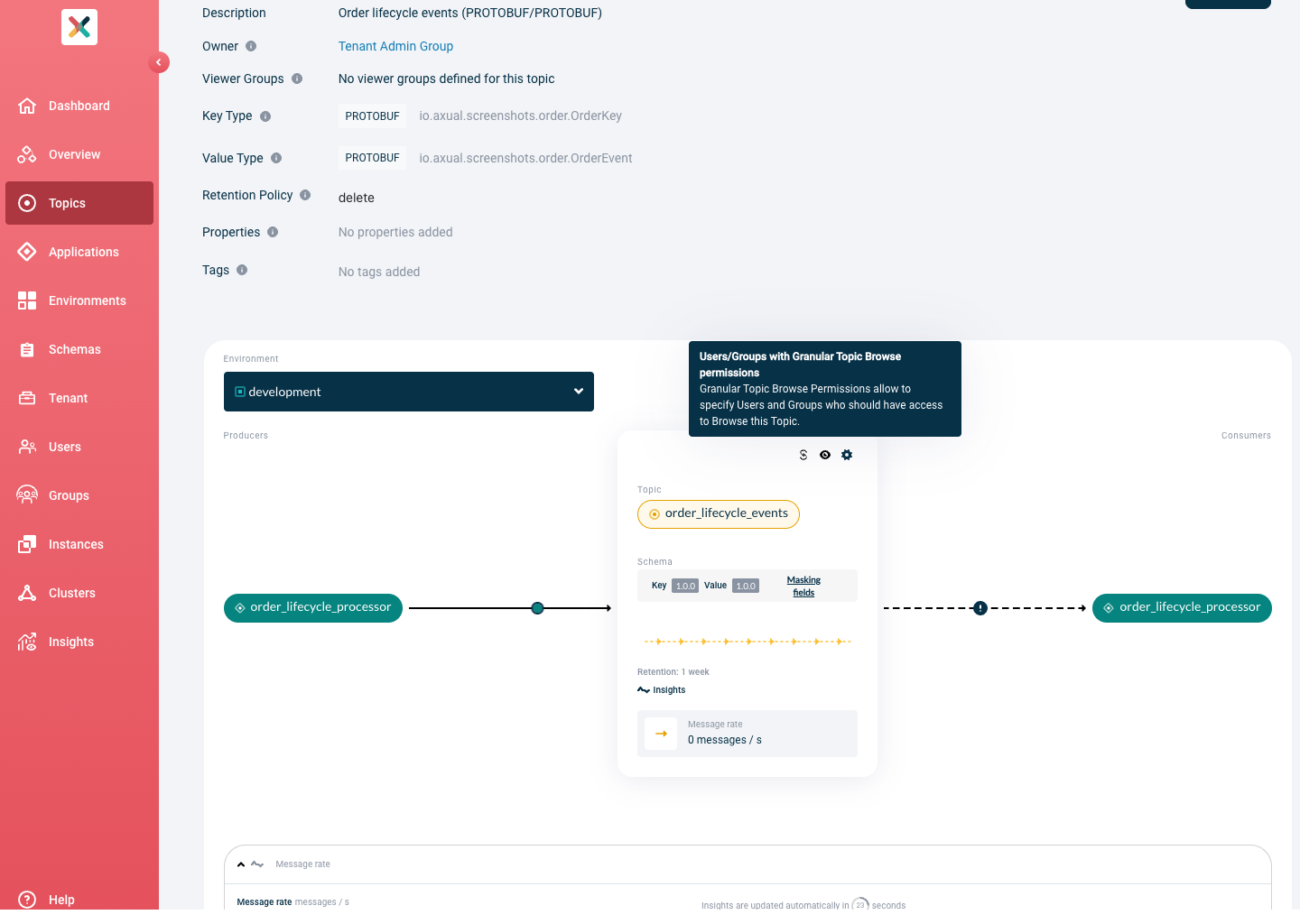
Visit the Topic Detail page and click on the eye icon button inside the topic card.
-
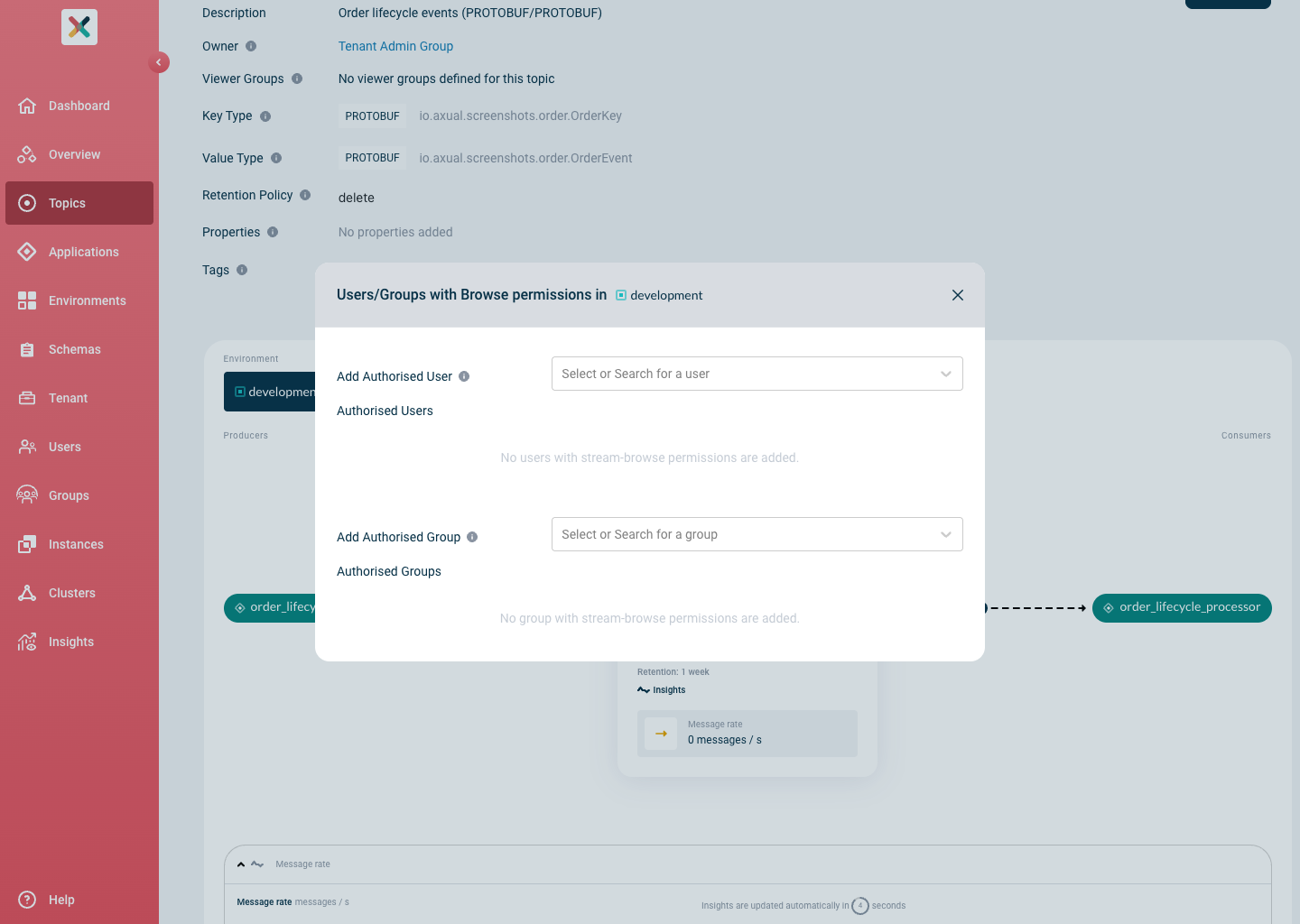
The Topic Browse Permissions modal opens as below:
-
Search for a user or a group. The added users or groups are displayed below the search box.
-
To Revoke user or group access, click on the Cross icon. A modal will appear to confirm action. Click on Revoke access button to continue. Otherwise, click Cancel to go back.
| Topic owner group is always part of the browse permission group. |