Audit History
Auditing
The Auditing Feature is a tracking mechanism that records key actions performed on system resources. It gives Tenant Admins visibility into changes, ensuring transparency, security, and accountability. By maintaining a detailed history of modifications, this feature helps in troubleshooting incidents and enforcing governance policies.
Current Version Coverage
Currently, the auditing feature tracks the following actions that are performed on the resources.
| ResourceType | Actions |
|---|---|
Application |
Created, Updated, Deleted, Authentication Configured, Authentication Unconfigured, Application Configured, Application Unconfigured, Application Access Requested, Application Access Cancelled, Application Access Approved, Application Access Denied, Application Access Revoked, Application Started, Application Stopped, Application Restarted, Application Reset |
Cluster |
Created, Updated, Deleted |
Environment |
Created, Updated, Deleted, Authentication Configured, Authentication Unconfigured, Application Configured, Application Unconfigured, Application Access Requested, Application Access Cancelled, Application Access Approved, Application Access Denied, Application Access Revoked, Application Started, Application Stopped, Application Restarted, Application Reset, Topic Configured, Topic Unconfigured, Topic Masking Configured, Topic Browsed, Browse Permission Granted, Browse Permission Revoked, Synchronized |
Group |
Created, Updated, Deleted, Externalized, Internalized |
Instance |
Created, Updated, Deleted, Schema Registry Configured, Schema Registry Unconfigured, Cluster Added, Cluster Removed, KSML Provisioner Configured, KSML Provisioner Unconfigured, Synchronized |
Schema |
Schema Version Uploaded, Schema Version Deleted, Schema Ownership Transferred, Schema Masking Configured |
Topic |
Created, Updated, Deleted, Topic Configured, Topic Unconfigured, Topic Masking Configured, Topic Browsed, Application Access Requested, Application Access Cancelled, Application Access Approved, Application Access Denied, Application Access Revoked, Browse Permission Granted, Browse Permission Revoked |
Tenant |
Created, Updated, Deleted, Iam Group Management Enabled, Iam Group Management Disabled, Axual Group Management Enabled, Axual Group Management Disabled, Automatic IAM Group Creation Enabled, Automatic IAM Group Creation Disabled |
User |
Created, Updated, Deleted |
| Access to the audit history is restricted to Tenant Admins. |
Enable Auditing
To enable the Auditing feature to track the performed actions, the Operator must first activate the Auditing Feature in the values.yaml for the Platform-Manager as shown below:
platform-manager:
  config:
    axual:
      # Auditing Feature
      audit:
        enabled: true
To make the stored events visible for the Tenant Admins, the Operator must activate the Auditing Feature in the values.yaml for the Platform-UI as shown below:
platform-ui:
  config:
    # Auditing Feature
    auditHistoryEnabled: true
View Audit History
After enabling the Auditing feature, the performed actions on the resources are stored and only Tenant Admins can view the audit history.
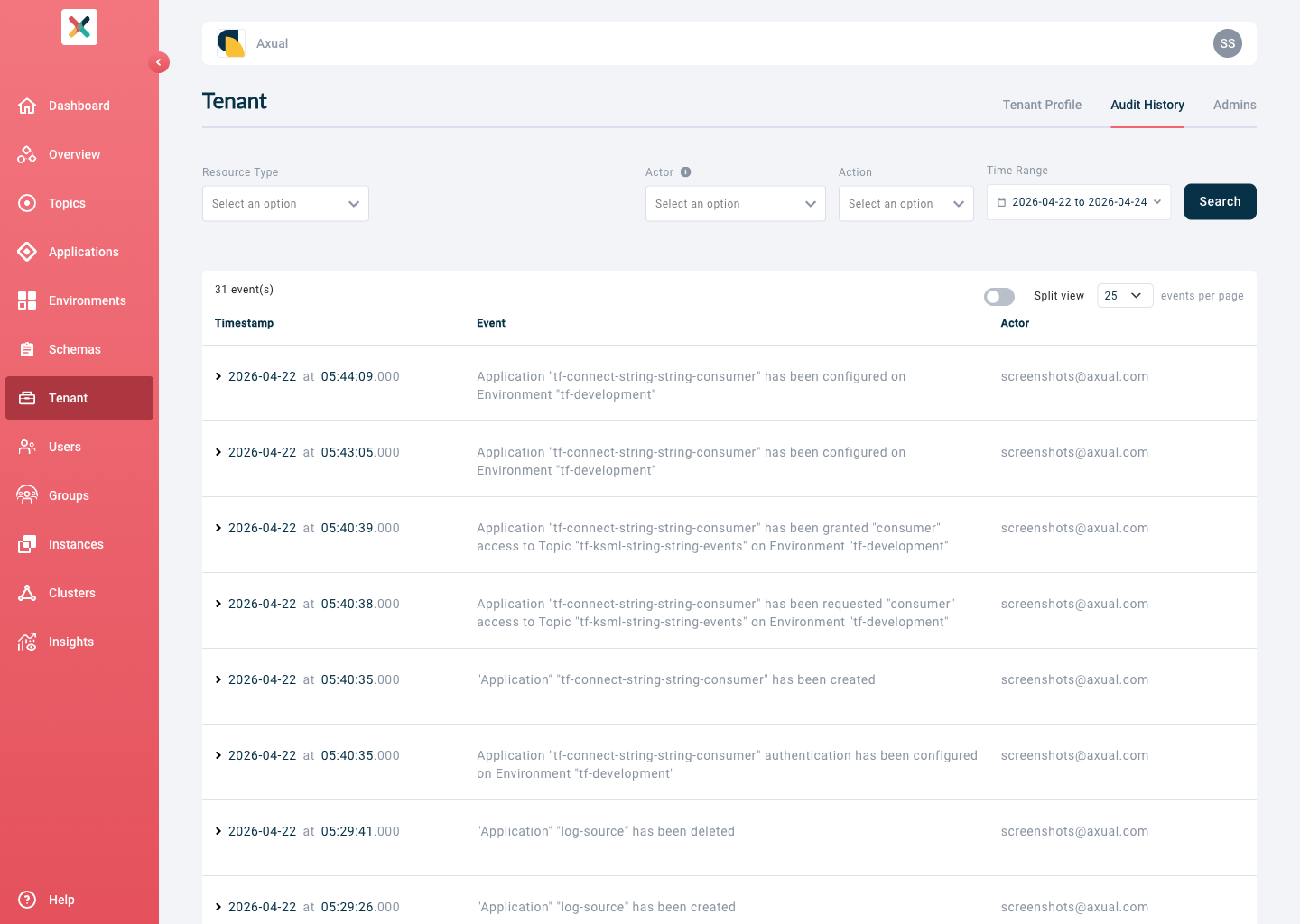
To view the audit history, navigate to the Audit History tab of the Tenant page. You will see a list of all the audit entries, which include the timestamp, resource type, actor, and action.
| A default time range of the last 7 days is set when viewing the audit history. |
| Large numbers (typically those with more than 15 digits) are represented as strings to prevent loss of precision during parsing or serialization. |
Filtering
The audit history can be filtered by resource type, resource name, actor, action, or time range (absolute or relative). When filtering by resource name, selecting the resource type first reveals the name dropdown. If a resource or user has been deleted, you can still search for it by typing the name or email address directly in the field.
Configure Audit Retention Time
Audit retention time determines how long audit events are stored before being automatically deleted. This can be configured at two levels:
Platform Manager Configuration
The Operator configures a global maximum retention time in the Platform Manager’s values.yaml. This sets the upper limit for all tenants:
platform-manager:
  config:
    axual:
      # Auditing Feature
      audit:
        history-retention-days: 365
By default, the retention period is set to 365 days during installation.
Tenant-Level Configuration
Tenant Admins can configure a custom retention time for their tenant on the Tenant Settings page. The retention value:
-
Must not exceed the maximum limit set by the Platform Manager
-
Can be set to
0to retain audit events indefinitely (no automatic deletion) -
When set to a specific number of days, audit events older than this period are automatically deleted
When viewing the Audit History, a message displays the current retention period, informing users how far back the audit history is available.
|
To view the maximum allowed retention time for your tenant, hover over the tooltip on the Tenant Settings page. This displays the Platform Manager’s configured limit. |