Groups
- All Group Members Permissions (Default)
- Groups
- Creating a Group
- Editing a Group
- Deleting a Group
- Adding Users To a Group
- Removing Users From a Group
- Making a Group Member Manager of the group
- Adding a Group Manager To an Axual Group
- Making a Group Member Resource Manager of the group
- Adding a Resource Manager to an Axual Group
- Group Managers and Resource Managers for IAM Groups
- Converting an Axual Group to an IAM Group
- Converting an IAM Group back to an Axual Group
- Viewer Groups
The Tenant Admin can restrict who can Update or Deploy owned resource by controlling the Update and Deploy Owned Resources settings from the Tenant settings page.
All Group Members Permissions (Default)
When tenant settings for Update and Deploy Owned Resources is set to All Group Members, the group ownership is used to determine the user’s permissions.
Users with ADMIN rights on specific resources can create, update and deploy resources even though they are not the owner. For an overview, see the table below.
| View | Create | Update/Deploy | Delete | |
|---|---|---|---|---|
Authenticated User |
✅ |
❌ |
❌ |
❌ |
Author Roles:
|
✅ |
✅ |
❌ |
❌ |
Owner |
✅ |
✅ |
✅ |
✅ |
Admin Roles:
|
✅ |
✅ |
✅ |
✅ |
Only Resource Managers Permissions
To restrict access to resources, a new Tenant setting allows for selection of Resource Managers. This setting can be toggled in the Tenant settings page.
When tenant settings for Update and Deploy Owned Resources is set to Only Resource Managers, the Resource Managers of the owning group are able to perform update and deploy operations.
Users with ADMIN rights on specific resources can create, update and deploy resources even though they are not the Resource Managers of the owning group.
For an overview, see the table below.
| View | Create | Update/Deploy | Delete | |
|---|---|---|---|---|
Authenticated User |
✅ |
❌ |
❌ |
❌ |
Author Roles:
|
✅ |
✅ |
❌ |
❌ |
Owner |
✅ |
❌ |
❌ |
❌ |
Resource Manager |
✅ |
✅ |
✅ |
✅ |
Admin Roles:
|
✅ |
✅ |
✅ |
✅ |
Groups
Self-Service supports two types of groups:
- Axual Managed Groups
-
Membership is maintained directly in Self-Service. Members are added and removed by the Tenant Admin or a Group Manager.
- IAM Managed Groups
-
Membership is determined by the user’s Identity Provider (IdP). Each IAM group carries an IAM Reference — an identifier matching a group in the external IdP (for example, an Azure AD group Object ID). Membership is read from the
groupsclaim in the user’s JWT on every authenticated request; members are not stored in Self-Service.
IAM Group Management must be enabled by the Tenant Admin before IAM groups can be created or converted. See Tenant Settings — IAM Group Management.
Creating a Group
-
Click the Groups menu item
-
Click on the Add Group button
-
Choose the group type:
-
Axual Managed Group — add members directly. Available when Axual Group Management is enabled.
-
IAM Managed Group — enter the IAM Reference value that corresponds to the group in your Identity Provider. Available when IAM Group Management is enabled.
-
-
After filling out the form and saving it, you have created your new Group.
If a specific Group Management mode is disabled, the corresponding option is shown but cannot be selected.
Editing a Group
-
Click the Groups menu item. You will see the list of existing groups.
-
Click on the group you want to edit. It will take you on the Group’s detail page.
-
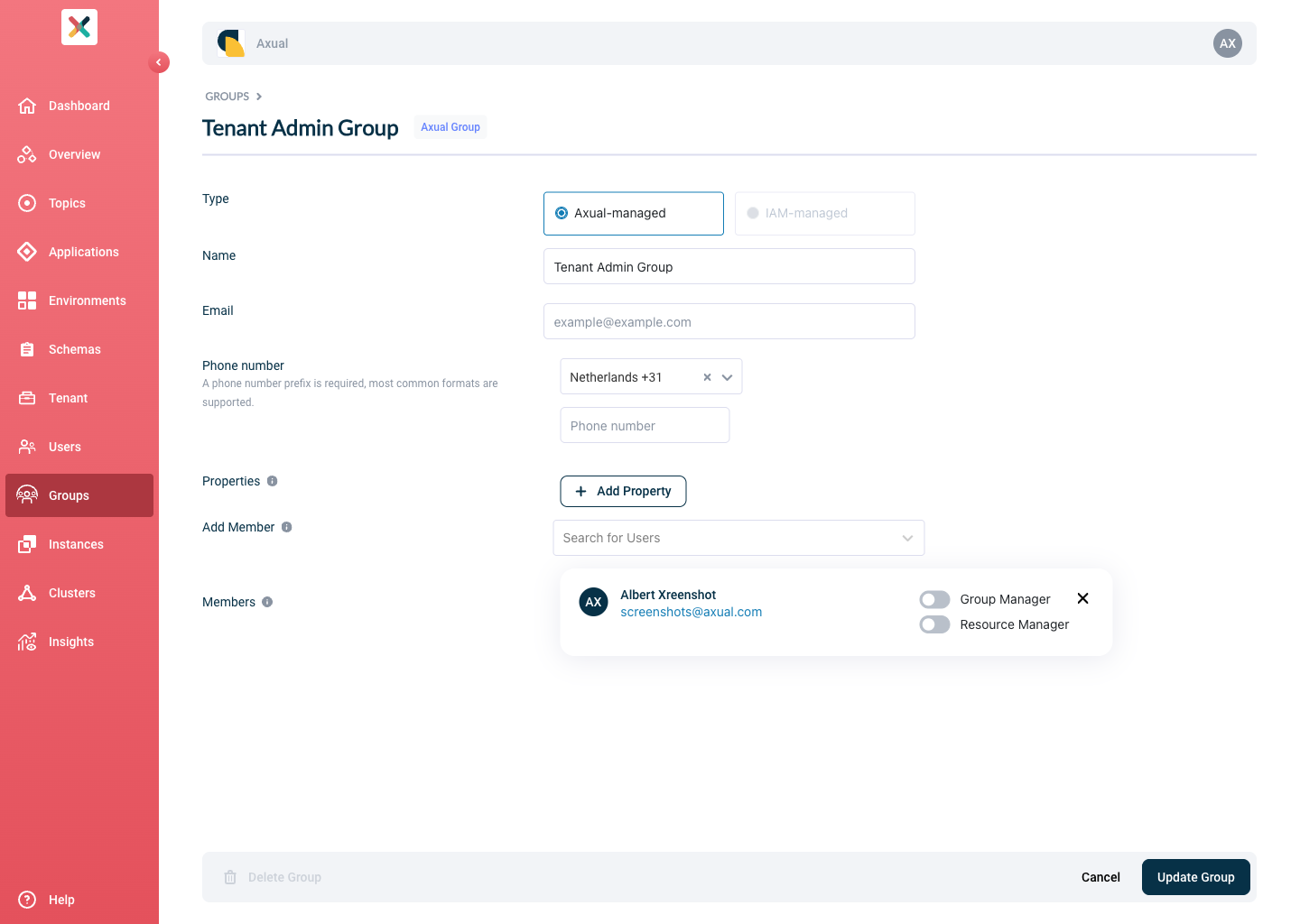
Click on the Edit Group button.
-
Fill in or change any information you need and click the Save user group button to update the group’s information.
| For IAM-managed groups, the IAM Reference field is editable and must not be left blank. The IAM Reference must be unique across all groups in the tenant. |
Deleting a Group
Deleting a group can only be done if the group is not owning any entities (applications, environments, topics).
-
Visit the Group Detail page
-
Click the Edit Group
-
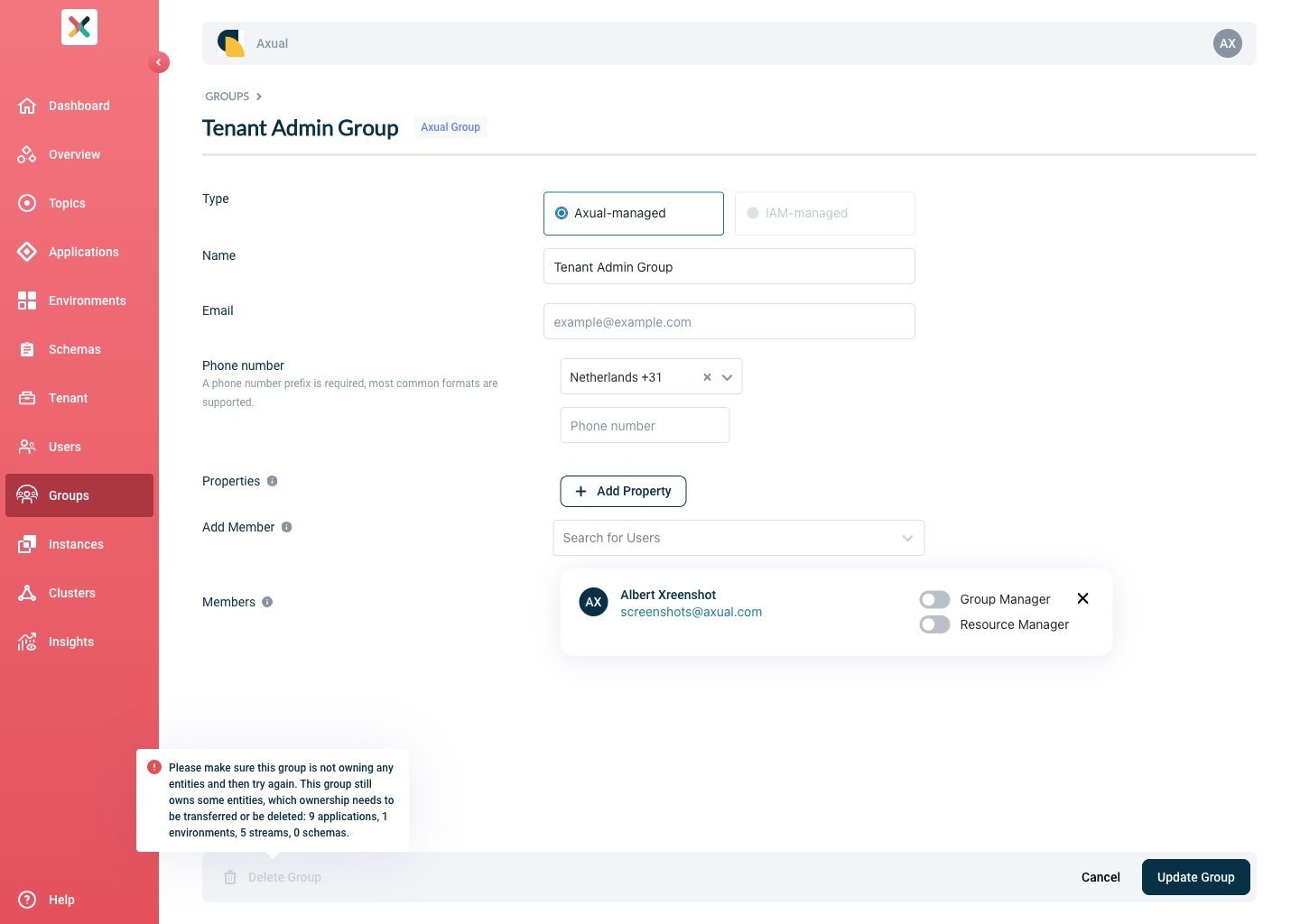
There is a Delete Group button on the bottom-left of the page. The button is active if all constraints are met and deletion is possible. Clicking the button, a confirmation modal opens
-
Clicking on Confirm will delete the Group.
-
If all constraints are not met, the Delete Group button is disabled and on hover, a tooltip is shown with information on how many Applications, Environments and Topics this group owns, as below:
Adding Users To a Group
This applies to Axual-managed groups only. For IAM-managed groups, membership is resolved from the user’s Identity Provider and cannot be managed in Self-Service.
You can add users to a Group from the Add Group page or from the Edit Group page. The forms in these pages have a Members section as below:
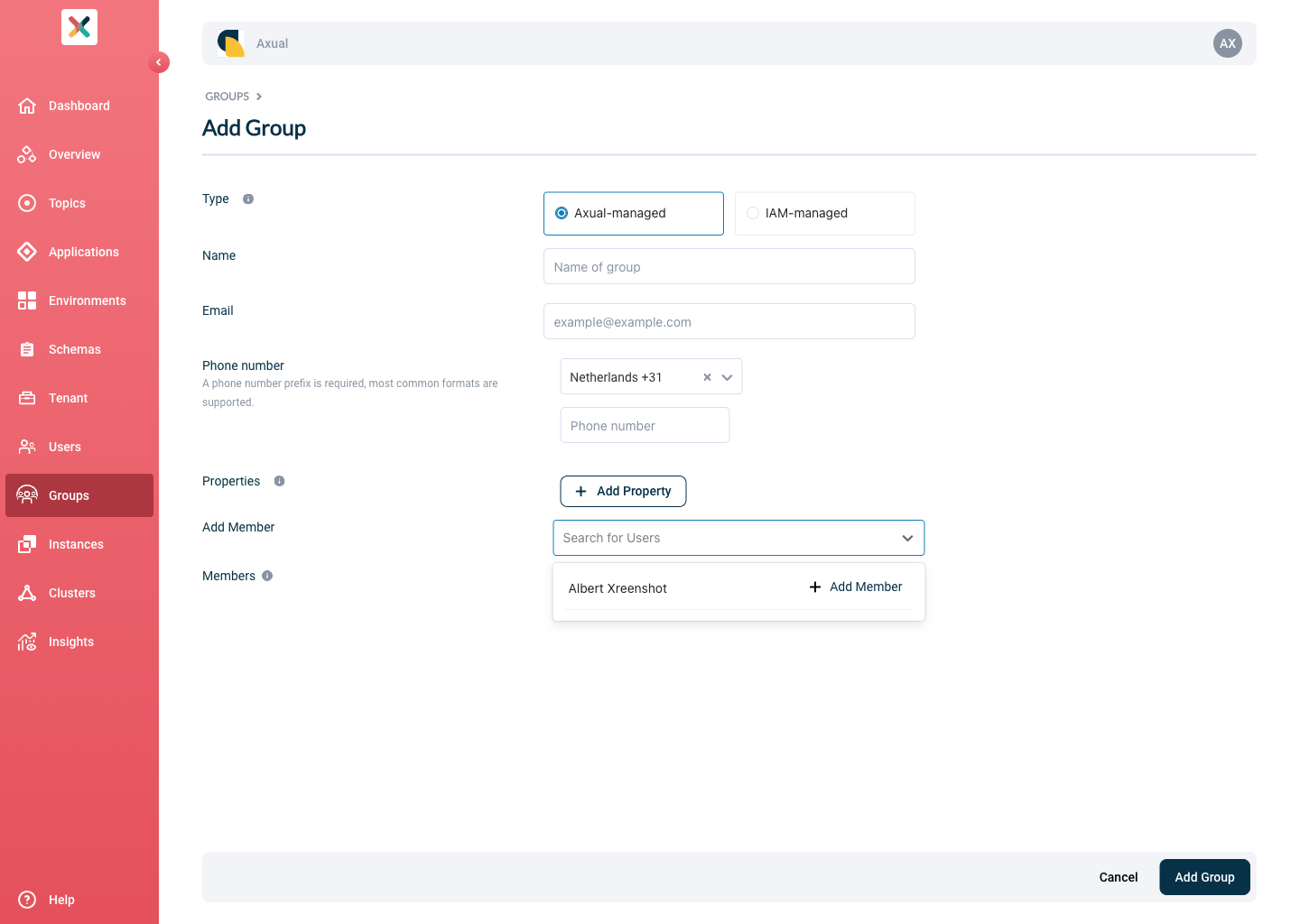
You can add a user by clicking on the Add Member button and choosing a user from the dropdown.
Removing Users From a Group
This applies to Axual-managed groups only.
You can remove users from a group from the Edit Group page. The form in that page has a Members section as the one above. You can remove a user by clicking on the button with the bin icon.
Making a Group Member Manager of the group
A Group Manager can edit this group, including adding or removing users, other group managers and resource managers.
Adding a Group Manager To an Axual Group
You can designate group managers for an Axual group either from the Add Group page or the Edit Group page. To assign a group manager, click the toggle checkbox next to the users you wish to make group managers.
| A Group Manager has the authority to edit the group, including adding or removing users, other group managers and resource managers. If a group lacks a group manager, only a tenant admin can add or remove users, group managers and resource managers. |
Making a Group Member Resource Manager of the group
If the tenant setting is set to Only Resource Managers,
the option to select Resource Manager will be available to both Tenant Admin and Group Managers.
The Tenant Admin can assign Resource Managers to any group, while Group Managers can assign them within their own groups.
If the setting is set to All Group Members, no Resource Manager selection will be required.
|
Adding a Resource Manager to an Axual Group
You can designate resource managers for an Axual group either from the Add Group page or the Edit Group page. To assign a resource manager, click the toggle checkbox next to the users you wish to make resource managers.
Group Managers and Resource Managers for IAM Groups
IAM groups support Group Managers and Resource Managers.
Because Self-Service has no visibility into IAM group membership, any user known in the system can be assigned a permission role.
However, the permissions only take effect if the user is a member of the IAM group at the time of their request (verified via the JWT groups claim).
Tenant Admins and Group Managers can manage these permission assignments from the Edit Group page. Members are not listed for IAM groups; only users with explicit permission roles are shown.
Converting an Axual Group to an IAM Group
Once IAM Group Management is enabled, existing Axual groups must be assigned an IAM Reference to become IAM-managed. Tenant Admins can convert any existing Axual Group into an IAM Group by linking it to an Identity Provider Group.
-
Navigate to the Group’s detail page
-
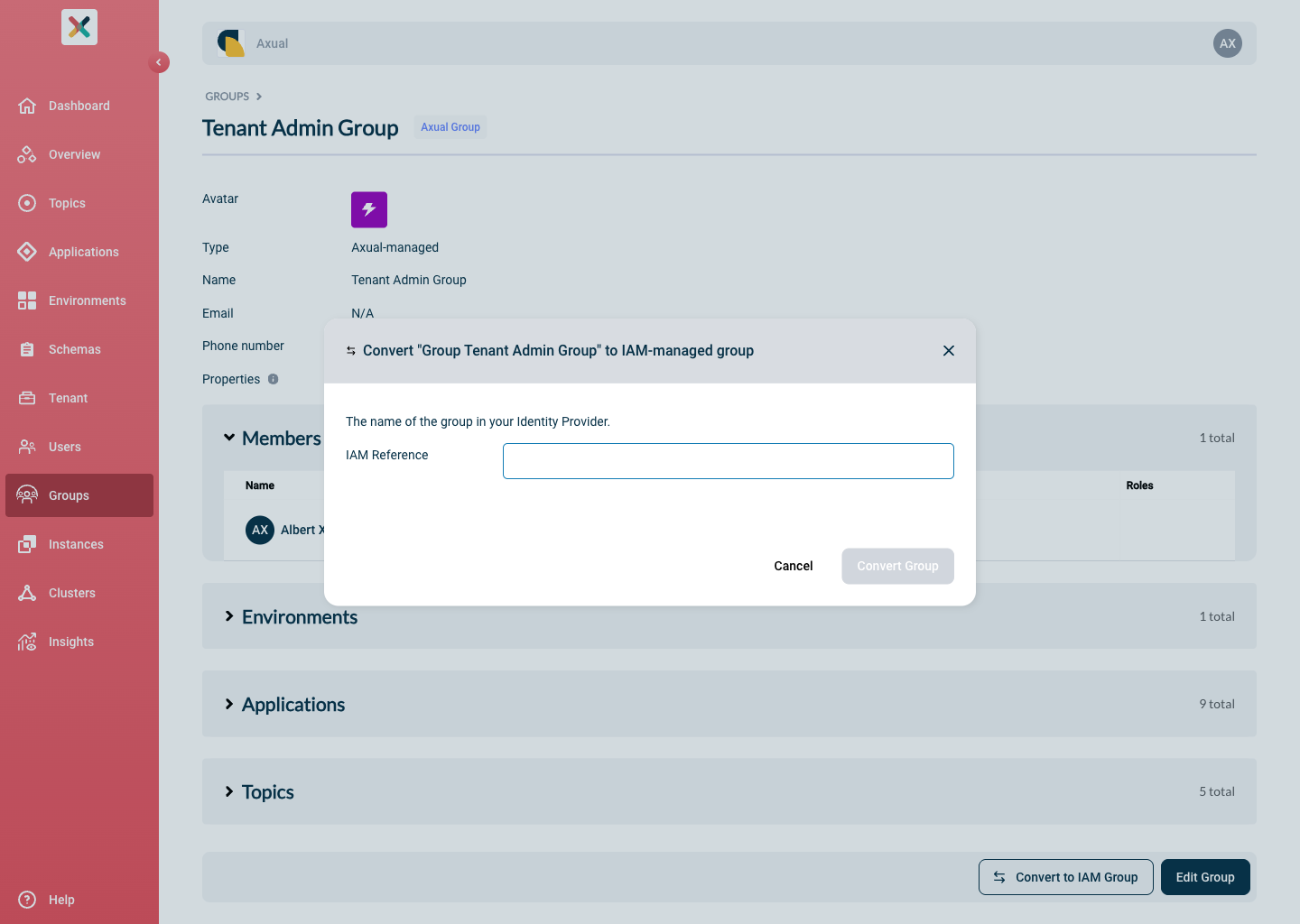
Click Convert to IAM group
-
Enter the IAM Reference — the identifier of the corresponding group in your Identity Provider (for example, an Azure AD group Object ID)
-
Confirm the conversion
After conversion, group membership is no longer managed in Self-Service; it is resolved from the groups claim in each user’s JWT.
Any members previously stored locally for this group are ignored.
| After converting a group to IAM-managed, Self-Service no longer controls group membership. Ensure all Group Managers and Resource Managers are added to the corresponding group in your Identity Provider, or they will lose their access. |
Only Tenant Admins can convert groups. The iamReference value must be unique across all groups in the tenant and cannot exceed 255 characters.
|
Converting an IAM Group back to an Axual Group
A Tenant Admin can revert an IAM Group to an Axual Group.
-
Navigate to the Group’s detail page
-
Click Convert to Axual group
-
Confirm the conversion
After the conversion, membership is once again managed locally in Self-Service for that group. Axual Group Management must be enabled for this action to be available.
Before converting, review the group’s current member permissions. Any users assigned as Group Manager or Resource Manager on the IAM group are recorded in Self-Service and will automatically be counted as regular group members after conversion.
The member list after conversion reflects only these permission-role users — it will not include the full IAM membership that was previously resolved from the JWT.
| Resources owned by this group may become inaccessible to users who were members via the IdP but have no local membership record. Ensure all required members (including regular members, Group Managers and Resource Managers) are explicitly added in Self-Service after converting. |
When Axual Group Management is the only active mode (IAM Group Management disabled), Self-Service ignores the groups claim in the JWT and the IAM Reference entirely — whether a group has an IAM Reference or not makes no difference. Review and adjust any remaining IAM groups or delete them after switching to this mode.
|
Viewer Groups
The Viewer Groups define which Groups are authorized to View all Resource Configurations, regardless of ownership and visibility.
Owners can still perform the same activities as before. Viewer Groups are intended only to provide an additional set of users with VIEW access.
For example, in case we want to give only view access to all configurations defined in a Production Environment, we will require to only set the Viewer Groups of the Production Environment, then all members of any of the Viewer Groups will be able to see all Topic Configurations and Application Authentications defined in the Production Environment.
Environment Viewer Groups
Members of the Environment Viewer Groups can view all Topic Configurations and Application Authentications within the Environment only if the Topics and the Applications do not have Viewer Groups defined.
If a user is in both the Environment’s Viewer Groups and the Topic’s Viewer Groups, they can see the Topic Configuration for that Topic in that Environment.
If a user is in both the Environment’s Viewer Groups and the Application’s Viewer Groups, they can see all Application Authentications for that Application in that Environment.
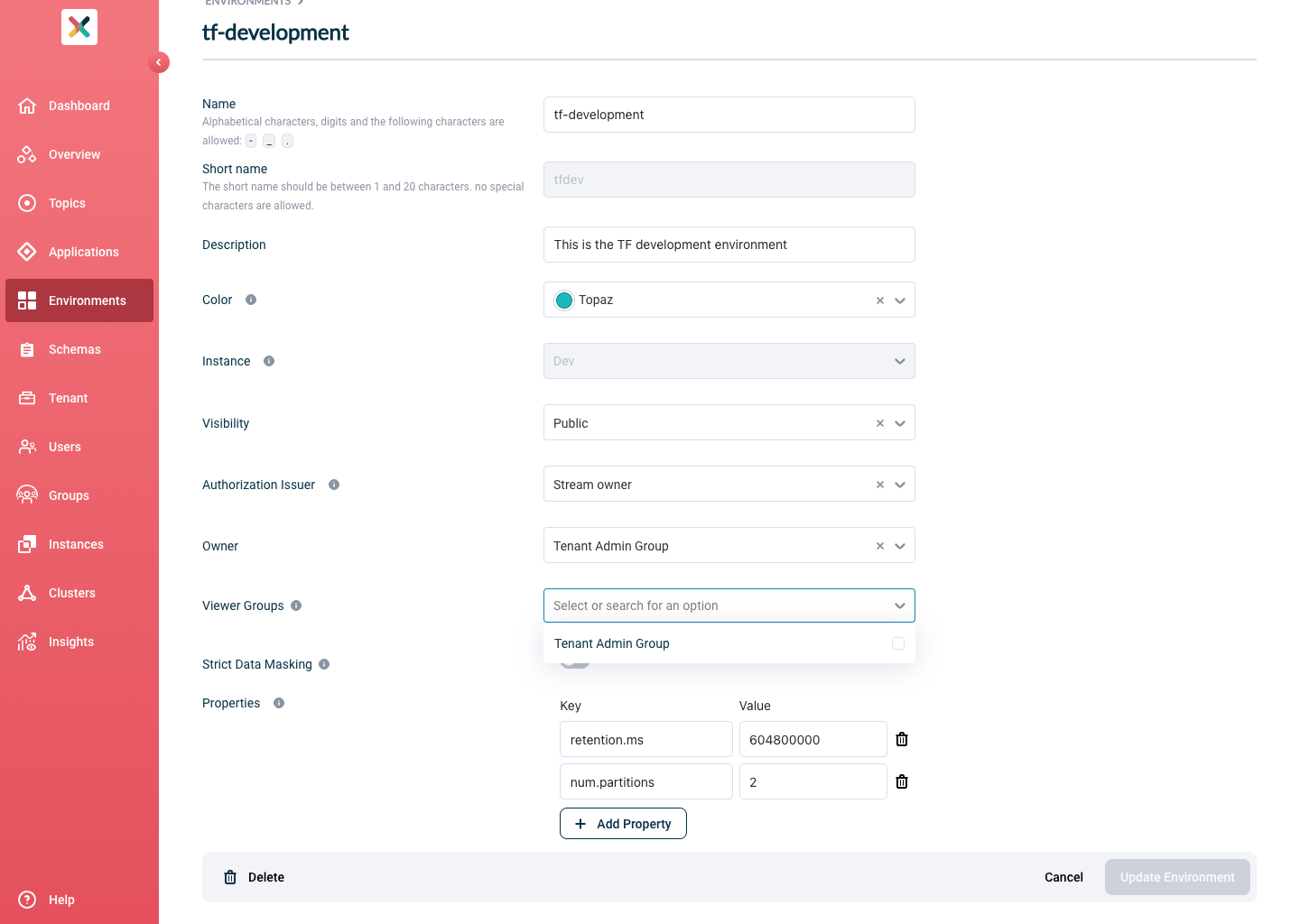
To add an Environment Viewer Groups, please select the groups in Add Environment or Edit Environment view:
Application Viewer Groups
If Viewer Groups are defined only for the Application, members can view all Application Authentications for that Application across all Environments.
If Viewer Groups are defined only for the Environment, members can view all Applications' Application Authentications defined in that Environment.
If both the Environment and the Application have Viewer Groups, the user must belong to both Viewer Groups to view the Application Authentications for that Application in that Environment.
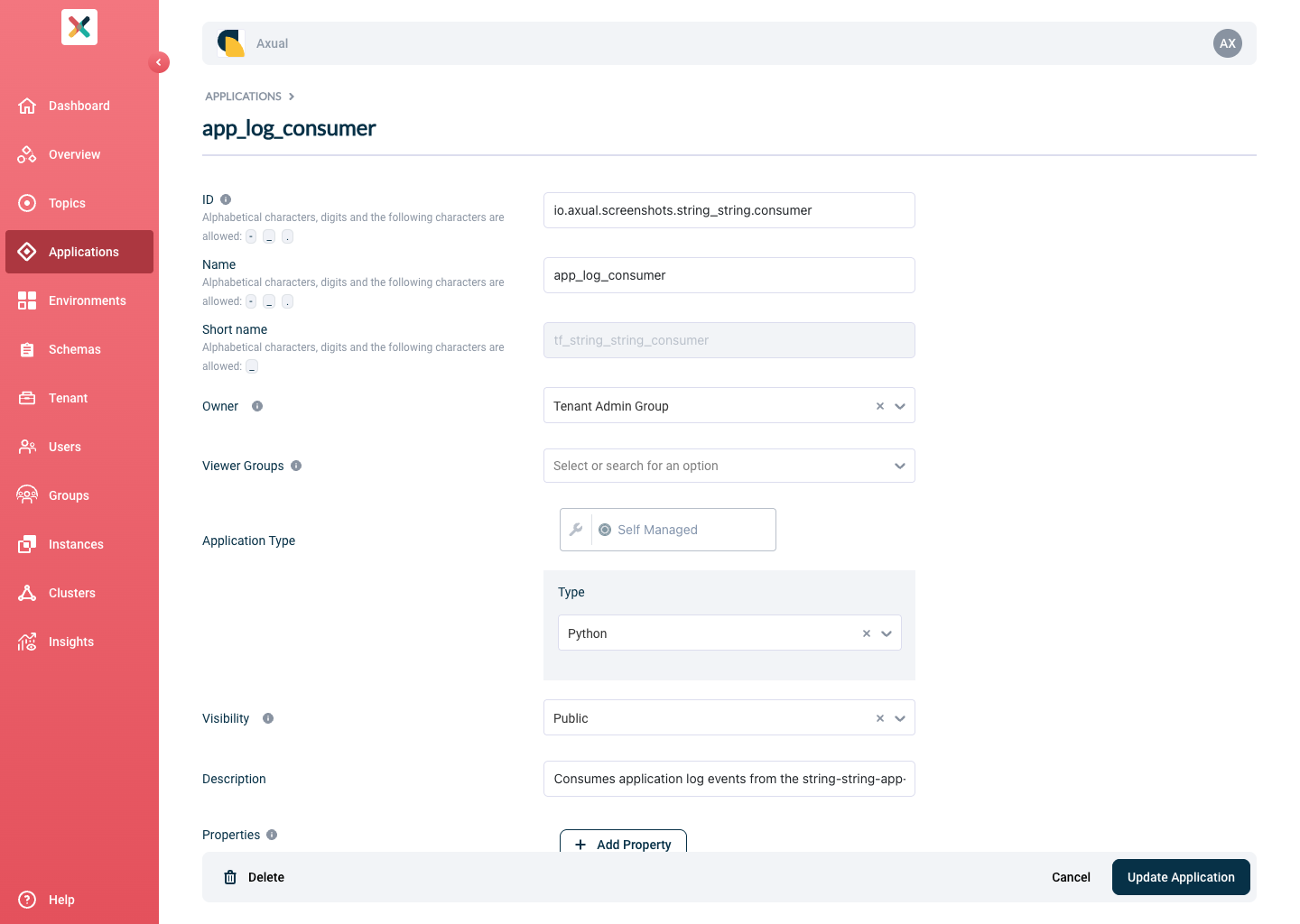
To add an Application Viewer Groups, please select the groups in Add Application or Edit Application view:
Topic Viewer Groups
If the Viewer Groups are defined only for the Topic, members can view all Topic Configurations for that Topic across all Environments.
If the Viewer Groups are defined only for the Environment, members can view all Topics' Topic Configurations defined in that Environment.
If both the Environment and the Topic have Viewer Groups, the user must belong to both Viewer Groups to view the Topic Configuration for that Topic in that Environment.
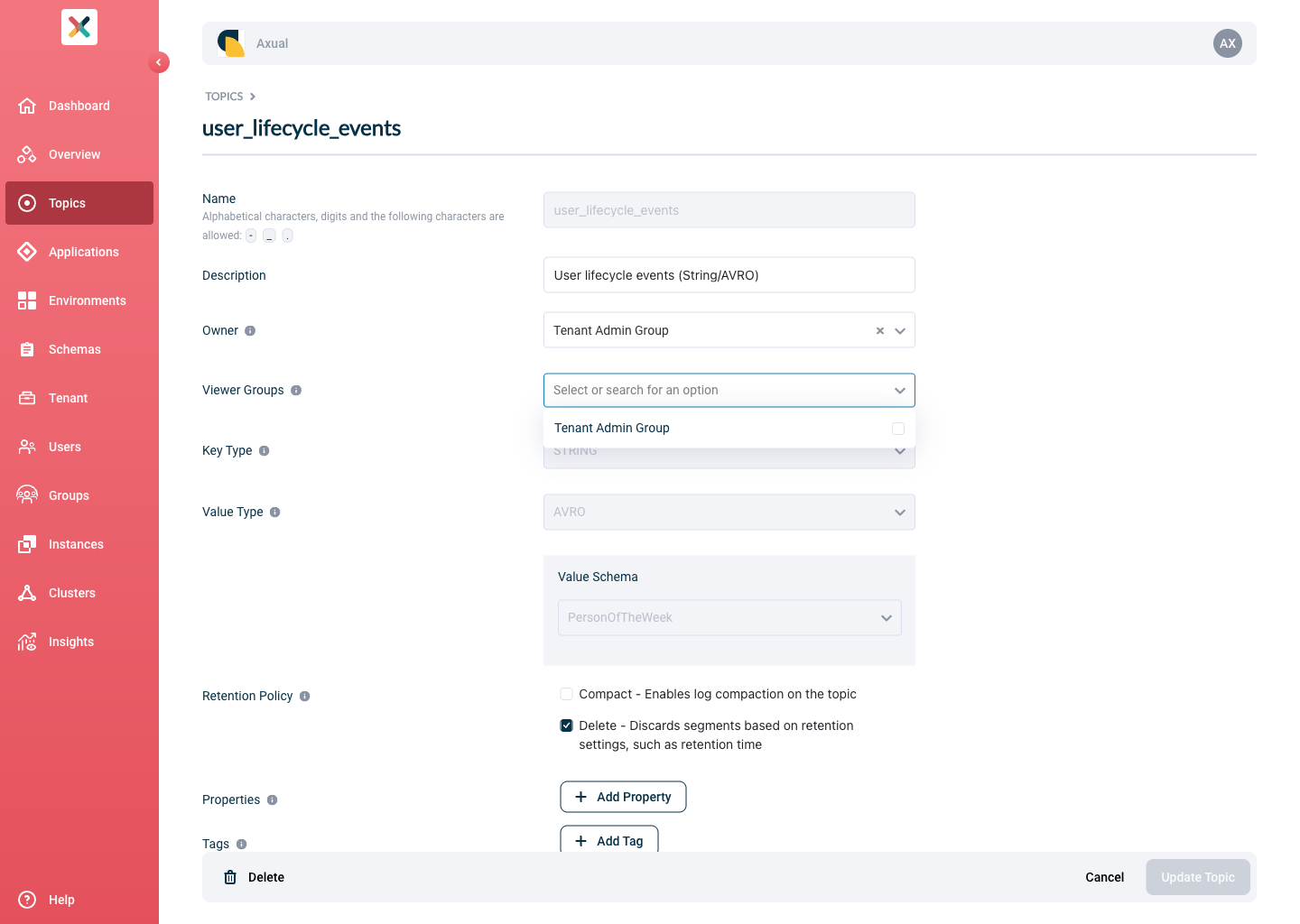
To add a Topic Viewer Groups, please select the groups in Add Topic or Edit Topic view:
View Group Resources
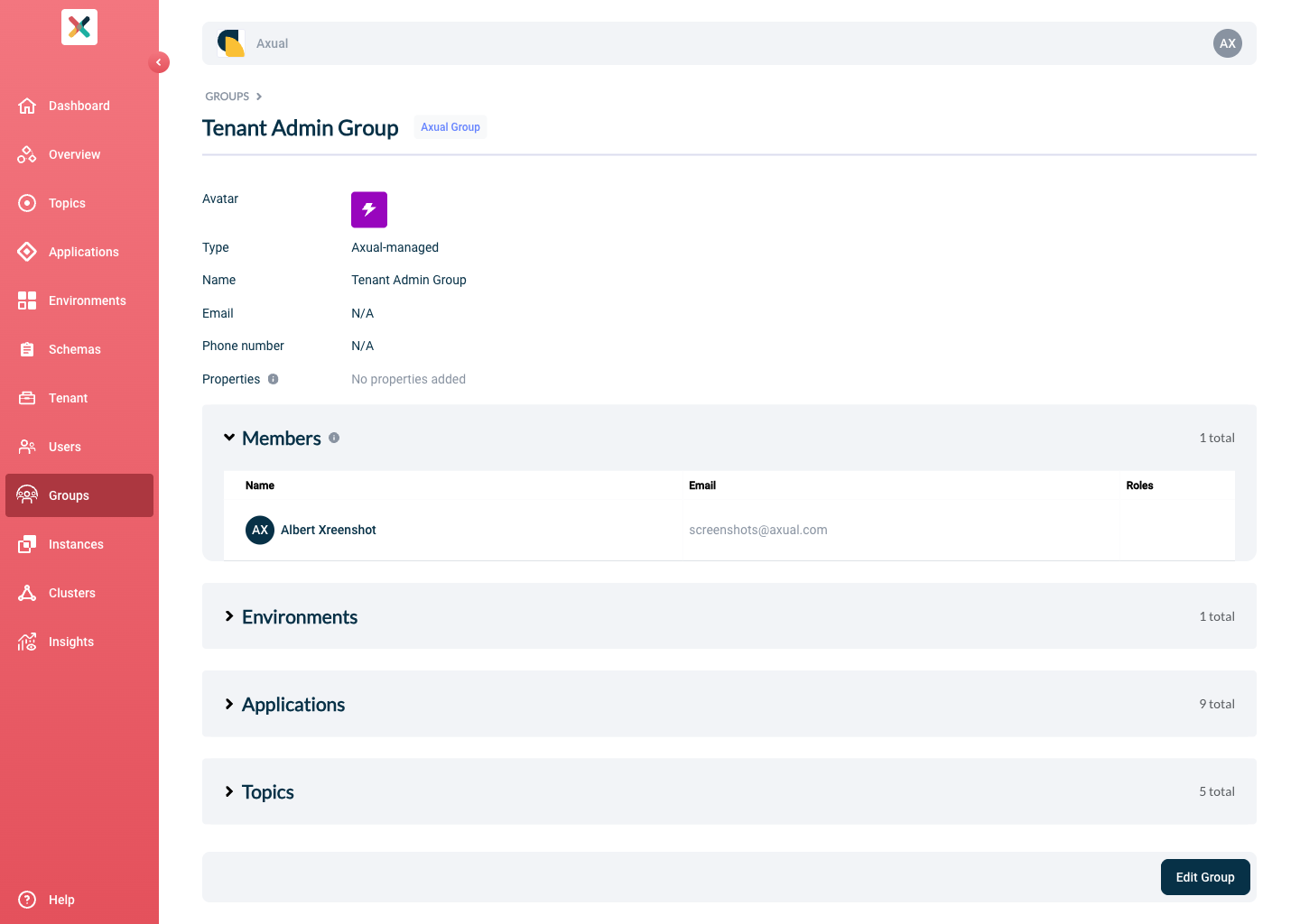
You can view resources and resources that belong to the group. There are multiple collapsed sections with each of the used resources on each group’s detail page.
-
Toggle the Members to view all users that belong to this group
-
Toggle the Environments to view all environments owned by this group
-
Toggle the Applications to view all applications owned by this group
-
Toggle the Topics to view all topics owned by this group.