Dashboard & Overview
Browsing The Self Service Portal
You will find the main menu located on the left side of the screen, with links to the following pages. Use the following overview to determine where to find what quickly.
An overview of all topic access requests, sorted by status. (Needs action, Pending, Approved, Denied or Revoked) |
||
A graphical representation of all applications consuming and producing topics in the selected environment on this page. |
||
An overview of all topics. |
||
An overview of all applications. |
||
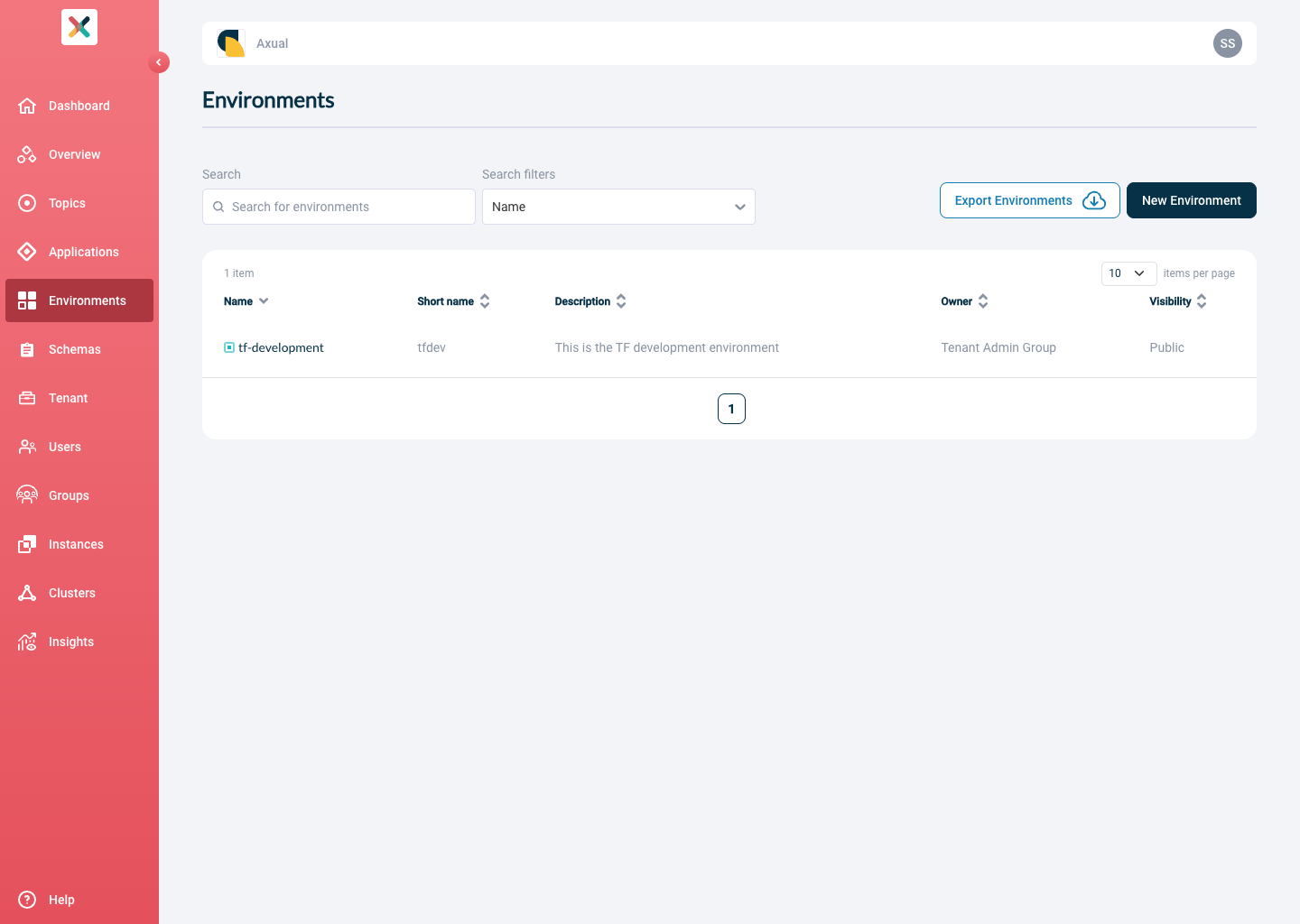
An overview of all public and private (owned) environments. |
||
An overview of all schemas. |
||
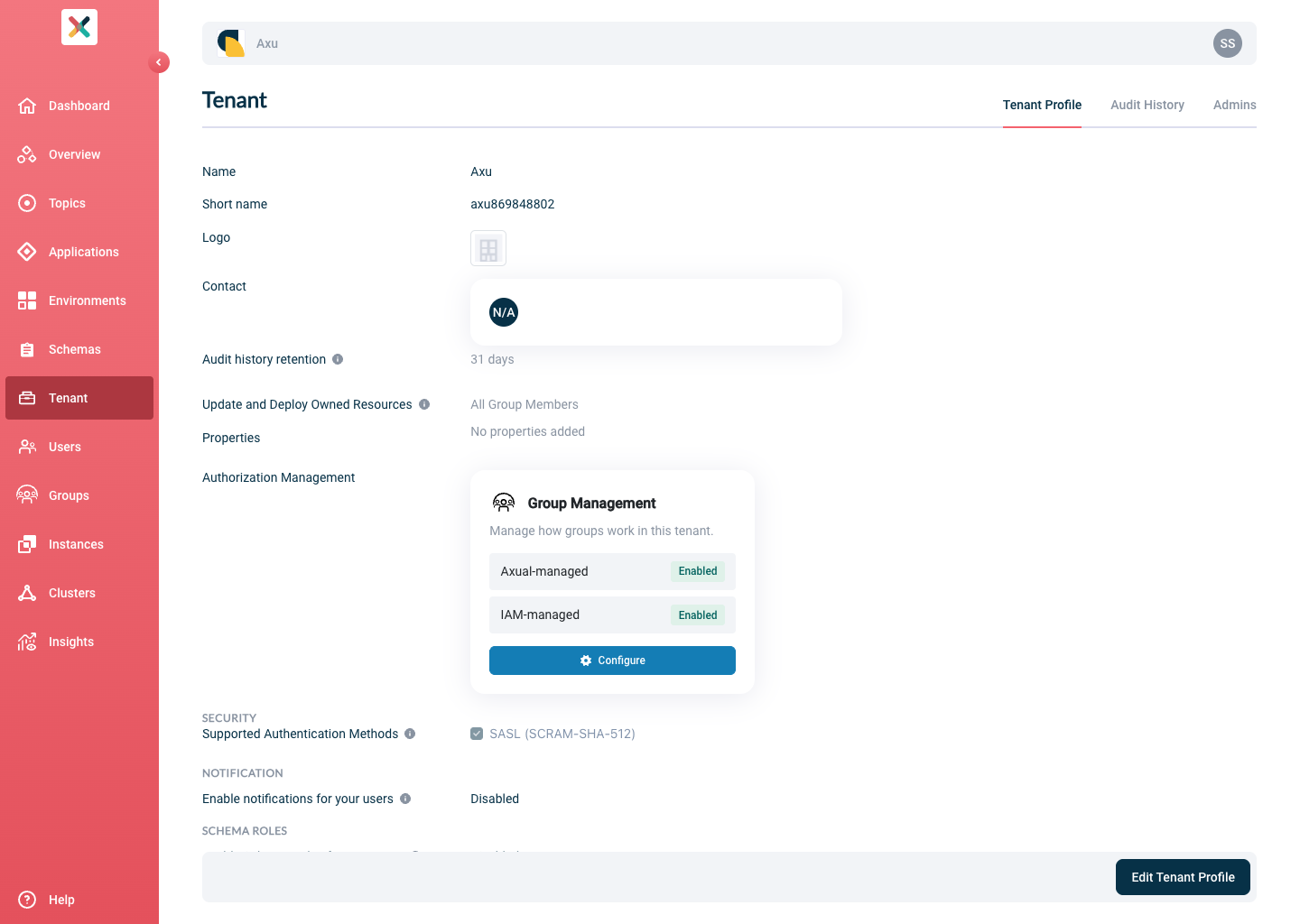
Tenant details |
||
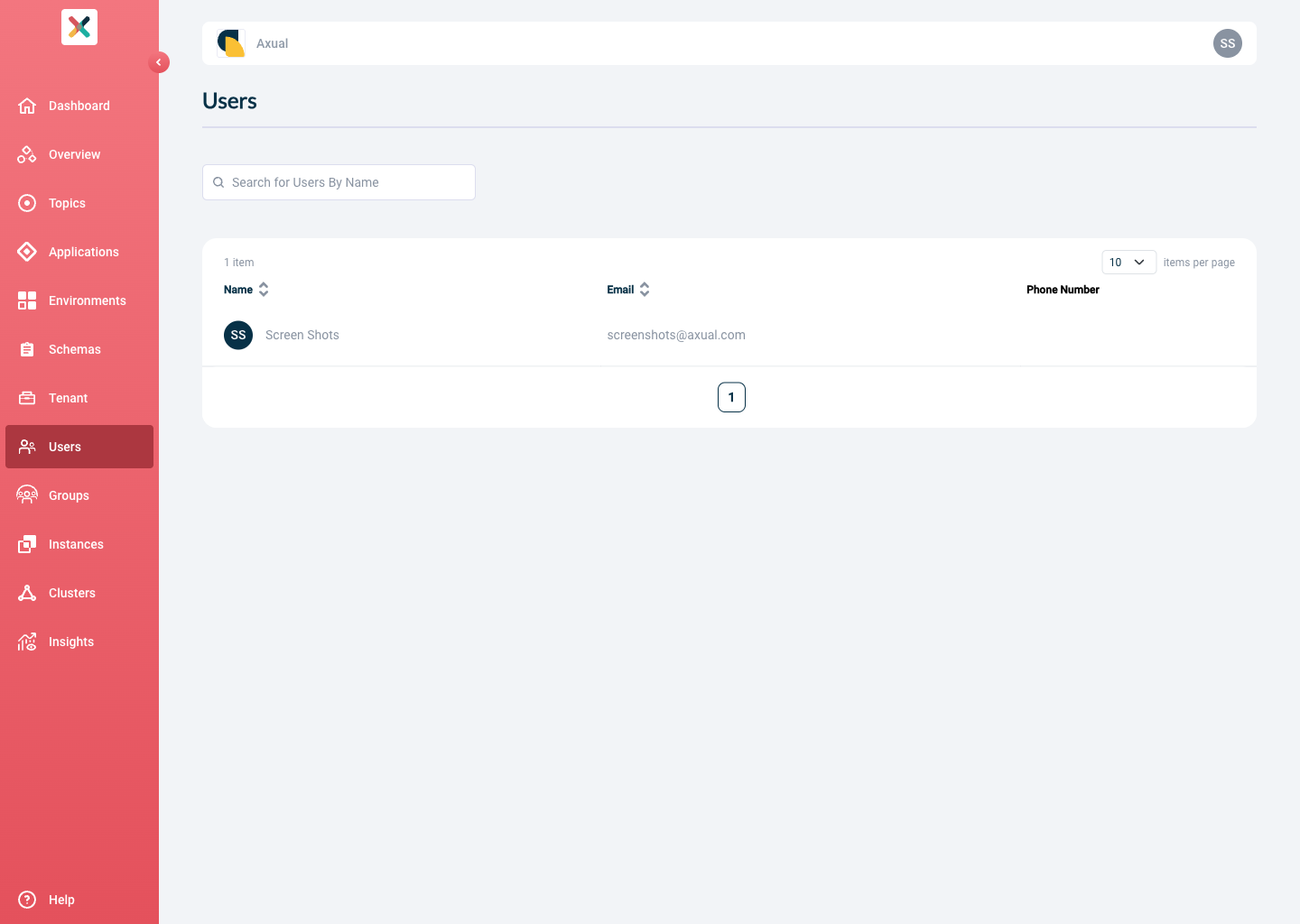
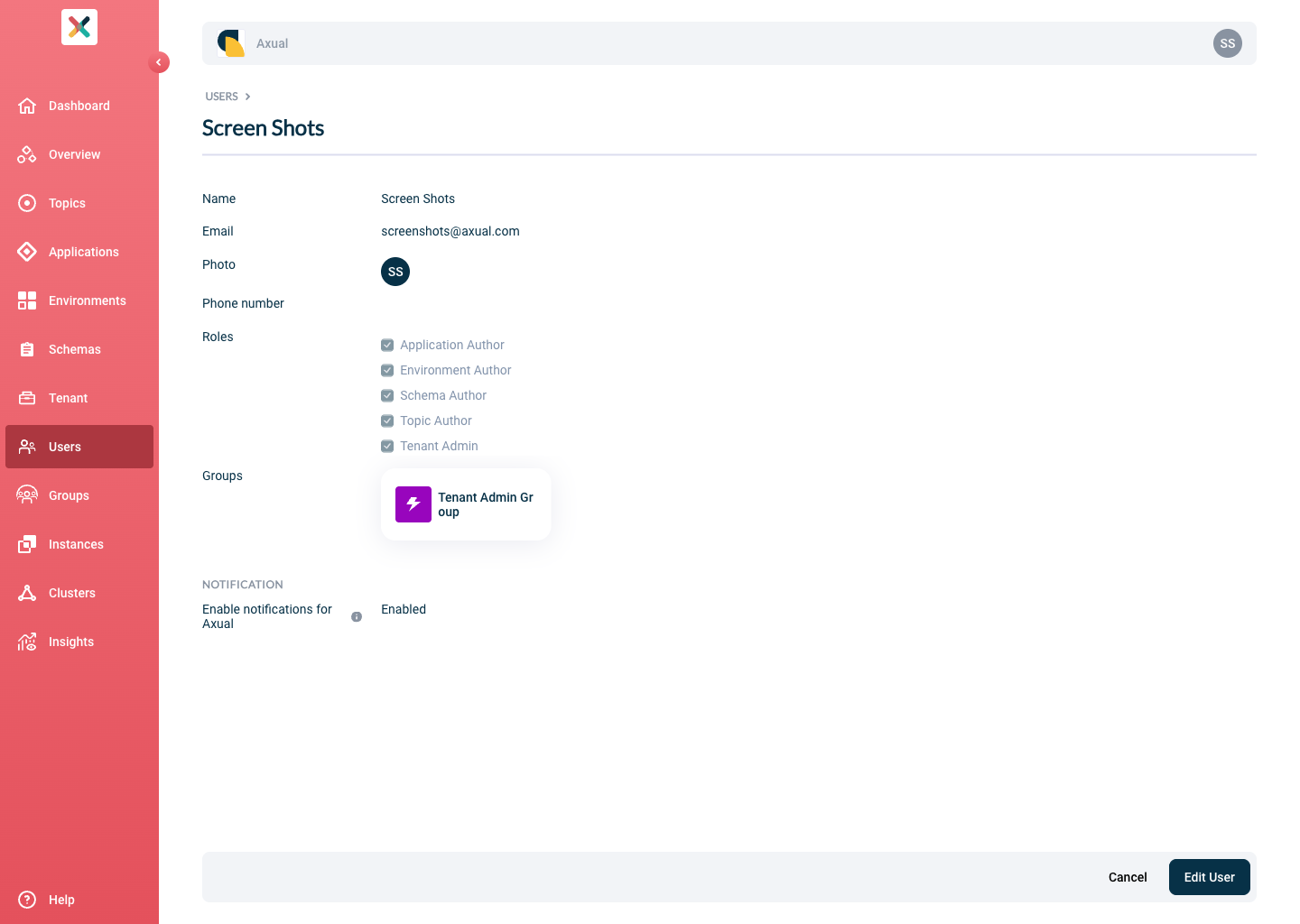
An overview of all users. |
||
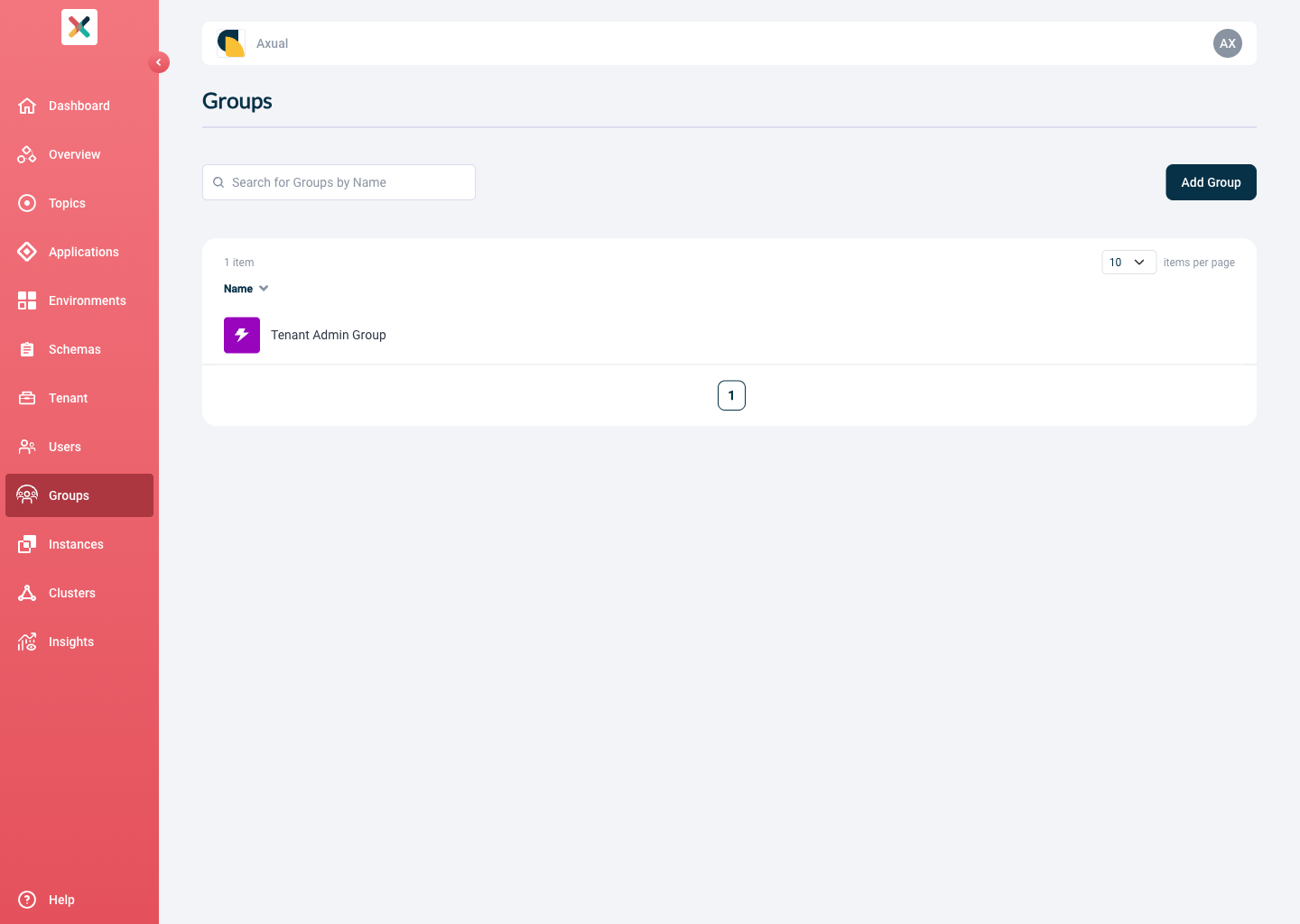
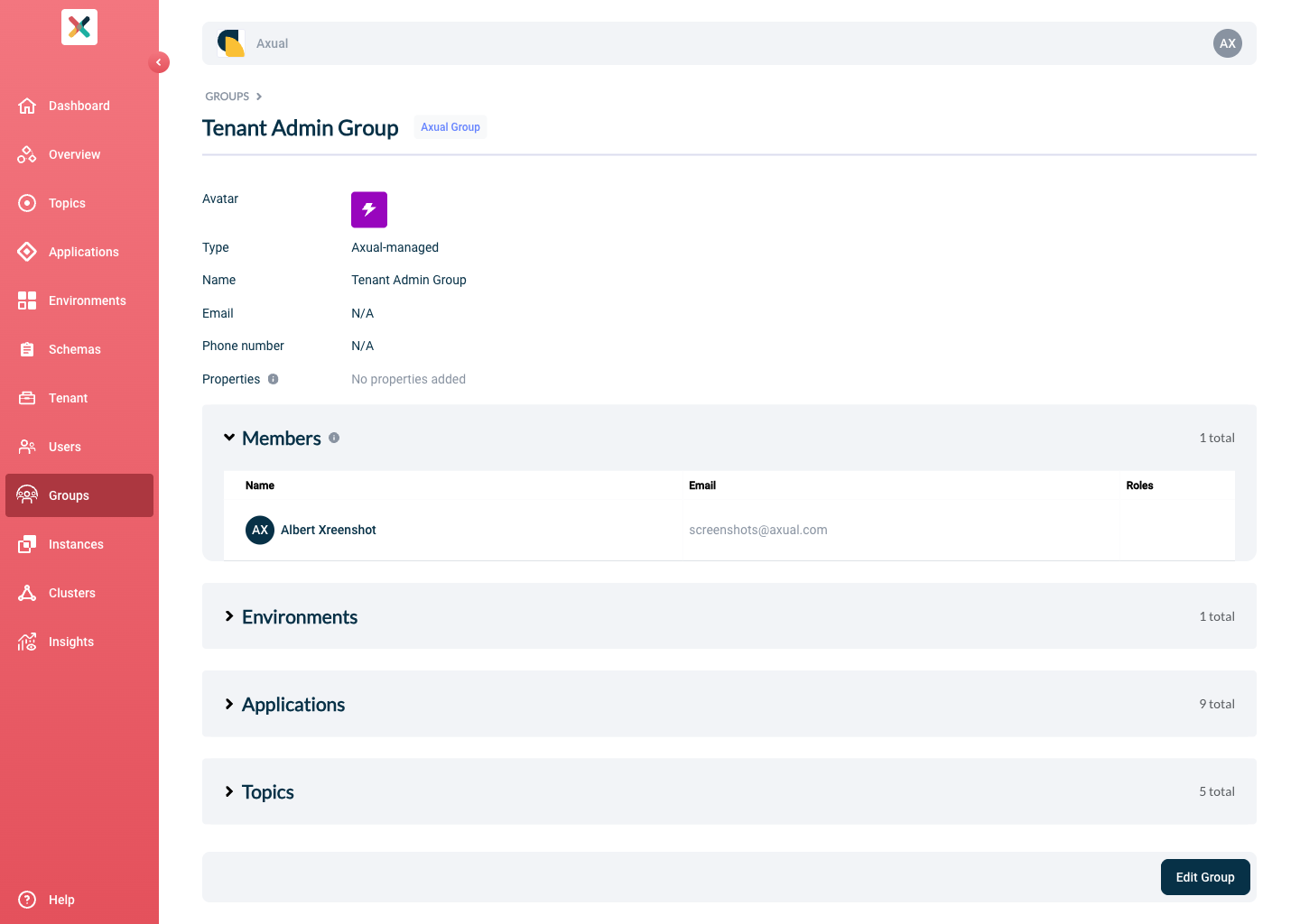
An overview of all groups. |
||
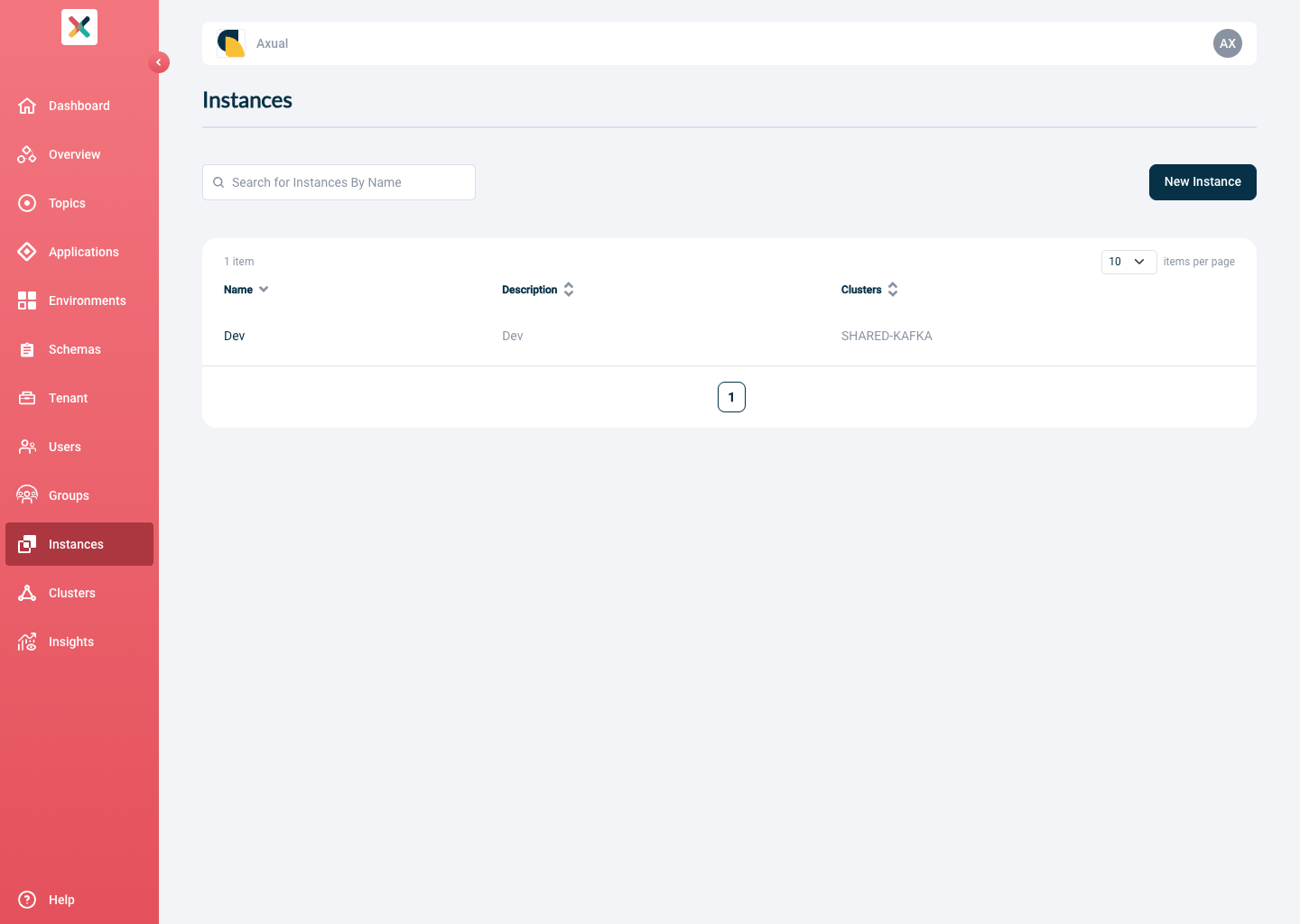
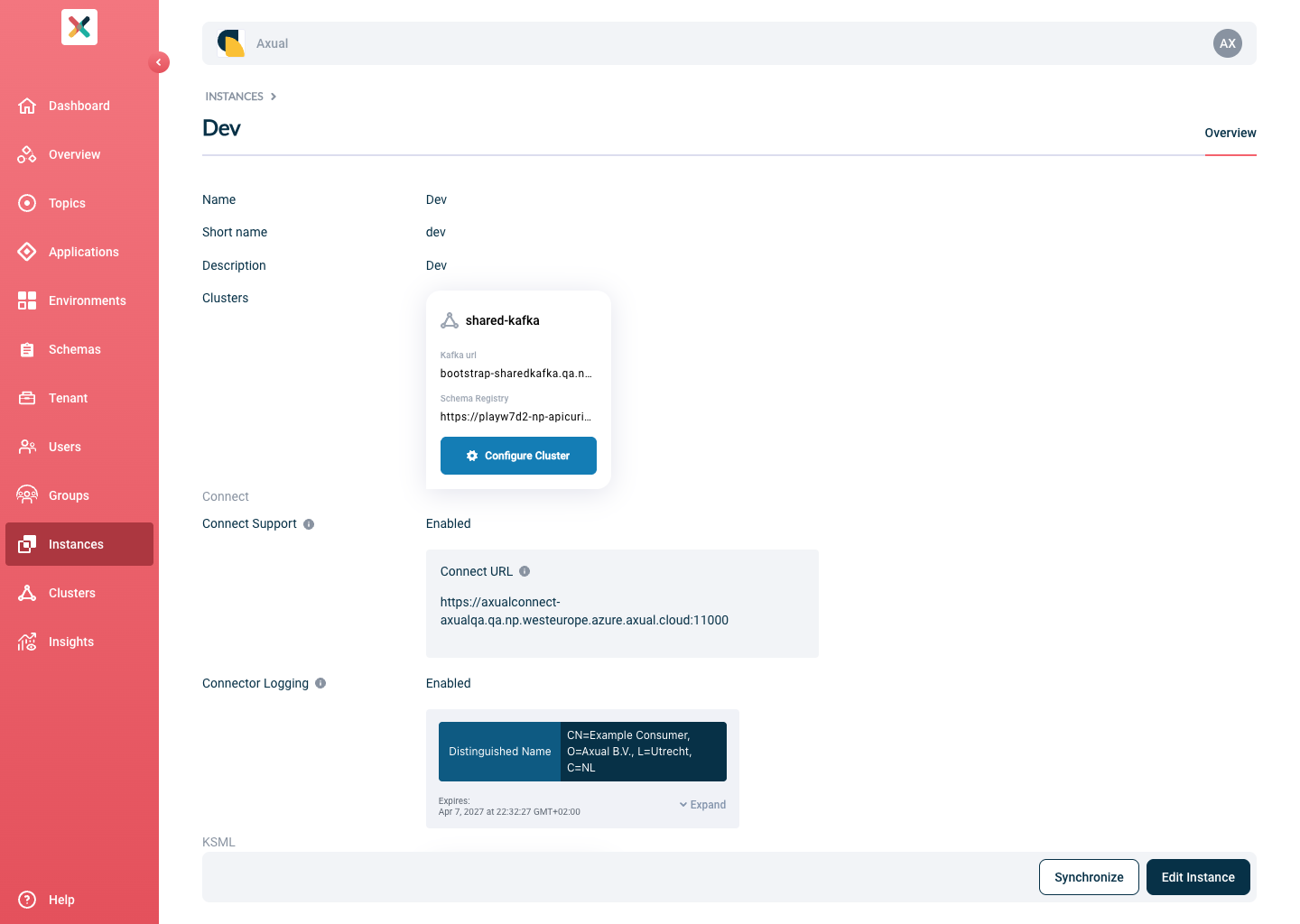
An overview of all instances. |
||
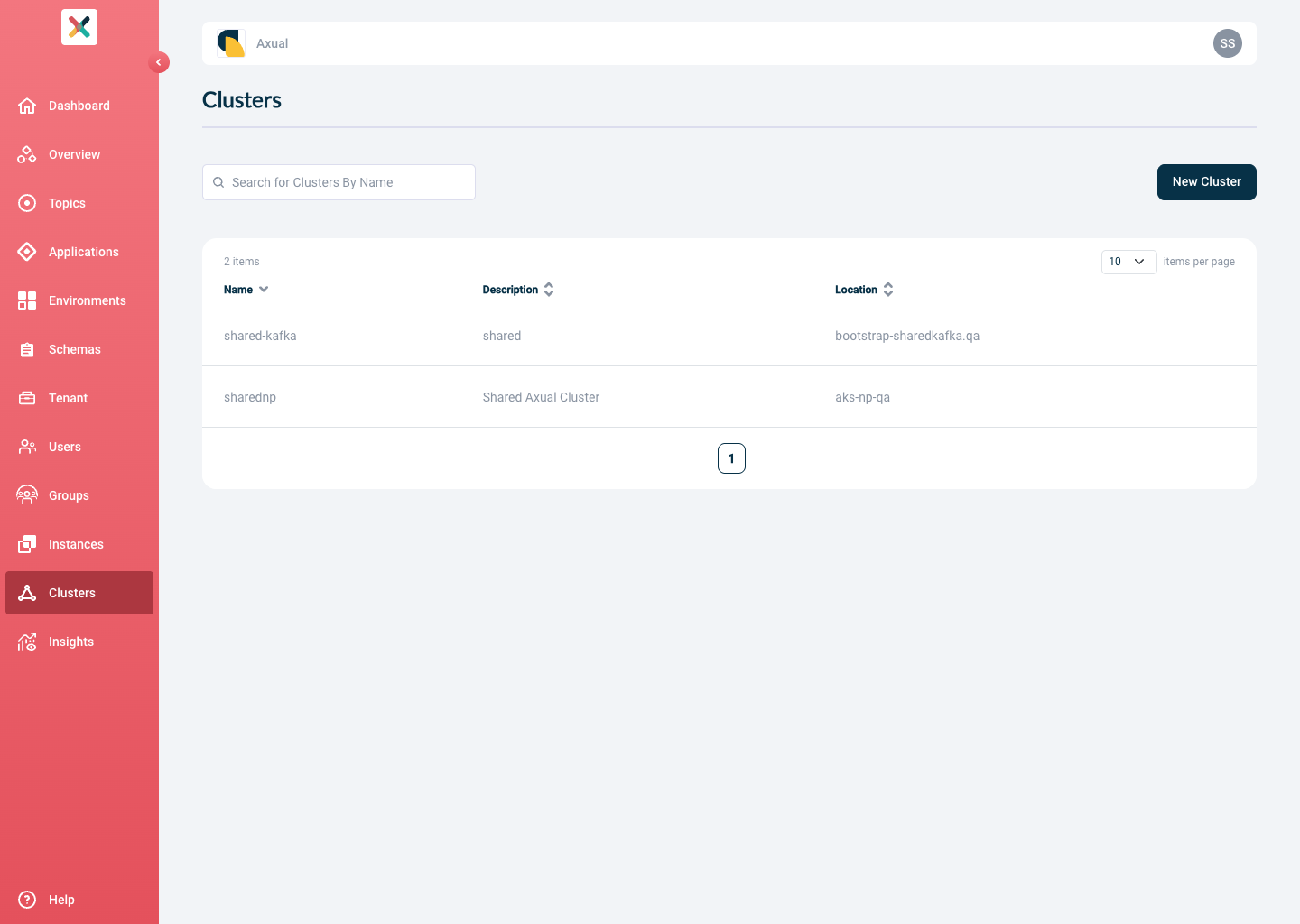
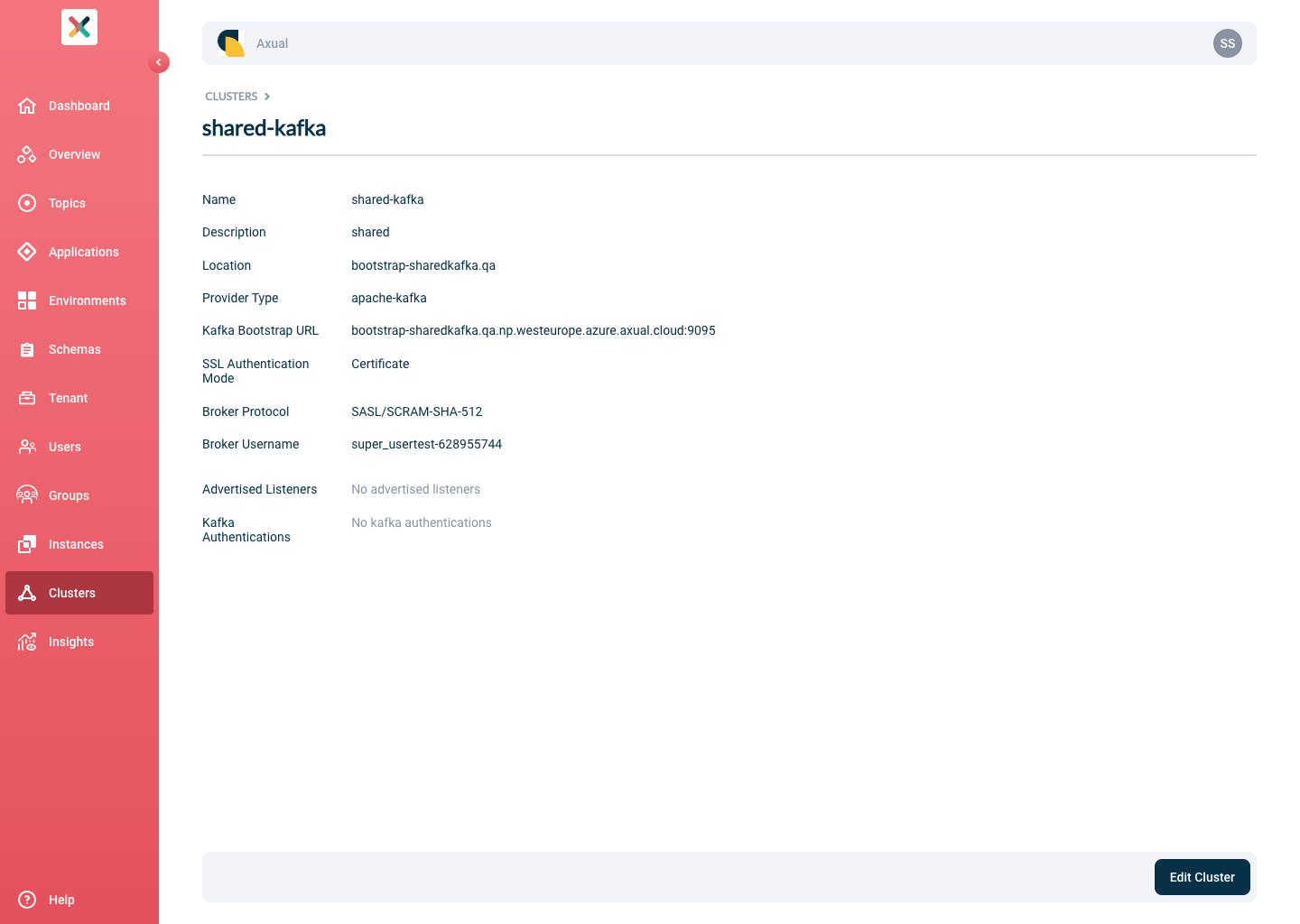
An overview of all clusters. |
||
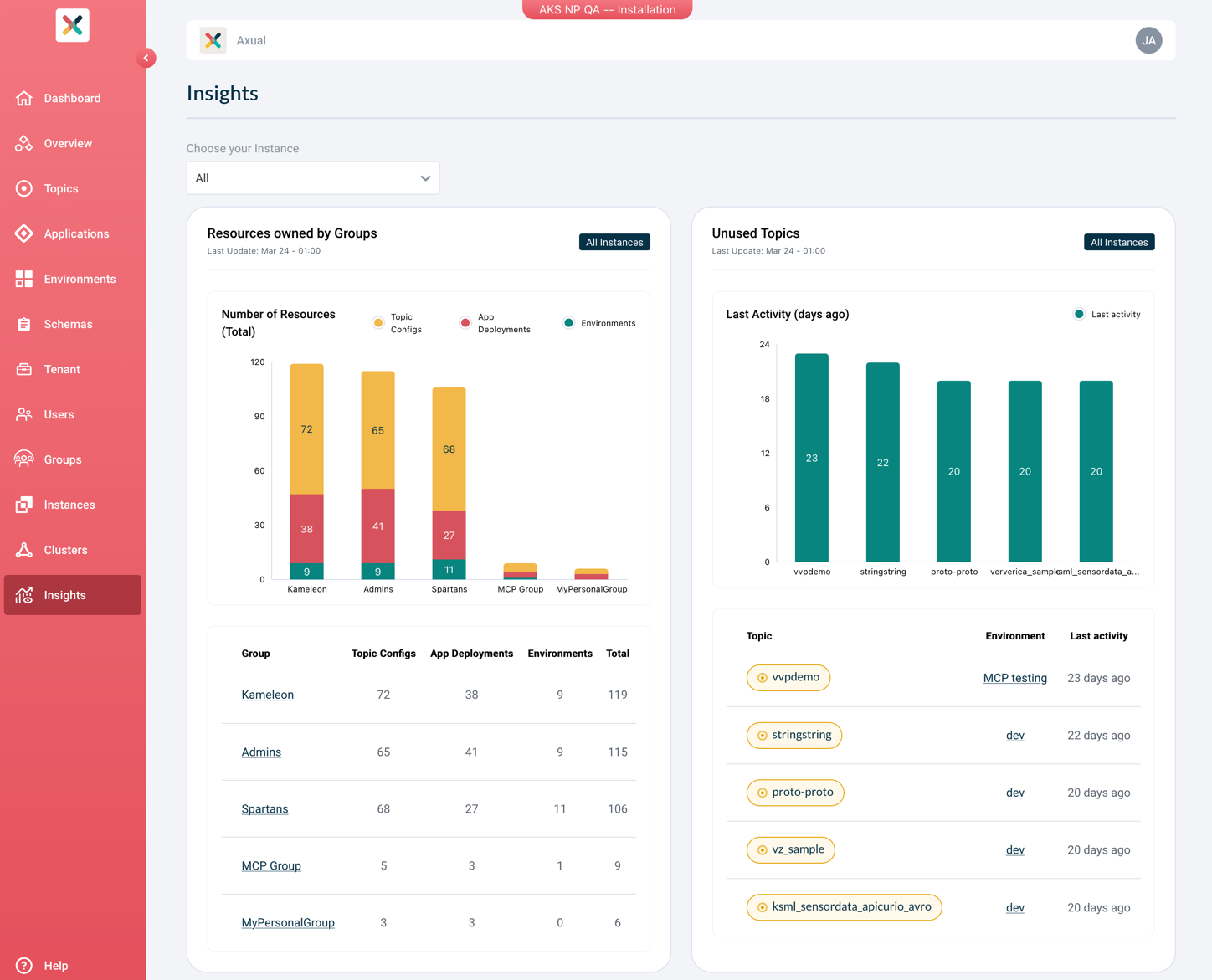
Insight details. |
||
Insight details. |
Dashboard
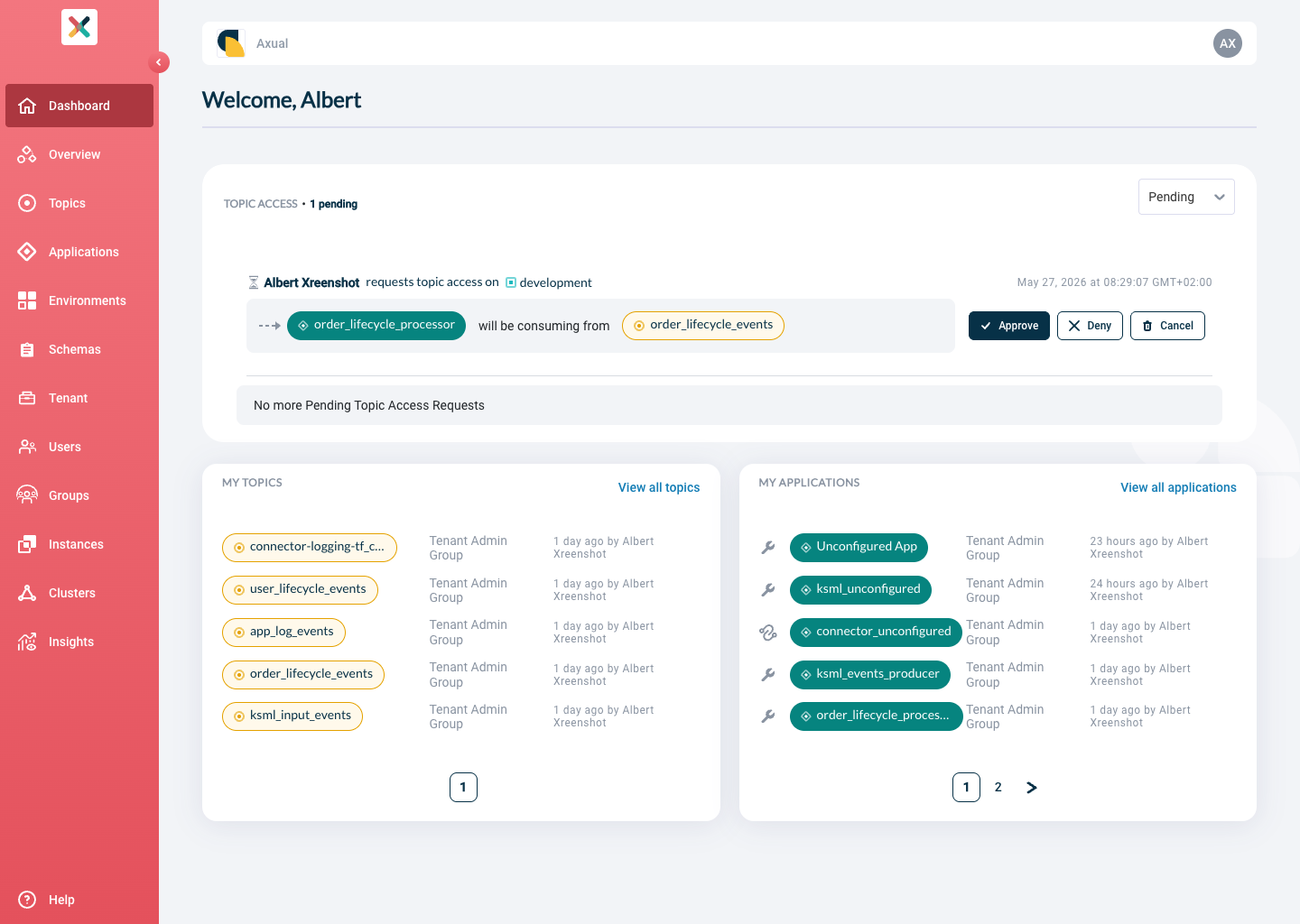
As soon as you log in, the dashboard is displayed. Here you have an overview of your topics, applications and all topic access requests that need action, pending, approved, denied, or revoked.
When you first visit the page, the action needed list is displayed if you are a member of a group owning a topic. Otherwise, you will see the pending requests list.
Overview
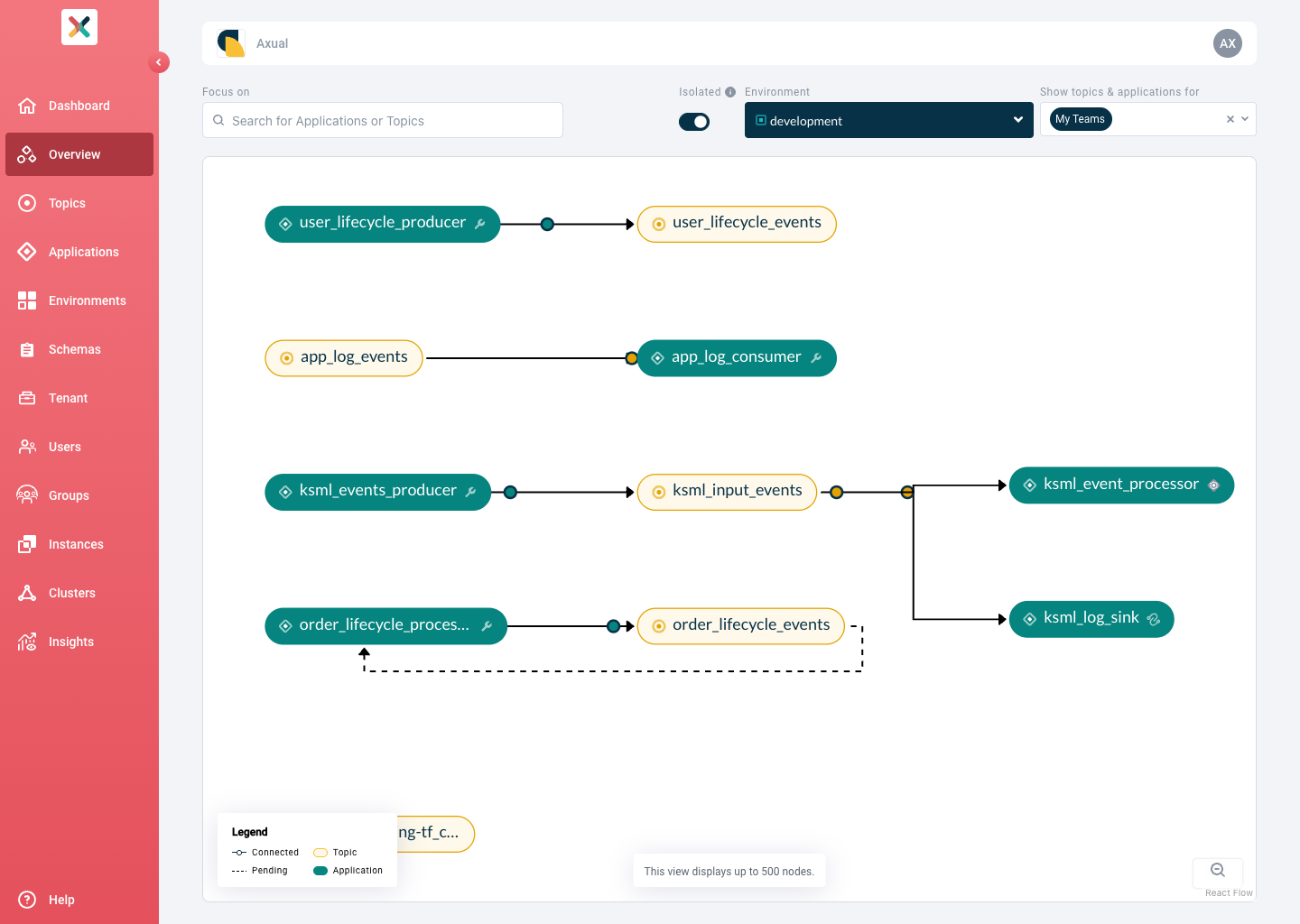
This page shows a graphical representation of all applications consuming and producing topics in the selected environment.
-
Use the search to filter displayed nodes by name.
-
Use the environment dropdown to switch to a different environment.
-
Use the
Team Filterdropdown to limit query results by teams.
Topics
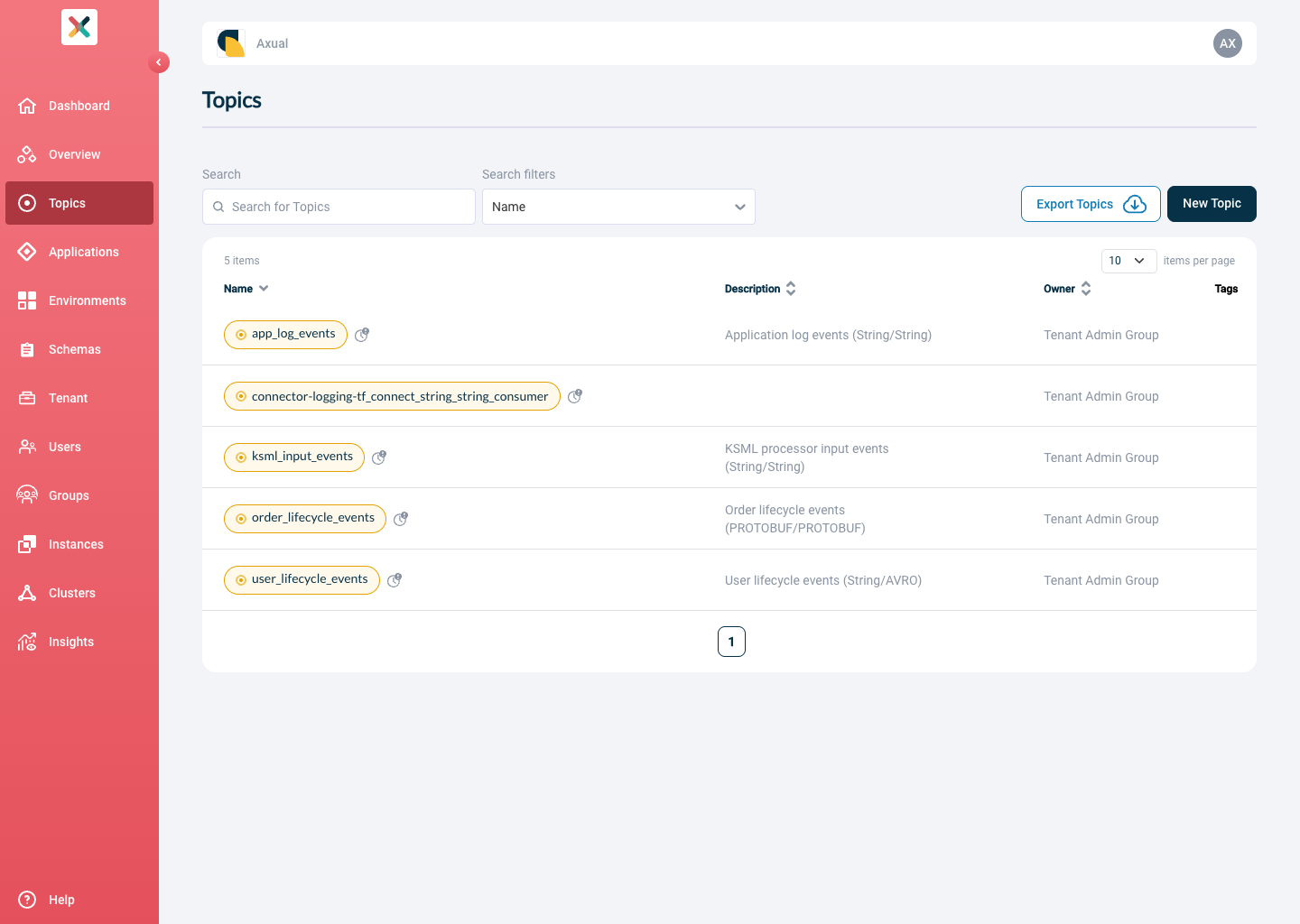
The Topics overview displays a paginated list of all topics:
Topic Detail
Clicking on a topic takes you to the topic’s detail page:
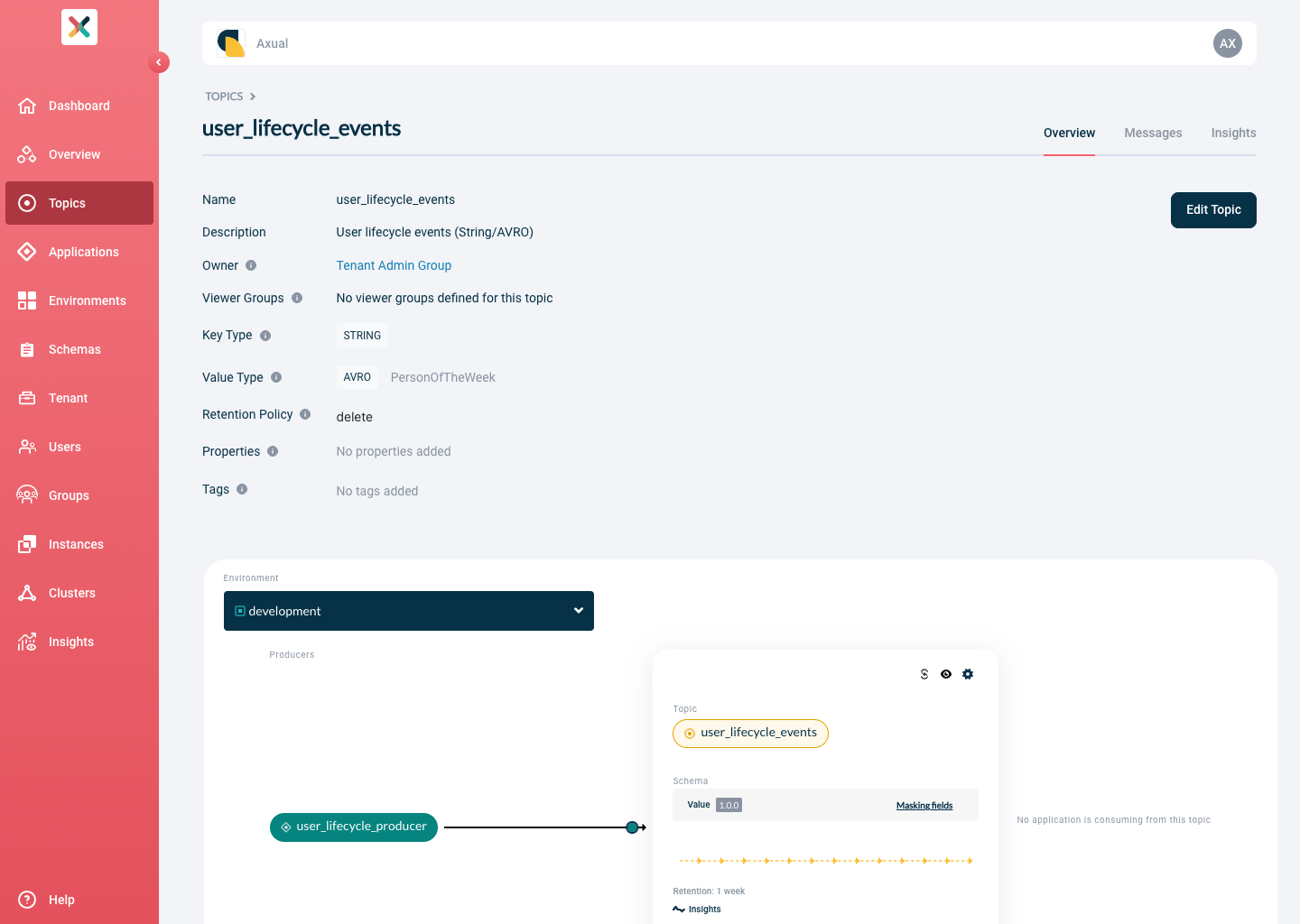
The top section of the page describes the topic’s details, such as the Key and Value schema type and schemas and the retention policy.
If you are a member of the group owning the topic, you will also see an Edit topic button on the top right corner.
The middle section of the page visualizes the topic itself and the producer and consumer applications surrounding it.Applications displayed in green have been approved to produce to or consume from the topic, while others in grey are awaiting approval.Use the dropdown on the right to switch to a different environment.
The bottom section of the page shows the pending and approved access requested by the applications.This section is only visible to owners of the topic.For any pending requests, in the Pending topics tab, you will see the Approve request button, which can be used to approve the request on a particular environment, and a Deny button, which can be used to deny the request.In the History tab, you can view all applications that are already approved or denied on an environment.
Applications
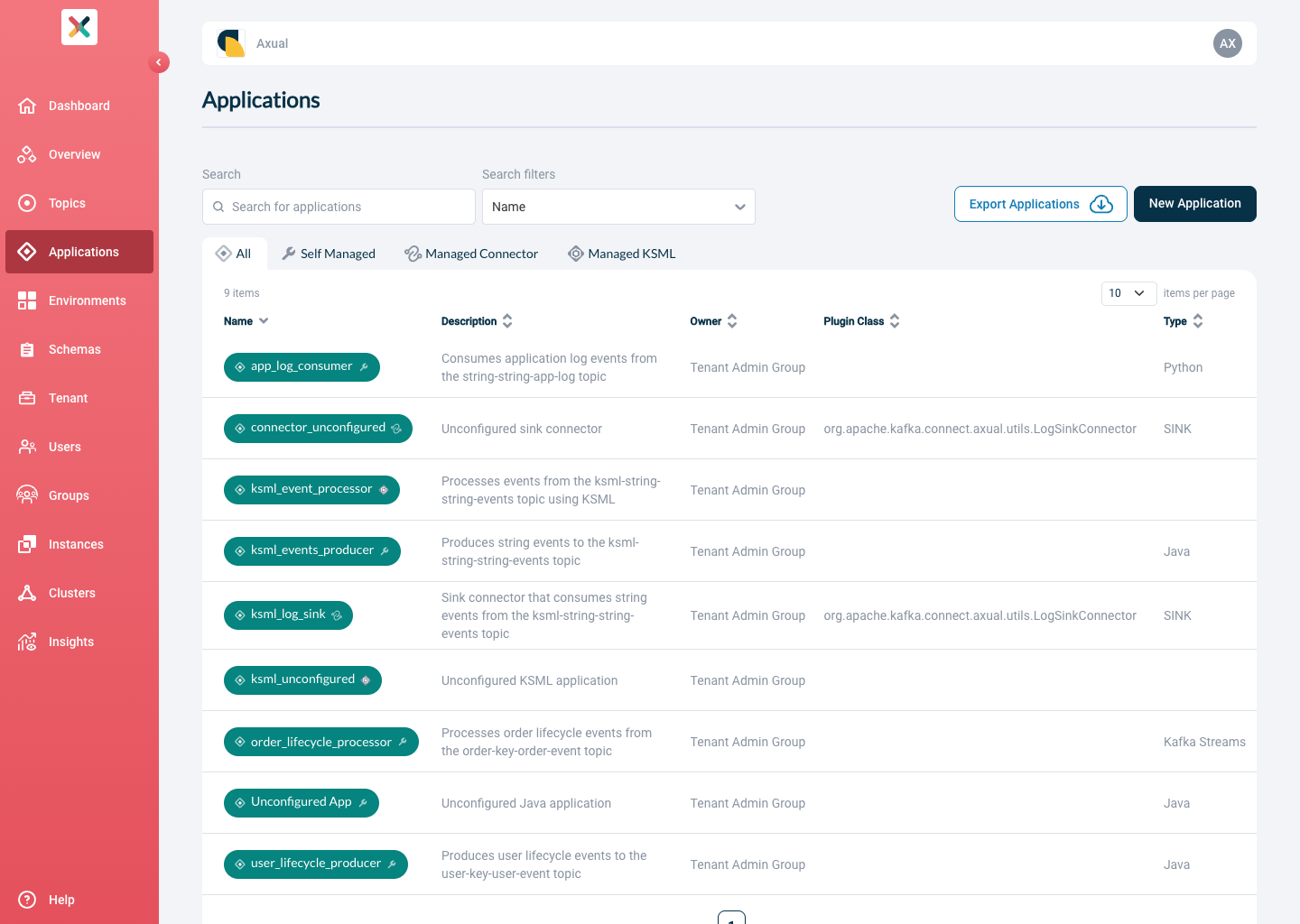
The Applications page displays a paginated list of all applications:
| Searching Applications by Application ID is always a full match |
Application Detail
Clicking on an application takes you to the application’s detail page:
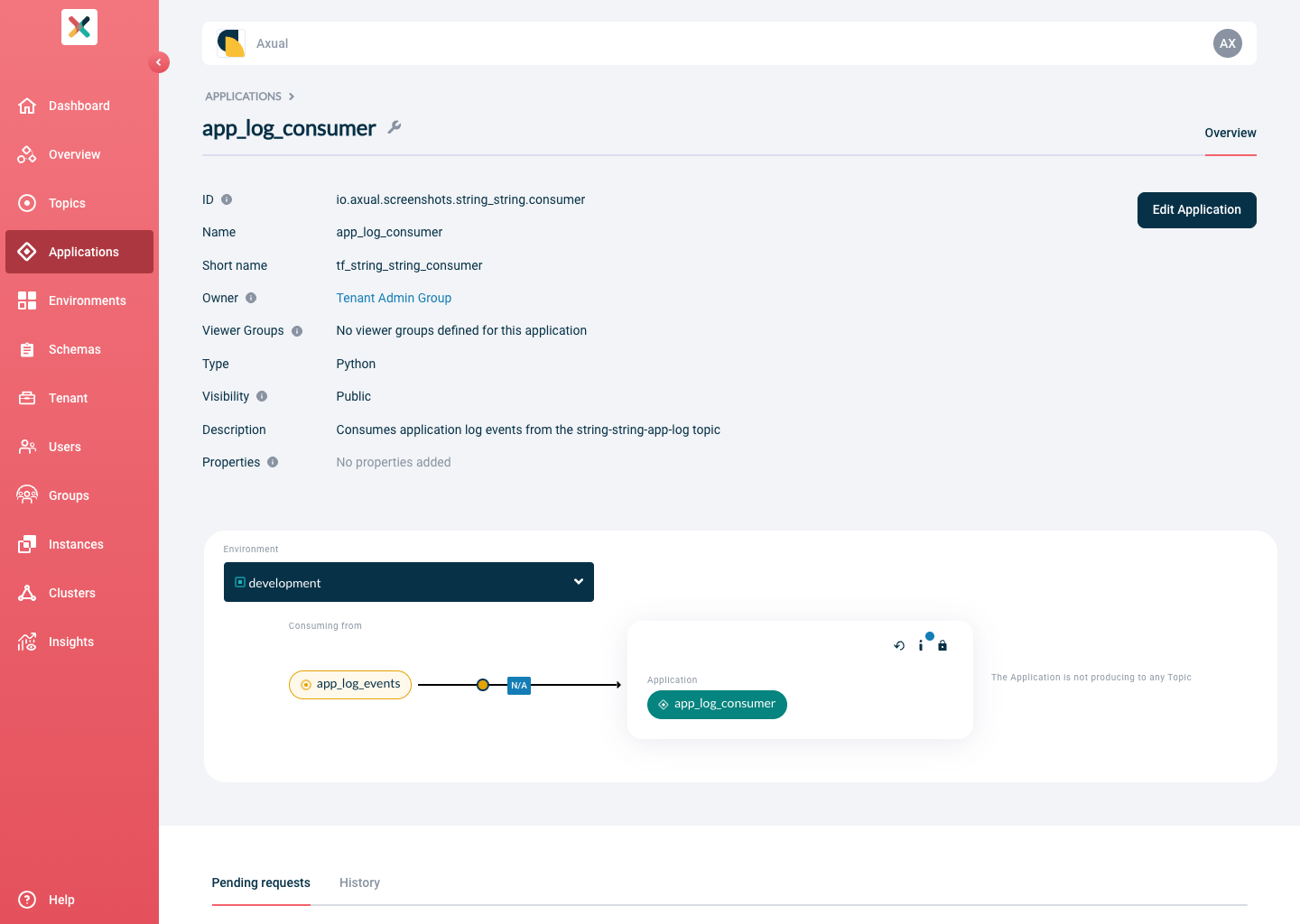
The top section of the page describes the details of the application. If you are a member of the group owning the application, you will also see an Edit application button on the top right corner.
The middle section of the page visualizes the application and the topics it produces and/or consumes from any environment. You can use the dropdown on the right to switch to a different environment.
The bottom section of the page shows which topics this application has produce- or consume-access to under the History tab. If the application has requested access (pending approval), you will find it under the Pending requests tab.
To create a new access request, click the + Add request button.
Environments
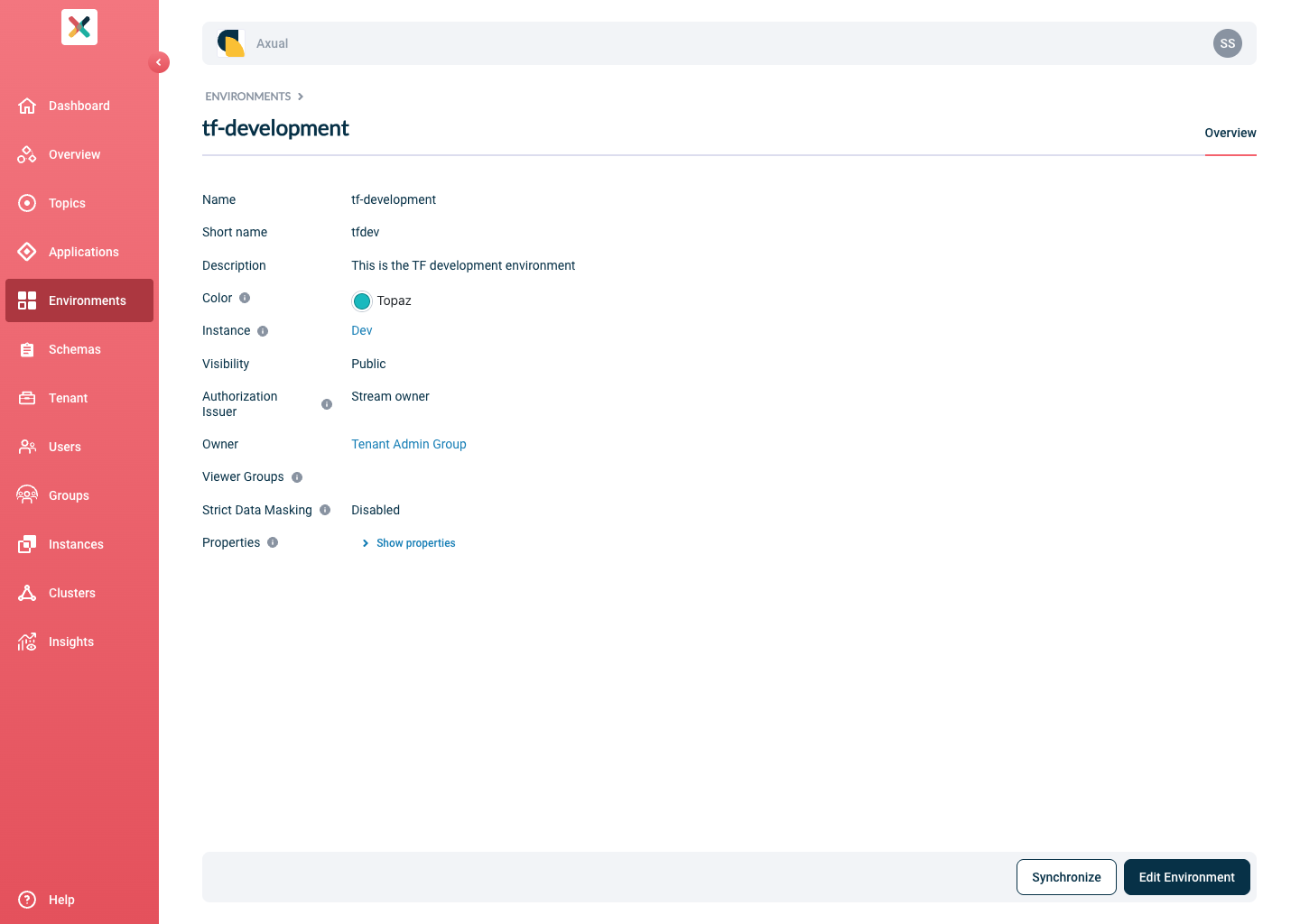
The Environments page displays a list of all available environments. In the "Environments" overview, you will see the public environments and private environments owned by a group you are a member of.