Tenant
Editing a Tenant Profile
In the "Tenant" page, the tenant profile can be updated.
The following Tenant settings can be modified:
-
Name: shown in the Self Service UI on top
-
Logo: fully qualified URL to a company logo, which will be displayed in the Self Service UI on top. If no URL is specified, a default icon will show.
-
Properties: a collection of key/value combinations, tenant-specific settings.
-
Security: Authentication Methods supported for the tenant.
-
Notification: By default, notifications are disabled. If enabled, users will receive emails about various events related to their Applications and Topics.
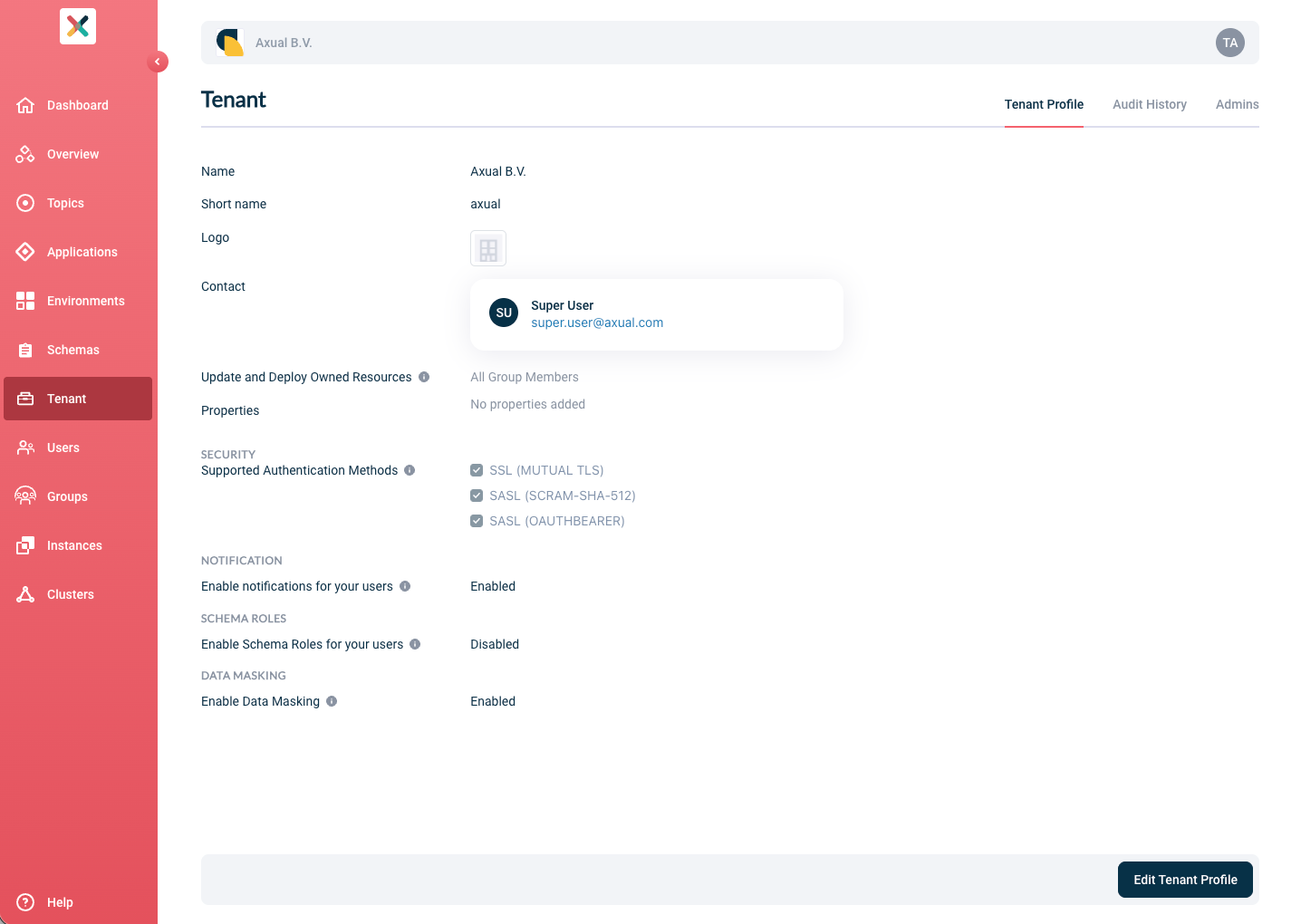
| Tenant Shortname cannot be modified/updated after tenant creation |
Update and Deploy Owned Resources
This setting determines who is allowed to modify and deploy their Resources.
Two options are supported:
By default, All Group Members of the Owning group is allowed to modify and deploy their Resources.
If the Tenant Admin wants to limit to only selected member fo the Owning group,
he can select the Only Resource Managers option.
In case Only Resource Managers is selected,
follow this guide
to configure the Resource Managers of each Groups
|
Enable Schema Roles
-
Go to the Tenant’s detail page
-
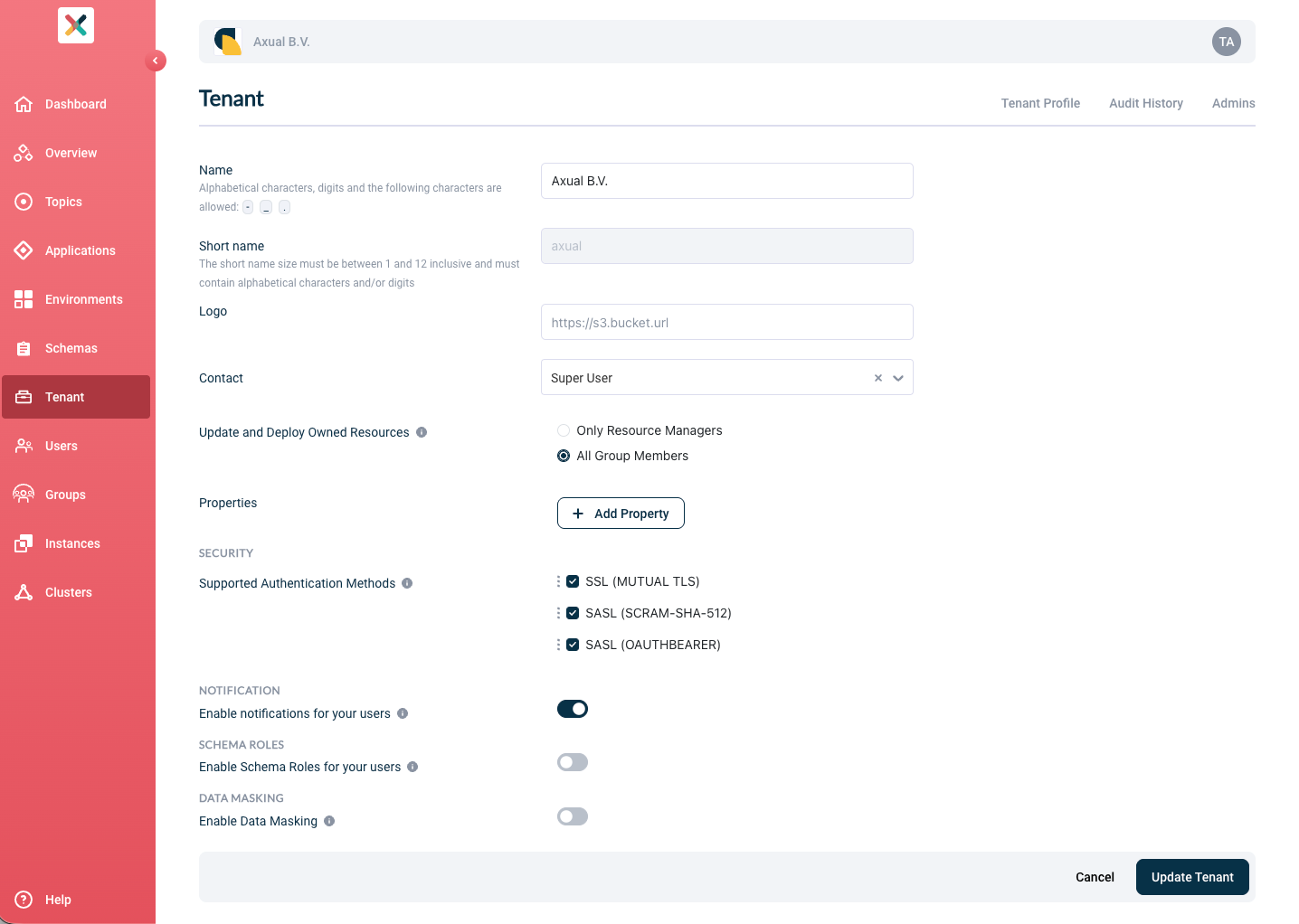
Click the Edit Tenant Profile button and you see the below page:
-
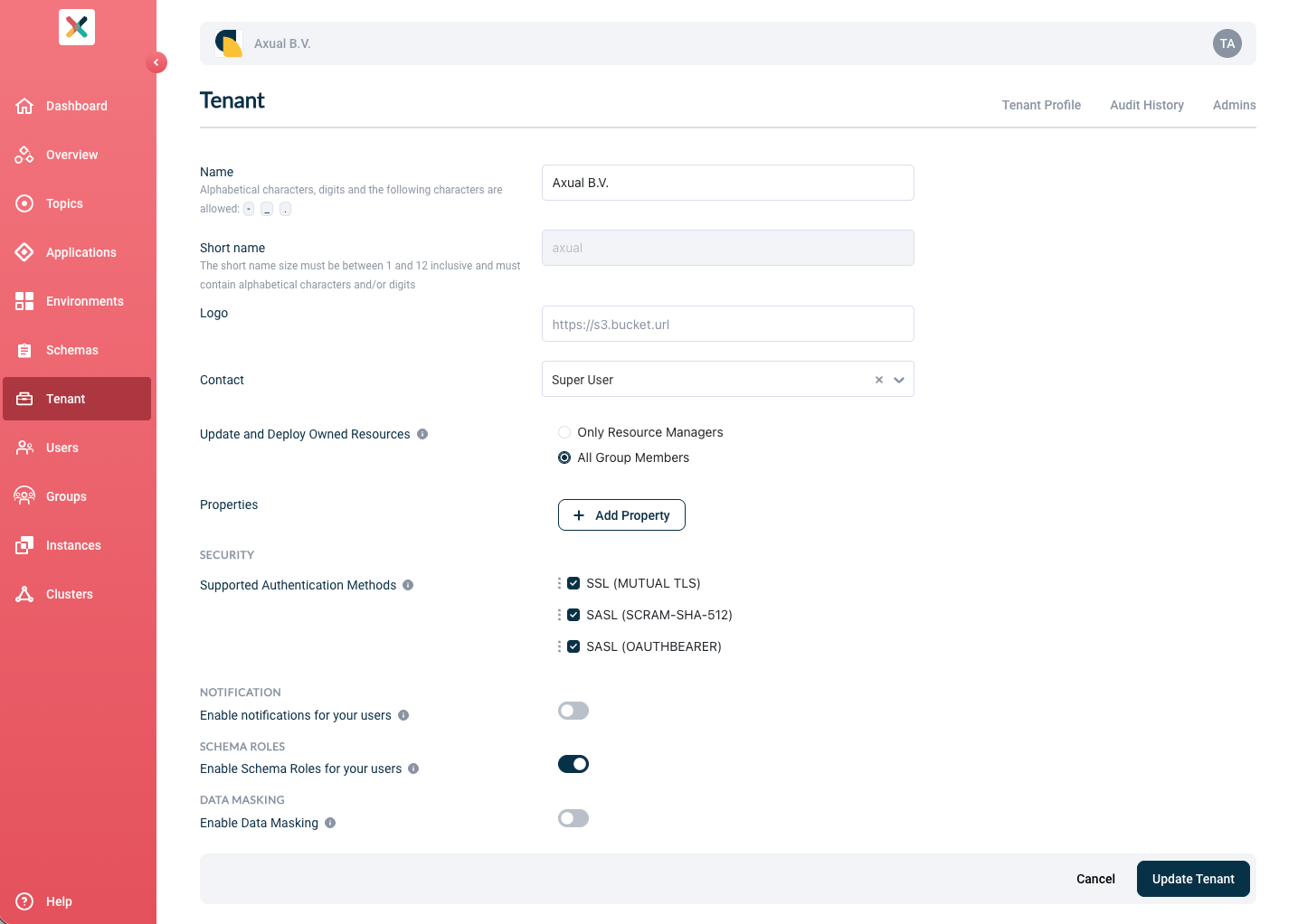
Toggle Enable Schema Roles for your users to enable it
-
Click on the Update Tenant button
| By default, enforcing schema roles is disabled. If enabled, only users with the SCHEMA_ADMIN or SCHEMA_AUTHOR role can create or delete any schema or schema version. |
Enable Data Masking
| This setting is only available when the Operator has enabled Data Masking. |
-
Go to the Tenant’s detail page
-
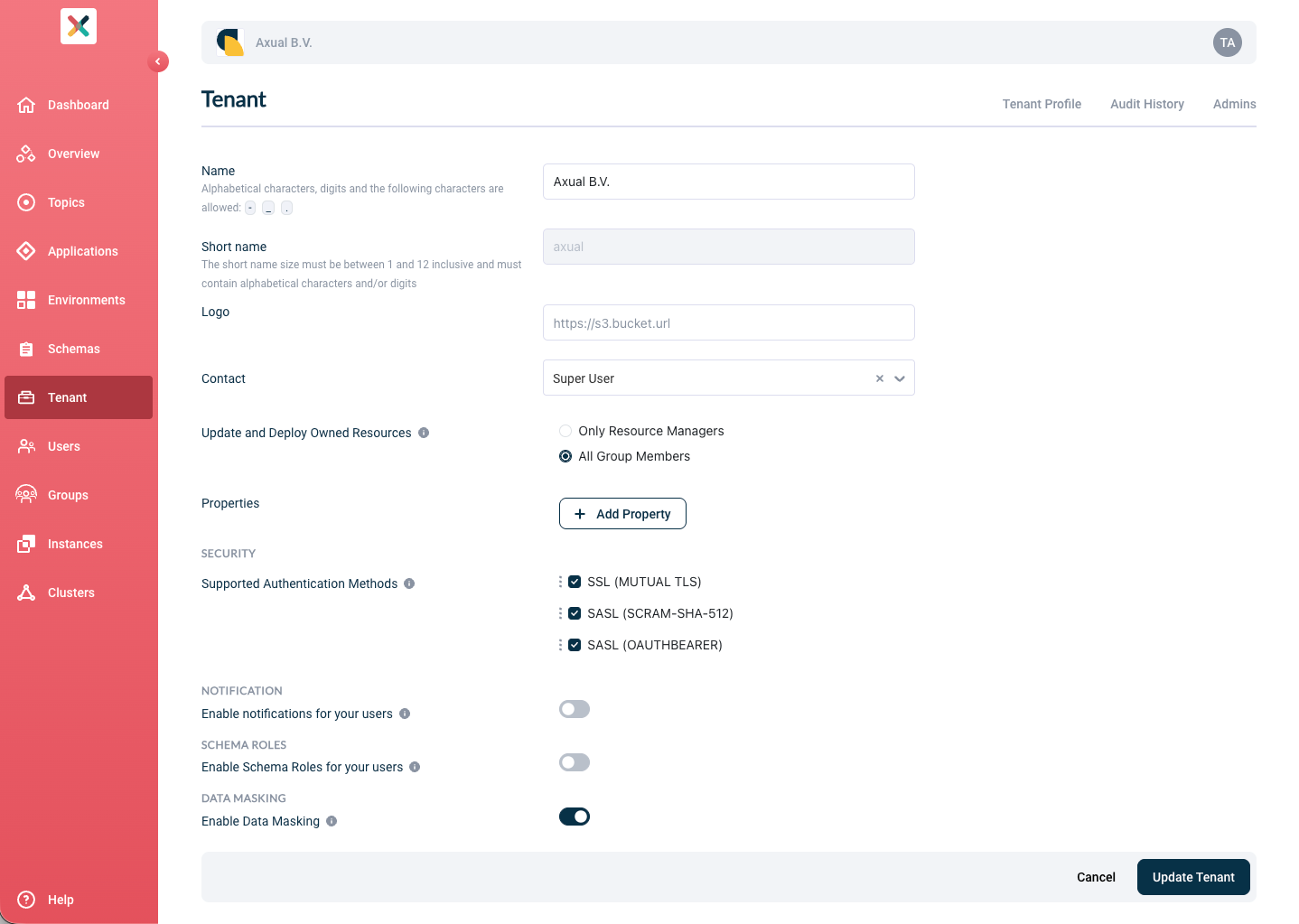
Click the Edit Tenant Profile button and you see the page below:
-
Toggle Enable Data Masking to enable it
-
Click on the Update Tenant button
| By default, the Data Masking feature is disabled. If enabled, it allows users to manage masking fields. |
Admins Tab
The Admins tab provides an overview of all users who have been granted administrative privileges within your tenant. This centralized view allows tenant administrators to quickly see who has elevated permissions and what specific roles they hold.
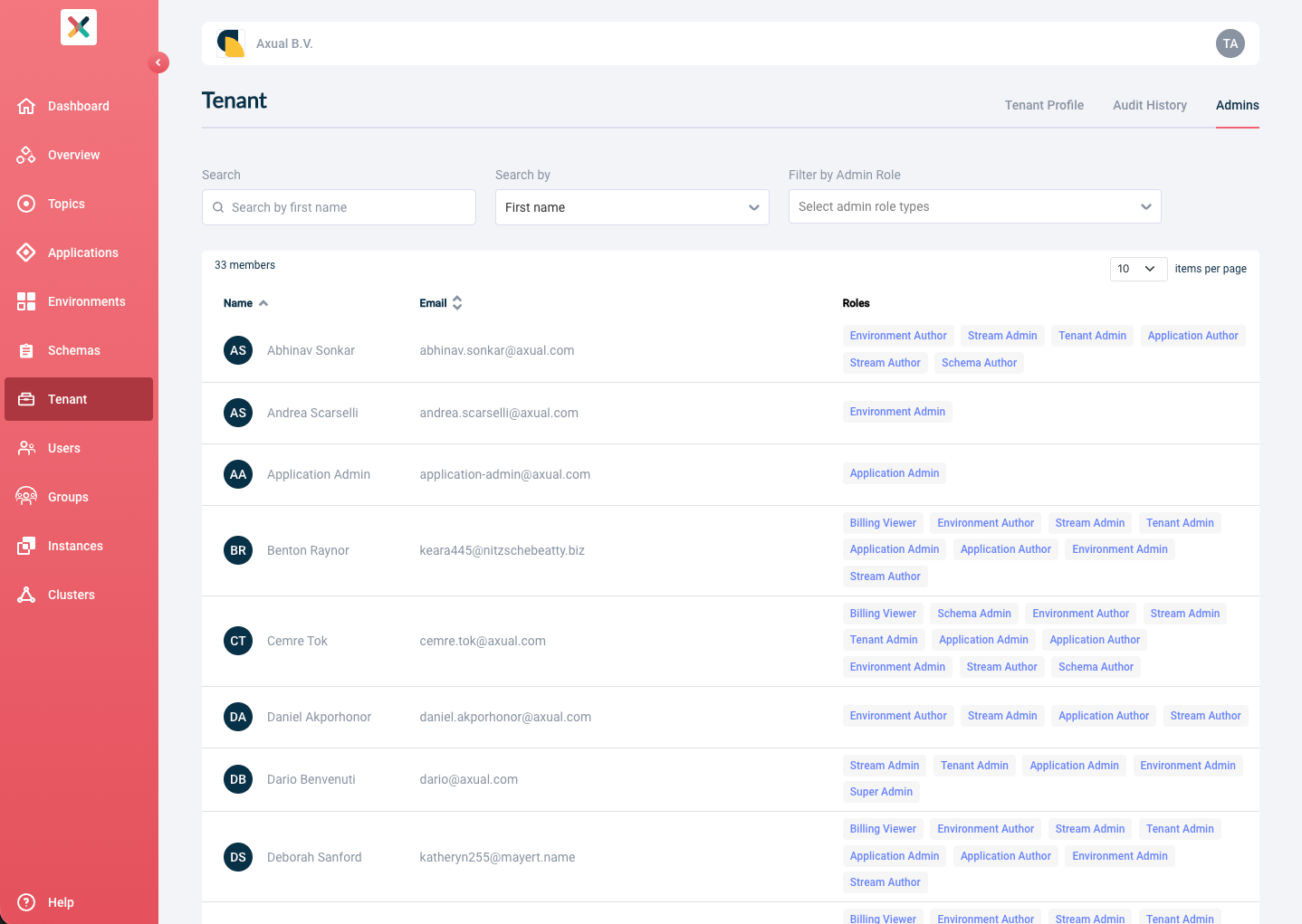
The tab provides the following features:
-
Search: Search for admins by their first name, last name and email
-
Sort by: Sort the list by first name
-
Filter by Admin Role: Filter users by specific admin role types to quickly find users with particular permissions
| A user can have multiple administrative roles assigned simultaneously. |