Configure Apicurio
This page outlines the configuration values for Apicurio Registry deployed via Axual Streaming Helm chart.
About Apicurio Registry
Apicurio Registry is a runtime server system that stores a specific set of artifacts as files.
Apicurio Configuration
When configuring Apicurio in an Axual Streaming chart installation,
you can refer to the following basic configuration and examples
to build your own values.yaml file.
For more details and advanced configuration, please refer to the Apicurio Documentation.
Enable Apicurio Registry
The first step is to set Apicurio Registry to enabled. To do so, ensure that field global.apicurio is set to true.
Basic Apicurio Configuration
Apicurio Schema Registry is configured and deployed by the Axual Streaming Charts. Below you can see a configuration example where Apicurio deployment stores content on a Kafka topic and uses Keycloak for authentication and authorisation:
Click to open apicurio-values.yaml
global:
  apicurio:
    enabled: true

apicurio-registry:
  logLevel: debug

  env:
    - name: REGISTRY_AUTH_OBAC_ENABLED
      value: "true"
    - name: REGISTRY_AUTH_ADMIN_OVERRIDE_ENABLED
      value: "true"
    - name: CORS_ALLOWED_ORIGINS
      value: "https://apicurio.<domain>"
    - name: QUARKUS_OIDC_AUTH_SERVER_URL
      value: "https://apicurio-keycloak.<domain>/auth/realms/<realm>"

  # The configuration related to authentication and authorization of users to the registry
  # Note: In order for any other authentication feature to work,
  # security.authentication.enabled needs to be enabled
  security:
    authentication:
      # Due to some limitation from Apicurio to trust Keycloak Ingress Cert
      # we are going with no-auth for dev mode
      enabled: true
      basicAuthEnabled: true

      # Attributes that are required for Apicurio to access the keycloak instance
      # in case
      keycloak:
        authUrl: "https://apicurio-keycloak.<domain>/auth"
        realm: "<realm>" # Typically it is set to apicurio
        webClientId: "apicurio-web"
        webRedirectUrl: "https://apicurio.<domain>/ui"

  # Mandatory and important to be explicitly set by the Operator
  kafka:
    # -- Kafka bootstrap servers
    bootstrapServers: "cluster01-kafka-bootstrap:9093"
    # -- Fully resolved name of topic used to store topics (typically _{tenant}-{instance}-apicurio-schemas) -deployed by kafka init container
    # Topics which start with _ mean that are topics which are handled from the internal Kafka mechanism
    schemasTopic: "_<tenant-short-name>-<instance-short-name>-apicurio-schemas"
    # -- Override group prefix to give access to (typically {tenant}-{instance}-apicurio) If you'd like a custom group prefix, you can specify an override here.
    # groupPatternOverride: ""

  tls:
    # -- Existing server Keypair secret name
    serverKeypairSecretName: "server-cert-secret" # Server cert generated from Cert-Manager component. Ensure that a Kafka superUser match with the DNS of this certificate
    # -- Existing client Keypair secret name
    clientKeypairSecretName: "client-cert-secret" # Client cert generated from Cert-Manager component with the right DNS
    # -- Existing truststore secret name
    truststoreCaSecretName: "my-external-ca" # The CA secret which was used from Cert-Manager to create the previous two certificates

  kafkaInitContainer:
    # -- The principal common name used to produce and consume from schemas topic (should match the one on REGISTRY_KAFKA_COMMON_SSL_KEYSTORE_LOCATION)
    # If Kafka is configured to validate ACLs over the full principal chain, please provide the principal chain as this example: [0] CN=Root CA, [1] CN=Intermediate CA, [3] CN=schema-registry
    # Otherwise, just provide the common name prefixed with `CN:`
    apicurioPrincipal: "CN=Apicurio Client"
    # -- Principal common name used to produce and consume from schemas topic by Distributor
    distributorPrincipal: ""
    # -- Replication factor of topic used to store topics
    replicationFactor: "1"
    # -- min.isr of topic used to store topics
    minIsr: "1"
    tls:
      # -- Existing Keypair secret name
      keypairSecretName: "server-cert-secret"
      # -- Existing Keypair key name
      keypairSecretKeyName: "tls.key"
      # -- Existing Keypair certificate name
      keypairSecretCertName: "tls.crt"
      # -- Existing Truststore secret name
      truststoreCaSecretName: "my-external-ca"
      # -- Existing Truststore certificate name
      truststoreCaSecretCertName: "ca.crt"

  ingress:
    # -- Enable creation of the Ingress resource to expose this service.
    enabled: true
    # -- The name of the IngressClass cluster resource.
    # The associated IngressClass defines which controller will implement the resource.
    # NOTE: "nginx" refers to the community ingress-nginx controller, deprecated March 2026.
    # Axual has migrated to a supported enterprise-grade ingress controller.
    # Update className and annotations to match the ingress controller in your cluster.
    className: "nginx"

    annotations:
      nginx.ingress.kubernetes.io/force-ssl-redirect: "true"

    hosts:
      - # -- The fully qualified domain name of a network host.
        host: "apicurio.<domain>"
        paths:
          - # -- Matched against the path of an incoming request.
            path: "/"
            # -- Determines the interpretation of the Path matching.
            # Can be one of the following values: `Exact`, `Prefix`, `ImplementationSpecific`.
            pathType: "ImplementationSpecific"
    tls:
      - hosts:
          - "apicurio.<domain>"
        # This field is required in order to set the correct certificates to ingress. Generated from Cert-Manager as well
        secretName: "apicurio-ingress-cert-secret"

  apicurioKeycloakMysql:
    enabled: true
    image:
      repository: bitnamilegacy/mysql
    nameOverride: "apicurio-kc-mysql"
    auth:
      rootPassword: "rootpassword"
      database: "apicurio-kc-db"
      username: "keycloak"
      password: "Passw0rd1!"
    primary:
      resources:
        requests:
          cpu: 250m
          memory: 200Mi
        limits:
          memory: 500Mi


  apicurioKeycloak:
    enabled: true
    # -- Required when running Apicurio Keycloak on the same k8s cluster as Governance Keycloak
    nameOverride: "apicurio-keycloak"
    realm: "apicurio"
    autoscaling:
      enabled: false
    database:
      vendor: "mysql"
      hostname: "streaming-apicurio-kc-mysql"
      database: "apicurio-kc-db"
      port: "3306"
      username: "keycloak"
      password: "Passw0rd1!"
    # -- By default, we are importing the Apicurio realm used to Authenticate Admin access
    args: [ 'start', '--import-realm' ]
    extraVolumes: |
      - name: keycloak-init-realm
        configMap:
          name: streaming-apicurio-registry-keycloak-realm

    extraVolumeMounts: |
      - name: keycloak-init-realm
        mountPath: "/opt/keycloak/data/import"
        readOnly: true

    extraEnv: |
      - name: KEYCLOAK_ADMIN
        value: "admin"
      - name: KEYCLOAK_ADMIN_PASSWORD
        value: "admin123"
      - name: JAVA_OPTS_APPEND
        value: -Djgroups.dns.query={{ template "keycloak.serviceDnsName" . }}
      - name: KC_HTTP_ENABLED
        value: "true"
      - name: KC_HOSTNAME_STRICT
        value: "false"

    ingress:
      enabled: true
      # NOTE: "nginx" refers to the community ingress-nginx controller, deprecated March 2026.
      # Axual has migrated to a supported enterprise-grade ingress controller.
      # Update className and annotations to match the ingress controller in your cluster.
      className: "nginx"
      annotations:
        nginx.ingress.kubernetes.io/backend-protocol: "HTTP"
      rules:
        - # -- The fully qualified domain name of a network host.
          host: "apicurio-keycloak.<domain>"
          paths:
            - # -- Matched against the path of an incoming request.
              path: "/auth"
              # -- Determines the interpretation of the Path matching.
              # Can be one of the following values: `Exact`, `Prefix`, `ImplementationSpecific`.
              pathType: "ImplementationSpecific"
      tls:
        - hosts:
            - "apicurio-keycloak.<domain>"
          # This field is required in order to set the correct certificates to ingress. Generated from Cert-Manager as well
          secretName: "keycloak-ingress-cert-secret"
    resources:
      requests:
        cpu: 450m
        memory: 200Mi
      limits:
memory: 700Mi| Apicurio must use a client certificate whose identity matches the DNS in the server certificate. In different case, Apicurio wont be able to get the required ACLs. |
Ensure that the apicurio.<domain> has the correct ca in the certificate via openssl s_client -showcerts -verify 5 -connect apicurio.<domain>:443 -servername apicurio.<domain> < /dev/null
|
At this point of the installation, xref:self-service/instance-management.adoc#apicurio-keycloak-support can be used to setup the Schema Registry to an existing instance. Then also try to create a schema and produce/consume some data with it via a Java application.
| The following section can be used for additional configuration or for more details for a specific section. |
Additional details in Apicurio Registry configuration
Apicurio Registry Image Configuration
You have the flexibility to override global values by specifying image configurations. This allows you to customize image-related parameters for Apicurio Registry while maintaining a default global configuration.
You can configure it in the following way:
apicurio-registry:

  image:
    registry: "registry.axual.io"
    repository: "axual/apicurio-registry-kafkasql"
    tag: "2.6.8"
    pullPolicy: "Always"
  imagePullSecrets:
- name: [your-docker-credentials]| This step is not required for the basic configuration of Apicurio Schema Registry |
Kafka init container
Apicurio Registry requires an init container to create topics and ACLs in the Kafka cluster. For init container, we need to specify:
-
The
apicurioPrincipalis the principal common name identifying the client-certificate used by Apicurio Registry to produce and consume from schemas topic. We might need to use the SSL chain to identify the principal or the CN, depending on how the Kafka installation is configured -
The
distributorPrincipalis the principal common name identifying the client-certificate used by Distributor to produce and consume from schemas topic. We might need to use the SSL chain to identify the distributor principal or the CN. -
The
replicationFactoris the replication factor of the topic used to store schemas -
The
minIsris the minimum in-sync replicas of the topic used to store schemas -
The
tlsSecrets needed to connect to the Kafka cluster; we suggest to re-use the Kafka cluster secrets-
The
keypairSecretNameis the name of the existing keypair secret containing the keypair used for TLS -
The
keypairSecretKeyNameis the key name within the secret containing the private key for TLS -
The
keypairSecretCertNameis the certificate name within the secret containing the public key for TLS -
The
truststoreCaSecretNameis the name of the existing secret containing the truststore for CA certificates -
The
truststoreCaSecretCertNameis the certificate name within the secret containing the CA certificates for truststore
-
-
The
resourcesis the resource requirements for the Kafka init container
If Kafka is configured to validate ACLs over the full principal chain, please provide the principal chain as this example: [0] CN=Root CA, [1] CN=Intermediate CA, [3] CN=schema-registry. Otherwise, just provide the common name prefixed with CN:.
|
You can configure it in the following way:
apicurio-registry:

  kafkaInitContainer:
    apicurioPrincipal: "[0] CN=Dummy Root, [1] CN=Dummy Intermediate, [2] CN=Apicurio Registry"
    distributorPrincipal: "[0] CN=Dummy Root, [1] CN=Dummy Intermediate, [2] CN=Distributor"
    replicationFactor: "1"
    minIsr: "1"
    tls:
      keypairSecretName: "brokers-keystore"
      keypairSecretKeyName: "brokers-keystore.key.name"
      keypairSecretCertName: "brokers-keystore.crt.name"
      truststoreCaSecretName: "brokers-truststore"
      truststoreCaSecretCertName: "brokers-truststore.crt.name"
    resources: {}
Kafka Configuration
The Kafka configuration section is crucial for establishing communication between the Apicurio Registry and the Kafka cluster. These configurations are used by both the Kafka init container and the Apicurio Registry container. You can define Kafka configuration in the following way.
-
The
bootstrapServersis the list of Kafka bootstrap servers used by both the Kafka init container and the Apicurio Registry container. -
The
schemasTopicis the fully resolved name of the topic used to store schemas and configurations (typically_{tenant}-{instance}-apicurio-schemas) -
The
groupPatternPrefixis the group prefix to give access to (typically{tenant}.{instance}.apicurio)
Here is an example:
apicurio-registry:

  kafka:
    bootstrapServers: "[kafka-bootstrap-server]:[kafka-boostrap-server-port]"
    schemasTopic: "_{tenant}-{instance}-apicurio-schemas"
    groupPatternPrefix: "{tenant}.{instance}.apicurio)"
TLS Configuration
When using TLS, you will need to specify secrets containing the PEM certificates for keystore generation:
-
Server keypair
-
Client keypair
-
Truststore
| To enable Basic Authentication, ensure that Apicurio’s truststore contains the required Certificate Authority (CA) for Keycloak. |
apicurio-registry:

  tls:
  # -- Existing server Keypair secret name
  serverKeypairSecretName: "[apicurio-registry-server-certificates]"
  # -- Existing client Keypair secret name
  clientKeypairSecretName: "[apicurio-registry-client-certificates]"
  # -- Existing truststore secret name
  truststoreCaSecretName: "[apicurio-registry-ca-certificates]"
For more information on the secrets defined above, refer to TLS secrets.
Application Configuration
Apicurio Registry is a Quarkus application. In a Quarkus application, you can define various configuration properties in the application.properties files.
What is present under config in the yml file, gets injected in a ConfigMap and mounted as an application.properties file.
|
Boolean values need
to be wrapped between double-quotes to be properly translated into the |
The configuration options allow you to fine-tune the behavior of the Apicurio Registry. You can customize the configurations according to your requirements, as shown in the example below.
apicurio-registry:

  config:
    registry.ccompat.use-canonical-hash: "true"
    registry.ccompat.legacy-id-mode.enabled: "false"
    registry.ui.config.auth.type: "oidc"
    registry.auth.anonymous-read-access.enabled: "false"
    registry.auth.role-based-authorization: "true"
In production environments, it is highly recommended to set registry.auth.anonymous-read-access.enabled to "false" and use authenticated read access via the sr-readonly role.
|
Changing Authentication mechanism and permissions
Out-of-the-box Apicurio supports different settings for Authentication, see more in the official documentation.
By default, we have configured Apicurio to run without authentication. Any anonymous user can create, view, and delete artifacts.
apicurio-registry:

  apicurioKeycloakMysql:
    enabled: false

  apicurioKeycloak:
    enabled: false
For production installation we advise to
-
Enable RBAC Authentication
-
Enable HTTP Basic Authentication
-
Enable Authenticated Read access (available from version 2026.1) or Anonymous read-only access
Anonymous Read vs. Authenticated Read (sr-readonly)
Before version 2026.1, non-Kafka Streams applications (like standard producers and consumers) typically relied on Anonymous Read access to fetch schemas from Apicurio.
From version 2026.1, Axual Platform supports Authenticated Read using the sr-readonly role:
-
Anonymous Read: Easy to set up but less secure. Requires
registry.auth.anonymous-read-access.enabled: "true". -
Authenticated Read (
sr-readonly): More secure as it requires valid credentials. The Platform Manager automatically assigns thesr-readonlyrole to non-Kafka Streams applications. This allows you to setregistry.auth.anonymous-read-access.enabled: "false", ensuring only identified applications can access your schemas.
We recommend migrating to Authenticated Read for all production environments. For more details on how to generate credentials, see Generating Schema Registry Credentials. For more details on how to configure this during an upgrade, see the Upgrade Guide.
Production Authentication Configuration
To enable Apicurio’s Authentication, you will need to have a running Keycloak properly configured with realm, clients, and users.
As part of our Apicurio Helm Charts, we provide Keycloak and MySQL.
Enable MySQL datastore for Keycloak
To configure the Keycloak server to store data in a MySQL database, you need to provide the database configuration.
Here is an example of how you can configure the MySQL for Keycloak.
apicurio-registry:

  apicurioKeycloakMysql:
    enabled: true
    fullnameOverride: "apicurio-kc-mysql"
    auth:
      rootPassword: "[root-password]"
      database: "[keycloak-db-name]"
      username: "[keycloak-db-username]"
      password: "[keycloak-db-password]"
Since we are using the Bitnami MySQL helm charts,
we suggest looking at the MySQL public documentation
to have a complete list of configurations.
Enable Keycloak
Once you have configured the Keycloak MySQL, you can configure the Keycloak to import the Apicurio realm provided in the Streaming Charts.
Here is an example of how you can configure the Keycloak to enable Apicurio Authentication.
The className: "nginx" value in the example below refers to the community ingress-nginx controller, which was deprecated in March 2026. Axual has migrated to a supported, enterprise-grade ingress controller. Update this value to match the ingress class configured in your cluster.
|
apicurio-registry:

  apicurioKeycloak:
    # -- Required when running Apicurio Keycloak on the same k8s cluster as Governance Keycloak
    nameOverride: "apicurio-keycloak"
    enabled: true
    # -- By default, we are importing the Apicurio realm used to Authenticate Admin access
    args: [ 'start', '--import-realm' ]
    realm: "apicurio"
    autoscaling:
      enabled: false
    database:
      vendor: "mysql"
      hostname: "apicurio-kc-mysql"
      database: "[keycloak-db-name]"
      port: "3306"
      username: "[keycloak-db-username]"
      password: "[keycloak-db-password]"

      extraVolumes: |
        - name: keycloak-init-realm
          configMap:
            name: "[apicurio-full-name]-keycloak-realm"

      extraVolumeMounts: |
        - name: keycloak-init-realm
          mountPath: "/opt/keycloak/data/import"
          readOnly: true

      extraEnv: |
        - name: KEYCLOAK_ADMIN
          value: "admin"
        - name: KEYCLOAK_ADMIN_PASSWORD
          value: "admin123"
        - name: JAVA_OPTS_APPEND
          value: -Djgroups.dns.query={{ template "keycloak.serviceDnsName" . }}
        - name: KC_HTTP_ENABLED
          value: "true"
        - name: KC_HOSTNAME_STRICT
          value: "false"

    ingress:
      enabled: true
      className: "nginx"
      rules:
        - # -- The fully qualified domain name of a network host.
          host: "[apicurio-keycloak-host]"
          paths:
            - # -- Matched against the path of an incoming request.
              path: "/auth"
              # -- Determines the interpretation of the Path matching.
              # Can be one of the following values: `Exact`, `Prefix`, `ImplementationSpecific`.
              pathType: "ImplementationSpecific"
      tls: [ ]
Since we are using the Codecentric KeycloakX helm charts,
we suggest looking at the KeycloakX public documentation
to have a complete list of configurations.
Enable Apicurio Authentication
Once you have configured the Keycloak MySQL and Keycloak, you can now configure the Apicurio to interact with the Keycloak to perform Authentication.
Here is an example of how you can configure the Apicurio Authentication.
apicurio-registry:

  # The configuration related to authentication and authorization of users to the registry
  # Note: In order for any other authentication feature to work,
  # security.authentication.enabled needs to be enabled
  security:
    authentication:
      enabled: true
      basicAuthEnabled: true

      # Attributes that are required for Apicurio to access the Keycloak instance
      # in case the security.authentication.enabled is enabled and
      # security.authentication.basicAuthEnabled is enabled
      keycloak:
        authUrl: "https://[apicurio-keycloak-host]/auth"
        realm: "apicurio"
        webClientId: "apicurio-web"
        webRedirectUrl: "https://[apicurio-host]/ui"
Enable OAuth for Apicurio client connections
Apicurio Registry does not support multiple authentication methods simultaneously — it can be configured for either OAuth or Basic Auth, but not both at once. Auth Proxy is a sidecar container that solves this limitation by sitting in front of Apicurio and handling both JWT validation (OAuth) and Basic Auth itself. When enabled, all traffic to the Registry including client connections and Governance (Platform Manager) calls is routed through the Auth Proxy.
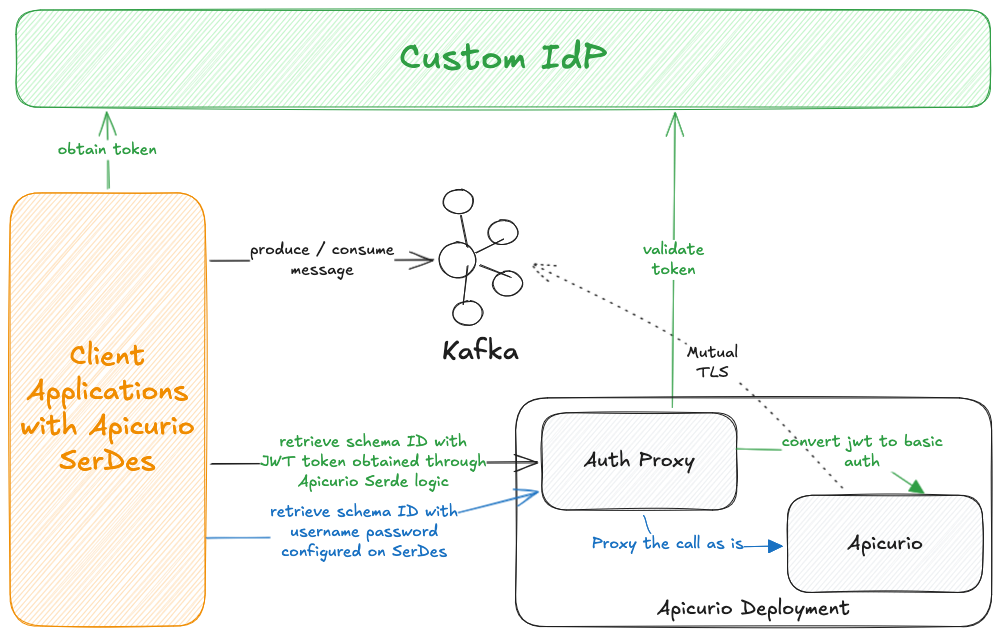
The diagram above illustrates the two supported authentication flows: green arrows represent the OAuth (JWT) flow, and blue arrows represent the BasicAuth flow.
When Auth Proxy is enabled, the ingress is reconfigured to point to the Auth Proxy instead of Apicurio directly.
There is only a single ingress that serves client connections which exposes the Auth Proxy when enabled, or Apicurio when disabled.
Another ingress configured under configuration key ingressWithoutAuthProxy can be configured and accessed for the Apicurio Operators which provides access to Apicurio UI.
See UI Ingress Configuration.
|
To enable Auth Proxy, set authProxy.enabled to true and configure the config and secrets sections.
Auth Proxy Configuration
The config section defines the OAuth provider settings. It is mounted as the Auth Proxy’s application.yml.
apicurio-registry:
  authProxy:
    enabled: true
    config:
      server:
        port: 8081
      auth-proxy:
        valid-issuer-uri: "https://[apicurio-keycloak-host]/auth/realms/[realm]" (1)
        jwks-endpoint-uri: "https://[apicurio-keycloak-host]/auth/realms/[realm]/protocol/openid-connect/certs" (2)
        audience: "" (3)
        user-name-claim: "sub" (4)
backend-service: "" (5)-
Issuer URI used to validate JWT tokens
-
JWKS endpoint used to fetch public keys for JWT signature verification
-
OAuth audience to be matched on the incoming tokens
-
The claim out of which the Principal is extracted
-
(Optional) Backend Apicurio Registry service
Auth Proxy Secrets
The secrets section contains sensitive values and is mounted as /config/secrets/secrets.yml.
The salt ensures:
-
The same username always produces the same secret (deterministic), so the backend can authenticate consistently
-
Without knowing the salt, you can’t guess/reproduce the secret
apicurio-registry:
  authProxy:
    secrets:
      auth-proxy:
        client-secret-salt: "[change-me]"
clientSecretAlgorithm: HmacSHA256 (1)-
(Optional) defaults to
HmacSHA256
Change the client-secret-salt value for every environment. Do not reuse the default value in production.
|
Alternatively, you can reference an existing Kubernetes Secret instead of inlining the values.
The Secret must contain a key named secrets.yml.
apicurio-registry:
  authProxy:
    existingSecretName: "[your-existing-secret-name]"
Once Auth Proxy is deployed, enable OAuth as a client authentication method on the Instance. See Client Authentication support for an Instance.
UI Ingress Configuration
The following is only needed when Auth-Proxy is enabled.
The ingressWithoutAuthProxy key configures separate ingress dedicated to the Apicurio Operators, providing access to the Apicurio UI independently of the client-facing ingress.
| The host should be different to the one configured on the client facing ingress so that client access is restricted. |
The className value in the example below uses an nginx-based ingress class. The community ingress-nginx controller was deprecated in March 2026. Axual has migrated to a supported, enterprise-grade ingress controller. Update this value to match the ingress class configured in your cluster.
|
apicurio-registry:
  ingressWithoutAuthProxy:
    enabled: true
    className: nginx-private
    hosts:
        # -- The fully qualified domain name for the Apicurio UI ingress.
      - host: "[apicurio-operator-host]"
    tls:
      - secretName: "axual-cloud-cluster-wildcard-tls"
        hosts:
          - "[apicurio-operator-host]"
When this ingress is created axual-streaming.apicurio-registry.security.authentication.keycloak.webRedirectUrl needs to be revised to match the new UI host.
|