Managing Announcements
This guide shows you how to publish, edit and delete the tenant announcement and the platform announcement in Self-Service.
Type |
How-to guide |
Goal |
Publish an announcement that Self-Service users see on the dashboard and the main pages, and change or remove it later. |
Audience |
Tenant Admin, a user who manages the tenant’s settings, for the tenant announcement. Super Admin for the platform announcement. |
When to use |
Use this guide to tell users about planned maintenance or a platform change, or to correct or withdraw a message you published. |
For what users see and the difference between the two kinds of announcement, see Announcements.
Prerequisites
Check the following before you start.
Access and permissions:
-
For the tenant announcement: the Tenant Admin role, or the Super Admin role on your own tenant.
-
For the platform announcement: the Super Admin role.
Tools and versions:
-
Self-Service with Platform Manager 17.0.0 or later. No other tools are needed.
Resources that must exist first:
-
None. You can publish a new announcement when no announcement of that kind is scheduled or active. If one is, the button reads Edit announcement instead of Create announcement; see Edit an announcement.
Publish the tenant announcement
The tenant announcement is shown to every user of your tenant. Publish it from the tenant settings page:
-
In the navigation menu, click Tenant.
As a Super Admin, click Tenants and open your own tenant. The Announcement tab shows only on the tenant you’re logged in to. -
Open the Announcement tab.
-
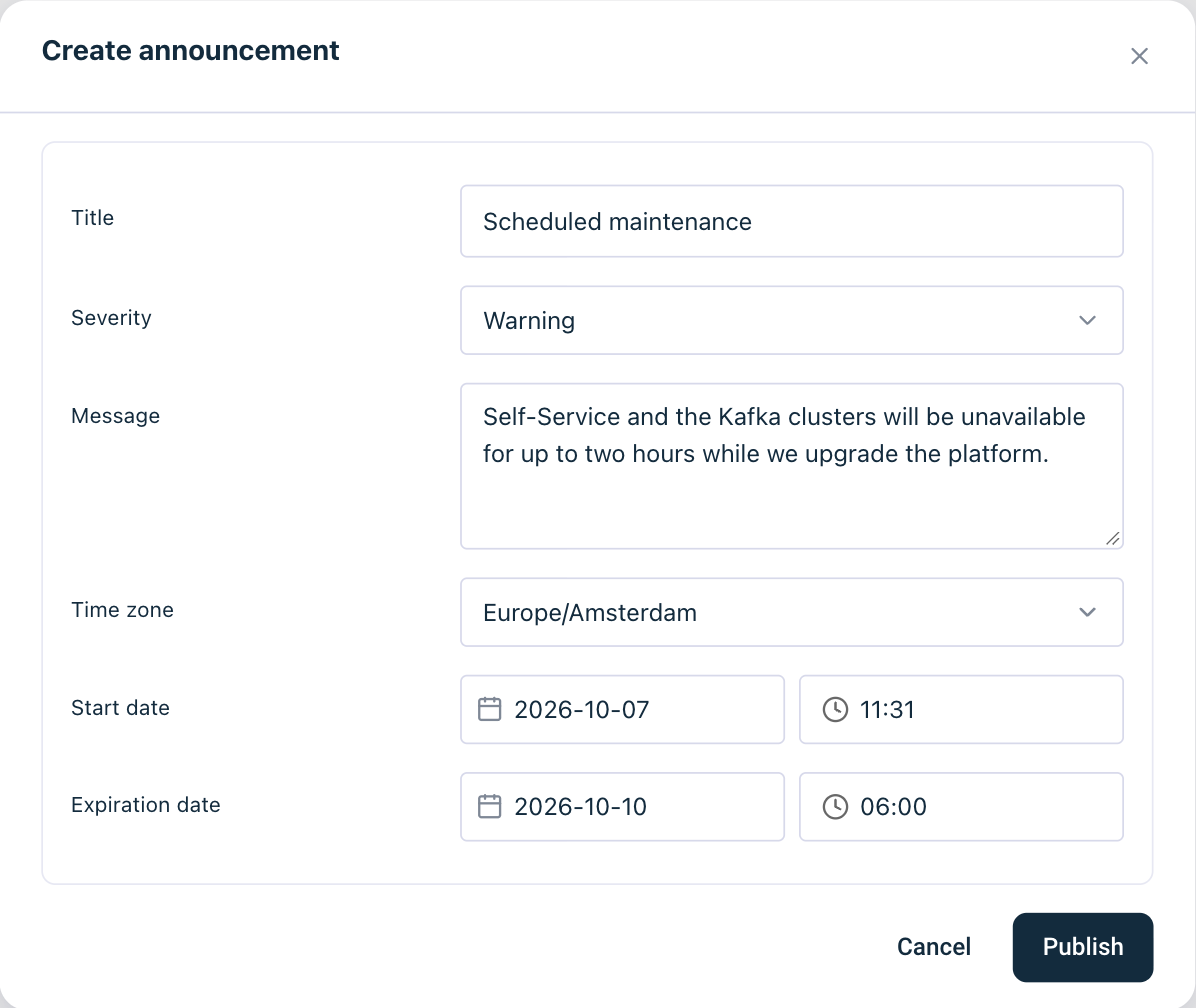
Click Create announcement.
-
In Title, enter a short, single-line title, for example
Scheduled maintenance. -
In Severity, select Critical, Warning or Information.
-
In Message, enter the text users read. Line breaks are kept.
-
In Time zone, keep your browser’s time zone or select the zone the dates below are in.
-
In Start date, keep the current date and time to publish now, or enter a later date as
YYYY-MM-DDand a time asHH:MM. You can also pick the date with the calendar button. -
In Expiration date, enter the date and time when the announcement must disappear. It must be in the future and after the start.
-
Click Publish.
Self-Service confirms with Announcement published, and the tab shows the announcement with its start date and expiration date in your browser’s time zone. For the limits on each field, see Announcement fields.
Publish the platform announcement
The platform announcement is shown to every user of every tenant. Publish it from the Tenants page:
-
In the navigation menu, click Tenants.
-
Open the Announcement tab.
-
Click Create announcement.
-
Fill in Title, Severity, Message, Time zone, Start date and Expiration date, as in steps 4 to 9 of Publish the tenant announcement.
-
Click Publish.
Self-Service confirms with Announcement published, and the tab shows the announcement with its start date and expiration date in your browser’s time zone.
Edit an announcement
Edit a scheduled or active announcement to correct it or to move its dates:
-
Open the announcement:
-
For the tenant announcement, click Edit announcement on the Announcement tab of the tenant settings page.
-
For the platform announcement, click Edit announcement on the Announcement tab of the Tenants page.
-
-
Change the fields you need.
-
Click Save.
Self-Service confirms with Announcement saved. Users who closed the announcement card see it again, because the content changed.
| Self-Service does not check whether another admin changed the announcement after you opened it: the last save wins. |
Delete an announcement
Delete an announcement to withdraw it before its expiration:
-
Open the announcement with Edit announcement, as in Edit an announcement.
-
Click Delete.
-
In the Delete announcement? dialog, click Delete.
| Deleting can’t be undone. Users stop seeing the announcement within a minute. |
Self-Service confirms with Announcement deleted, and the Announcement tab offers to create a new announcement again.
Verify the announcement
Check the result as your audience sees it:
-
For an announcement that starts now, open the Dashboard. The announcement shows as a banner at the top, with its severity next to the title.
-
For an announcement that starts later, open the Announcement tab where you manage it. It shows the start date, and users see the announcement from that moment.